

Develop the project using the following method in the NAPA Tool.
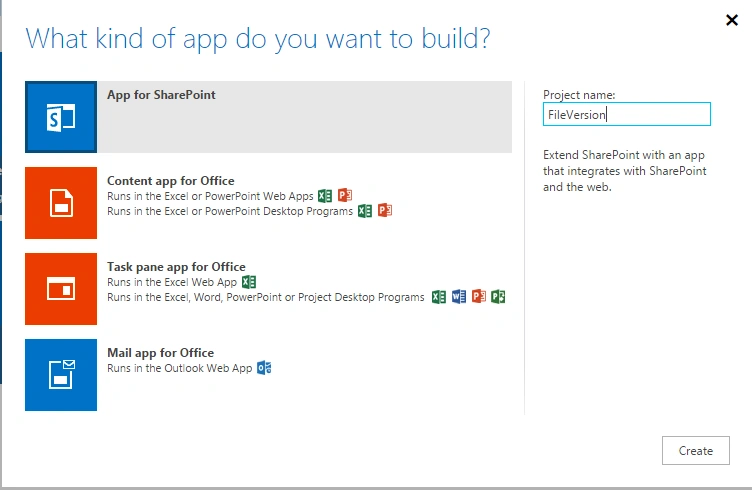
On your Developer Site, open the "Napa" Office 365 Development Tools and then choose Add New Project.
- Choose the App for SharePoint template, name the project Create Site and then choose the Create button.
- Replace APP.js with the following source code below.
- Publish Your App.
Prerequisites
These are important steps to be done before creating the app.
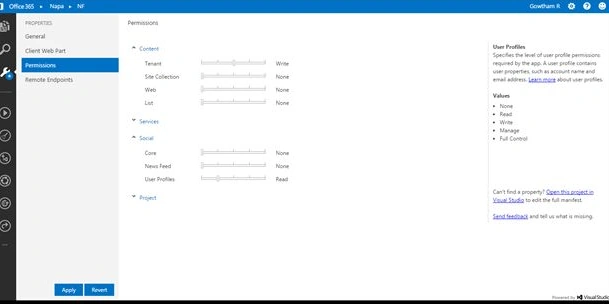
Specify the permissions that your app needs as in the following.
Choose the Properties button at the bottom of the page.
- In the Properties window, choose Permissions.
- In the Content category, set Write permissions for the Tenant scope.
- In the Social category, set Read permissions for the User Profiles scope.
- Close the Properties window.
Default ASPX
Code Understanding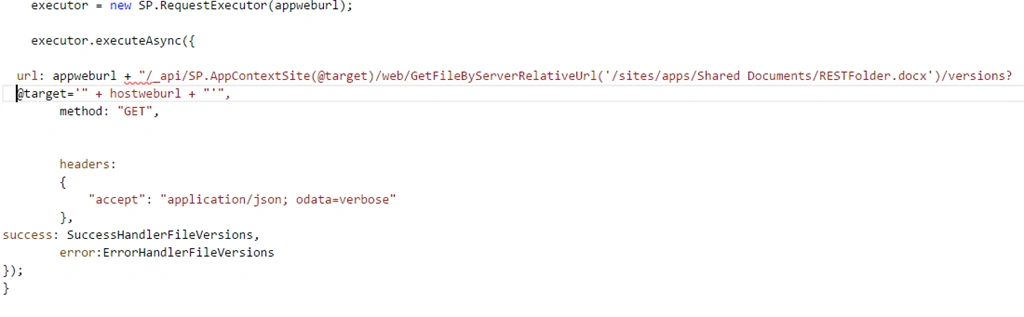
Note
Endpoint URI
- http://<site url>/_api/web/getfilebyserverrelativeurl('/<folder name>/<file name>')/versions
This resource supports the following HTTP methods:
GET | POST
Source Code
- 'use strict';
- var hostweburl;
- var appweburl;
- // Get the URLs for the app web the host web URL from the query string.
- $(document).ready(function()
- {
- //Get the URI decoded URLs.
- hostweburl = decodeURIComponent(getQueryStringParameter("SPHostUrl"));
- appweburl = decodeURIComponent(getQueryStringParameter("SPAppWebUrl"));
- // Resources are in URLs in the form:
- // web_url/_layouts/15/resource
- // Load the js file and continue to load the page with information about the folders.
- // SP.RequestExecutor.js to make cross-domain requests
- $.getScript(hostweburl + "/_layouts/15/SP.RequestExecutor.js", versionfile);
- });
- //Retrieve all of the folders from root Site
- function versionfile()
- {
- var executor;
- // Initialize the RequestExecutor with the app web URL.
- executor = new SP.RequestExecutor(appweburl);
- executor.executeAsync
- ({
- url: appweburl + "/_api/SP.AppContextSite(@target)/web/GetFileByServerRelativeUrl('/sites/apps/Shared Documents/RESTFolder.docx')/versions?@target='" + hostweburl + "'",
- method: "GET",
- headers:
{ - "accept": "application/json; odata=verbose"
- },
- success: SuccessHandlerFileVersions,
- error: ErrorHandlerFileVersions
- });
- }
- / Success Handler
- Function SuccessHandlerFileVersions (data)
- {
- var FV;
- var jsonObject = JSON.parse(data.body);
- var results = jsonObject.d.results;
- for (var i = 0; i < results.length; i++)
- {
- FV += results[i].VersionLabel + '\n';
- }
- / / Display the File versions
- alert(FV);
- }
- // Error Handler
- function ErrorHandlerFileVersions(data, errorCode, errorMessage)
- {
- alert("Could not get the file versions: " + errorMessage);
- }
- //Utilities
- // Retrieve a query string value.
- // For production purposes you may want to use a library to handle the query string.
- function getQueryStringParameter(paramToRetrieve)
- {
- var params = document.URL.split("?")[1].split("&");
- for (var i = 0; i < params.length; i = i + 1)
- {
- var singleParam = params[i].split("=");
- if (singleParam[0] == paramToRetrieve) return singleParam[1];
- }
- }
Publish the App and click the Trust it Button.

Output
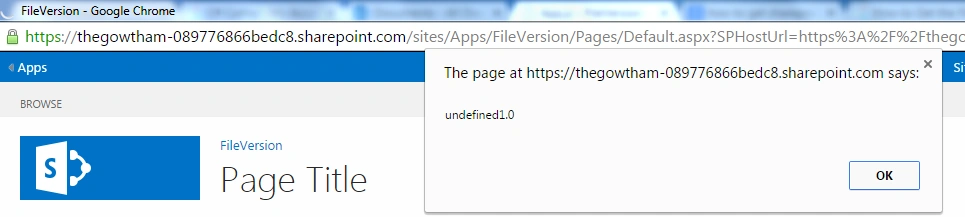
File Version retrieved successfully.
Vijay SPosted Apr 8, 2015, 9:15 AM
good article
Karthik Muthu KaruppanPosted Mar 30, 2015, 11:12 AM
good one