

Introduction
In this article, you will learn how JavaScript interacts with HTML. Through this article, you will get the answers to the following questions.
- What is JavaScript?
- What is the use of JavaScript (JS)?
- How to enable JavaScript?
- How to comment in JavaScript?
- Why is JavaScript validation (client-side) required?
- How to pass the parameter into a JavaScript function?
- How to get and set HTML element values in JavaScript?
- <p>, <div> and <input type=”????”/>
- Sample Member Form
What is JavaScript?
JavaScript is a weakly typed, object-oriented, and dynamic language. It's lightweight, and all modern browsers are built in a JavaScript engine.
Please visit the JavaScript wiki page for more detail - https://en.wikipedia.org/wiki/JavaScript
JS is a shortcut / short name for Javascript.
What is the use of JavaScript (JS)?
JS is used for interacting and manipulating DOM (Document Object Model) elements. It is mostly used for interaction with client-side objects. You can get and set the values of DOM objects easily, and the beauty of JS is that no additional plugin or extension is required to implement or use JS.
How to enable JavaScript?
Mostly in <head> section or other sections of HTML or web documents, we need to write <script> tag; JavaScript is ready to use. Nowadays, Visual Studio also provides IntelliSense for JavaScript (JS).
Example
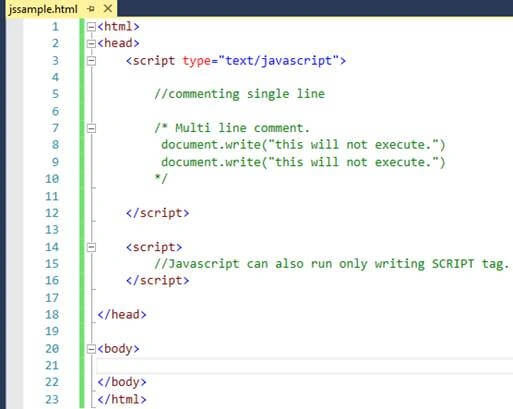
<html>

<head>
    <script type="text/JavaScript">
        //commenting single line
        /* Multi line comment.
         document.write("this will not execute.")
         document.write("this will not execute.")
        */
    </script>
    <script>
        //JavaScript can also run only writing SCRIPT tag.
    </script>
</head>

<body> </body>

</html>
You can start coding in JavaScript by just adding <script> tag or <script type=”text/JavaScript”>.
How to comment in JavaScript?
The majority of all languages have two types of comments,
- Single-line comment.
- Multi-line comment.
Single line comment
This will comment on your single line of code with the help of //, i.e., two forward slashes.
Example
- //Javascript can also run only by writing a SCRIPT tag.
Multi-line comment
This will comment on your multi-line of code with the help of /* */, i.e., two forward slashes with an asterisk at their inner side.
/* Multi line comment.
         document.write("this will not execute.")
         document.write("this will not execute.")
 */
Why is JavaScript validation (client-side) required?
JavaScript is a client-side scripting language that runs on the client browser. Using client-side validation reduces the load on the server side and reduces unnecessary round-trips.
You can validate all types of DOM objects with JavaScript.
Example
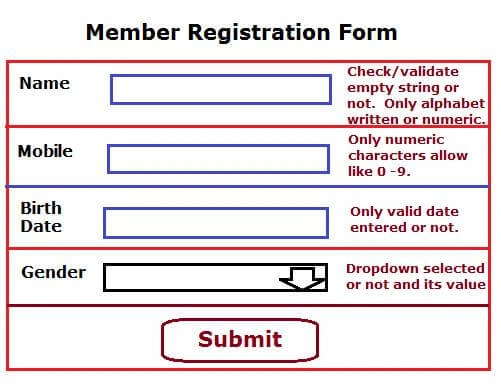
The above can be validated with JavaScript client-side with the following points.
Name field textbox
- The user entered text or not in the textbox.
- Can put restriction; only alphabet characters allowed in
- Minimum Length requirement.
Mobile field textbox
- The user entered, or not, in the textbox.
- Can put restriction; only numeric characters allowed in the textbox.
- Minimum length requirement.
Birth-Date field textbox
- Valid date entered or not, in the textbox.
- Date format restriction.
Gender dropdownlist
- User-selected or not.
- Hide or display items.
How to pass the parameter into a JavaScript function?
The parameter is the value used inside the function to do the processing. Passing the parameter(s) to the JavaScript function is very simple. In the sample code, you will see this in detail.
Function without Parameter
Syntax
function <function name>
{}
Example
function setclass()
{}
Function with Parameter
Syntax
function <function name>(parameter1 , parameter2 . .. . .)
{

}
Example
function SumVal(val1, val2)
{
   return val1 + val2 ;
}
How to get and set HTML element values in javascript?
<h1>, <p>, <div> and other content tag
Change contents of H1, P, and DIV and content tags can be possible through (innerText, innerHtml).
- innerText- To get and set the change text of the element.
- innerHTML- To get and set the change text of the element.
Note. My suggestion is that content elements content (inner text) can be get/set with the help of INNERTEXT, INNERHTML.
FORM control element value can be get/set with the help of VALUE.
Change the content of <H1> tag
In this, we will change the contents of <H1> tag with the help of innerText of JavaScript.
<h1 id="title">Welcome To Tutorials</h1>
To get the Value of the H1 Tag
Alert(document.getElementById("title").innerText);
To set the Value of the H1 Tag
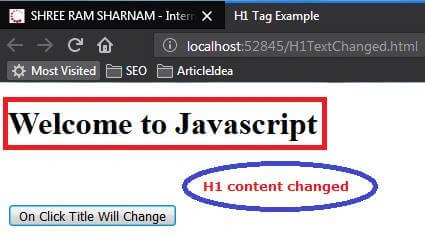
document.getElementById("title").innerText = "Welcome to JavaScript";
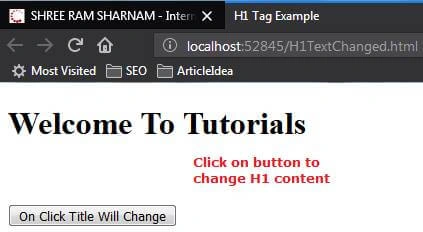
We had called the click event of the button to go through the sample code.
Code
<!DOCTYPE html >
 <html >
 <head >
 <meta http - equiv = "Content-Type"
content = "text/html; charset=utf-8" / >
 <title > Sum Example < /title>   <
 script type = "text/javascript" >
 function CalcAdd() {
  document.getElementById("title").innerText = "Welcome to JavaScript";
 }

 </script>
 </head>
 <body >
 <h1 id = "title" > Welcome To Tutorials < /h1>   <
 br / >
 <br / >
 <input type = "button"
name = "clickbtn"
value = "On Click Title Will Change"
onClick = "CalcAdd()" / >
 </body>
 </html>
Output
ON LOAD VIEW
AFTER CLICKED ON BUTTON
Change the content of <P> tag
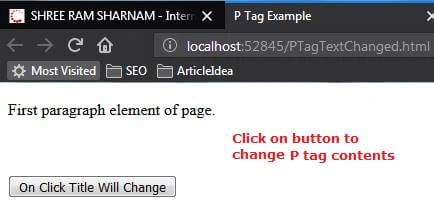
In this, we are going to change the contents of <P> tag with the help of innerHTML of JavaScript,
<p id="para">First paragraph element of page.</p>
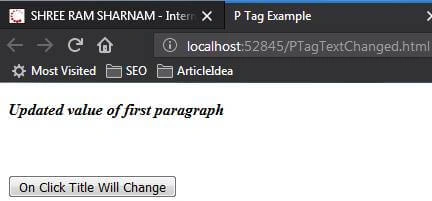
document.getElementById("para").innerHTML = "<b><i>Updated value of first paragraph </i></b>";
Code
<!DOCTYPE html>
<html>
<head>
    <meta http-equiv="Content-Type" content="text/html; charset=utf-8" />
    <title>P Tag Example</title>
    <script type="text/javascript">
        function CalcAdd() {
            //to set the P tag contents
            document.getElementById("para").innerHTML = "<b><i>Updated value of first paragraph </i></b>";
        }

    </script>
</head>
<body>
    <p id="para">First paragraph element of page.</p>
    <br />
    <br />
    <input type="button" name="clickbtn" value="On Click Title Will Change" onClick="CalcAdd()" />
</body>
</html>
Output
ON LOAD VIEW
AFTER CLICKED ON BUTTON
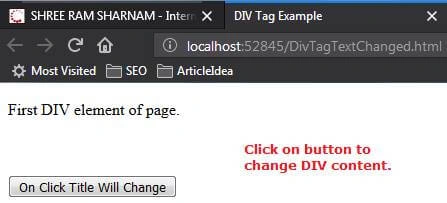
Change the content of <div> tag
In this, we are going to change the contents of <P> tag with the help of innerHTML of JavaScript,
<p id="para">First paragraph element of page.</p>
document.getElementById("para").innerHTML = "<b><i>Updated value of first paragraph </i></b>";
Output
ON LOAD VIEW
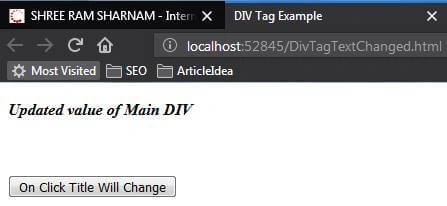
AFTER CLICKED ON BUTTOn
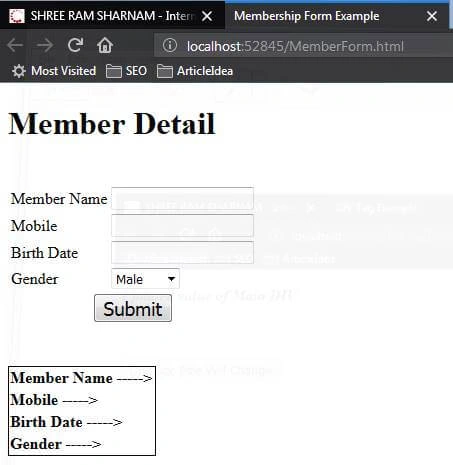
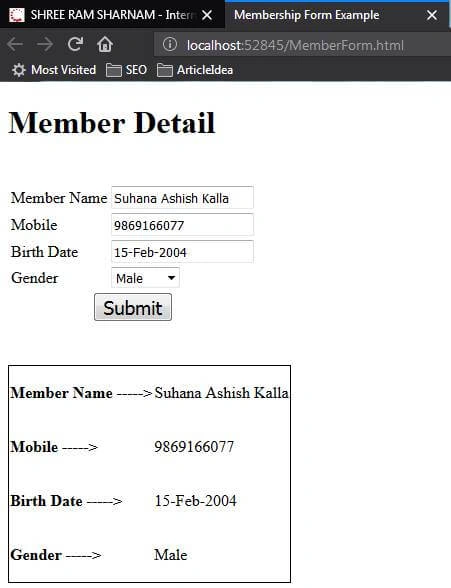
Now we focus more on the FORM CONTROL of HTML.
Member Form Code
<!DOCTYPE html>
<html>
<head>
    <meta http-equiv="Content-Type" content="text/html; charset=utf-8" />
    <title>Membership Form Example</title>
    <script type="text/JavaScript">
        function CalcAdd() {
            //to set the DIV tag contents
            document.getElementById("pMemberName").innerText= document.getElementById("txtMemberName").value;
            document.getElementById("pMemberMobile").innerText = document.getElementById("txtMemberMobile").value;
            document.getElementById("pMemberBirthDate").innerText = document.getElementById("txtMemberBirthDate").value;
            document.getElementById("pMemberGender").innerText = document.getElementById("ddlGender").options[document.getElementById("ddlGender").selectedIndex].text;
            document.getElementById("pMemberMarried").innerText = document.querySelector('input[name = marry]:checked').value;
        }
    </script>
    <style>
        #tbl{
         border-collapse: collapse;
        border: 1px solid black;
        }

    </style>
</head>
<body>
    <h1 id="mainTitle">Member Detail</h1>
    <br />
    <table>
        <tr>
            <td>
               Member Name
            </td>
            <td>
                <input id="txtMemberName" type="text" />
            </td>
        </tr>
        <tr>
            <td>Mobile</td>
            <td><input id="txtMemberMobile" type="text" /></td>
        </tr>
        <tr>
            <td>Birth Date</td>
            <td><input id="txtMemberBirthDate" type="text" /></td>
        </tr>
        <tr>
            <td>Gender</td>
            <td>
                <select id="ddlGender">
                    <option>Male</option>
                    <option>Female</option>
                </select>
            </td>
        </tr>
        <tr>
            <td>Married</td>
            <td>
                <input type="radio" name="marry" value="Yes Married">Yes<br>
                <input type="radio" name="marry" value="Not Married" checked>No<br>
            </td>
        </tr>
        <tr>
            <td colspan="2" align="center">
                <input type="button" name="clickbtn" value="Submit" onClick="CalcAdd()" style="font-size:19px;" />
            </td>
        </tr>
    </table>
    <br />
    <br />

    <table id="tbl" >
        <tr>
            <td>
                <b> Member Name -----></b>
            </td>
            <td>
                <p id="pMemberName"></p>
            </td>
        </tr>
        <tr>
            <td><b>Mobile -----></b></td>
            <td><p id="pMemberMobile"></p></td>
        </tr>
        <tr>
            <td><b>Birth Date -----></b></td>
            <td><p id="pMemberBirthDate" > </p></td>
        </tr>
        <tr>
            <td><b>Gender -----></b></td>
            <td><p id="pMemberGender"></p></td>
        </tr>
        <tr>
            <td><b>Married Status -----></b></td>
            <td><p id="pMemberMarried"></p></td>
        </tr>
    </table>

</body>
</html>
Output ON LOAD
OUTPUT AFTER SUBMIT
Happy Coding.
Join the conversation! Your thoughts help the community grow.