

What is Content Search Webpart?
- This Webpart is introduced in SP 2013. It is powerful.
- Display content on your SharePoint pages by configuring simple and advanced queries in a Content Search Web Part.
- One of the best feature in SharePoint Online will return the data very quickly compared to content query Webpart.
- Content Search allows you to query and display the information from any site collection and beyond.
Steps
Follow the listed steps given below to add CSWP in your SP page.
Step 1
Open your SharePoint site.
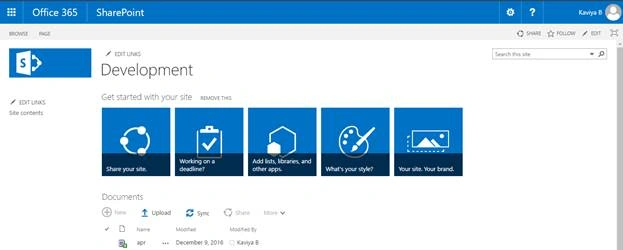
Step 2
Now, go to the page, where you need to add CSWP.
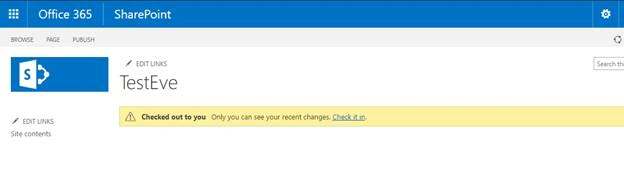
Step 3
Edit the page by clicking the page tab on the top ribbon bar.
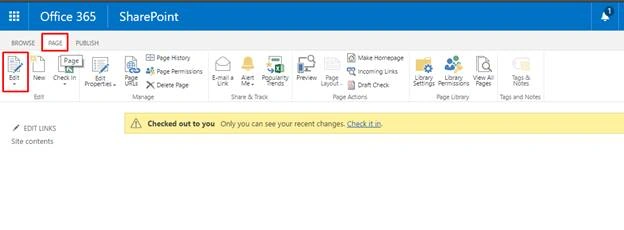
Step 4
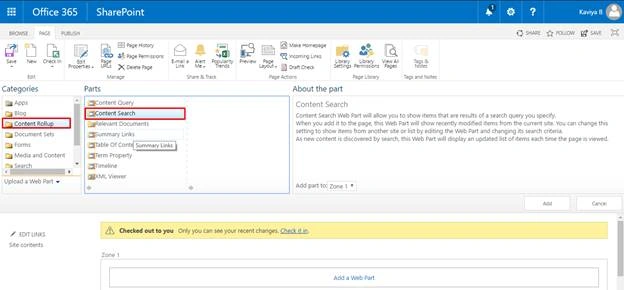
On the click on the Add a Web part, after you clicked, you can see many categories.
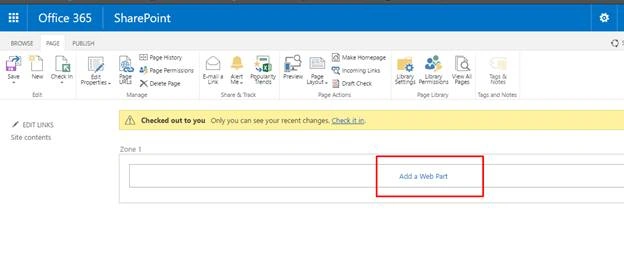
Step 5
Select Content Rollup section. We can see the Content Search Webpart on the right side.
Step 6
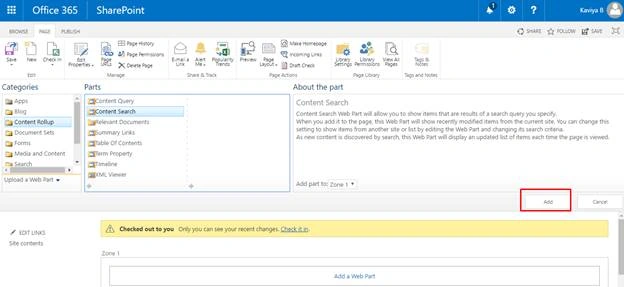
Click Add button to add CSWP on your page.
Step 7
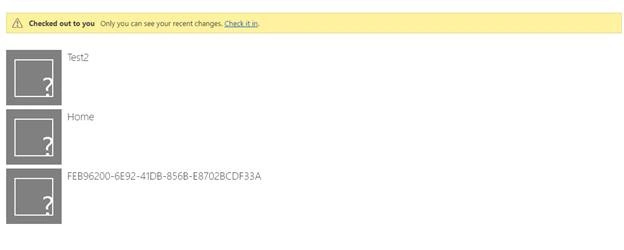
Finally, content search Webpart will be added on your page and it will show the recent items from your site.
Step 8
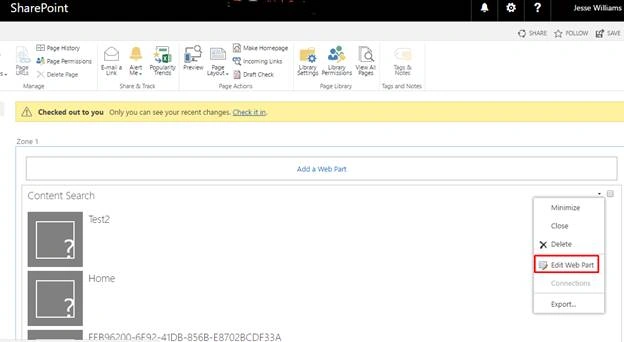
Now, edit the page and edit the Web part properties to configure the search Query.
Step 9
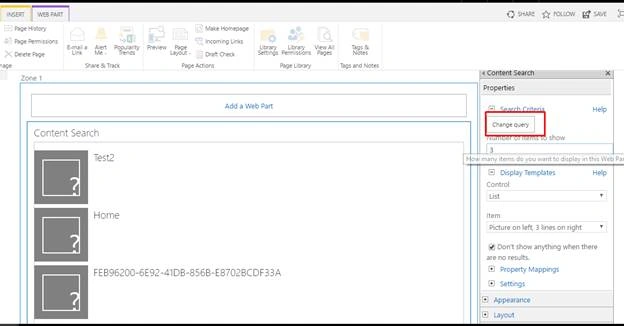
On the Webpart properties pane, click Change Query button under search criteria. After you clicked, you will get the pop up.
Step 10
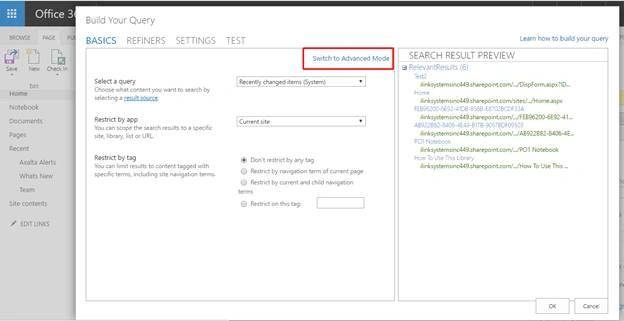
In the pop up screen, click Switch to Advanced Mode to configure the query, as shown below.
Step 11
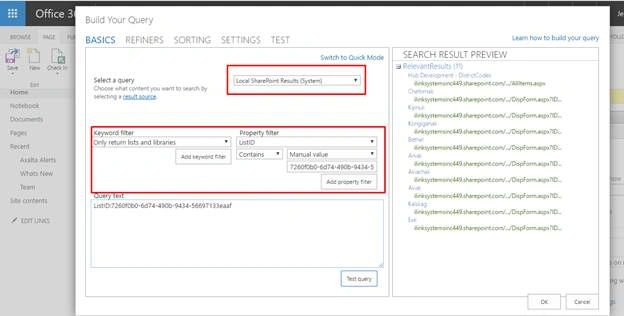
Now, select a Query result source, Keyword Filter and Property Filter.
- Result Source – Local SharePoint results.
- Keyword Filters – Only returns the lists and the libraries.
- Property Filter – ListID , Manual Value.
Note
ListID is list GUID (take list GUID from the list settings URL).
Step 12
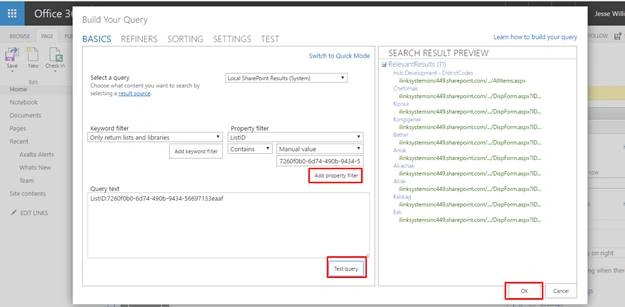
After you provided all the details, click Add Property Filter button and Test the Query. Click OK button.
When you click Test Query button, you will get the relevant results on the right side, as shown below.
Step 13
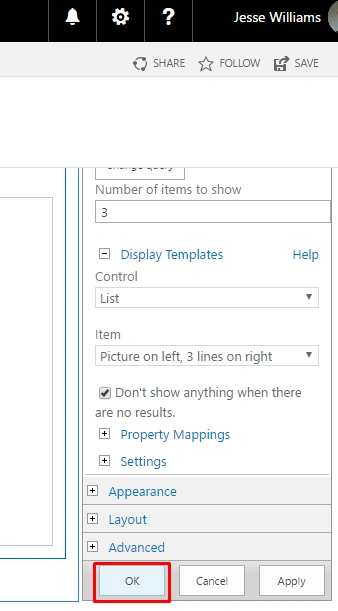
Now, do the property mappings on the Web part properties Window and click OK button.
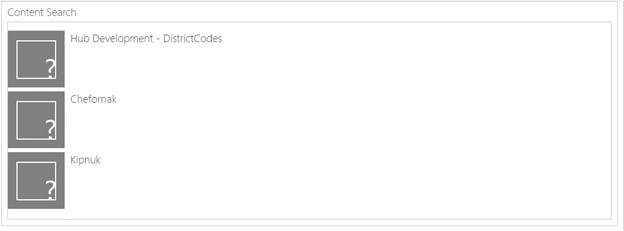
Finally Content Search Webpart will be added on your page with the particular list items.
Summary
In this article, we have explored how to get the list items, using content search Webpart in SharePoint Online. Happy searching.
raju ragulaPosted Mar 16, 2019, 2:11 AM
Hi Kaviya,
Ercan CANPosted Jun 28, 2018, 3:07 AM
Very thank you
Kaviya BalasubramanianPosted Feb 12, 2018, 3:09 AM
Using (SPSite siteCollection = new SPSite("<serverRelativeUrl>")){ KeywordQuery keywordQuery = new KeywordQuery(siteCollection); keywordQuery.QueryText = "SharePoint"; SearchExecutor searchExecutor = new SearchExecutor(); ResultTableCollection resultTableCollection = searchExecutor.ExecuteQuery(keywordQuery); resultTableCollection = resultTableCollection.Filter("TableType", KnownTableTypes.RelevantResults); ResultTable resultTable = resultTableCollection.FirstOrDefault(); DataTable dataTable = resultTable.Table; }
Sumesh K.PPosted Feb 6, 2018, 6:22 AM
Can you please help me to retrieve the value of this section created using the Search criteria in using c#
Kaviya BalasubramanianPosted Dec 4, 2017, 1:34 AM
Yes it will work for trail account.
Lalith TondonPosted Nov 27, 2017, 5:11 AM
I am using a trial version of O365 will this work there?
Thaddeus FerberPosted May 26, 2017, 9:21 AM
If your Microsoft subscription is not E3, E5, or SharePoint Online 2, you do not have access Content Search Web Part. But you can ask Microsoft for it here: https://office365.uservoice.com/forums/264636-general/suggestions/18776182-make-the-content-search-webpart-cswp-available-t