

Introduction
The following procedure explains how to easily get a SQL Server database connection string from Visual Studio.
Before beginning to learn this, you should know the following details of SQL Server.
- Server Name
- Username
- Password
- Database name that you want to connect to
Step 1. Open Visual Studio.
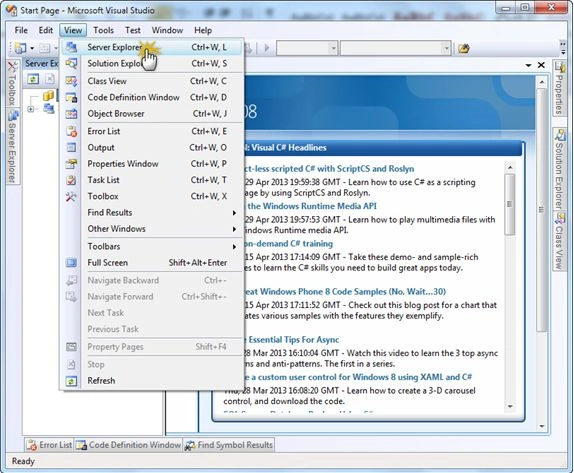
Step 2. Go to "View" -> "Server Explorer" as shown in the following
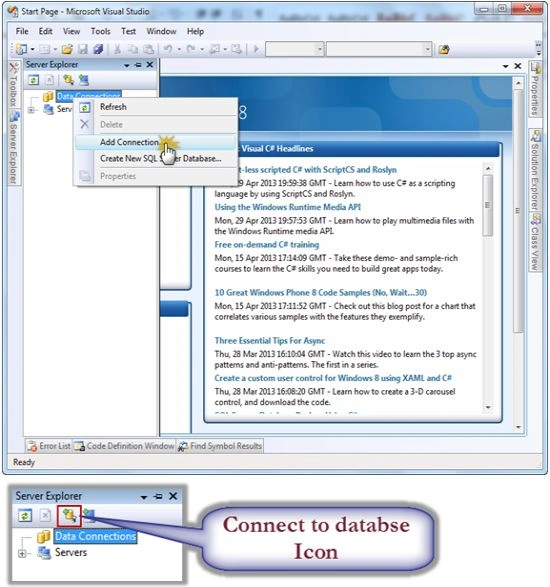
Step 3. Right-click on "Data Connections" and select "Add Connection" or click on the "Connect to Database" icon.
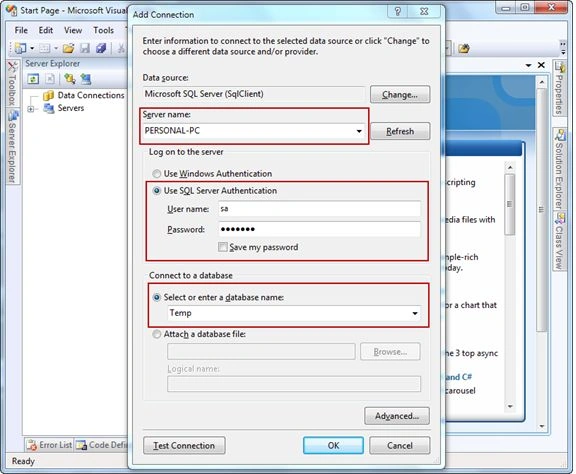
Step 4. You will get an "Add connection" window. In that window, use the following procedure
- Provide "Server name"
- Select the "Use SQL Server Authentication" radio button. Then submit the Username and password.
- If you enter the correct details, then you can select the database you want to connect to from the "Select or enter a database name" dropdown list.
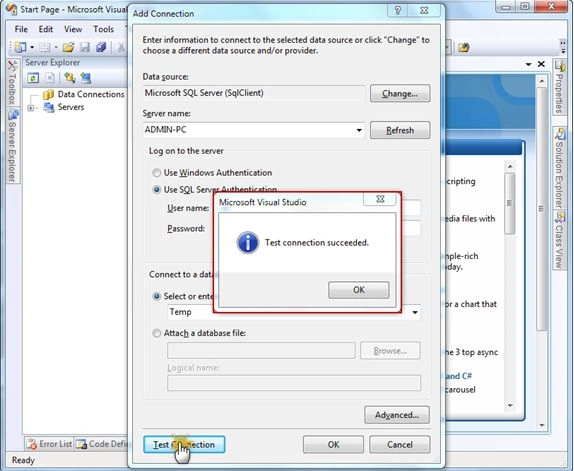
Step 5. Click on the "Test Connection" button. If you have submitted the correct credentials, then you will get the "Test connection succeeded" confirmation message as follows
Step 6. Now your connection is working successfully, so, now click on the "Ok" button. You will get one data connection under "Data Connections".
Step 7. Right-click on your connection and select "Properties".
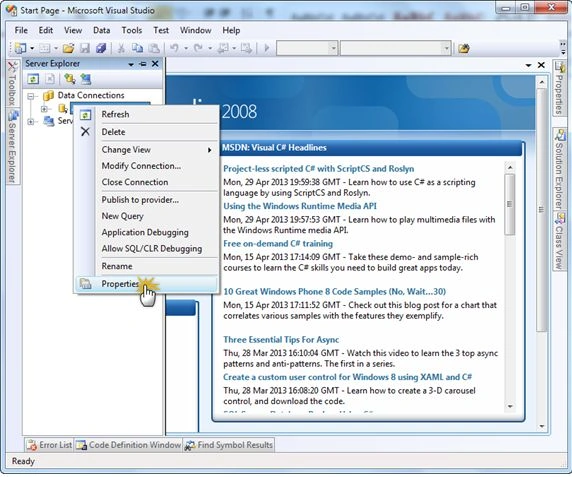
You will get the Properties window for your connection. Find the "Connection String" property and select the "connection string".
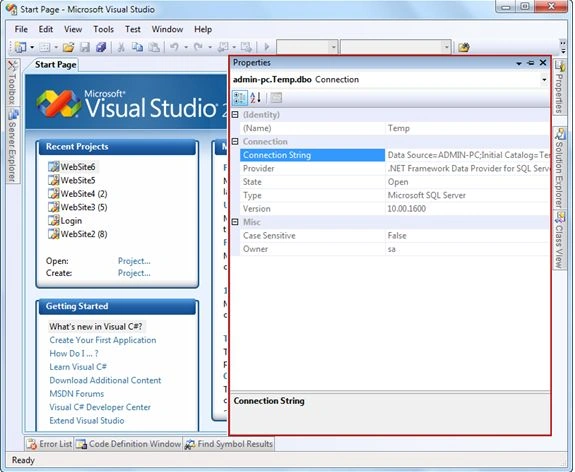
So now your connection string is in your hands; you can use it anywhere you want.
Angela AndrewsPosted Oct 6, 2015, 11:25 AM
Great tip, glad I stumbled upon it.
kinjal patelPosted Dec 17, 2013, 11:09 PM
how to do this process in pro grammatically in c# to get server name
md MusharafPosted Jun 5, 2013, 6:17 AM
good
Mahesh ChandPosted May 14, 2013, 10:56 AM
Nice. As a matter of fact, you can create any database connection string using this method that is supported by Visual Studio.
Suthish NairPosted May 14, 2013, 10:27 AM
Good one... This will also create an SQL DB connection, that will be in connected state unless you won't disconnect it.