In this article, I am going to show how we can add a column value in a DataGrid. To add a column value in this program I am using a function. In the function, I am passing the value of that particular column. Let us see how to do this through the below code.
The default.aspx code is:
  1. <%@ Page Language="C#" AutoEventWireup="true" CodeFile="Default.aspx.cs" Inherits="_Default" %>
  2. <!DOCTYPE html PUBLIC "-//W3C//DTD XHTML 1.0 Transitional//EN" "http://www.w3.org/TR/xhtml1/DTD/xhtml1-transitional.dtd">
  3. <html xmlns="http://www.w3.org/1999/xhtml">
  4. <head runat="server">
  5. <title>Count a column Value</title>
  6. </head>
  7. <body>
  8. <form id="form1" runat="server">
  9. <div>
  10. <asp:DataGrid id="MyGrid" runat="server" AutoGenerateColumns="False" CellPadding="2" CellSpacing="0" BorderStyle="Solid" BorderWidth="4" Gridlines="Both" BorderColor="ActiveCaption" ItemStyle-Font-Name="Verdana" ItemStyle-Font-Size="10pt" HeaderStyle-Font-Name="Verdana" HeaderStyle-Font-Size="14pt" HeaderStyle-Font-Bold="True" HeaderStyle-BackColor="#ccffcc" FooterStyle-Font-Name="Verdana" FooterStyle-Font-Size="10pt" FooterStyle-Font-Bold="True" FooterStyle-ForeColor="White" FooterStyle-BackColor="Blue" OnItemDataBound="MyDataGrid_ItemDataBound" ShowFooter="True">
  11. <Columns>
  12. <asp:BoundColumn HeaderText="Product ID" DataField="ProductID" />
  13. <asp:BoundColumn HeaderText="Product Name" DataField="ProductName" />
  14. <asp:BoundColumn HeaderText="Unit In Price" DataField="UnitPrice" ItemStyle-HorizontalAlign="center"> </asp:BoundColumn>
  15. <asp:BoundColumn HeaderText="Units In Stock" DataField="UnitsInStock" ItemStyle-HorizontalAlign="center" HeaderStyle-HorizontalAlign="Center">
  16. </asp:BoundColumn>
  17. </Columns>
  18. </asp:DataGrid>
  19. </div>
  20. </form>
  21. </body>
  22. </html>
The Default.aspx.cs
  1. using System;
  2. using System.Data;
  3. using System.Configuration;
  4. using System.Web;
  5. using System.Web.Security;
  6. using System.Web.UI;
  7. using System.Web.UI.WebControls;
  8. using System.Web.UI.WebControls.WebParts;
  9. using System.Web.UI.HtmlControls;
  10. using System.Data.SqlClient;
  11. public partial class _Default: System.Web.UI.Page {
  12. private double TotalUnit = 0;
  13. protected void Page_Load(object sender, EventArgs e) {
  14. SqlConnection con = new SqlConnection("server=Localhost; database=Northwind; uid=sa;pwd=;");
  15. SqlCommand cmd = new SqlCommand("SELECT ProductID, ProductName,UnitPrice, UnitsInStock FROM Products WHERE UnitPrice > 30", con);
  16. try {
  17. con.Open();
  18. MyGrid.DataSource = cmd.ExecuteReader();
  19. MyGrid.DataBind();
  20. con.Close();
  21. } catch (Exception ex) {
  22. //An error occured
  23. HttpContext.Current.Response.Write(ex.ToString());
  24. }
  25. }
  26. //This Method will calculate the column value
  27. private void MyTotalUnit(string Unit) {
  28. try {
  29. TotalUnit += Double.Parse(Unit);
  30. } catch {
  31. //A value was null
  32. }
  33. }
  34. //Here we are bionding the data to the datagrid
  35. public void MyDataGrid_ItemDataBound(object sender, DataGridItemEventArgs e) {
  36. if (e.Item.ItemType == ListItemType.Item || e.Item.ItemType == ListItemType.AlternatingItem) {
  37. //Here we are passing the value of a column in the MyTotalUnit function to total
  38. MyTotalUnit(e.Item.Cells[3].Text);
  39. e.Item.Cells[3].Text = string.Format("{0:0}", Convert.ToDouble(e.Item.Cells[3].Text));
  40. } else if (e.Item.ItemType == ListItemType.Footer) {
  41. e.Item.Cells[0].Text = "Total";
  42. e.Item.Cells[3].Text = string.Format("{0:0}", TotalUnit);
  43. }
  44. }
  45. }
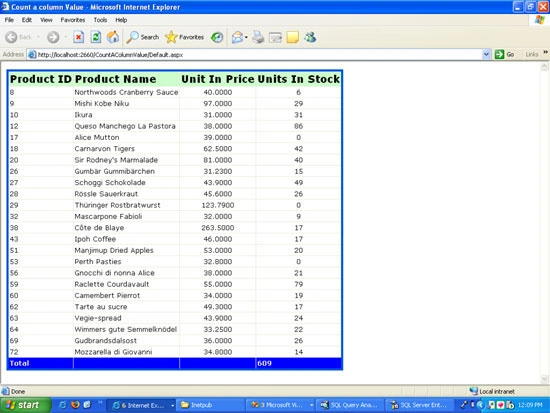
When the user runs the application then the window will look like this:
Figure 1: Showing the total of Units in stock.