

Introduction
In this article, we are going to discuss the approach to get a user profile in Microsoft Power Automate using the default action "Get user profile (V2)" from the "Office 365 Users" connector. This action lets you retrieve the specified user's user profile information in a JSON object.
To use this action, you must provide the User Principal Name (UPN) or email address of the user whose profile you want to retrieve. You must also specify which user profile properties you wish to retrieve by providing a comma-separated list of property names. You can then use this information in subsequent actions or steps in your flow.
Here are the steps to get user properties using the "Get user profile (V2)" action,
Create a New Flow
- To start with, go to this link.
- Sign in to the Power Automate portal with proper authentication and select an environment where you want to build the flow. To create an environment, you can follow this article.
- Now click "My flows" from the left navigation, which will open the window with existing flows and details about them.
- Now select the "New flow" dropdown, which will bring all the possible flow lists to create and let's select "Instant cloud flow" for this demonstration.
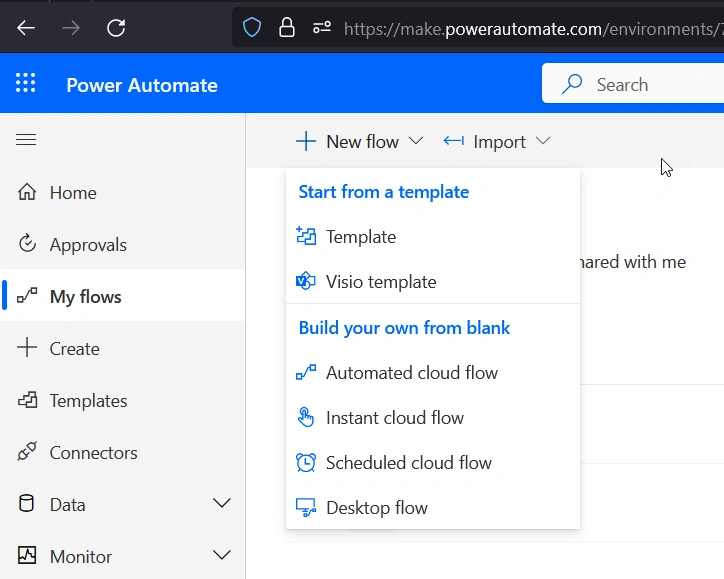
Figure 1- Power Automate window for a new flow
- A new window will be opened with a few actions to be taken, as shown in Figure 2.
- Need to provide a name for the flow in position 1, as here I have used "GetUserProfileDetails" in this example.
- Now to choose the trigger of this flow from position 2, you can select according to your requirements. For instance, in this example, "Manually trigger a flow" has been chosen for easier testing,
- Once you have provided the name and selected the trigger option, click the "Create" button, as shown in position 3, to create the flow.
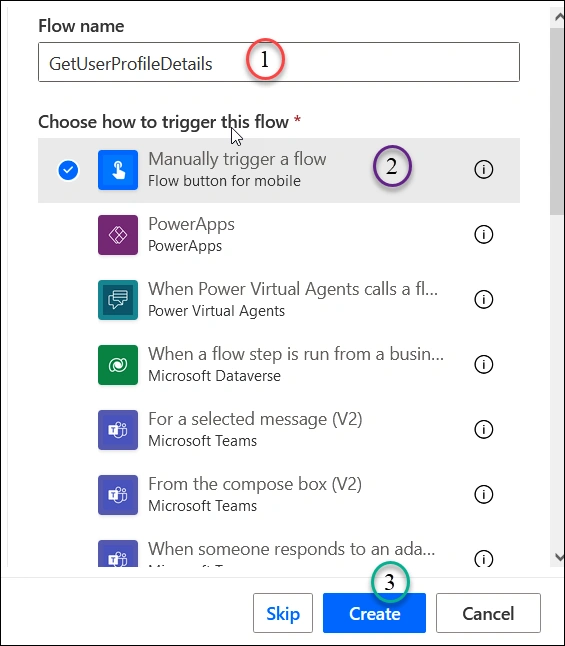
Figure 2- Creating Instant cloud flow
With the "Get user profile" action
- Click the "New Step" button and select the "Get user profile (V2)" action.
- After the action is added to the flow, you must provide the user's User Principal Name (UPN) in the parameter to get the user details, as shown in Figure 3, position 1. The User Principal Name (UPN) is an internet-style login name that follows the RFC 822 standard and usually corresponds to a user's email address. It consists of an alias and a domain, which must be verified and present in the tenant's collection of domains.
- Providing the accurate UNP is sufficient to retrieve user details with this default action. However, an advanced feature named 'Selected fields' is located in position 2.
- In the "Selected fields" section, you can specify the user properties you want to retrieve exclusively, similar to the selected filter of an API call. Enter a comma-separated list of user properties you want to retrieve (e.g. "DisplayName, Title, Department).
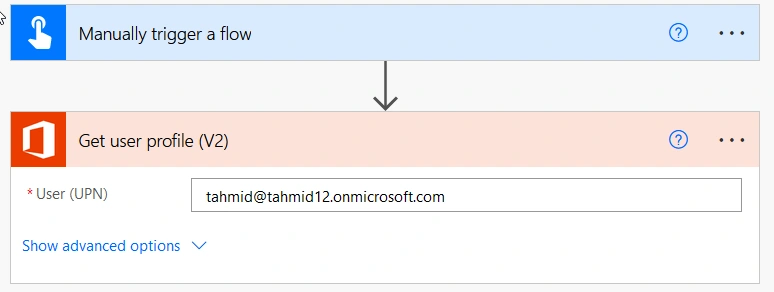
Figure 3- Adding Get user profile (v2) action
- To test the action and check whether the data is being retrieved, we can provide a static User Profile Name in the 'User (UPN)' field and run the flow.
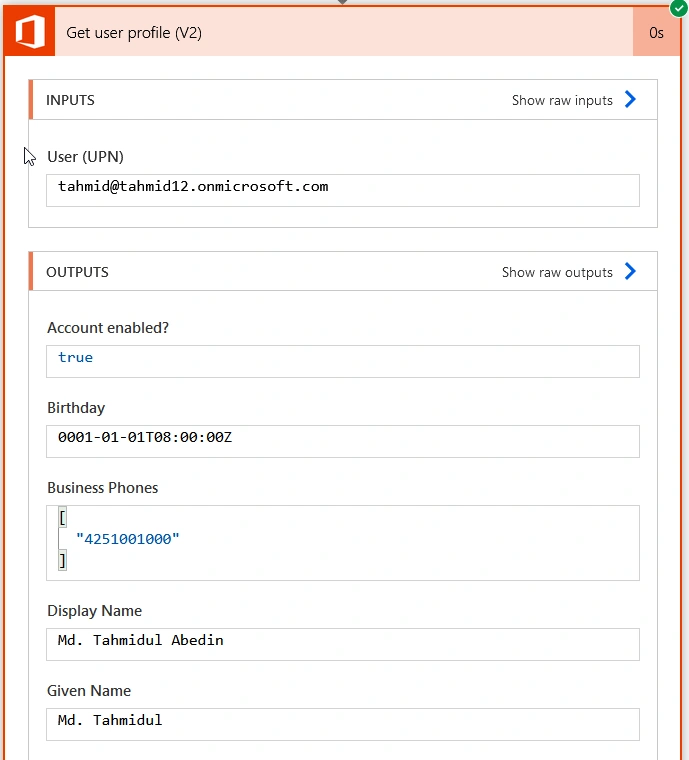
- After successfully running the flow, the properties will be displayed, as shown in Figure 4. All the properties that can be retrieved are listed and discussed in the 'User Profile Properties' section. Dynamic properties can access all these properties as a feature of Power Automate. So we can use them as required quickly.
Adnan BinzahirPosted Jun 22, 2023, 9:42 AM
Nice Article.................(y)