

Introduction
In the previous article, "Get User Properties with 'Get user profile' action in Power Automate", we discussed the approach to retrieving user profiles in Microsoft Power Automate using the default action "Get user profile (v2)." Now, we will learn how to retrieve specific details of a user's profile information using Graph API by filtering with the user's UPN or other properties. In this process, we need to call an HTTP request via Graph API from inside Power Automate using the "Send an HTTP request" action, which requests a specific endpoint.
This action lets us retrieve user profile information in a JSON object for the specified user. By adding the connector to our flow, configuring it with the necessary details such as the endpoint URL, HTTP method, request headers, and body, and using dynamic content to pass in any required parameters or values, we can easily integrate external systems or services with our Power Automate flow and automate our business processes.
You can easily retrieve the complete user profile with the previous action if you have the user's email or UPN. However, if you don't have this information, you can still search for the user using their job title or a unique user code within your organization with the help of a Graph API request. This process can be seamless and efficient, allowing you to easily find and access the user's profile information quickly and easily.
Here are the steps to get user properties using the Graph API.
How do we Create a New Flow?
- To start with, go to this link.
- Sign in to the Power Automate portal with the appropriate authentication credentials to start building your flow. Once signed in, select the environment where you want to create the flow. If you haven't created an environment yet, refer to this article for instructions on how to do so.
- Now click on "My flows" in the left navigation menu. This will open a window displaying all your existing flows with detailed information about each.
- Next, select the "New flow" dropdown menu, which will display a list of all the possible flows you can create. For this demonstration, let's select "Instant cloud flow".
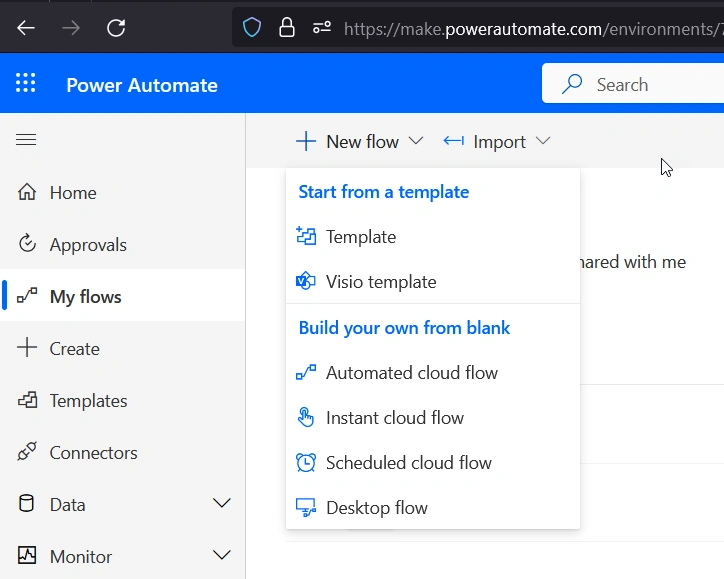
Figure 1- Power Automate window for a new flow
- A new window will open with a few actions to take, as shown in Figure 2. In position 1, you must provide a name for the flow. For this example, here we have used "GetUserProfileDetails".
- Now to choose the trigger of this flow from position 2, you can select according to your requirements. For instance, in this example, "Manually trigger a flow" has been selected for easier testing,
- Once you have provided the name and selected the trigger option, click the "Create" button, as shown in position 3, to create the flow.
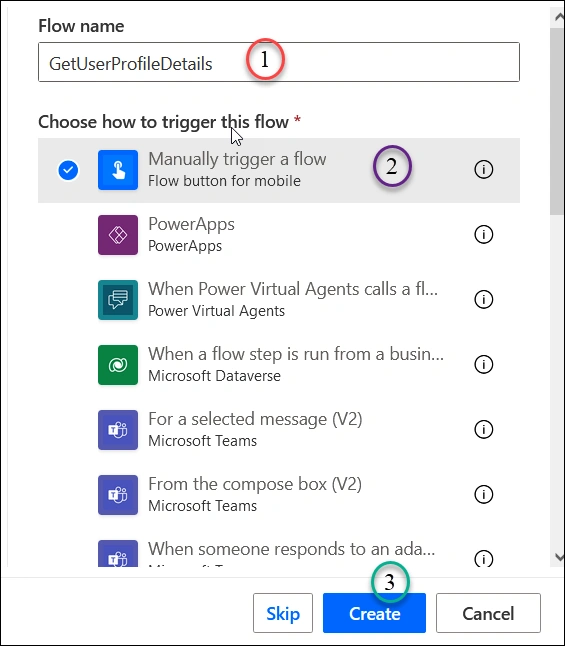
Figure 2- Creating Instant cloud flow
With Graph API
- User details can also be retrieved with the Graph API using an HTTP Get request. The URI would be,
<span style="font-size:12.0pt"><span style="font-family:Consolas">https://graph.microsoft.com/v1.0/users?$filter=<property> eq '<value>'</span></span>The endpoint to call a user is "https://graph.microsoft.com/v1.0/users". However, such a request would give you all the users, which may not be what you want. To retrieve specific users based on a condition, you can use the filter option to filter by User Principal Name or other properties. As shown in the URI above, the property name can be used as "mail", and the value would be the user's email or UPN.
- To call this Graph API from Power Automate, we need an action that sends an HTTP request. In Power Automate, we can find several "Send an HTTP request" actions, but we need to use the "Send an HTTP request" action from "Office 365 Groups," as shown in Figure 3.
- Figure 3 shows another "Send an HTTP request" action from "Office 365 Users," which we should not use for this URI. The reason is that using this action will result in an error, as shown below:
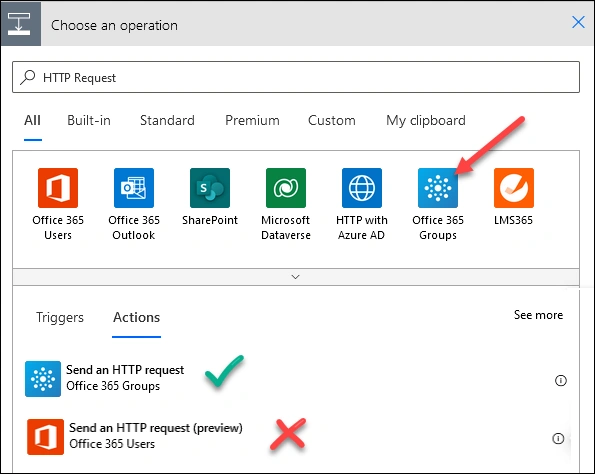
Figure 3- Selecting Send an HTTP request action
- Now, select 'Send an HTTP request' from Office 365 Groups, as shown in Figure 3; we can add it as a new step in Power Automate, just like in Figure 4.
- In the URI field, enter the Graph API URI with the mail filter, and select the method as 'Get' and the Content-Type as 'application/json'. Other filter conditions, such as JobTitle eq 'Manager', can be used as required, which may retrieve multiple entries.
- To retrieve specific property of the user, “$select” statement can be used like this way:https://graph.microsoft.com/v1.0/users?$select=displayName, birthday&$filter=JobTitle eq 'Manager'
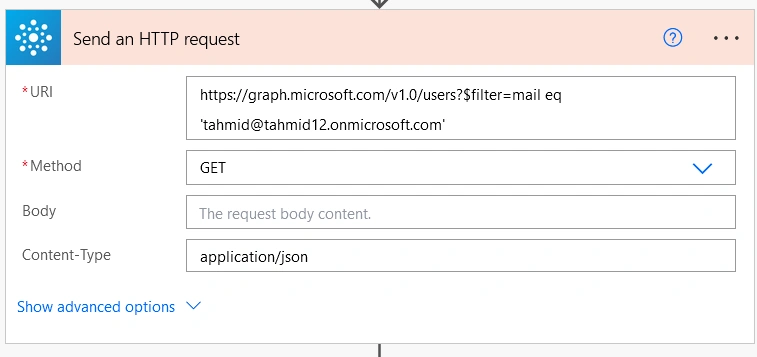
Figure 4- Details of Send an HTTP Request
- Now, save the flow and run it manually since we have selected the trigger condition as a manual trigger. Before running the flow, it will ask for permission to access the provided connector. If the connector has the required permission, the flow will execute.
- After successfully running the flow, the API will respond with a JSON object containing all the users who meet the specified criteria. You can extract the required information from the JSON response using an expression. The 'Properties' panel will be displayed in Figure 5. The 'User Profile Properties' section lists and discusses all the retrievable properties.
- We can easily extract the required property from the JSON response using various actions provided by the 'Data Operation' feature. Additionally, we can use the expression functions provided by Power Automate to write custom expressions.
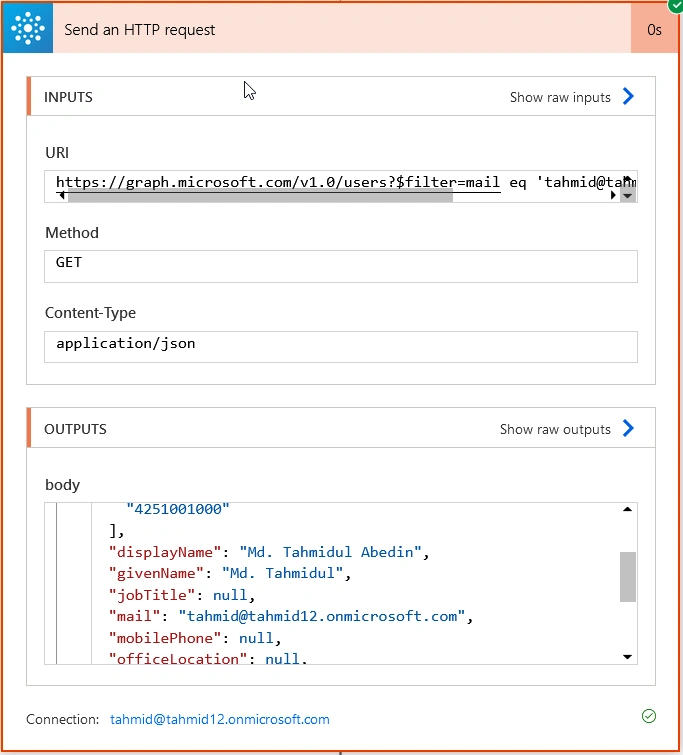
Figure 5- Response of the HTTP Request
User Profile Properties
Below are some user properties that can be retrieved using the 'Get user profile' action, along with their respective types and details. These properties can be added as dynamic content to the subsequent steps in the flow.
| Property | Type | Description |
| Display Name | String | To create a user, it is mandatory to provide the name, usually a combination of the first name, middle initial, and last name. This property cannot be cleared during updates, and its maximum length is restricted to 256 characters. |
| Given Name | String | This property represents the user's first name, and its length cannot exceed 64 characters. |
| Surname | String | This property represents the user's last name, with a maximum length of 64 characters. |
| Nickname | String | The mail alias for the user. This property must be specified when a user is created. Maximum length is 64 characters. |
| Birthday | DateTimeOffset | The date of birth of the user. |
| Business Phones | String collection | This property is a collection of strings that holds the user's phone numbers, but it only allows setting one number. |
| Hire Date | DateTimeOffset | The user's hire date is always expressed in UTC. |
| User Type | String | This property classifies user types, such as "Member" and "Guest". |
| String | This property contains the SMTP address for the user, for example, [email protected]. | |
| User Principal Name | String | The principal user name (UPN) of the user. The UPN is an Internet-style login name for the user based on the Internet standard RFC 822. By convention, this should map to the user's email name. The general format is alias@domain, where the domain must be present in the tenant's verified domain collection. The verified domains for the tenant can be accessed from the verifiedDomains property of the organization. This property is required when a user is created. |
Conclusion
In conclusion, obtaining a user profile within Power Automate is straightforward by using the "Get user profile" action. However, suppose you don't have the user's email or UPN and need to use alternative filters like job title, department, or a unique user code within your organization. In that case, you can utilize the 'Send an HTTP request" action from "Office 365 Groups.
Overall, there are several ways to retrieve user information within Power Automate, providing flexibility and options for different scenarios. You can extract the desired information using expressions or actions from the 'Data Operation' section. Simply provide the appropriate Graph API URI and filter condition, and this will return a JSON response containing all users that match the specified criteria.
Sahriar SharifPosted May 25, 2023, 7:51 AM
Nice article......... :)