

Today, we are going to discuss the .NET Micro Framework, SmartWatch apps, and we will also develop, run and deploy the apps to emulator. We can build the our wearable smartwatch apps using .NET Micro Framework. We require the prerequisite Software Agent SmartWatch SDK, .NET Micro Framework SDK and Visual Studio 2015.
What is .NET Micro Framework?
.NET Micro Framework (formerly know as SPOT) is a powerful and flexible platform for rapidly creating embedded device firmware with Microsoft Visual Studio. SPOT is called Smart Personal Object Technology and its supporst smallest device, SPOT Watches, GPS navigation devices, and Windows Vista Sideshow displays.

Prerequisites
- Visual Studio 2015
- Agent SDK v0.3
- Microsoft .NET Micro Framework SDK v4.3
First, we need to set up the environment
- Microsoft .NET Micro Framework SDK v4.3
- Agent SDK v0.3
Agnet SDK
Steps 1: Double click “agentsdk”.
The AGENT SDK v0.3 Setup will open and then select checkbox license terms and click Install button.


After it is successfully installed in Agent SDK, you can see the following screen and click Close button.

Microsoft .NET Micro Framework SDK
Steps 2: Double Click “MicroFrameworkSDK”
The Microsoft .NET Micro Framework SDK 4.3 Setup will open and click Install button.
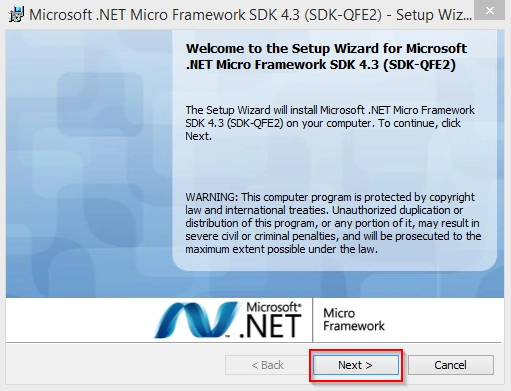
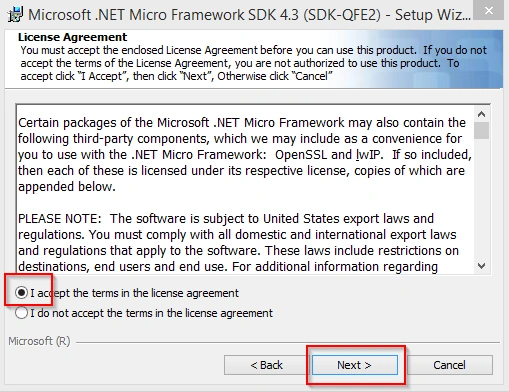
The Microsoft .NET Micro Framework SDK 4.3 setup wizard is open now. Select checkbox for license terms and click Next button.
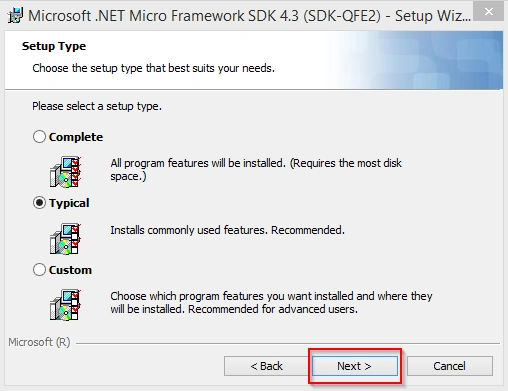
The Microsoft .NET Micro Framework SDK 4.3 setup wizard is open now. Select checkbox Typical and click Next button.
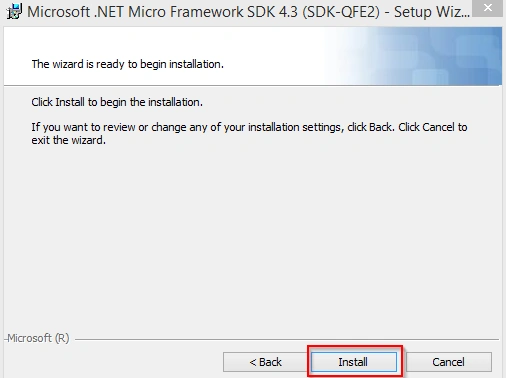
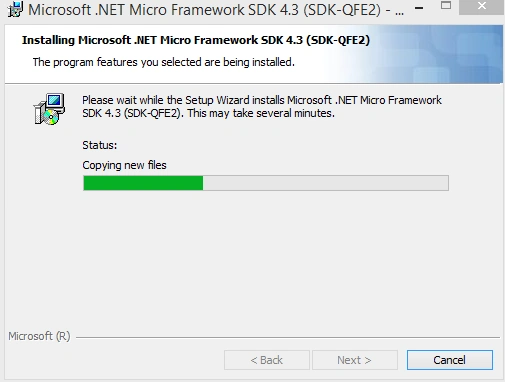
The Microsoft .NET Micro Framework SDK 4.3 setup wizard IS open and click Install button.
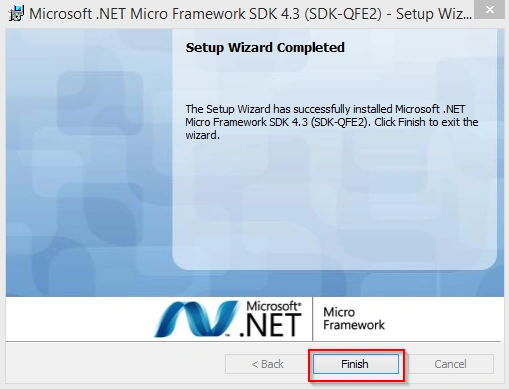
After it is successfully installed in .NET Micro Framework SDK, you can see the following screen and click Finish button.
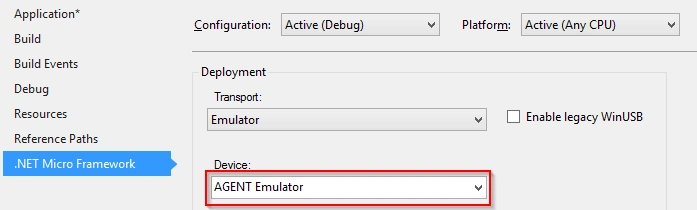
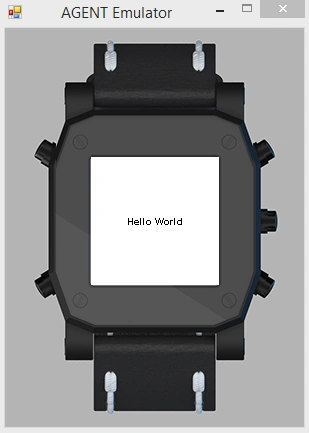
Create a sample application using .NET Micro Framework and deploy the emulator.
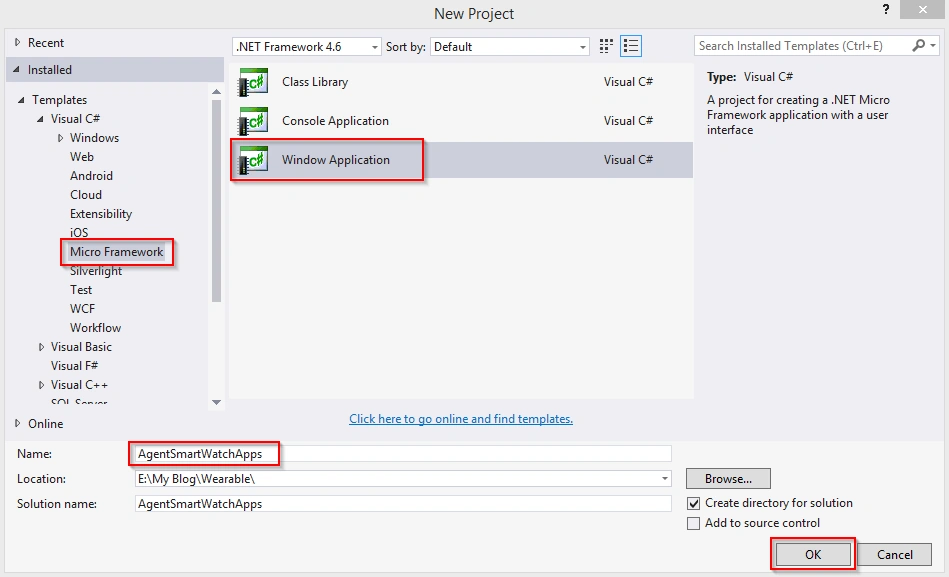
Open Visual Studio 2015 and go to file menu and point new and then click new project, where you can see the section Visual C# Template. Click Micro Framework, then select Window Application and type Project Name AgentSmartWatchApps. Choose the project location path and then click OK button.

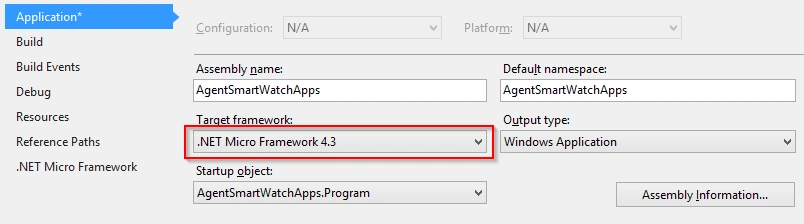
Go to Solution Explorer, right click the project name and select an Application option. Select a target framework “.NET Micro Framework 4.3”.
Santhakumar MunuswamyPosted Jul 8, 2016, 9:27 AM
Thank you shobana
Shobana JPosted Jul 8, 2016, 4:26 AM
Nice share sir
Sibeesh VenuPosted Feb 18, 2016, 12:12 AM
Nice Share
Shubham KumarPosted Feb 17, 2016, 12:07 AM
good to know !! :)
Hemant SrivastavaPosted Feb 16, 2016, 9:39 AM
Good to know about .NET Micro Framework and a sample application. Nice article.
Pankaj Kumar ChoudharyPosted Feb 15, 2016, 11:18 AM
Really Nice Explained Sir.........
Ranjan DailataPosted Feb 15, 2016, 9:27 AM
Wonderful :) You nailed it!
Kumaresh RajalingamPosted Feb 15, 2016, 7:08 AM
Nice share sir easy to understand
Nanddeep NachanPosted Feb 15, 2016, 4:29 AM
Nice share