

Introduction
You all know that MVC (Model, View, Controller) is a design pattern to separate the data logic from the business and presentation logic. We can also design the structure physically, where we can keap the logic in the controllers and views to exemplify the relationships.
It is also possible that we can have large projects that use MVC, then we need to split the application into smaller units called areas that isolate the larger MVC application into smaller functional groupings. A MVC application could contain several MVC structures (areas).
In this article I am creating a simple application for defining the area in MVC 5. MVC 5 is the latest version of MVC used in Visual Studio 2013.
Prerequisites
You need to have the following to complete this article:
- MVC 5
- Visual Studio 2013
In that context, we'll follow the sections given below:
- MVC 5 application
- Adding Controller for Area
- Adding Views for Area
- Area Registration
- Application Execution
MVC 5 Application
Use the following procedure to create a Web application based on a MVC 5 template.
Step 1: Open Visual Studio 2013.
Step 2: Create an ASP.NET Web Application with MVC 5 project template.
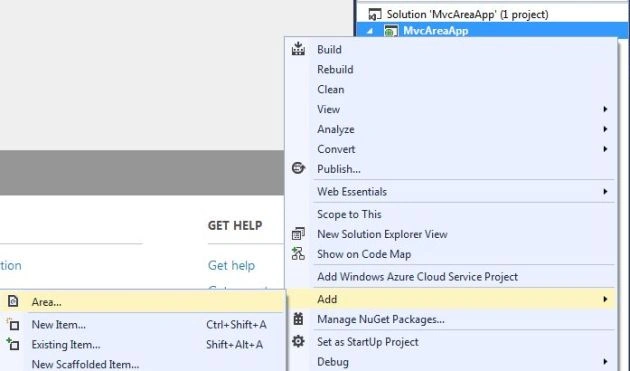
Step 3: In Solution Explorer, right-click on the project and click "Add" to add an area as shown below:
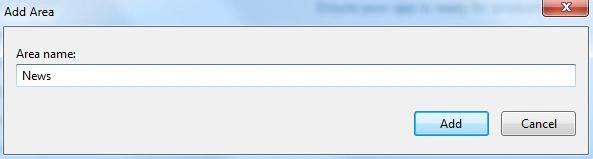
Step 4: Enter the name for the area, such as "News".
Step 5: Similarly add an another area named "Article".
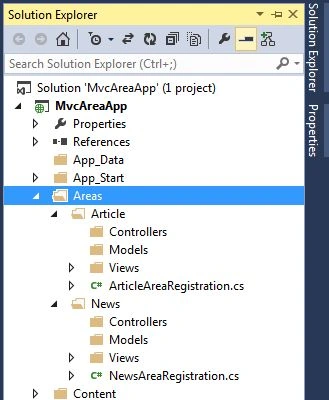
Now from the steps above you have added two areas for your application named News and Article.
Adding Controller for Area
We have successfully added an area, now we'll add controllers for each of our areas using the following procedure.
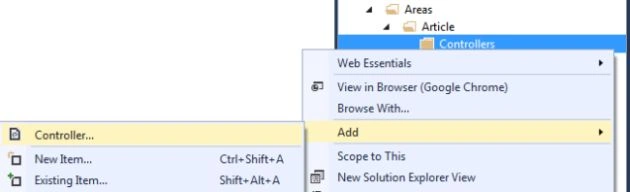
Step 1: Right-click on the Controller in your Article area to add a controller.
Step 2: Select "MVC 5 Empty Controller".
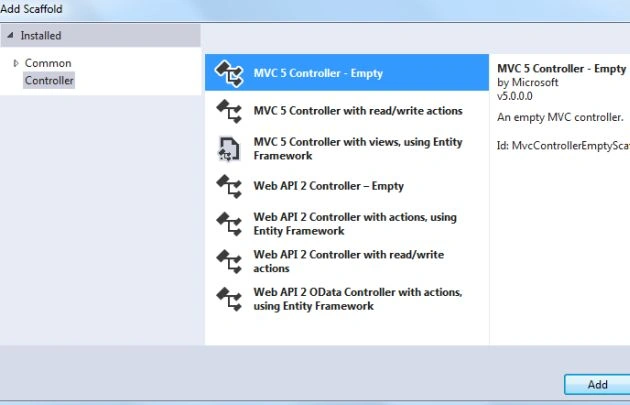
Step 3: Enter the name as "ArticleController" .

Step 4: Similarly add the controller for "News".
Now your Area folder should be as in the following screenshot:
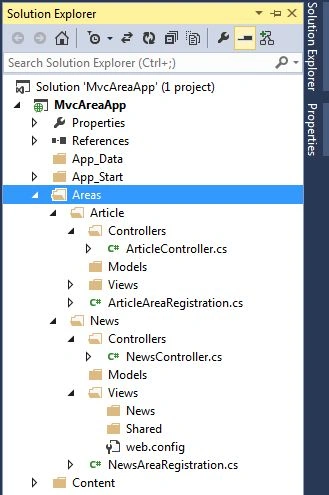
Adding Views for Area
We have successfully added a controller for our area, now to add a view for the area using the following procedure.
Step 1: Right-click on the "News" folder in the View to add a View for the News Area.

Step 2: Enter the view name as defined in the NewsController.
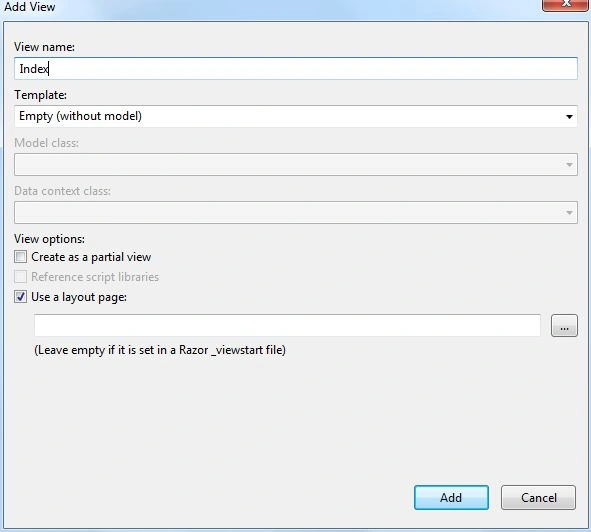
Step 3: Generate some content in the View of News as in the following screenshot:
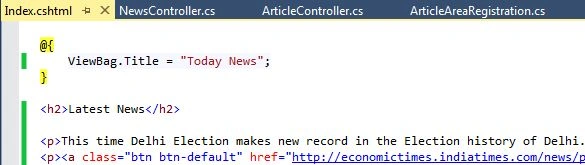
Step 4: You can also add a view as shown in the following screenshot:

Step 5: Generate some content for the Article view.
Area Registration
Step 1: Open the "Global.asax" file.
Step 2: Add the following code in your Application_Start() method:
AreaRegistration.RegisterAllAreas();
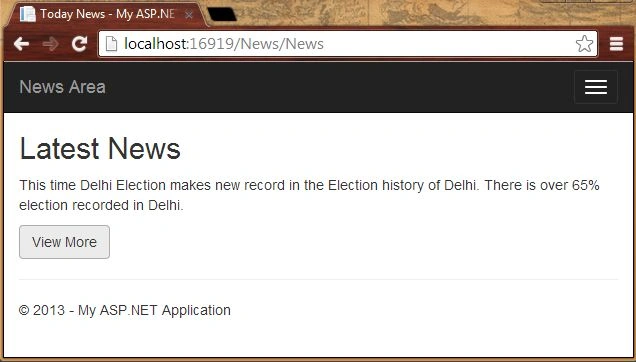
Application Execution
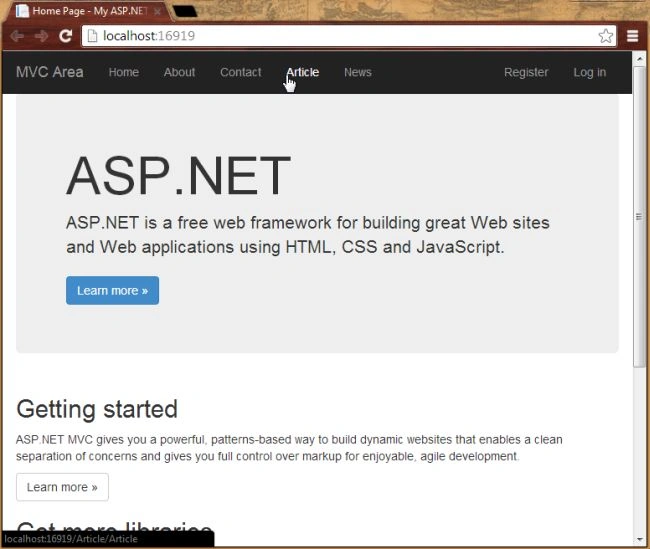
Step 1: Open the project view Layout file.

Step 2: Modify the <ul> in the layout file as shown in the following code:
<ul class="nav navbar-nav">

SAMEER SAYANIPosted Aug 27, 2018, 4:18 PM
Nimit what if we need to pass some values from one area to another? Like from controller to controller or view in another area?
Rajesh GamiPosted Apr 6, 2018, 4:39 AM
Nice work ..................
Manav PandyaPosted Dec 11, 2016, 4:56 AM
But how its differ from 3-Tier Architecture , im confused in that
Manav PandyaPosted Dec 11, 2016, 4:56 AM
Nicely explained article sir Nimit Joshi
KaustubhPosted Mar 12, 2016, 5:36 AM
Nice article