

Let’s create our first ASP.NET Core MVC Web Application. We assume that we already have Visual Studio 2015 Update 3 and .NET Core 1.0.0 - VS 2015 Tooling Preview 2. If you have not installed .NET Core yet, I may recommend you to follow our initial discussion how to install .NET Core 1.0. Alternatively, you can follow Microsoft Official Site directly.
Create a new Solution
- Open Visual Studio 2015.

- Open New Project screen through menu File >> New >> Project.
- Select Blank Solution through Installed >> Templates >> Other Projects >> Visual Studio Solutions.
- Name solution as “ASP.NET Core”. Set suitable location as “C:\ASP.NET Core\Welcome To .NET Core 1.0\”.
- Click OK button.
Add a new ASP.NET Core Project in Solution

- Open New Project screen through solution context menu >> Add >> New Project or File >> New >> Project.
- Select ASP.NET Core Web Application (.NET Core) through Installed >> Templates >> Visual C# >> .NET Core.
- Name project as “WebApplicationCore.NetCore”.
- Set suitable location as “C:\ASP.NET Core\Welcome To .NET Core 1.0\ ASP.NET Core” (it is a default location depending on solution path).
- Click OK button.
- Select “Web Application” template from Template Window. Leave other options unchanged.
- Click OK button.
- It will create new ASP.NET Core MVC Web Application.
Run Application in Debug Mode

- Press F5 or Debug Menu >> Start Debugging or start IIS Express button on the toolbar to start the Application in the debugging mode.
- It will show Home Page in the Browser.
- Click About menu item to open About page.
- Click Contact menu item to open Contact page.
ASP.NET Core 1.0 MVC Project Structure Overview
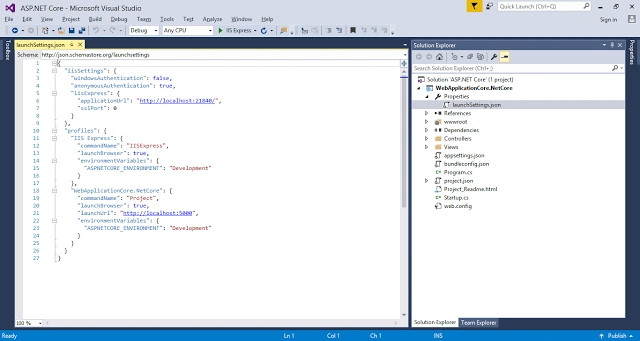
When we analyze created project, we can divide the project into following major areas-
- Properties
- References
- wwwroot
- Dependencies
- Controllers
- Views
- Program.cs
- Startup.cs
Configuration FilesProperties
Properties section contains launchSettings.json file, which has project settings. Although it can be edited directly, it is generally edited by other interfaces like the project properties.
References
References section contains all DLL references added to project. Visual Studio 2015 shows the added references in the groups. For this template, Visual Studio adds .NET Core Application related DLLs.
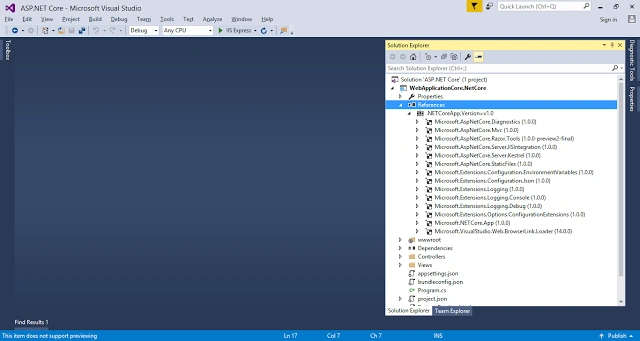
We can add new references directly or through NuGet Packages.
- To add the reference from other project of the same solution, Open Reference Manger Screen from Context Menu of the Project References >> Add References. And then on Reference Manager Screen >> Projects >> Solution >> Select Project Name.
- To add reference from the existing DLLs, ppen Reference Manger Screen from context menu of Project References >> Add References, followed by Reference Manager Screen >> Assemblies >> Browse >> select Required Assemblies to be added.
- To add the references from NuGet, open NuGet Manger screen from context menu of Project References >> Manage NuGet Packages. On NuGet Manager Screen >> Browse >> Search and Install the required assemblies to be added.
- Open Package Manger Console through Tools >> NuGet Packet Manger >> Package Manger Console and run install command "Install-Package FullPackageName".
Wwwroot
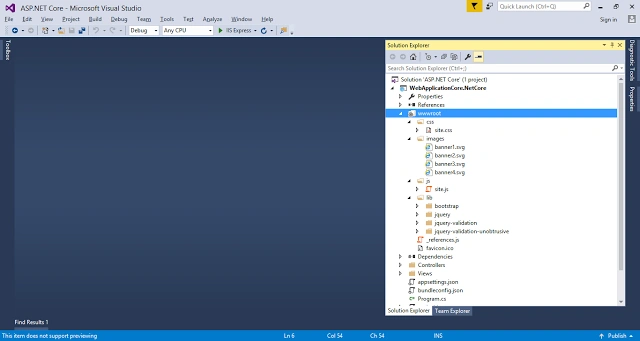
wwwroot is a special folder, which contains all the static resources like css, images, JavaScript and included libraries. Visual Studio Template uses wwwroot name by default, but we can change it, as per the requirements.
Dependencies
Dependencies section contains the list of third part dependencies added to the project through Bower. By default, this template adds bootstrap, jquery, jquery-validation and jquery-validation-unobtrusive.
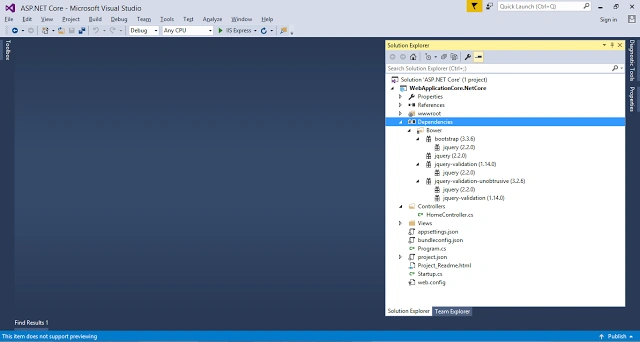
We can add new bower through Manage Bower Packages.
- To add new bower Open Manage Bower Packages screen from context menu of project bower >> Manage Bower Packages. On Manage Bower Packages Screen >> Browse >> Search and Install Required Packages to be added.
Controllers
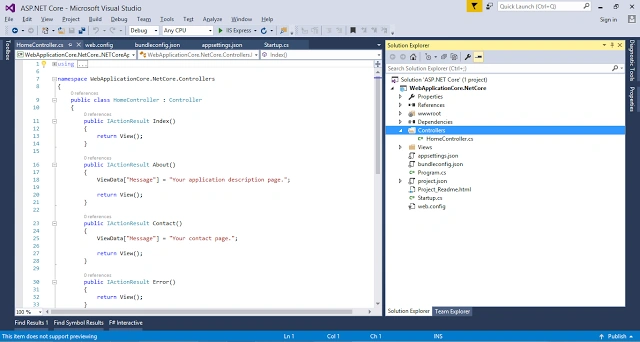
Controllers folder contains the controllers added to an application. It is not necessary to add the controllers to this folder or to create this folder, but it is one of the practices to add the controllers to this folder or its subfolders. This templates add HomeController by default with Index, About and Contact action methods.
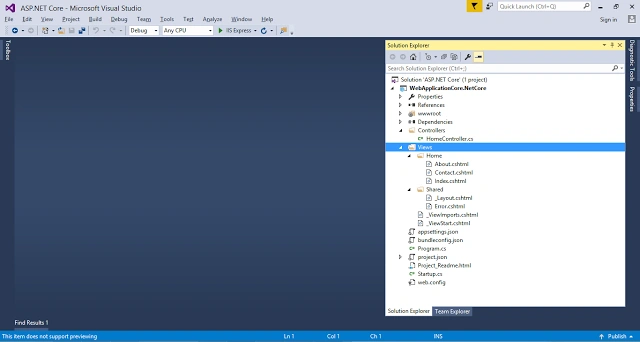
Views
Views folder contains views in 3 categories, which are-
- Controller Views
- Shared Views
- Special Views
Controller Views
All the views related to a controller have views in a folder named to that controller. This example Home folder contains views for each action method of HomeController.
Shared Views
Shared views folder contains: _Layout and Error view. _Layout view contains layout of an Application and in term of ASP.NET, it replaces Master Page. Error view contains the implementation of an error page, which is displayed to the end user in case of any error.
Special Views
While there are two special views in this template: _ViewImports and _ViewStart. _ViewImports contains the list of imports for all the views. ViewStart contains the generic page initializations like layout globally.
Program.cs
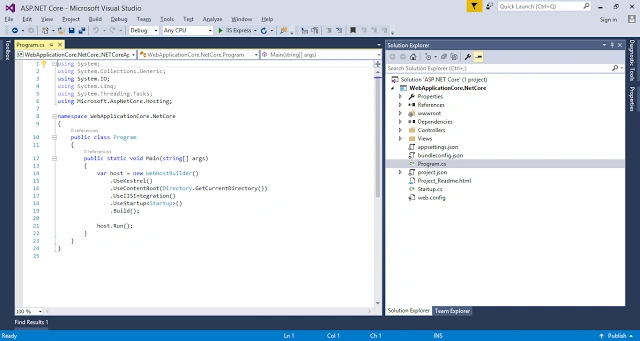
Program.cs contains the Main method, which is the starting point of an Application. It initializes WebHostBuilder instance and starts the host environment. We can set the Web Server related configurations in this area. We will have the complete detailed discussion on this item separately.
Startup.cs
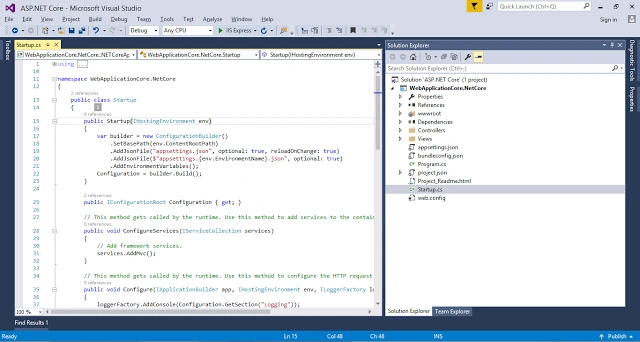
Startup.cs contains the main implementation for Environment Startup. This class not only initializes the basic environment configurations and request pipeline but also other features like logging, error page and routing. We will have a complete detailed discussion on this item separately.
Configuration Files
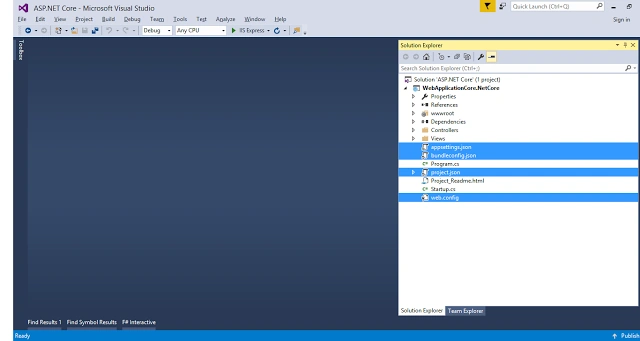
This template creates different configuration files of .config and .json type at the root of the project-
- appsettings.json
- bundleconfig.json
- project.json
- web.config
- These files contains application settings, configurations related to bundling and minification and project settings.
We can also use ini files, environment variables, command line arguments and even custom configuration provider. We will have a complete detailed discussion on this item separately.
Sample Source Code
We have placed sample code for this session in "Welcome to ASP.NET Core_Code.zip" in CodePlex repository.
Vignesh ManiPosted Sep 12, 2016, 8:40 AM
Nice
Sinraj VPosted Sep 12, 2016, 1:45 AM
Nice....