

Introduction
In this article, I am going to explain Asp.Net Core 6.0, Asp.net Core’s features and benefits, Asp.Net Core Versions, and why to use Asp.net Core. The latest version of Asp.Net Core is Asp .Net Core 6.0. It was released on November 8, 2021.
What is Asp.Net Core?
ASP.NET Core is a new version of ASP.NET, developed by Microsoft. It is an open-source framework for developing web applications and it can be run on Windows, Mac, or Linux. ASP.NET Core application can run on both .NET CORE and traditional .NET Framework (.NET framework 4.x). It has been completely rewritten from scratch and it was initially launched as Asp.Net 5 but then was renamed to ASP.NET CORE 1.0.
Asp.Net Core is a cross platform, high-performance, open-source framework for building modern, cloud-based, internet-connected applications.
Read my previous articles, using the below links.
- How To Install Visual Studio 2022
- Getting Started With Visual Studio 2022 Community Edition
- Getting Started With .NET 6.0
What’s New in ASP.NET Core 6.0?
ASP .NET Core 6.0 version was released on November 08, 2021. Visual studio 2022 version 17.0 required for develop ASP.Net Core 6.0 web application.
Features
- NET Core MVC and Razor improvements.
- NET Core Performance and API improvements.
- SignaIR performance improvements.
- Razor compiler updated to use source generators.
- Razor compiler no longer produces a separate views assembly.
- Reduce the size of System.IO.Pipelines.pipe from 368 bytes to 264 bytes. For every connection that is established, two pipes are allocated in Kestrel.
The transport layer to the app is called request and the application layer to the transport is called response.
- Hot reload: Apply changes to Razor, C#, and CSS source files into your running application during development time without rebuilding and restarting the application.
- Minimal APIs: Create a new ASP.NET Core Web API with just few lines of code using the latest C# features with minimal dependencies.
- SignaIR performance improvements.
- Async streaming: Asynchronously stream data from the server without buffering.
- IAsyncDisposable Supported: IAsyncDisposable is now available for controllers, page, models and view components.
- Bootstrap 5.1: ASP.NET Core 6.0 now comes with Bootstrap 5.1 support.
- Null-state Analysis: All ASP.NET Core 6.0 templates have c# null-state analysis enabled by default.
- CSS Isolation for pages and views: Scope CSS styles to specific pages or views using .cshtml.css files.
- JavaScript Modules: Place related JavaScript modules alongside pages, views, and Components using .cshtml.js and .razor.js fies.
- Support for latin1 encoded request headers in HttpSysServer.
- Developer exception page Middleware added automatically.
- Faster get and set for HTTP headers.
- .NET WebAssembly Build Tools: Ahead-of-time (AOT) compilation for Blazor WebAssembly applications, as well as support for runtime relinking and native dependencies.
- Single-page applications: Built-in support for Angular 12 and React 17 based on a flexible template pattern that can be used with other frontend JavaScript frameworks.
- Socket Control: More control over socket creation and handling.
- Strongly-typed Headers: Accessing HTTP headers in a strongly-typed way.
- HTTP & W3C Logging: Log HTTP traffic, and log using the W3C Extended Log File Format.
- ASP.NET Core 6.0 is supported with Visual Studio 2022 and Visual Studio 2022 for Mac. It is not supported in Visual Studio 2019
Web app template improvements
- Now, Startup.cs and Program.cs into a single Program.cs file.
- Reduces the number of files and lines of code required to create an app.
- Use top-level statements to minimize the code required for an app.
- Uses global using directives to eliminate or minimize the number of using statement lines required.
- Use the new minimal hosting model.
Blazor improvements
- Render components from JavaScript.
- Preserve prerendered state.
- Error boundaries.
- Custom event args.
- Infer generic type parameters from ancestor components.
- Required component parameters.
- Handle query string parameters.
- Control HTML head content.
- JavaScript Initializers.
- Dynamically render components.
To get more detailed about Asp.Net Core 6.0 Click here.
Prerequisites
- Install Visual Studio 2022 updated version 17.0
- Install .NET SDK 6.0
ASP.NET Core Versions
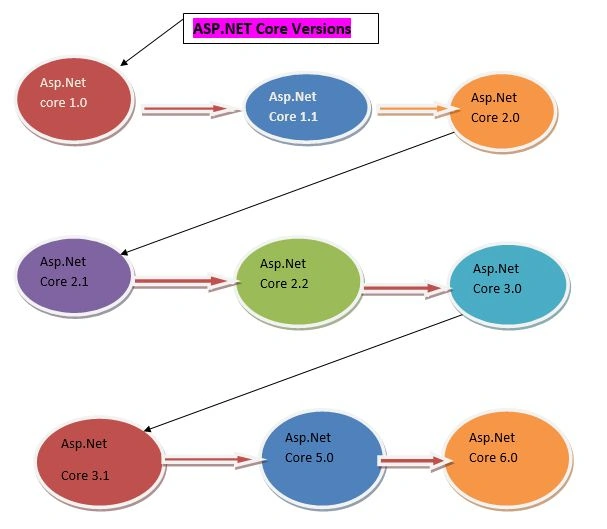
The below table show the details of Asp.Net Core Versions.History of ASP.NET Core Versions:
| Version | Release Date | Development/Editor Tool | Support |
| Asp.Net Core 1.0 | Jun-27-2016 | Visual Studio 2015 updated version 3 | 1.0 |
| Asp.Net Core 1.1 | Nov-18-2016 | Visual Studio 2015,2017 | 1.0,1.1 |
| Asp.Net Core 2.0 | Aug-14-2017 | Visual Studio 2017 Version 15.3 | 1.0,1.1,2.0 |
| Asp.Net Core 2.1 (Long Term Support) | May-30-2018 | Visual Studio 2017 Version 15.7 | 1.0,1.1,2.0,2.1 |
| Asp.Net Core 2.2 | Dec-04-2018 | Visual Studio 2017 Version15.9 | 1.0,1.1,2.0,2.1,2.2 |
| Asp.Net Core 3.0 | Sep-04-2019 | Visual Studio 2019 Version 16.3 | 1.0,1.1,2.0,2.1,2.2,3.0 |
| Asp.Net Core 3.1 (Long-Term Support) | Dec-03-2019 | Visual Studio 2019 Version 16.4 | 1.0,1.1,2.0,2.1,2.2,3.0,3.1 |
| Asp.Net Core 5.0 | Nov-10-2020 | Visual Studio 2019 Version 16.8 or later | 1.0,1.1,2.0,2.1,2.2,3.0,3.1,5.0 |
| Asp.Net Core 6.0(Long-Term Support) | Nov-08-2021 | Visual Studio 2022 Version 17.0 | 6.0 |
Why Use Asp.Net Core?
- Cross platform- It can run on Windows, Linux and Mac.
- Better performance- net core does not depend on system.web.dll for communication between Browser-server. In Asp.net core everything is packages which we need for our application. Packages reduce the request pipeline and improve application performance.
- Dependency Injection- Dependency Injection is in-built in Asp.Net Core.
- Integration with Modern UI Frameworks- It supports modern UI like Angular, ReactJS and Bootstrap etc.
- Hosting-Net Core application can be hosted on multiple Web server such as IIS, Apache, Docker etc. It is not dependent on IIS.
- Open Source- It is a fully open source framework.
- Testability- Unit testing is very easy in Asp.Net core application.
- Side-by-side App Versioning-Net Core runs on .NET Core, which supports simultaneously running in multiple versions of applications.
- Unified Programming Model for MVC and Web API-In Asp.Net Core both MVC Controller and API Controller are Inherits from the same controller base class.
Connect To Visual Studio 2022 Community Edition and Create Your First Project
Step 1
First, install Visual Studio 2022 in your system.
Step 2
Go to all programs in your systems, we can see Visual Studio 2022 current and Visual Studio Installer.
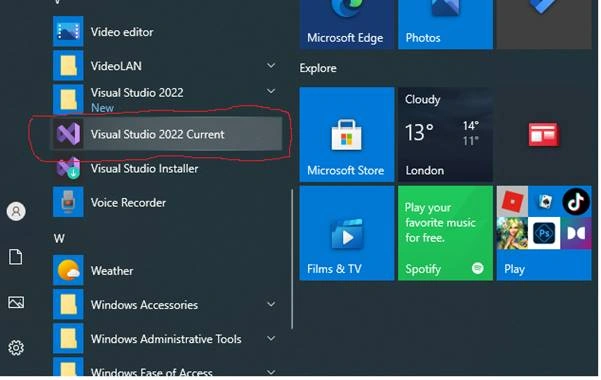
Step 3
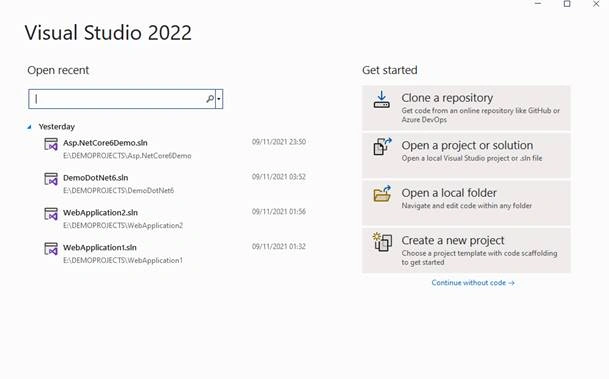
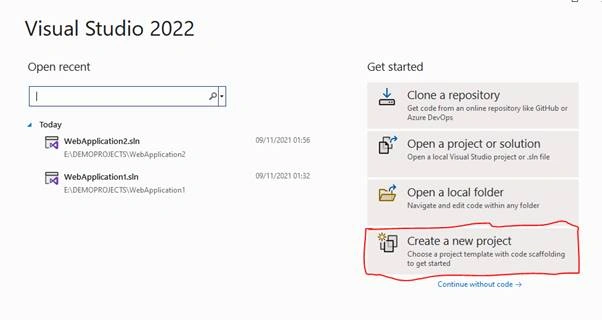
Double-click on Visual Studio 2022 Current and it will open. It looks like the below screenshot. Opening it the first time it will take few time.
Creating Your First Project
Click on, Create a new Project to create a new project.
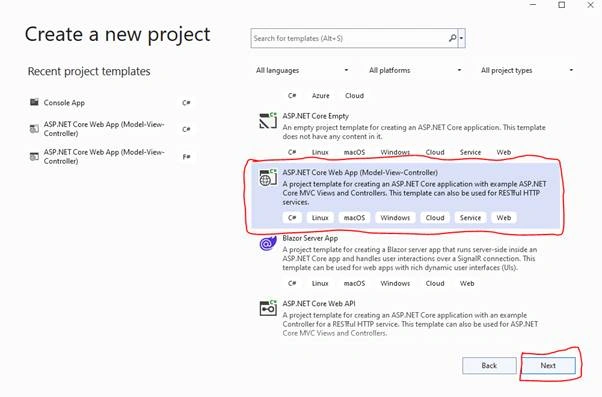
You can see various project types there. Choose “Asp.Net Core Web Application” project type for now.
Select Asp.Net Core MVC Application, and then click Next.
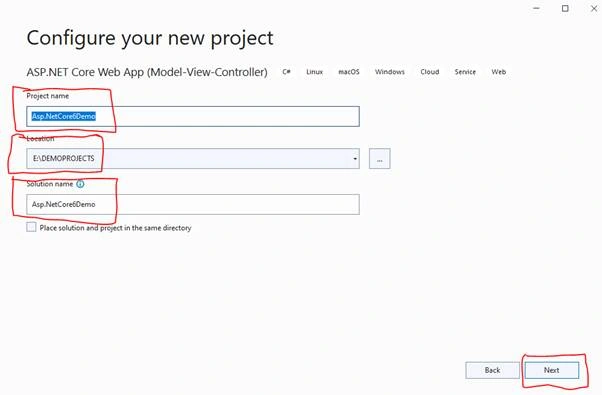
Give a valid name to your project and select a path for it. Then click Next button.
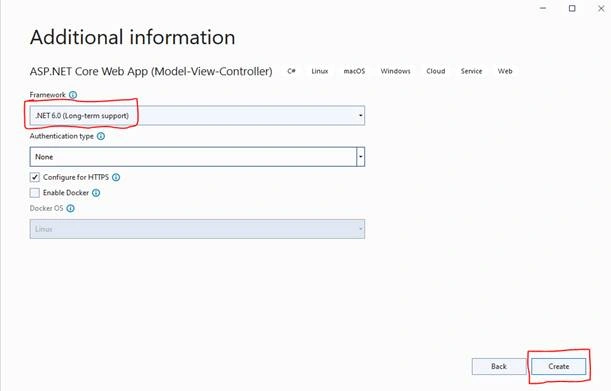
Now, choose framework .NET 6.0.Then click the create button.
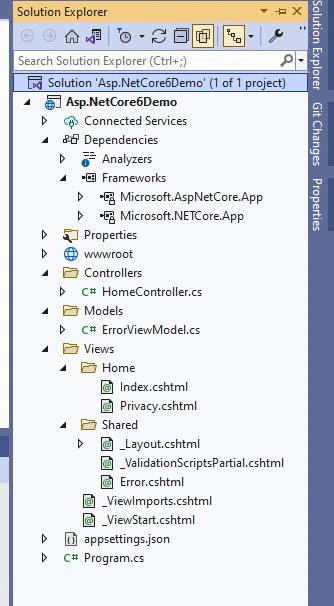
Asp.Net Core 6.0 application created and project structure is shown below,
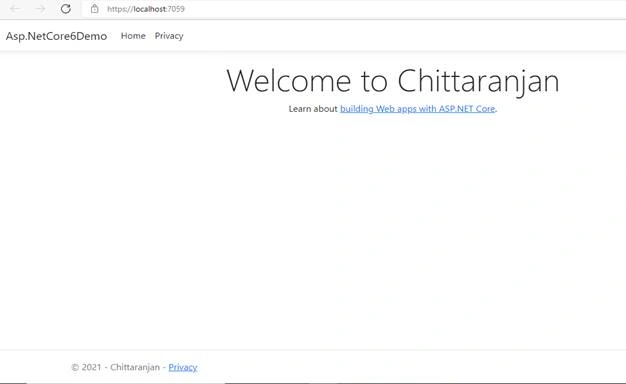
Now, build and run the application. I have made some minor changes in the view pages.
Output
Conclusion
In this article, we explained the basics of ASP.NET core 6.0 and what’s new in Asp.NET Core 6.0.
Join the conversation! Your thoughts help the community grow.