

There are many methods that we use to connect to the Virtual machine on Azure like RDP and SSH but these methods use public IP and there are chances of being exposed. So what if there is a way to connect to our Virtual Machines on Azure securely and not being exposed in any way.
There are many ways we try to connect to Azure Virtual Machines securely and without being exposed like jump box or also named as jump server. The jump server allows us to enable only one Virtual Machine in Azure to enable connectivity over the internet and then using this Virtual Machine, we can connect to the other VM on Azure by using dynamic IP. The Jump box prevents all Azure VM’s to expose to the public. When we use Azure Bastion we don't need to go through these and we can connect and communicate our VM without leaving the Azure Portal and it is also an in-browser experience.
So now let us see what is an Azure Bastion and how does it work.
What is Azure Bastion?
Azure Bastion is a PaaS service of Azure that allows you to connect to an Azure Virtual Machine using your browser. So this is a complete in-browser experience and provides secure RDP/SSH connectivity directly from the Azure Portal over TLS.
If you use RDP or SSH from your machine then you need to configure a public IP that is exposed to the world and your machine uses that IP and login credentials to connect and login to the Virtual Machine but when you connect via Azure Bastion, you just need to provision an Azure Bastion, configure it and you're ready to go.
How does it work?
So the figure below is the architecture of the Azure Bastion. Let us see how does it work. As you can see in the below architecture an Azure Bastion works per Virtual Network that means Azure Bastion deployment is per Virtual Network or Virtual Machine. Once it is provisioned in a Virtual network, the RDP/SSH will be available to all the VMs in the same virtual network.
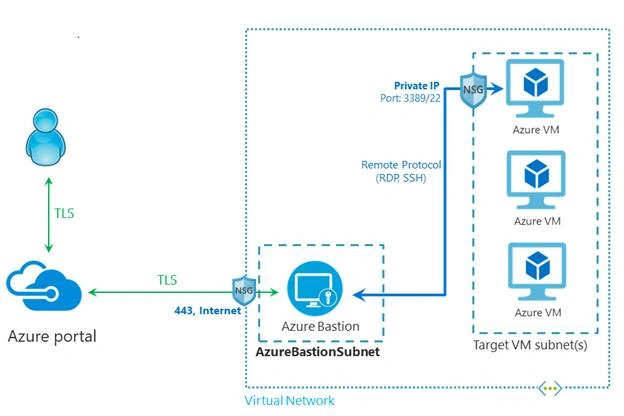
So for example, let's say I have a Virtual network named testVnet and there is then a Virtual Machine within that Virtual Network then all I need to do is provision an Azure Bastion within that Virtual Network and then I will be able to SSH and RDP into all the Virtual Machine inside that Virtual Network. So instead of using RDP and SSH that will expose the ports over the internet, you can use Azure Bastion and it will be more secure.
So according to the above diagram user connects to the Azure Portal using the browser and the user goes to the Virtual Machine and selects the Virtual Machine to connect and then RDP or SSH session will be initiated within the browser itself.
Why use Azure Bastion?
Azure Bastion is used to make a connection to the Virtual Machines easy and secure and it also prevents exposure of ports on the internet and helps minimize the threats such as port scanning and allows you to connect in the browser.
Advantages of Azure Bastion
- In-browser experience means you don't need any third-party software to connect to your Virtual Machines.
- You don't need any public IP to connect to your Virtual Machine.
- No ports are open and exposed to the internet so this is secure.
- No need to manage a lot of things like a jump box server or VPN to connect to your Virtual Machines.
How to provision and use Azure Bastion
So to do this there are three methods and let us go through this one by one.
Method one
Go to the Azure portal and search for the Bastion and click on Bastion.
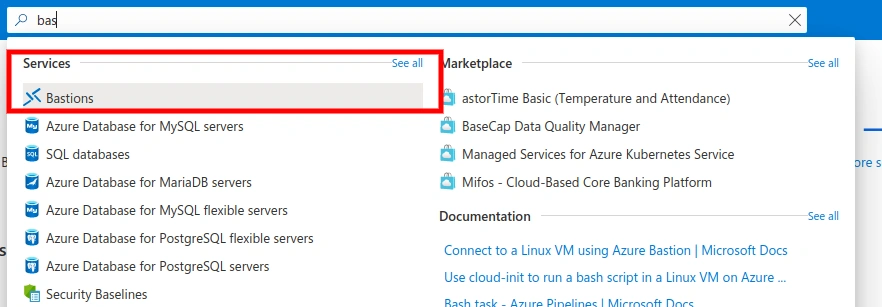
Click on create Bastion and enter the details. You need to provide the details about the Virtual network because remember Bastion is deployed per Virtual Network. Click on create new and fill in the details but there is an important note here and that is your subnet name must be AzureBastionSubnet and then go ahead and click on review and create. Give it some time and once the deployment is complete you will be able to use it. Now all the Virtual machines inside the testVnet will be able to use the Bastion.
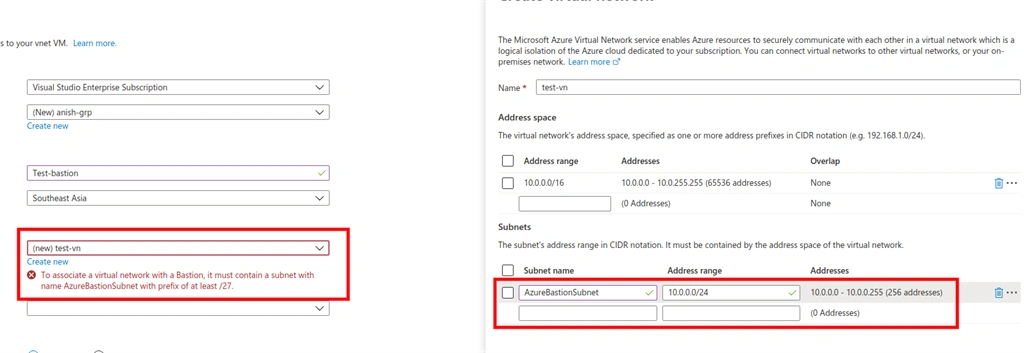
Again please note about AzureBastionSubnet, once you enter the subnet as AzureBastionSubnet you will not see the error again.

Method two
If you're using a VM and you want to connect to it using Bastion then you need to follow the steps.
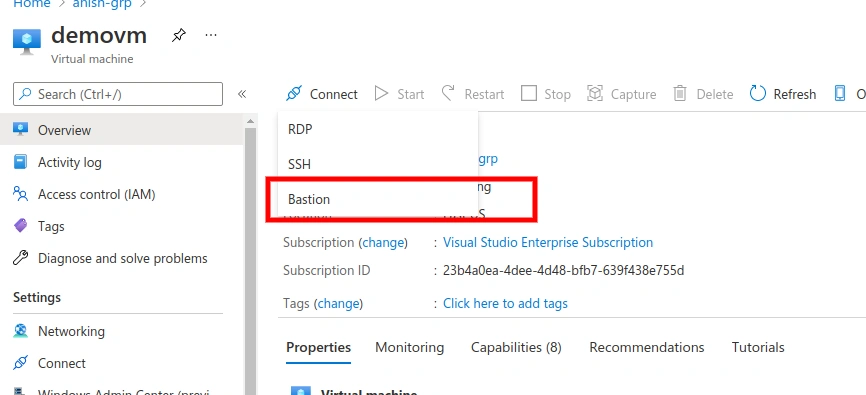
Go to Bastion under Operation on the Virtual Machine page and click on Bastion.

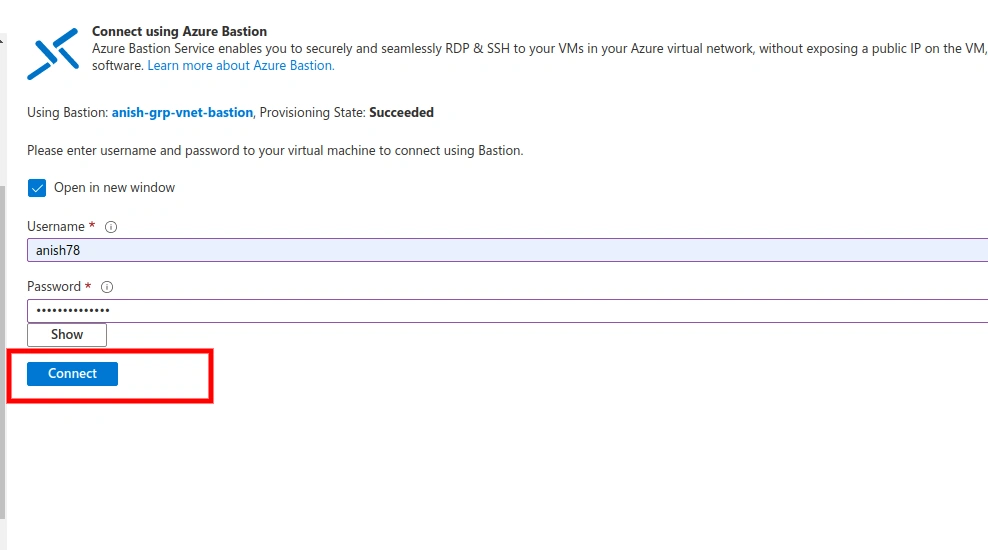
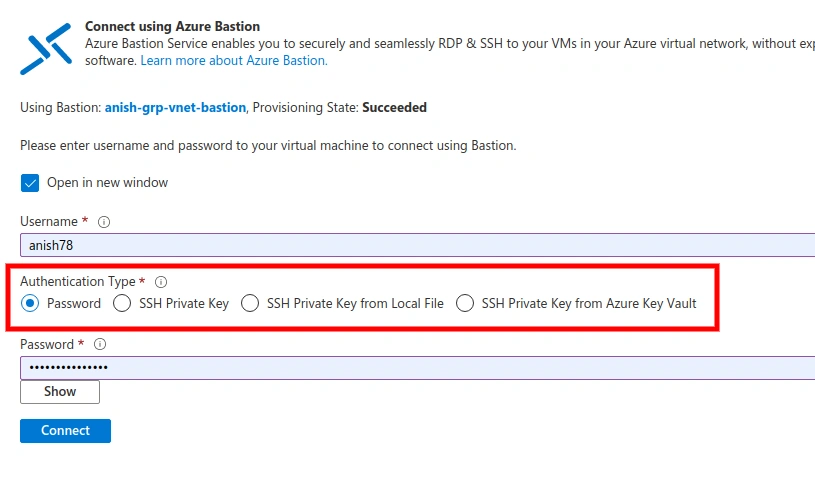
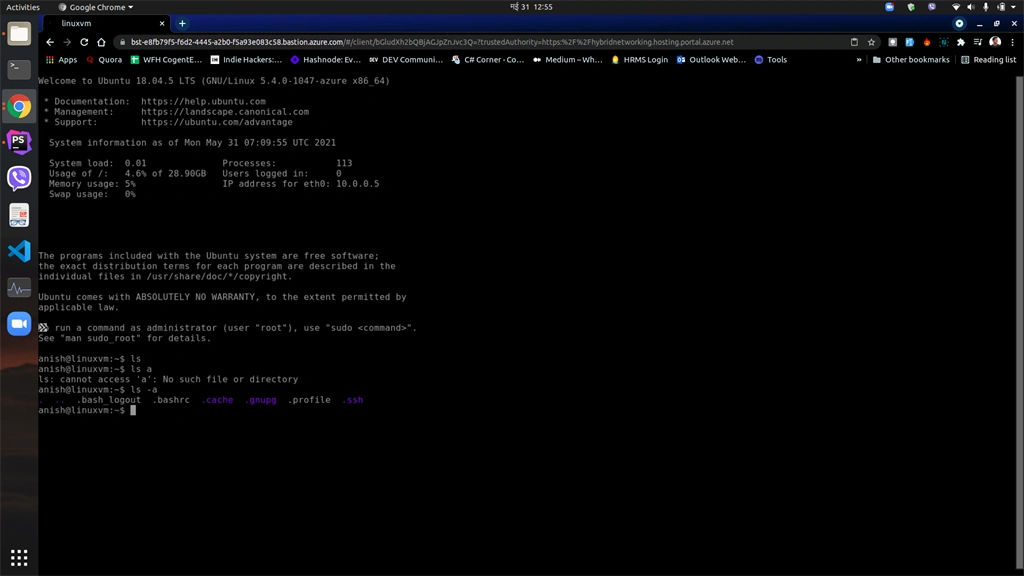
Then create Subnet once the subnet is created now go to step three and give it some time. Once it is done you can enter your username and password and then click on connect and you will see your machine in the next tab. It may ask you for permission then you need to allow it, then you're good to go.
Method three
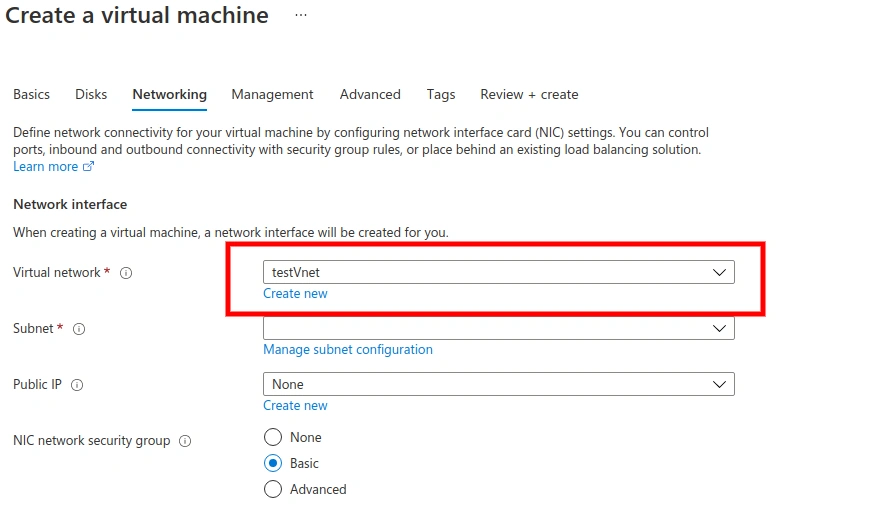
As we all know that Bastion is deployed per Virtual Network and the machine under that Virtual network can use Bastion to initiate RDP or SSH session. So when you're creating a Virtual machine you can configure your VM to use the same vnet where Bastion is deployed or you can deploy your VM within that Virtual network and this machine can be accessed using Bastion.
Sagar LadPosted Sep 27, 2021, 4:17 PM
Nice article
Gurpreet AroraPosted Jun 30, 2021, 6:28 PM
Nice article
Mahesh ChandPosted Jun 3, 2021, 1:21 PM
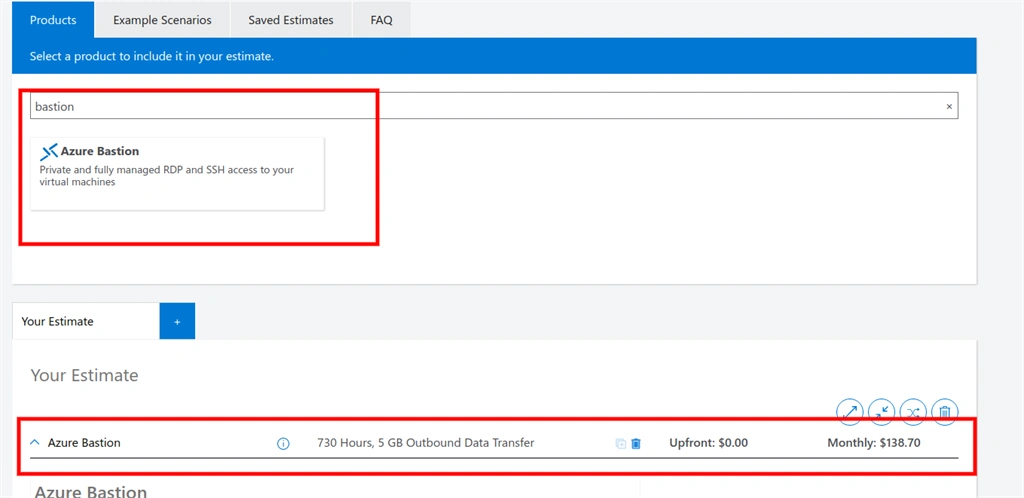
This is great, Anish. Could you also mention the cost of this service? I know its not cheap.