

Introduction
Azure Bastion (Public Preview) is a new service which allows you to have private and fully-managed RDP and SSH access to your Azure Virtual Machines via a Web Browser over SSL. All this is done without adding any public IP address to the VM. Also, it supports both, RDP and SSH connections to Azure VMs within a VNet.
Architecture

Credit : Microsoft
Key Benefits of Azure Bastion
- RDP and SSH from the Azure portal
Initiate RDP and SSH sessions directly in the Azure portal with a single-click seamless experience.
- Remote session over SSL and firewall traversal for RDP/SSH
HTML5 based web clients are automatically streamed to your local device providing the RDP/SSH session over SSL on port 443. This allows easy and securely traversal of corporate firewalls.
- No public IP required on Azure Virtual Machines
Azure Bastion opens the RDP/SSH connection to your Azure virtual machine using a private IP, limiting exposure of your infrastructure to the public Internet.
- Simplified secure rules management
Simple one-time configuration of Network Security Groups (NSGs) to allow RDP/SSH from only Azure Bastion.
- Increased protection against port scanning
The limited exposure of virtual machines to the public Internet will help protect against threats, such as external port scanning.
Steps to create Azure Bastion service on VMs using Azure Portal
There are two ways that you can create a Bastion host resource.
- Create a Bastion resource using the Azure portal.
- Create a Bastion resource in the Azure portal by using the existing VM settings.
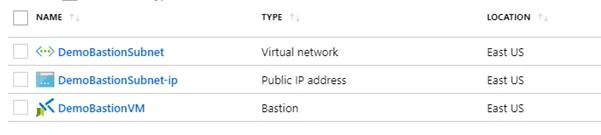
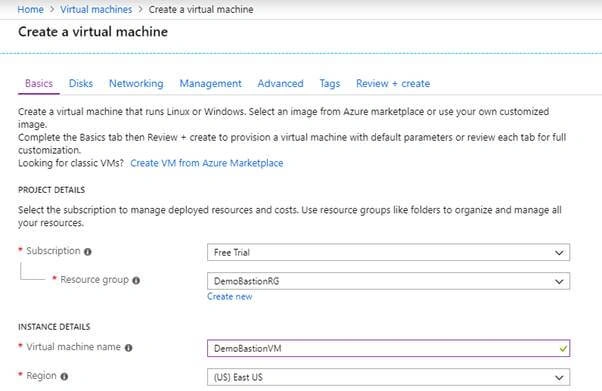
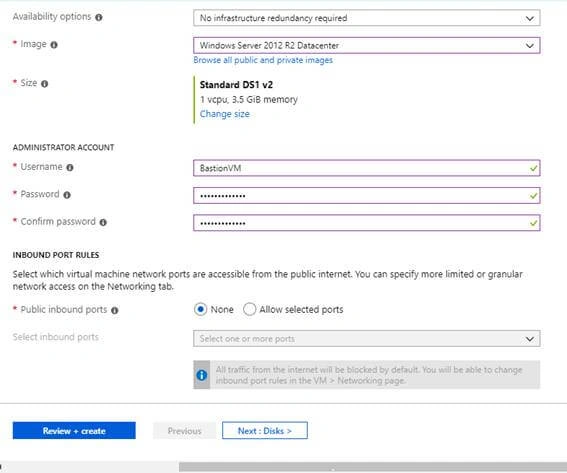
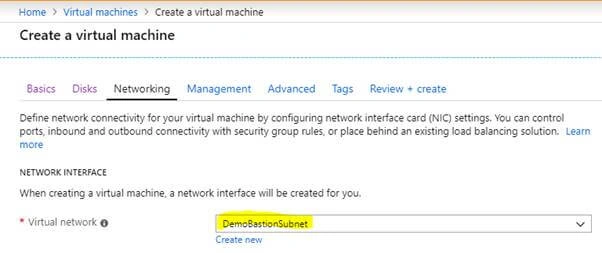
In this article, will discuss the process of creating brand new resources, such as VNet, Bastion service, and Azure Virtual Machine.
Prerequisites
Azure Subscription. (In this article, I have used a one-month free trial subscription)
- On-board bastion service (preview) to your Azure subscription
Log in to Azure Preview Portal using this link (https://aka.ms/BastionHost) and then, execute the following PowerShell commands.
Note
You must use the Azure preview portal since this Bastion service still is in public preview version.
Click the CloudShell in Azure Portal to execute the following commands.
1.1 Enrol BastionHost feature: Type the below command and hit Enter.
Register-AzureRmProviderFeature -FeatureName AllowBastionHost -ProviderNamespace Microsoft.Network

1.2 Register your subscription with Microsoft.Network provider
Register-AzureRmResourceProvider -ProviderNamespace Microsoft.Network

1.3 Use the following command to verify that the AllowBastionHost feature is registered with your subscription.
Get-AzureRmProviderFeature -ProviderNamespace Microsoft.Network

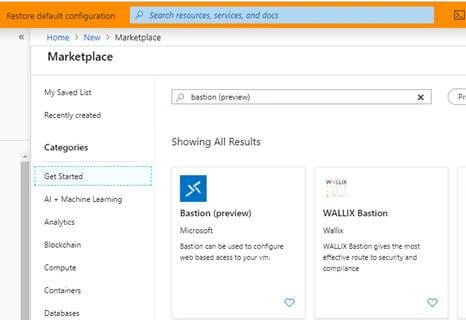
- Click on “Create Resource” then search the Bastion service, as shown below and choose the same.
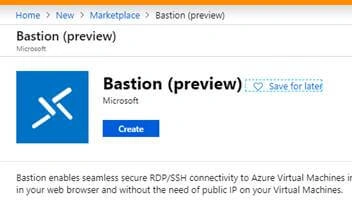
- Click on the “Create” button.
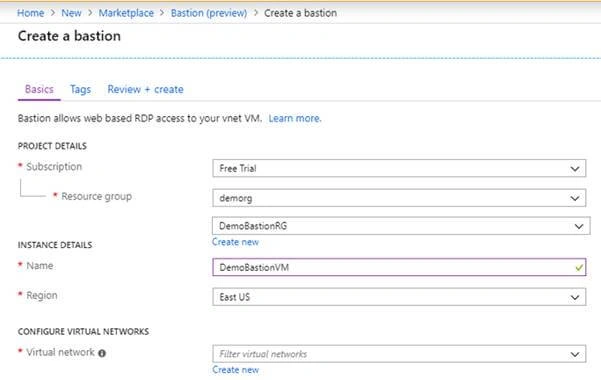
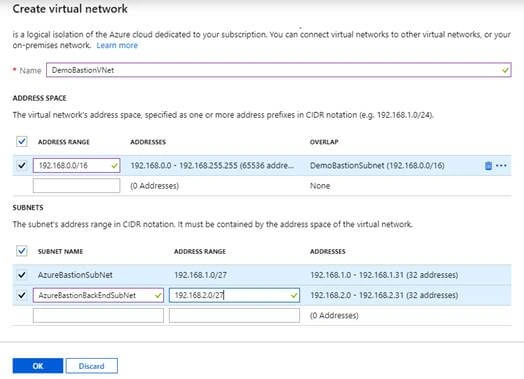
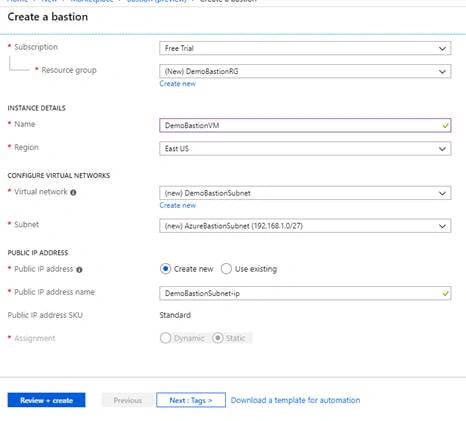
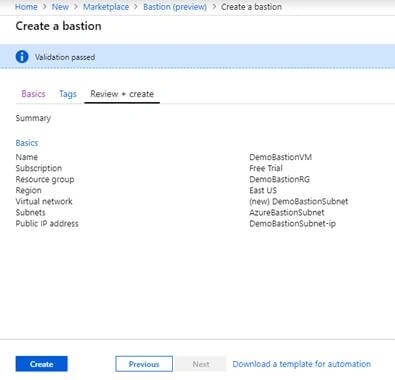
- In the "Create" panel.
Join the conversation! Your thoughts help the community grow.