

Prerequisites
- Azure account
You can see my previous article of this series at the following link:
Now let's get started with the following steps:
Run a HBase Hive query
Step 1 - Sign in to the online Microsoft Azure Portal.
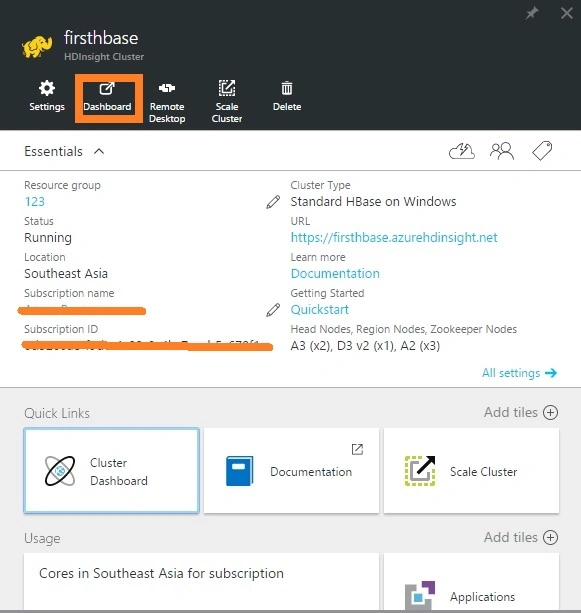
Step 2 - Click the name of the HBase Cluster that you want to use to run the Hive job, and then click Dashboard at the top of the blade.
Step 3
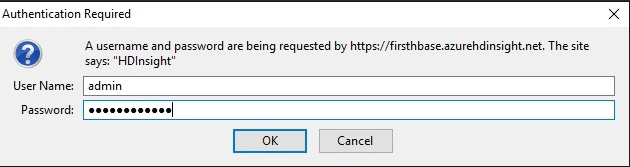
Then Hbase Cluster webpage opens in a different browser tab and asks for HBase user account and password. (The default user name is admin; the password).
Step 4 - From the dashboard, click the Hive Editor tab.
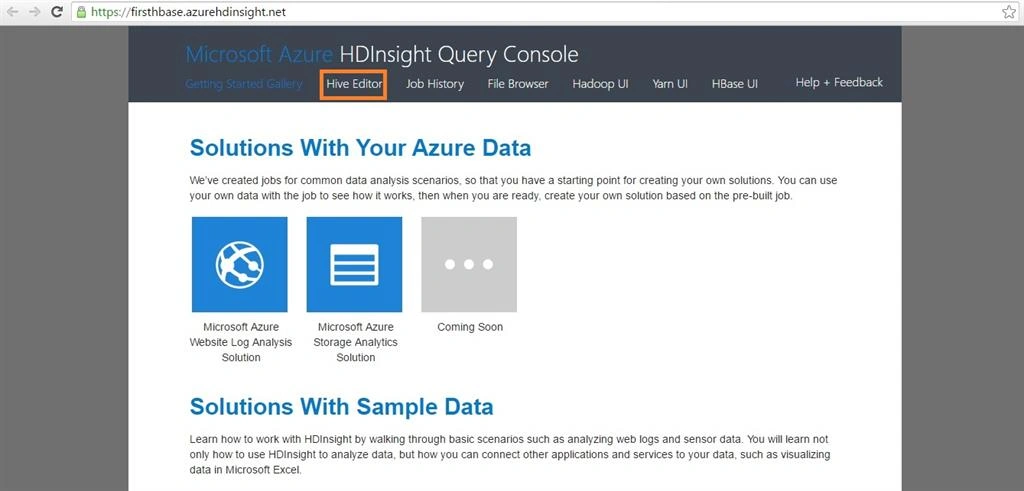
After clicking Hive Tab, the following web page opens.
Step 5
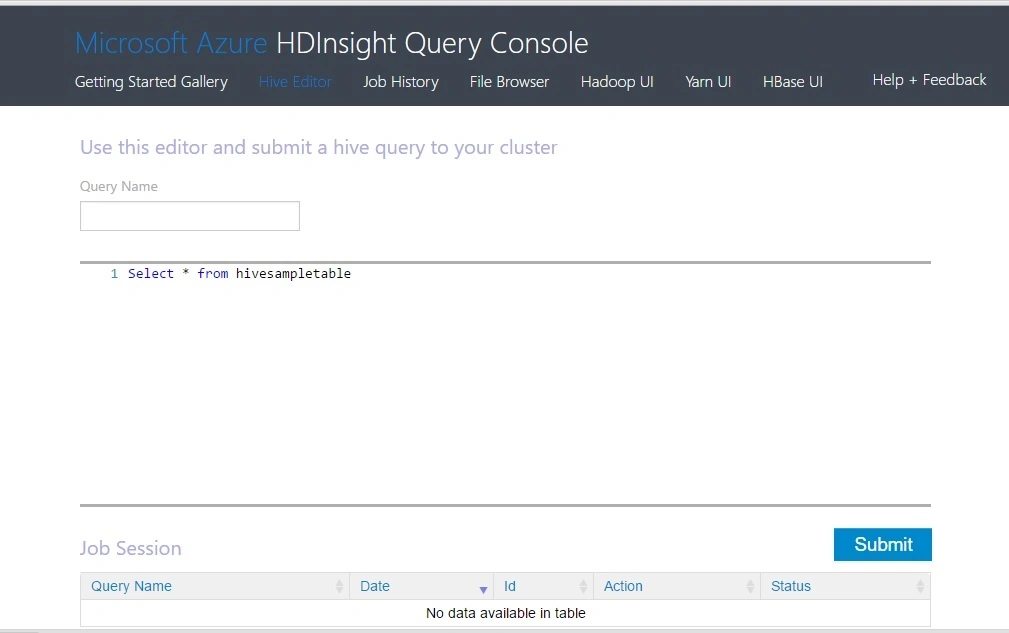
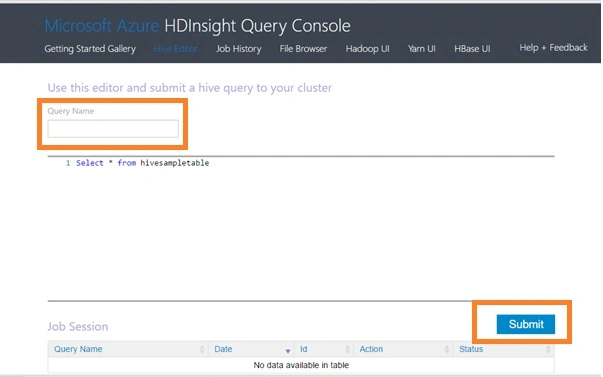
In the Query Name field, enter your Query Name. The query name is the job title. In the query pane, enter the Hive query as shown in the image and click Submit.
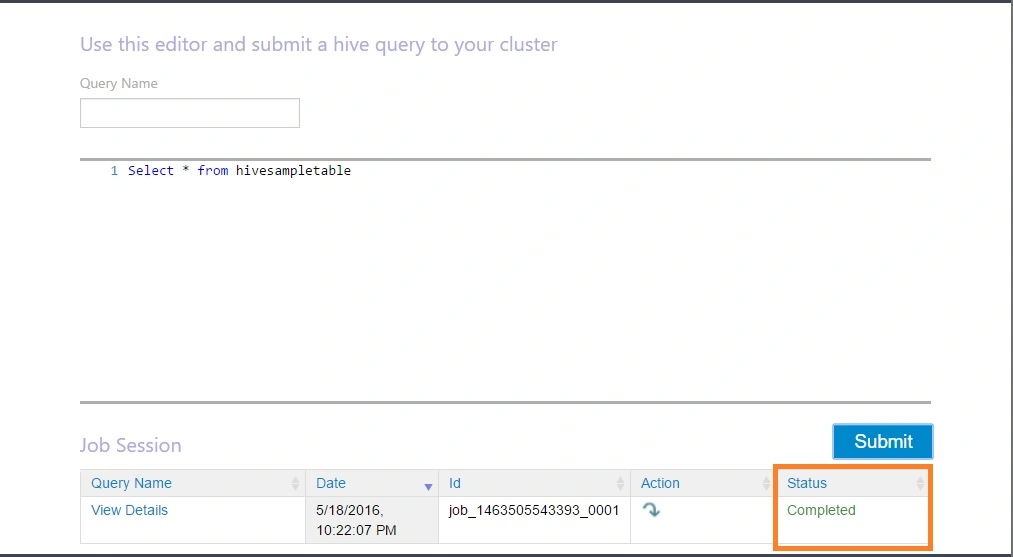
It takes some time to get the results back. After the status shows that the job is completed, the following appears,
Step 6 - Then click the query name on the screen to see the output.
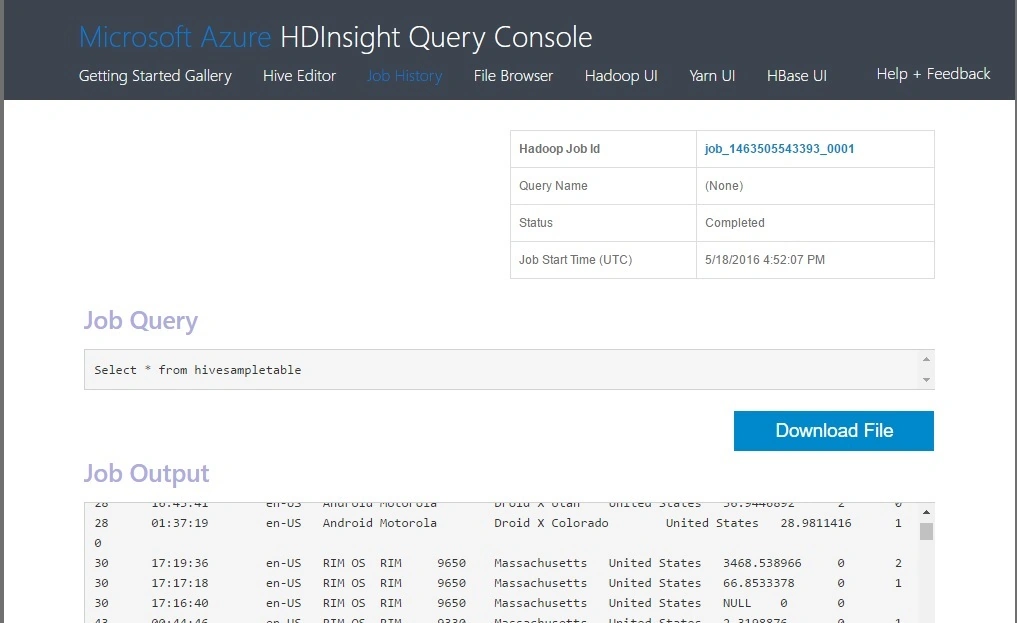
The page also shows the Job Output and the Job Log.
In the Query Name field, enter your Query Name. The query name is the job title. In the query pane, enter the Hive query as shown in the image and click Submit.
It takes some time to get the results back. After the status shows that the job is completed, the following appears,
Step 6 - Then click the query name on the screen to see the output.
The page also shows the Job Output and the Job Log.
Sonu ChaudharyPosted May 19, 2016, 11:57 AM
good one
Neeraj KumarPosted May 19, 2016, 7:15 AM
Good one
Prasanna MuraliPosted May 19, 2016, 3:09 AM
Nice one...