

Introduction
This article explains the browser integration in the latest version of Visual Studio, in other words Visual Studio 2013 RC. There is a new option available in this latest version named Browser Link Dashboard. It helps you to connect your application with the various browsers that are connected to the Visual Studio. As I had described in my earlier article I introduced you to the many other features released in this version. Here, I am developing an application in which I'll show you the use of the Browser Link Dashboard.
In that context, you can see in the following image that there are no browser link options available in my application:
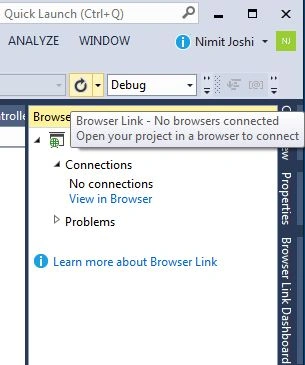
So, as you can see there are no browsers connected in my MVC application. Now for connecting to the various browsers so that we can see them in the Browser Link Dashboard have a look at the following options.
Step 1: Create an application. I am working on a MVC application. Open the Browser Link Dashboard.
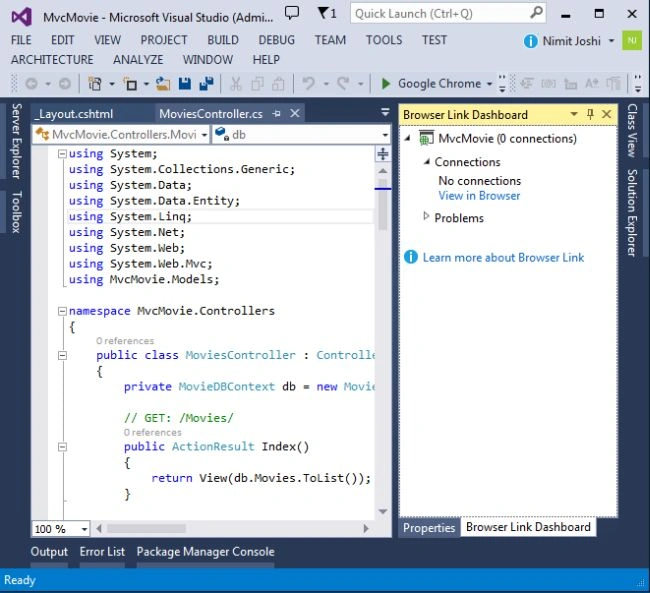
Step 2: Now debug your application.
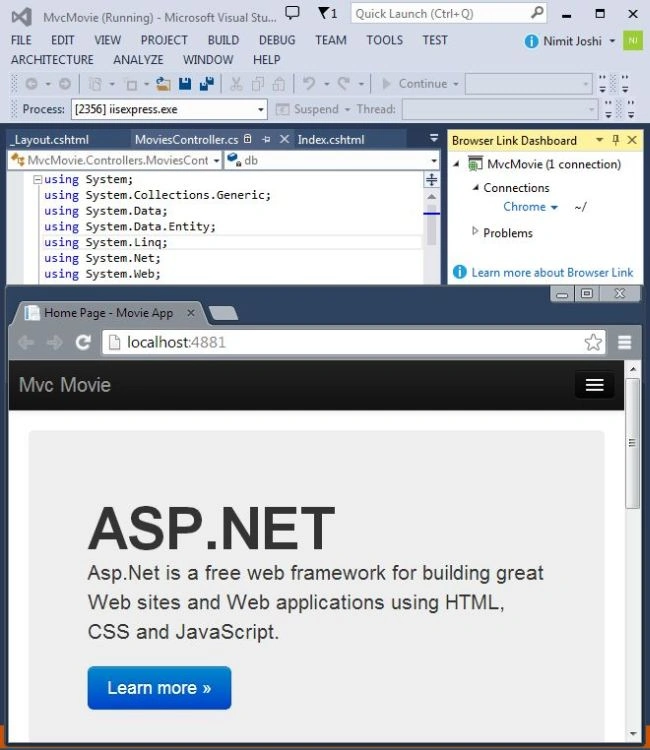
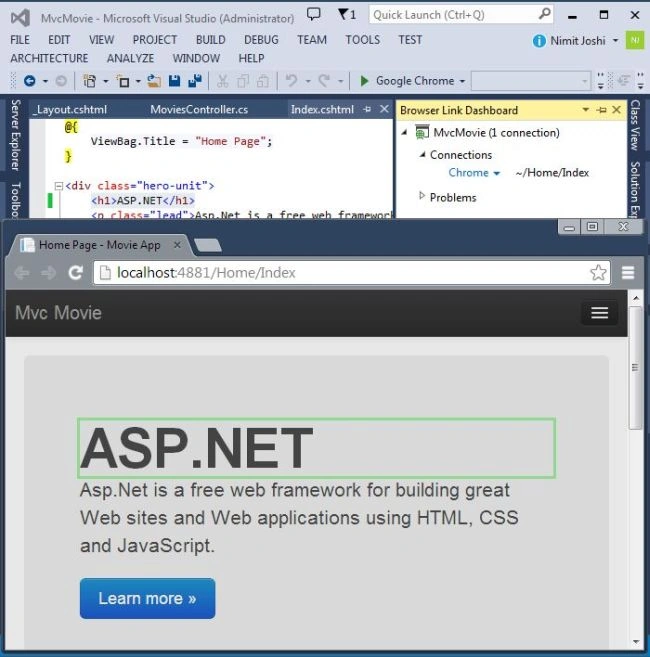
As you can see that the Browser Link Dashboard shows that Chrome is connected to the Visual Studio.
Working with Multiple Browsers
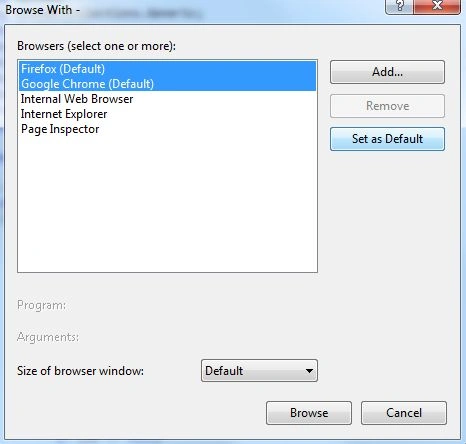
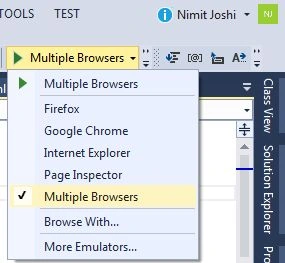
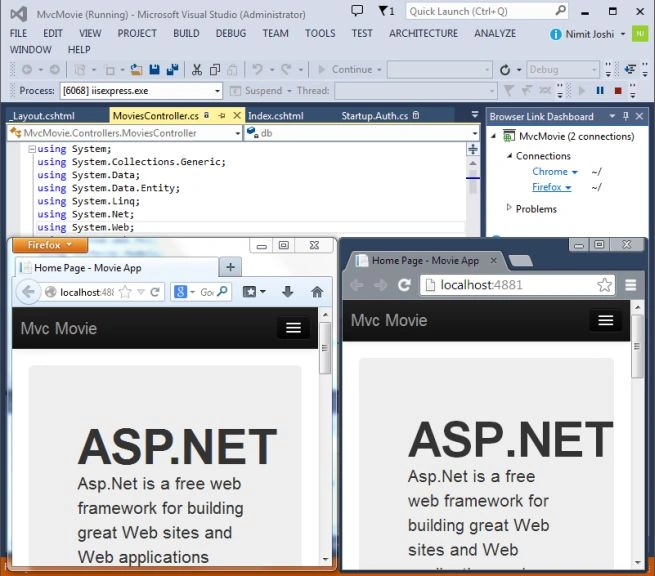
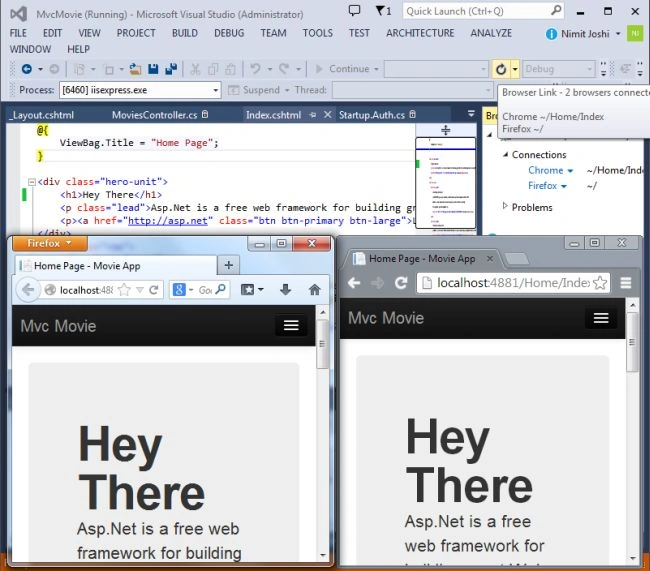
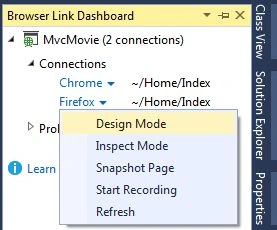
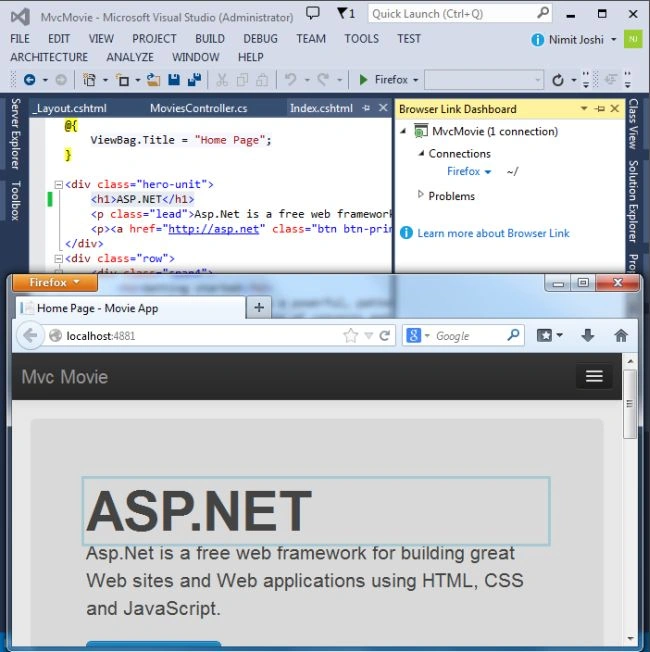
Let's open the application in the multiple browsers. But you can see in my Browser Link Dashboard that only Chrome is selected. For connecting multiple browsers see the images given below:

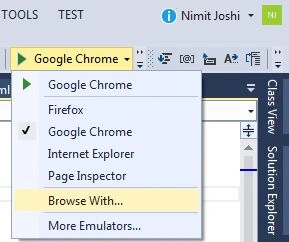
Join the conversation! Your thoughts help the community grow.