

Introduction
In the world of developing applications everyone is familiar with debugging your application by F5 in Visual Studio. It is very easy and clean. After OWIN and Katana we use the new development environment by IIS Express. We can also run the application with the command line by the use of IIS Express and also by F5.
So, in the current scenario we are using the new experience of developing the application by OWIN. OWIN makes building and hosting your application much simpler. We can also use the OWIN Host as the server to build and host the application.
In that context, in this article I am introducing the way to host our application by OWIN Host. Before starting you must read the article to self-host your application in OWIN . So, let's start the application development using the procedure given below.
Creating a Web Application
Step 1: "File" -> "New" -> "Project...".
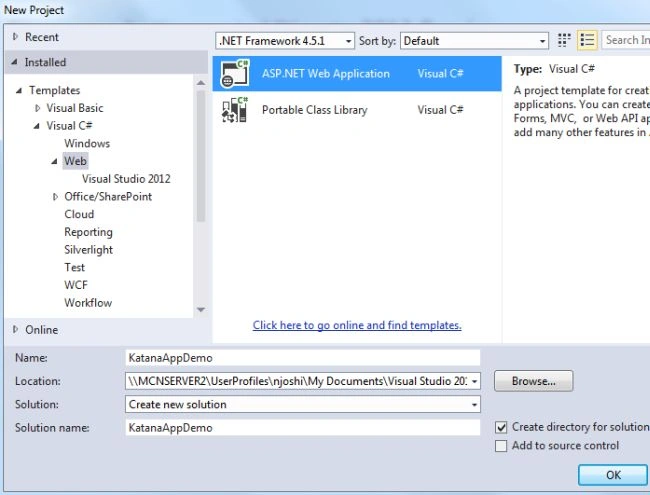
Step 2: Select an Empty template to develop.
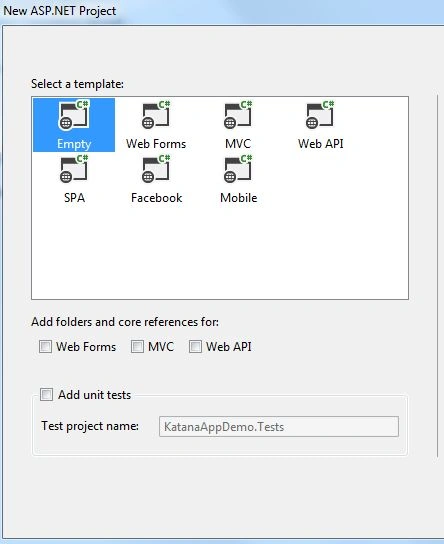
Step 3: Create a class in your application named "Startup.cs".

Step 3: Delete all the System.Web related references from your application.
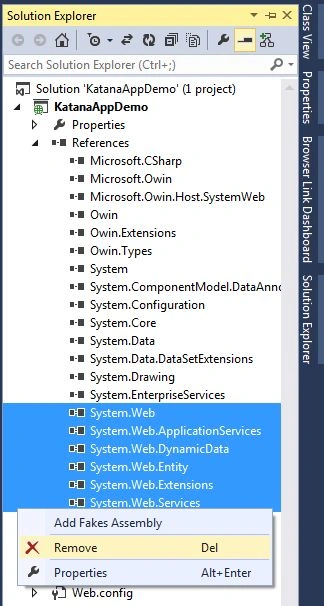
We delete all System.Web references to run the application purely by OWIN.
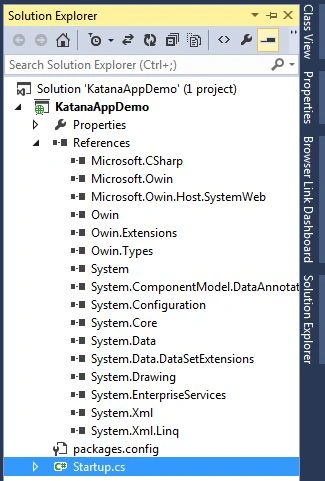
Step 4: Delete your Web.Config file. Now, your Solution Explorer will look as follows:
Use Owin Host
To use Owin Host as a server we need to make some changes in our application. Have a look at the following procedure.
Step 1: In your Solution Explorer, select your application and right-click to select Properties. Open the Web option.
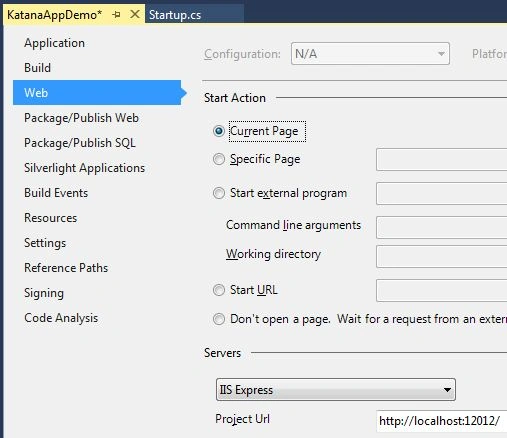
Step 2: Open Package Manager Console and write the following command:
install-package OwinHost -pre

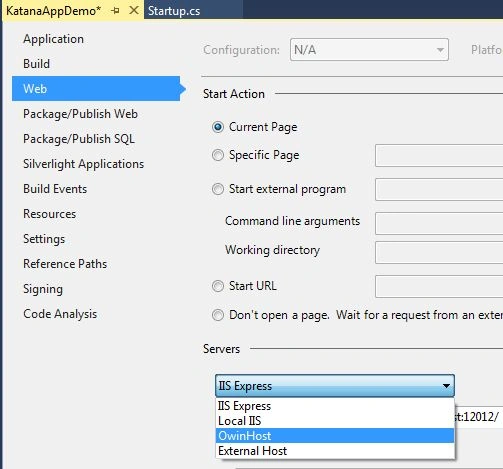
Step 3: Select the OwinHost as shown below:
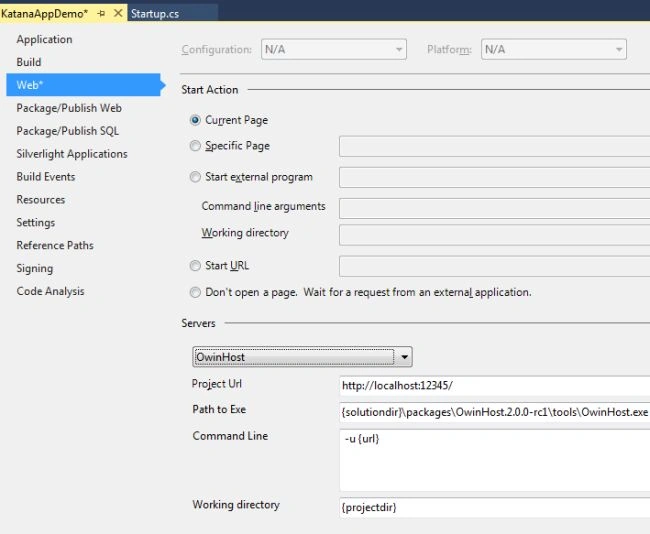
Step 4: You can see the changes after selecting the OwinHost as the server.
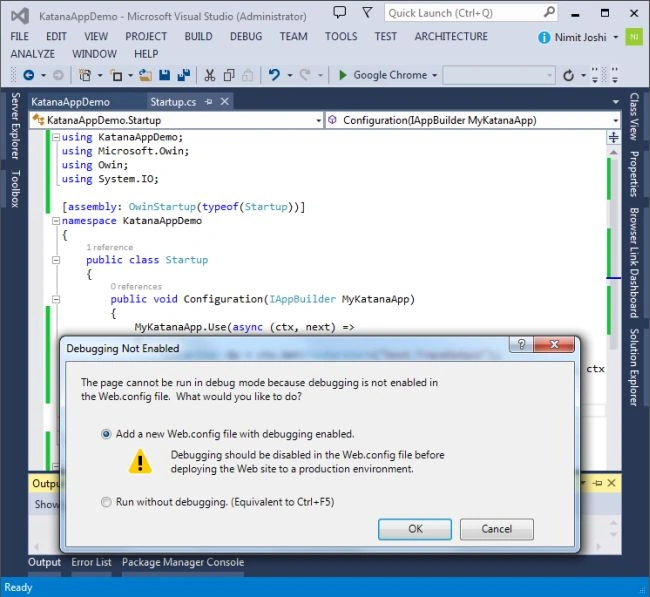
Step 5: Open the "Startup.cs" file and replace the code with the following code:
using KatanaAppDemo;
using Microsoft.Owin;
using Owin;
using System.IO;
Join the conversation! Your thoughts help the community grow.