As a Docker Captain, I’ve had the chance to explore many new tools and features, but Docker Offload genuinely feels like a game-changer.
I still remember the first time I tried training an AI model on my modest laptop – the fans roared, the CPU spiked, and I could almost hear my machine begging for mercy. If you’ve ever been stuck waiting forever for a container build or wished you had a powerful GPU on hand, Docker Offload is the new feature that’s about to be your hero. Announced in mid-2025 at the WeAreDevelopers World Congress, Docker Offload lets you “offload” heavy workloads from your local machine into the cloud. In short, you keep working with your usual Docker tools, but the actual computation happens on high-end cloud servers. This means faster builds, the ability to use GPUs remotely, and a smoother development experience overall.
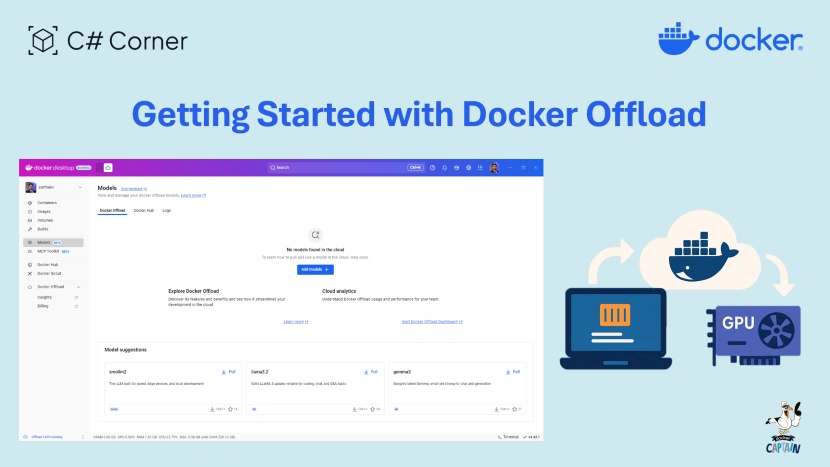
Remember slow builds or “dependency hell”? Docker Offload aims to solve that by giving you cloud-scale power without changing your workflow. Docker calls Offload a way to “maintain local development speed while accessing cloud-scale compute and GPUs” In practice, this means you can tell Docker to spin up containers or run machine-learning pipelines on a beefy cloud instance (often with an NVIDIA L4 GPU) right from your own desktop. No more laptop meltdowns!
The Problem Docker Offload Solves?
Every developer faces resource limits at some point. We’ve all been there:
- Slow build times on big projects. Waiting minutes (or even hours) for a Docker image to build can kill productivity.
- No GPUs at home. Want to do deep learning or video processing? A dedicated GPU setup can be expensive or nonexistent on a typical laptop.
- Inconsistent dev environments. Maybe your friend’s workstation is faster, or your cloud VM is beefier. Keeping everyone’s environment in sync is a headache.
These pains can make development feel like two steps forward, one step back. Docker Offload was designed to tackle exactly these issues. It gives you “cloud horsepower under the hood” while you keep your familiar Docker CLI and Desktop interface. In practice, Offload is like having a powerful remote workstation available on demand: your commands still feel local, but the heavy lifting happens elsewhere.
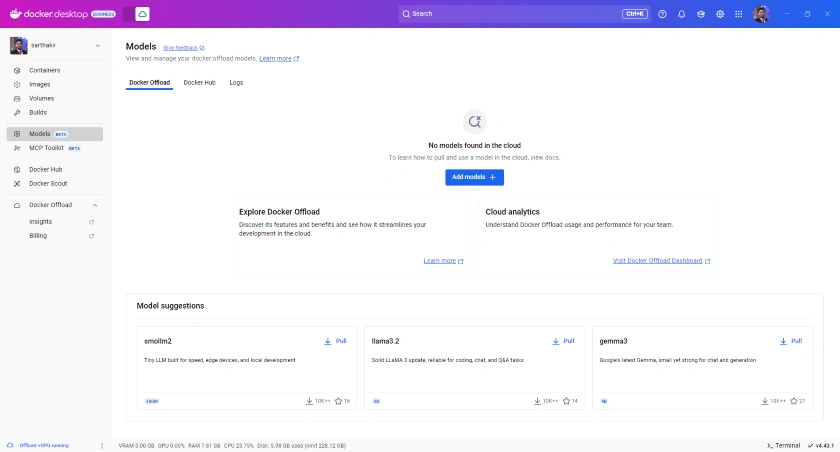
More concretely, Docker describes Offload (still in Beta) as a tool that lets developers “offload AI and GPU-intensive workloads to the cloud without disrupting their existing workflows”. In other words, the same docker build or The docker run commands you use today can be directed into the cloud. It’s as if your slow laptop suddenly had the muscle of a datacenter.
What Makes Docker Offload Stand Out
Docker Offload brings several big wins to the table:
- Cloud-powered builds and runs: You don’t need to rewrite your Dockerfiles or scripts. Just start Offload and Docker will run builds and containers on remote machines. This means faster builds and runs with no setup changes.
- Out-of-the-box GPU support: Offload provides instances with NVIDIA L4 GPUs if you need them. Just enable GPU support, and Docker will spin up a GPU-enabled cloud machine for you. That means things like training a small language model or running video transcoding can happen in the cloud, not on your CPU.
- One-command startup: Getting going is as easy as running
docker offload start in your terminal. That single command signs you into your Docker account and launches the cloud environment. (You can stop everything later with docker offload stop.)
- Free trial minutes: Docker offers a free allowance (300 minutes of GPU-backed Offload time during beta) so you can experiment without surprises. This lets you try Offload on a smaller task before committing to any paid usage.
- Seamless integration: Offload works with Docker Compose and Docker Model Runner. You can use
docker compose up for full-stack apps in the cloud, the same way you do locally, and even use Offload as a drop-in boost for AI workflows that would normally run on Model Runner.
- One familiar UI: The Docker Desktop UI simply shows an “offload” mode icon and even turns purple to indicate your session is remote. Under the hood, everything still looks like Docker Desktop, so there’s almost zero learning curve for the GUI side.
Together, these features mean you get cloud-scale resources with your usual Docker tools. No new languages, no managing Kubernetes clusters — just faster builds and runs where you need them.
How to Set Up Docker Offload in Minutes
Ready to give Docker Offload a spin? Here’s a quick guide to get up and running:
- Install Docker Desktop 4.43 or later. Offload requires the very latest Docker Desktop (4.43+). If you’re on an older version, update first so you see Offload in the menu.
- Sign in and subscribe. Log in to Docker Desktop with your Docker Hub account. You may see a prompt to start Offload right away. If not, you can always start it from a terminal.
- Start Offload:
docker offload start
This command contacts Docker’s cloud and sets up your remote environment. Follow the prompts to select your account. You’ll also be asked if you want GPU support – say yes if you plan to run any GPU workloads. Choosing GPU support will give you a machine with an NVIDIA L4 GPU, ideal for AI tasks.
- Run a container to test it. Once Offload is running, Docker Desktop will switch into “Offload mode” (the whale icon turns purple). Now try something simple like:
docker run --rm hello-world
You should see the usual “Hello from Docker!” message. If you enabled the GPU, you can also verify it with:
docker run --rm --gpus all hello-world
Both commands will actually execute in the cloud environment, not on your local machine.
- Stop when you’re done. When you’ve finished your work or experiment, stop the offload session with:
docker offload stop
After this, Docker reverts to building and running containers on your local machine. You can restart Offload anytime with docker offload start.
That’s it! In just a few steps, you’ve essentially rented a remote high-powered machine through Docker Desktop. Everything after step 3 uses your normal Docker commands.
Why Docker Offload Changes the Game
Docker Offload represents a shift in how we think about local development. Here’s why I’m personally excited:
- Big workloads on weak hardware: If you’re stuck on an older laptop or a low-power device, Offload is like a secret turbo button. You can run large language models, heavy data analysis, or massive builds without filling up your own CPU or memory. As Docker’s press release notes, Offload is specifically designed for when “agentic applications demand more GPU power… and local machines frequently fall short”.
- Smooth learning curve: You don’t have to learn a new toolchain or manage a cloud account separately. Offload uses your existing Docker Desktop and CLI. It’s essentially a transparent extension: one moment you’re on your couch editing code, the next moment your containers are churning away on a cloud server behind the scenes. No complex setup, and as InfoQ points out, “no configuration headaches”.
- Consistent team environment: Got teammates with different machines? Offload means everyone’s builds and runs on the same cloud hardware. No more “it works on my machine” woes. Everyone uses the same specs up in the cloud, so dev environments become identical by default.
- Hybrid local+cloud workflow: Offload effectively makes your local development hybrid. You still develop locally, but heavy lifting happens elsewhere. For example, building a container image still feels instant locally (because the command is fast and cached), but the actual image build happens remotely, where there’s ample CPU/RAM. The result: “run builds or containers … execute remotely, but behave just like local ones.”.
- Turnproof device longevity: Finally, sending work to the cloud means your laptop’s battery and hardware get a break. You won’t have to replace that old SSD or loud fan just to finish a project.
In short, Docker Offload frees you from infrastructure constraints. As one article explains, Offload “frees you from infrastructure constraints by offloading compute-intensive workloads (like LLMs or multi-agent orchestration) to high-performance cloud environments. In plainer terms: no more being limited by your laptop’s specs.
What You Can Do With Docker Offload
Putting Offload to work can open up lots of possibilities. Here are some immediate ideas for projects and experiments:
- Faster image builds: Use Offload to build Docker images on remote machines. Even multi-stage builds and large dependencies will compile much faster. Docker’s caching still works, so it can skip unchanged layers.
- GPU-heavy tasks: Try machine learning pipelines, video processing, or 3D rendering. The included NVIDIA L4 GPU is great for tasks like training a small neural network or running inference with Hugging Face Transformers, without needing a local GPU.
- Run Jupyter notebooks or AI demos: Spin up a Jupyter Lab server or a GUI-based AI demo (like a PyTorch model) in the cloud with Docker. Share the link to your browser as usual, but enjoy the cloud’s speed. No need to configure a separate VM or install drivers.
- Multi-agent and AI apps: If you’re into “agentic” applications (multiple AI agents talking to each other), you can deploy an entire agent stack with Docker Compose in the cloud. Define your agents and tools in a
docker-compose.yaml and use docker compose up—Offload handles the rest.
- Consistent development labs: Have students or colleagues? Use Offload to give everyone identical environments. For example, you could set up a compose file for a full web app (database, backend, AI model) and run it via Offload so each person sees the same behavior.
- Try AI models on-demand: Quickly test out a new large language model or vision model by pulling it into a Docker container and running it with Offload. You can load large model files or datasets without worrying about your disk space or RAM, since it’s offloaded to the cloud machine.
- Extend Docker Model Runner: If you’ve used Docker’s Model Runner for LLMs (via llama.cpp, etc.), Offload can transparently replace it. According to InfoQ, Offload can be used as “a drop-in replacement for Docker Model Runner” when local resources aren’t enough. That means you just flip a switch to use the GPU-enabled cloud instance instead of trying to fit the model on your laptop.
All these use cases share one theme: no special infra needed. You don’t have to sign up separately with AWS or GCP or handle Kubernetes. Offload works with your existing Docker account and shows usage in your Docker dashboard. The cloud machines it creates are managed for you. In short, it’s like having a powerful development server ready at the click of a button.
Final Thoughts
Docker Offload makes serious development a lot more accessible. As a developer, having this tool feels like having a friendly giant on the team – quietly running heavy tasks so I can focus on writing code. The beauty is in its simplicity: you keep your usual Docker workflow, and poof, a cloud computer takes over the heavy lifting.
This feature is especially exciting for AI and data projects. You might be a solo coder who finally gets to train that transformer model, or part of a mixed laptop/power-user team where everyone now shares the same “high-end” workspace. Even CI and testing pipelines could leverage Offload for faster runs. Docker’s own materials highlight that you can offload “large models and multi-agent systems in high-performance cloud environments”, which essentially means no project is too big for your laptop anymore.
Of course, Docker Offload is still in beta, but it’s surprisingly polished already. The inclusion of 300 free minutes (during beta) is a great way to try it risk-free. Personally, I’ve started offloading some nightly build jobs and small model experiments, and the time savings have been impressive. My laptop is running quietly and cool for the first time in years!
If you’ve ever been limited by your local machine, give Docker Offload a try. Follow the quickstart guide, play with a simple project, and you might find yourself wondering how you ever lived without it. In my experience, it really feels like a glimpse of the future of local development – one where your trusty Docker tools bridge seamlessly into the cloud. After all, Docker’s mission has always been to simplify complexity, and Offload is just the latest step in making high-powered computing easy and accessible for developers everywhere.
Happy Dockering!
Resources


Join the conversation! Your thoughts help the community grow.