

To start with Power BI Report, you need to download Power BI Desktop App from the Link.
Once it gets downloaded open Power BI Desktop application which will look like this,
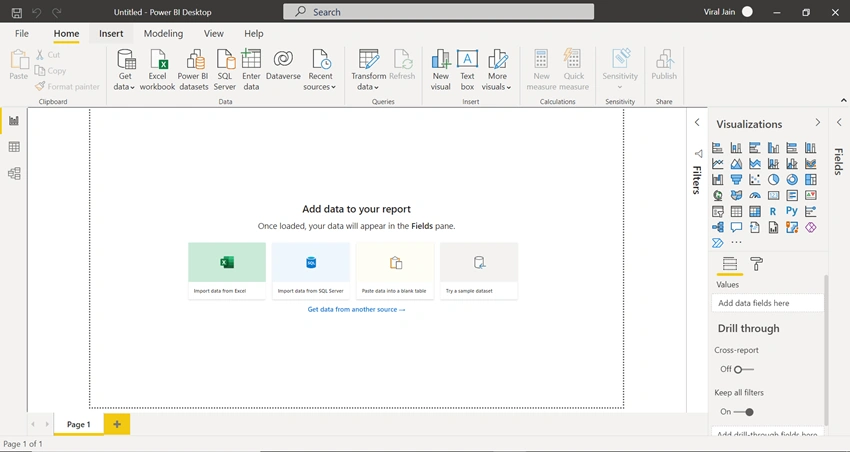
There are many ways to Import data for Power BI report like Import data from Excel, Import Data from SQL Server, and many more.
For this article, we will use Import Data from Excel method for our Power BI Report.
Create a sample Excel for Power BI which will act as a Data Source for Power BI.

Once we create Excel successfully as shown above, we will use this Excel as a Data Source in Power BI Desktop app.
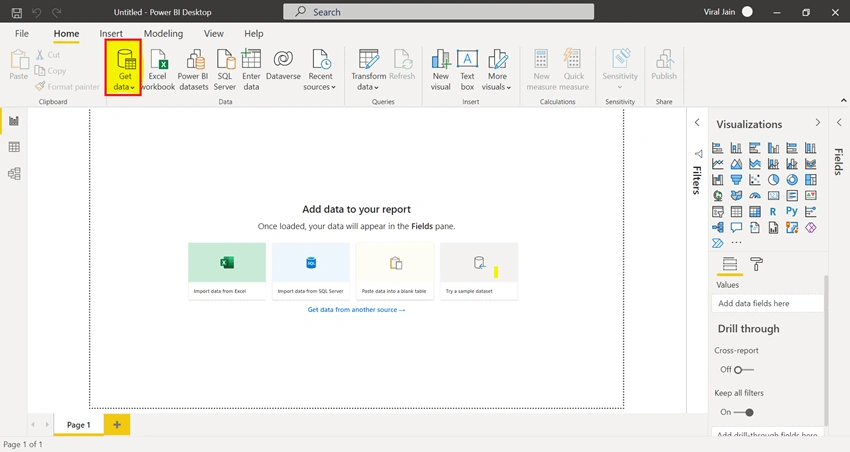
The next step is to open Power BI Desktop application and click on Get Data which is present on Top of the Menu bar (Highlighted below in Yellow)
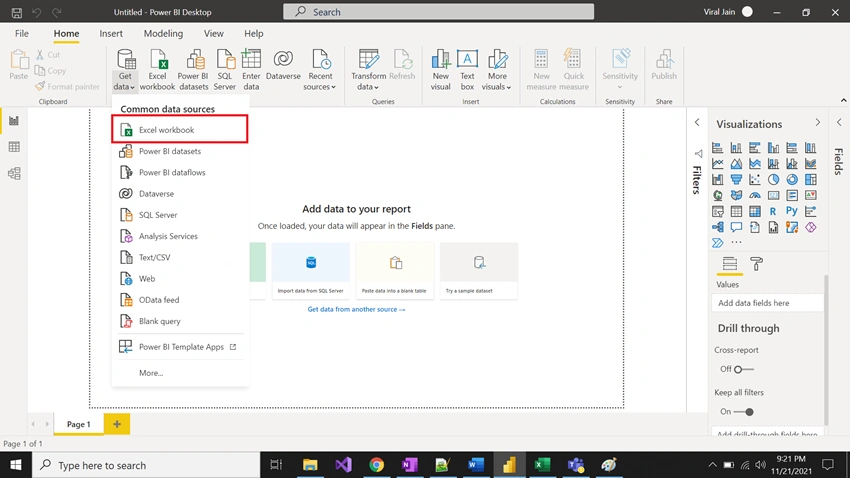
Select Excel Workbook as a data source for this Report.
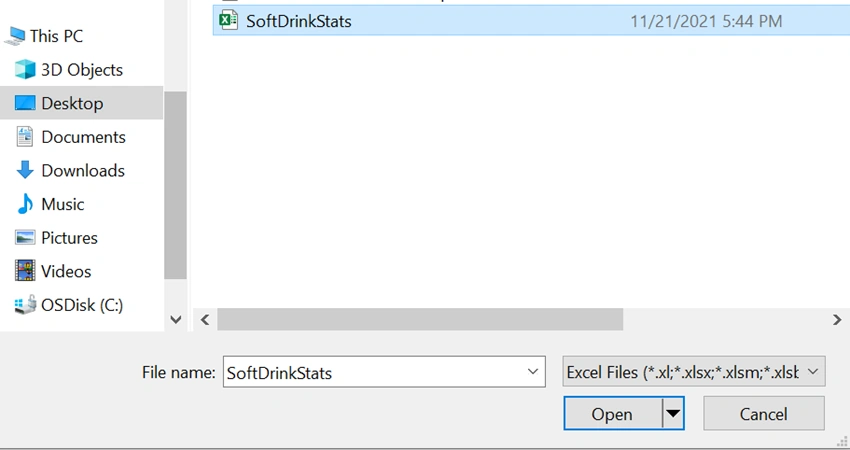
Now it will ask your Excel Location which you have created in your system as a sample data source for your Power BI report.
After selecting the Excel file, select the Sheet which will populate data in the Report (Shown below)
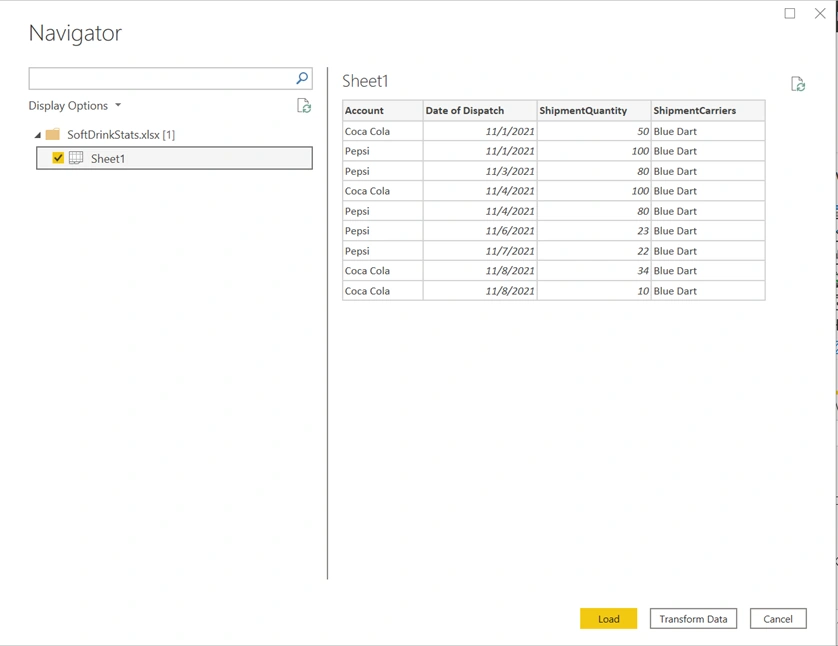
Click on Load.
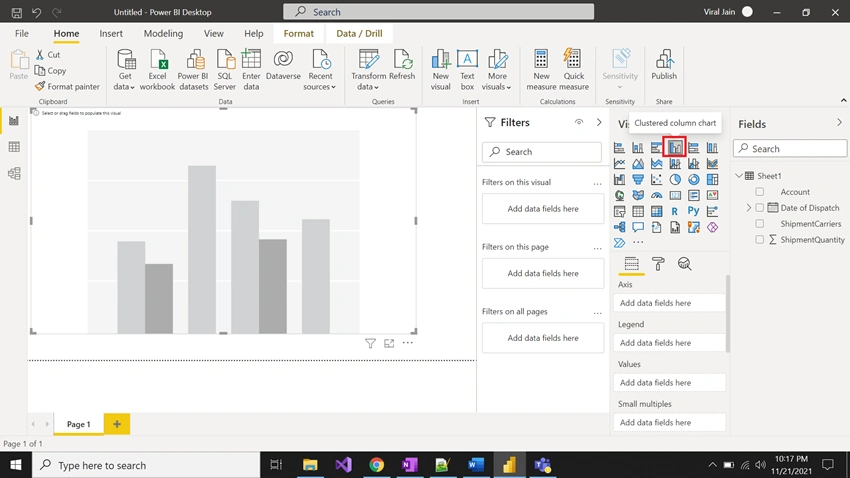
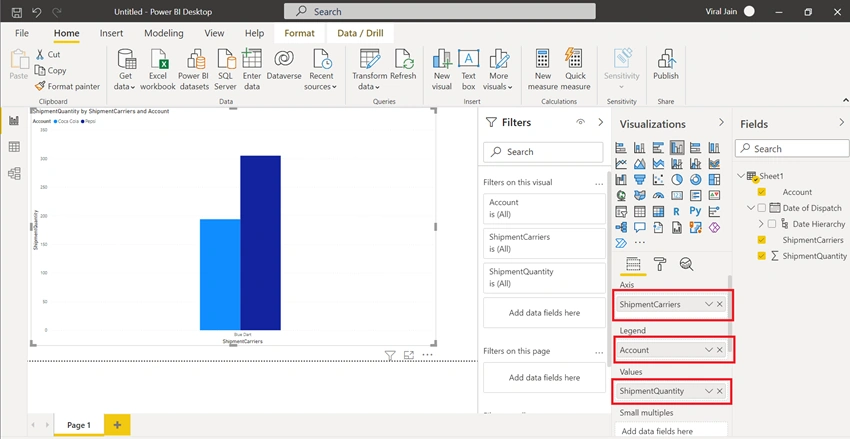
Once it is loaded and applying changes to the Sheet you can now see Data of your Excel in Data tab of the Power BI app.




Join the conversation! Your thoughts help the community grow.