

Introduction and Goal
With this article I'm starting a step-by-step series on how to use MongoDB with ASP.NET MVC. In the course we will go from the basic to the advanced operations of MongoDB and gradually how to use it with ASP.NET MVC.
What you will learn
- You will learn the basics of MongoDB administration.
- You'll learn how the .Net driver is organized and how to use it to connect to the Mongo Server.
- You'll learn the fundamentals of how .Net types are serialized and stored in Mongo and how to customize the process to fit your specific needs.
- You'll learn how to create an update and remove data from your MVC Applications.
- How to build models with rich behavior without the overhead of mapping to our relational model.
- You'll learn how to use both LINQ and Mongo's Query document style to query information from your application and how to combine them to build the most flexible of queries.
- You'll learn how to use GridFS to store files and associate them with documents in your MVC applications.
- You'll also learn how to avoid common pitfalls.
In this article “Day-1” of the series, we will learn how to get started with MongoDB. We will go through the introduction to MongoDB, why we should use MongoDB with ASP.NET and then download and instal it today. I chose to let you dive into the basics before moving towards the advanced lessons so that the series covers the novice developers as well or whosoever is not so familiar with MongoDB.
Introduction to MongoDB
MongoDB is from the family of emerging NoSQL or Not Only SQL databases. It's a document type database where information is no longer stored in rows but rather as rich documents.
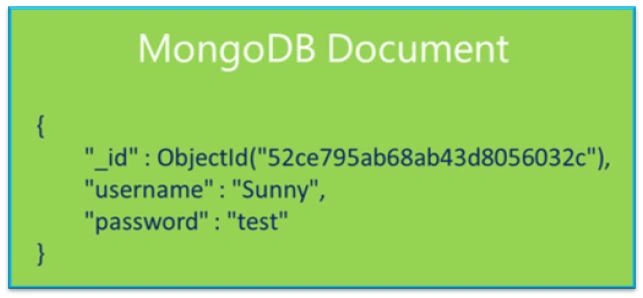
MongoDB uses BSON, very similar to JSON to store documents. BSON (or Binary JSON) is a binary encoding of JSON-like documents that MongoDB uses to store information in documents. It adds support for the Date and Binary (BinData) data type that isn't supported in JSON.
Why use MongoDB in MVC?
- Faster Development: unlike relational systems Mongo doesn't require you to explicitly create a database, tables and columns; it's all handled automatically by the very nature of flexible schemas. It significantly cuts the development effort.
- Minimal Migrations: Mongo also minimizes data migrations.
- Easier Collaborations: Fewer migrations mean much less pain sharing and merging changes with other developers.
- Maintainable Design: With relational storage, building a rich model requires a lot of overhead to stitch together the results from many tables and then map that to separate models in your applications. This level of overhead either isn't justifiable or is just too difficult to maintain. This leads developers to constrain the code to fit the relational model resulting in highly procedural code, duplication, foreign key identifiers, cascading deletes and so on, scrambling all the business logic. All of this results in an application that is very difficult to maintain.
- Rich Behavior: As you start to create rich data models, you will find yourself adding rich behavior to those models as well. For example when order items are contained in an Order model, it's easier to have the Order model calculate the total instead of doing the center Controller or otherwise.
- Scalability: Mongo Architecture allows you to scale as your traffic increases.
- GridFS: Mongo also has a fantastic system, GridFS, for storing querying and associating files with data in your application.
Last but not least, according to DB-Engine, the fifth most popular storage system and the number one NoSQL most popular solution (as of the date I'm writing this article, "2014-04-07").
Let's get started
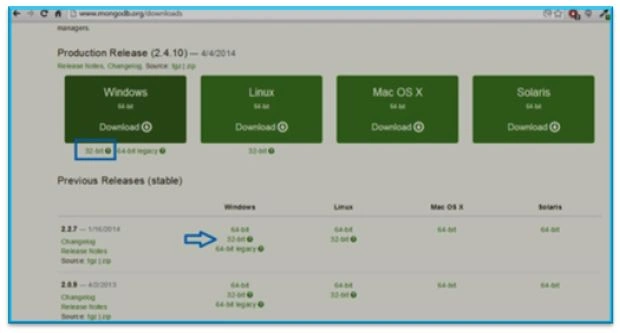
In order to get started with MongoDB you need to first download and install it on your system. Visit MongoDB downloads URL: mongodb downloads and download the supported/desired version of MongoDB. As of now when I'm writing this article, the site looks like this:
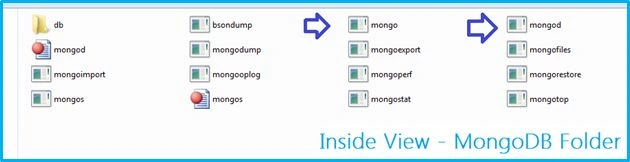

Myke BlackPosted Jun 7, 2017, 11:56 AM
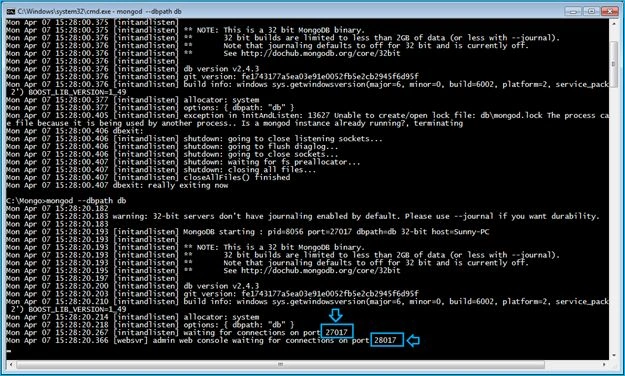
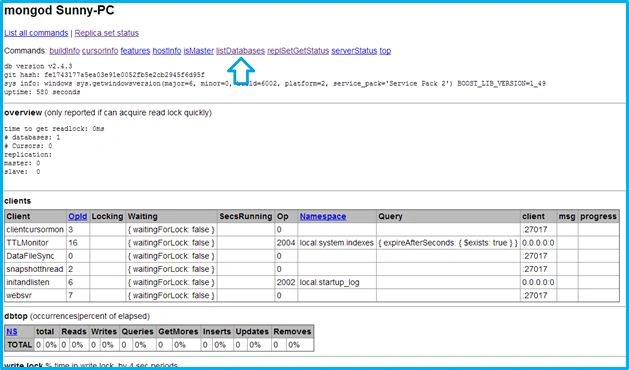
Managed to install mongo and set the server going but when i went to the localhost:28017 in my browser it shows the message 'It looks like you are trying to access MongoDB over HTTP on the native driver port.' after a bit of research I found that when you start mongo, you have to add the switch ''httpinterface" at the end, so to start the server I had to use something like this: mongod --dbpath d:\mongo\data\db --httpinterface I'm using windows which might have something to do with it?
Vidit MathurPosted Mar 1, 2017, 3:01 AM
In steps to start mongodb before writing mongod --dbpath db a data directory should be created using md \data\db , which is the data directory for mongo otherwise mongo would exit immediately after running command . Please update the article.
Praveen KumarPosted Aug 28, 2016, 7:46 AM
It's helpful
Rahul Kumar SaxenaPosted May 22, 2016, 11:58 PM
Good show
Omid NasriPosted May 6, 2016, 3:42 AM
Thx.+
Abhilash J APosted Mar 28, 2016, 11:41 PM
Sir, this is very informative.
Sean ChPosted Aug 26, 2015, 4:28 PM
that was very helpfull