

MVVM stands for Model View ViewModel, MVVM light toolkit is architectural design that is based on MVVM design pattern. MVVM is in part about avoiding code-behind in the View class. It is very popular architectural design pattern for XAML based applications like WPF, Silverlight, Windows phone app etc.
MVVM allows the code reusing ability to the different applications, we only need to worry about the design of all applications and coding (that includes business logic) can be shared across all applications.
In other words, we create model and write all code, commands, events (Business logic) in ViewModel once and use that Model and ViewModel in all the applications. We just need to make separate and different Views for each and every applications.
For example, if you want an action to be taken in response to a button click, then you can either assign a Click event handler or assign the Command property to command methods if we want to create 3 different applications - desktop application in WPF, Web application in silverlight, and phone application in Windows phone or Xamarin.
Benefits of MVVM are code reuseability, easy maintenance, separation of data model, design and code, and clean architecture etc.
Step 1
Create a blank solution.
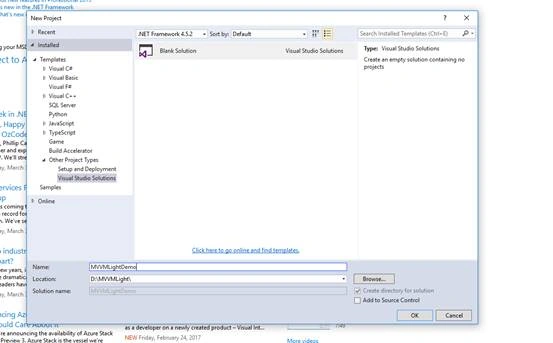
Step 2
Add two layers - one for “Business Logic” for business layers and another “WPF App” for WPF Application.
Note - We will learn about “Business Logic” in the coming articles.
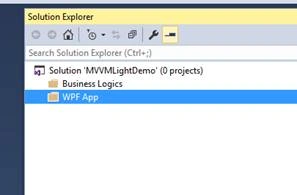
Step 3
Add WPF project in “WPF App” layer.
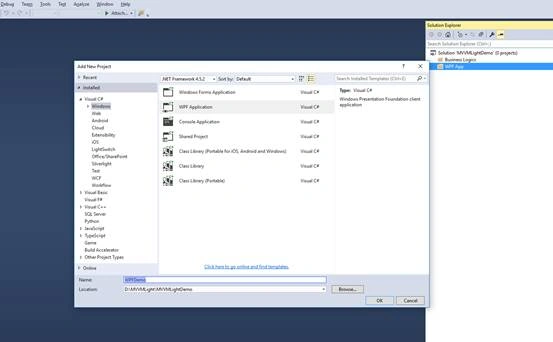
Step 4
Now, we will install the “MVVM Light” from nuGet package.
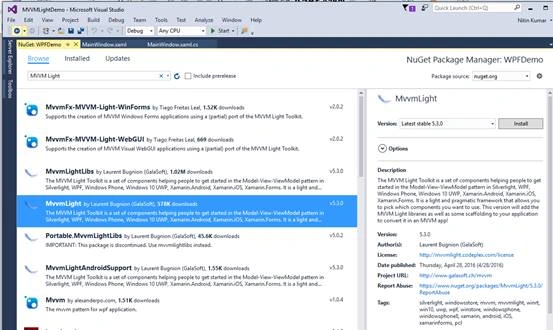
After successful installation, you will see the below messages in the output window.
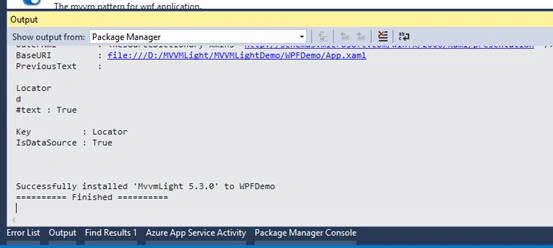
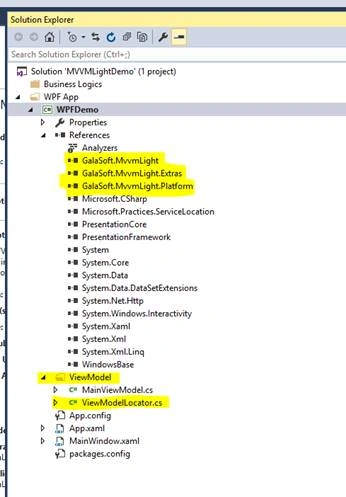
Also, you will see the following assembly files in WPF project reference.
- MvvmLight
- MvvmLight.Extras
- MvvmLight.Platform
Also, you will see one new folder added in project “ViewModel” that contains two files.
- MainViewModel.cs
- ViewModelLocator.cs
MainViewModel.cs is model for “MainWindow.xaml” and ViewModelLocator ViewModelLocator is declared as an object on our App.xaml page and it is a single object; and only one of them available to the application when it runs.
ViewModelLocator is the source for all our ViewModels in MVVM Light. For each ViewModel we'll have a property on the ViewModelLocator that allows us to get a ViewModel for a View.
In the app.xaml
You will also notice that a new XAML code is added in app.xaml file which is highlighted below.
- <Application x:Class="WPFDemo.App"
- xmlns="http://schemas.microsoft.com/winfx/2006/xaml/presentation"
- xmlns:x="http://schemas.microsoft.com/winfx/2006/xaml"
- xmlns:local="clr-namespace:WPFDemo"
- StartupUri="MainWindow.xaml"
- xmlns:d="http://schemas.microsoft.com/expression/blend/2008"
- d1p1:Ignorable="d"
- xmlns:d1p1="http://schemas.openxmlformats.org/markup-compatibility/2006">
- <Application.Resources>
- <ResourceDictionary>
- <vm:ViewModelLocator x:Key="Locator" d:IsDataSource="True" xmlns:vm="clr-namespace:WPFDemo.ViewModel" />
- </ResourceDictionary>
- </Application.Resources>
- </Application>
Build and run the application to make sure that everything is setup correctly.
Now, if you add a brake point in “ViewModelLocator.cs” for constructor to check when WPF application is access this class.
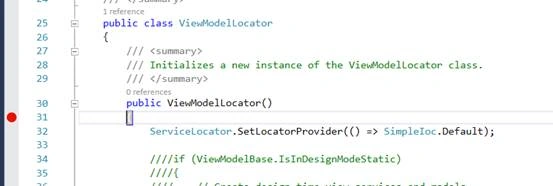
You will notice that this class is not instantiated and the constructor never calls.
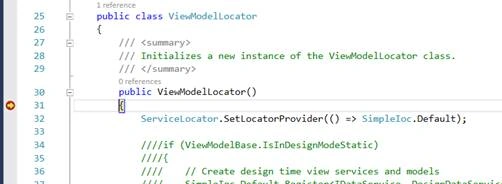
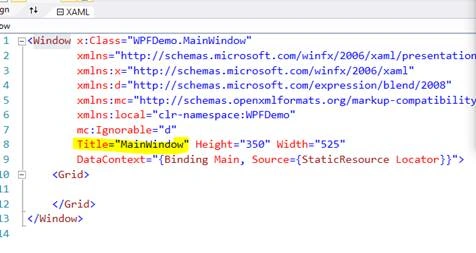
To instantiate this “ViewModelLocator.cs” and make sure compiler hits the constructor, we will add for the binding for DataContext of MainWindow.xaml.
- DataContext="{Binding Main, Source={StaticResource Locator}}"
In MainWindow.xaml.
- <Window x:Class="WPFDemo.MainWindow"
- xmlns="http://schemas.microsoft.com/winfx/2006/xaml/presentation"
- xmlns:x="http://schemas.microsoft.com/winfx/2006/xaml"
- xmlns:d="http://schemas.microsoft.com/expression/blend/2008"
- xmlns:mc="http://schemas.openxmlformats.org/markup-compatibility/2006"
- xmlns:local="clr-namespace:WPFDemo"
- mc:Ignorable="d"
- Title="MainWindow" Height="350" Width="525"
- DataContext="{Binding Main, Source={StaticResource Locator}}">
- <Grid>
- </Grid>
- </Window>
Luiey AckermanPosted Mar 11, 2020, 3:22 AM
Yeah. How to navigate between different page in a viewmodel from mvvmlight? And if I put a async void with 5 different title with each await in Task.Delay, the binding is not working even though it step all change without exception. It only bind on constructor.
Mostafa bagheriPosted Sep 27, 2017, 9:07 AM
Tanks. How to Navigate Between Two Page?
Sridhar SharmaPosted Mar 9, 2017, 3:58 PM
Nice Article :). Thanks for sharing.