

- Prerequisite
- How to setup the SSRS Environment
- How to create an SSRS Project
- How to add new Report
- How to deploy the Report
- How to run the Report
Prerequisite
We should have some basic knowledge of SQL Server Query and Visual Studio Tool for creating an SSRS Reports using Visual Studio 2015.
- SQL Server Basic Query
- Visual Studio 2015
How to setup the SSRS Environment
To learn how to setup SSRS Environment, read my previous article, Getting Started with SSDT 2016 using Visual Studio 2015.
How to Create an SSRS Project
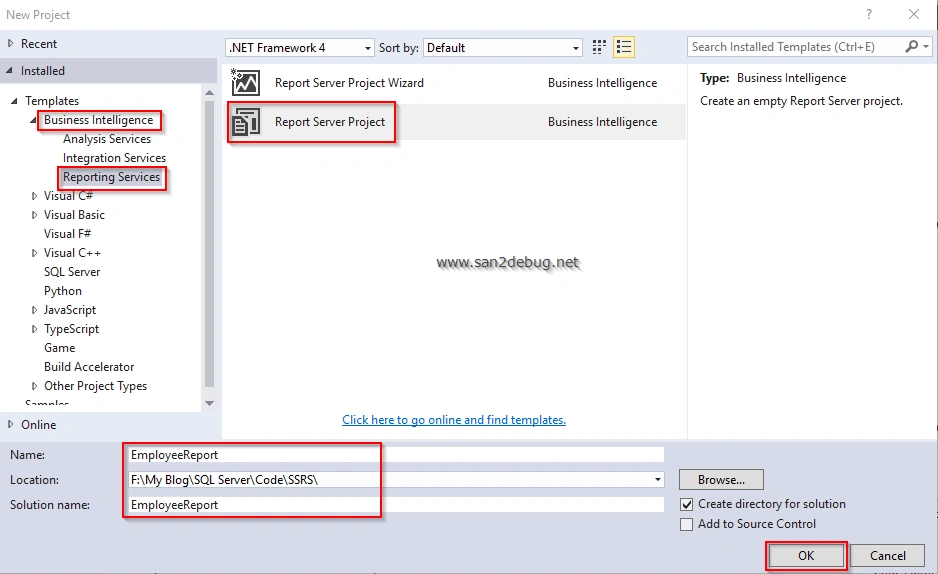
Open Visual Studio 2015. Go to File >> New >> New Project.
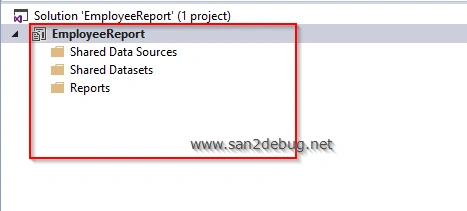
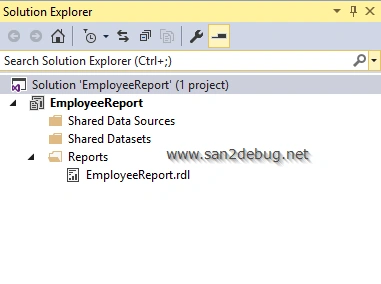
Now, you can see EmployeeReport project structure, as shown in the screenshot below.
How to add new Report
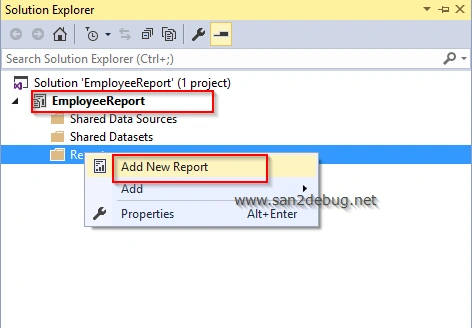
Right click the "Reports" folder and point to "Add New Reports". Then, click the "Add New Report".
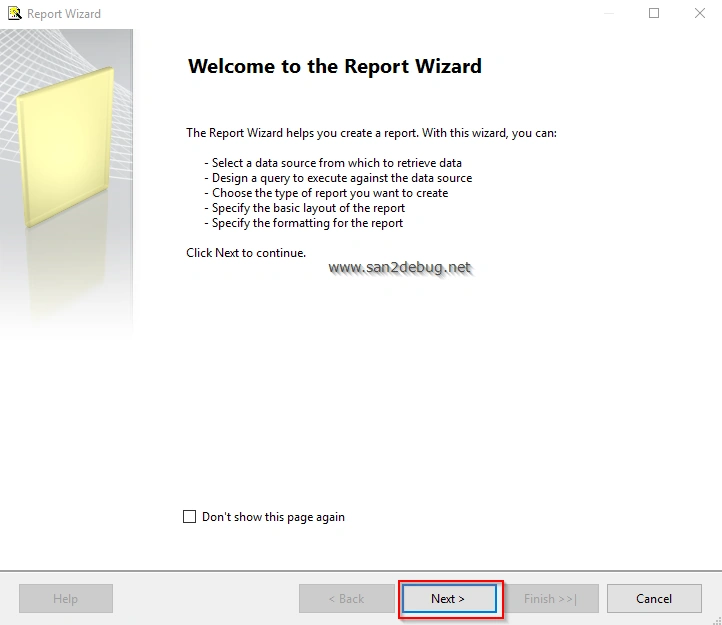
The "Report Wizard" window will open. Click the "Next" button.
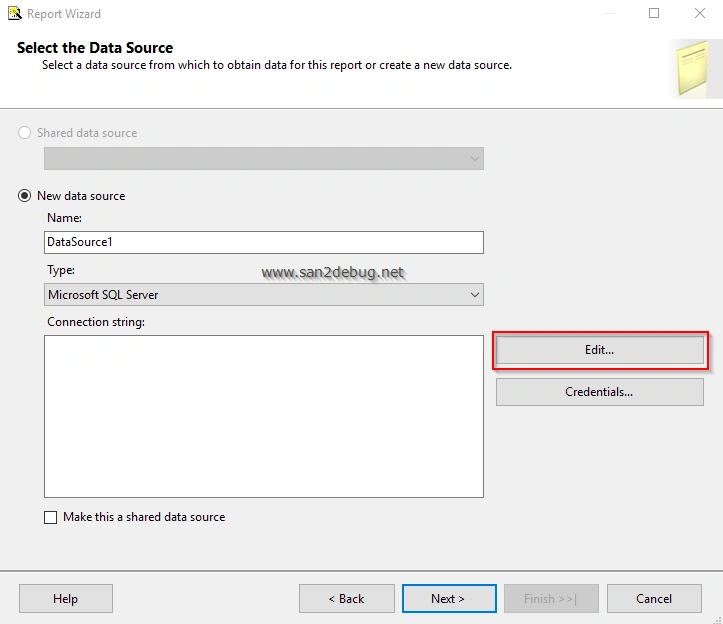
Then, "Select the Data Source" window will open. Just click the "Edit" button.
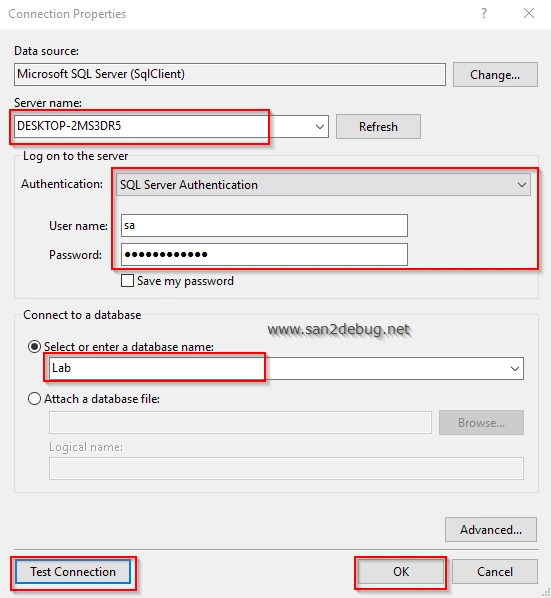
The "Connection Properties" window will open. Type the Server Name, select Authentication type, enter User name and Password, select or enter a database name. You can check the database connection by clicking the "Test Connection" button. Then, click the OK button.
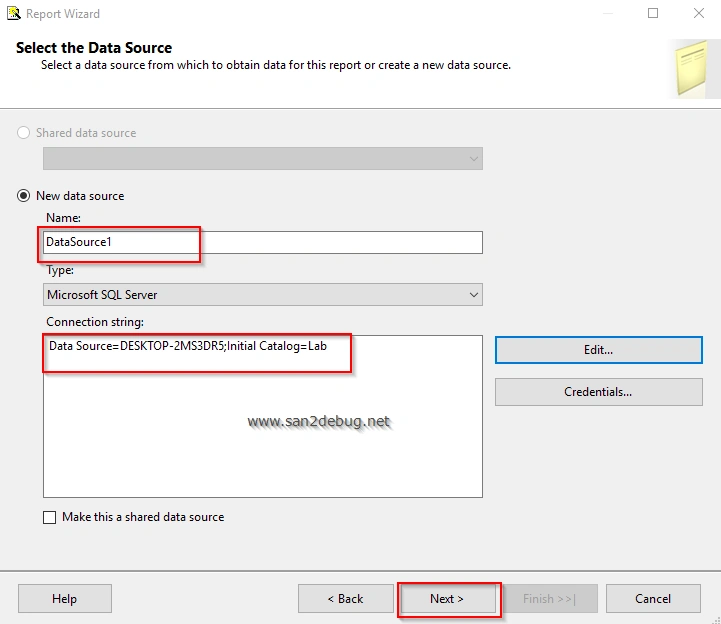
The "Select the Data Source" window will open. Select the new data source, connection string, and click the "Next" button.
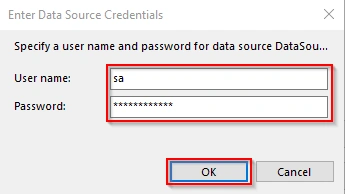
The "Data Source Credentials" window will open. Type the User Name, Password. Then, click OK.
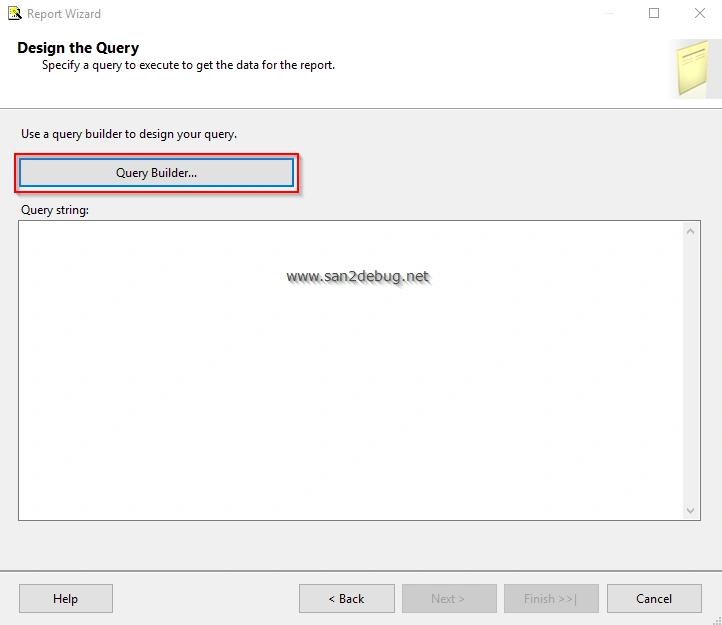
The "Design Query" window will open. Click the "Query Builder".
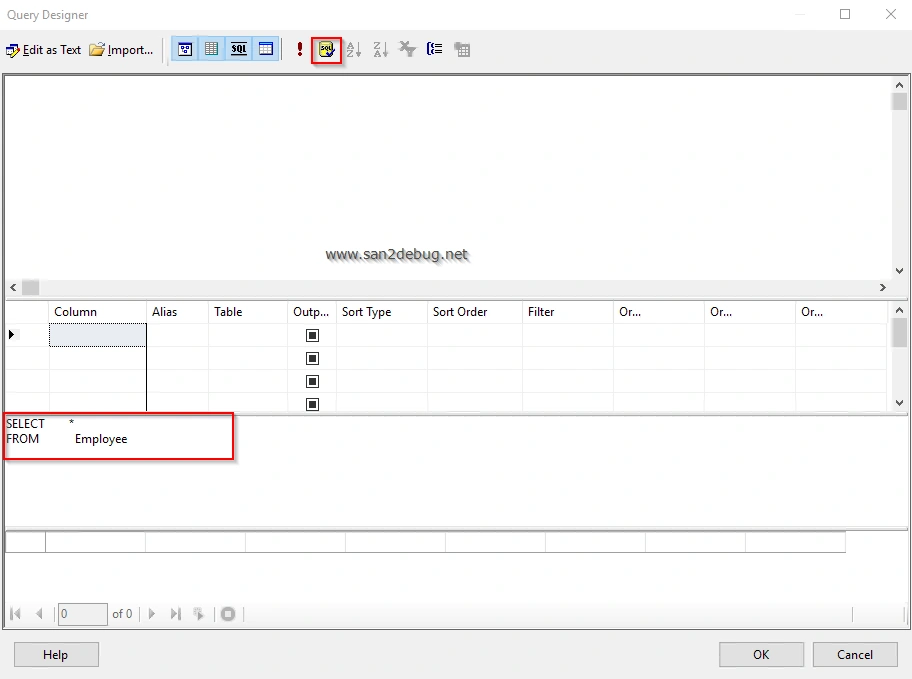
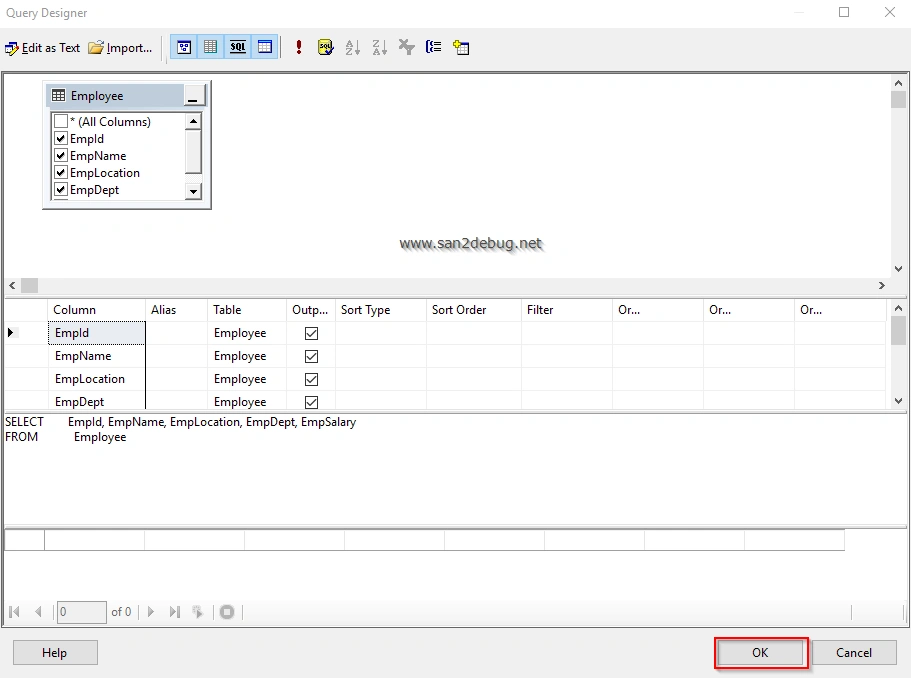
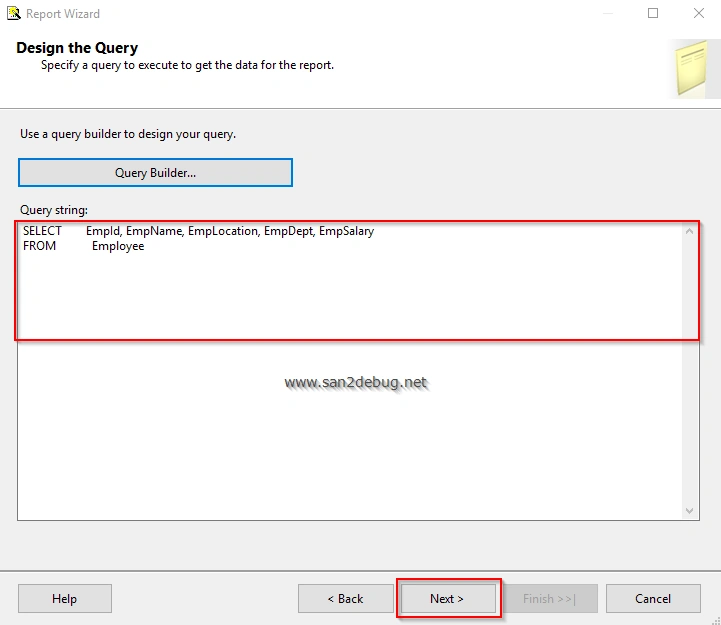
The SQL statement will be loaded for the particular table. Click the OK button.
The "Report Type" window will open. Select the report as "Tabular" and click the "Next" button.

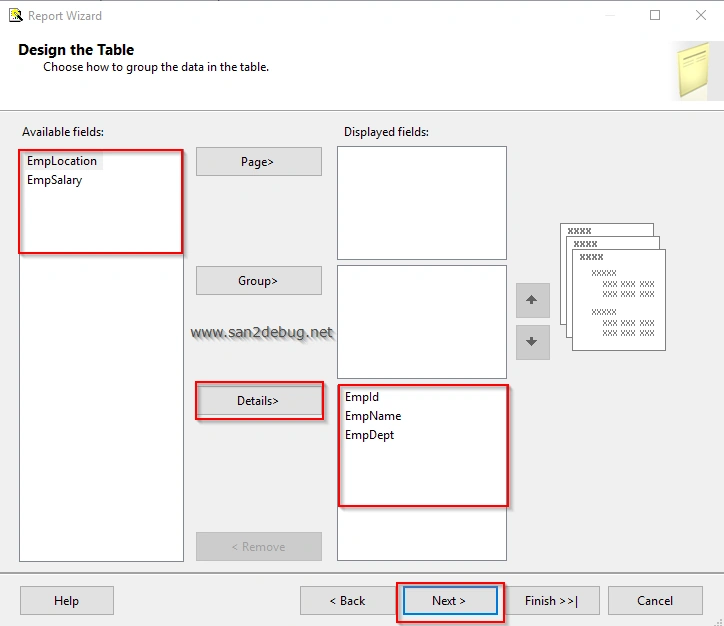
In the Table design window, add the table columns to display fields, followed by clicking "Details" button. Then, click the "Next" button.
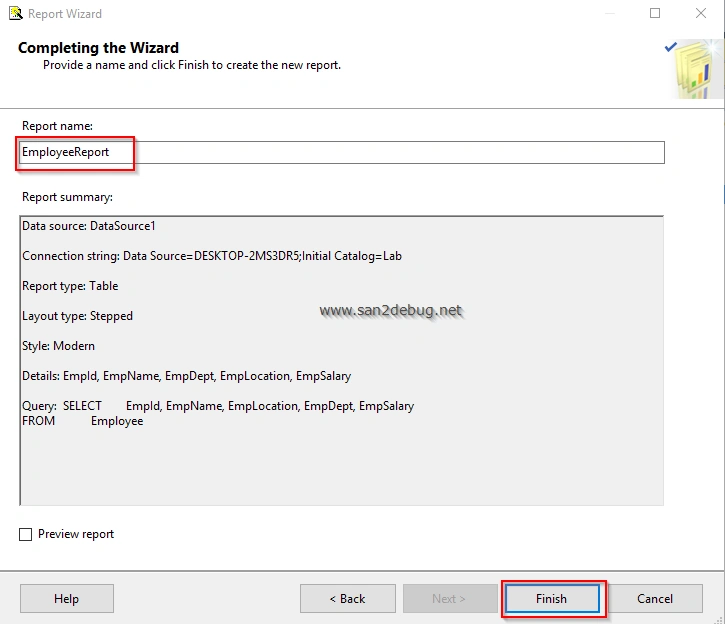
The "Completing the Wizard" window will open. Type the Report name and click the "Finish" button.
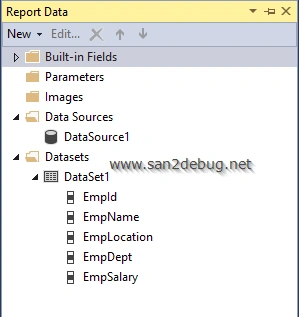
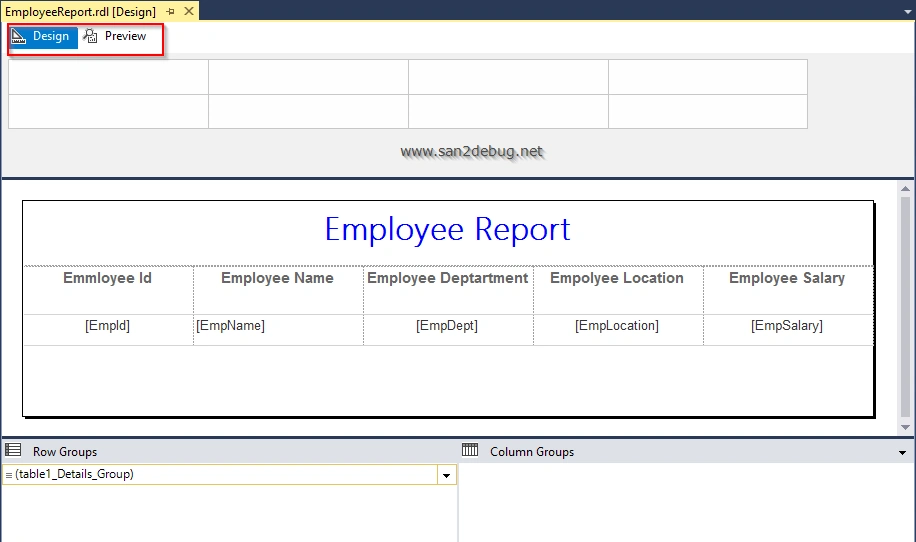
After creating the report, you can see the report data and solution explorer structure, as shown in the following screenshot.
How to deploy the Report
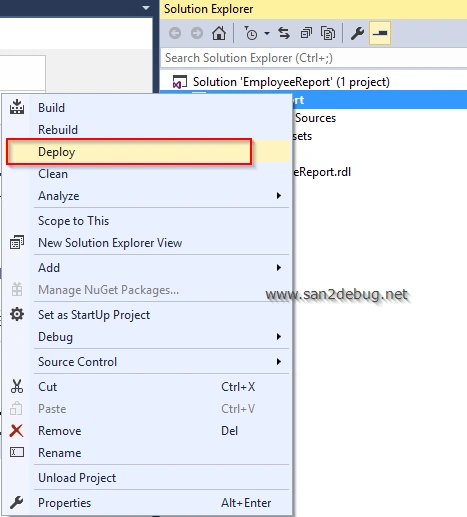
Go to the Solution Explorer, right click the EmployeeReport and click "Deploy" context-menu item.
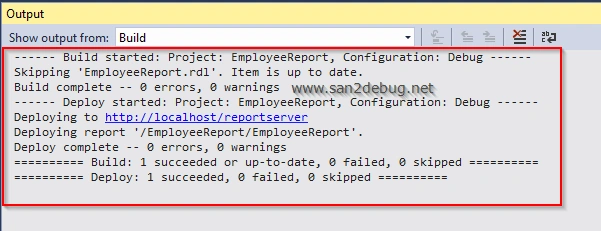
After successfully deploying the report to the Report Server, you will see the information from the output window, as shown in the screenshot.
How to run the Report
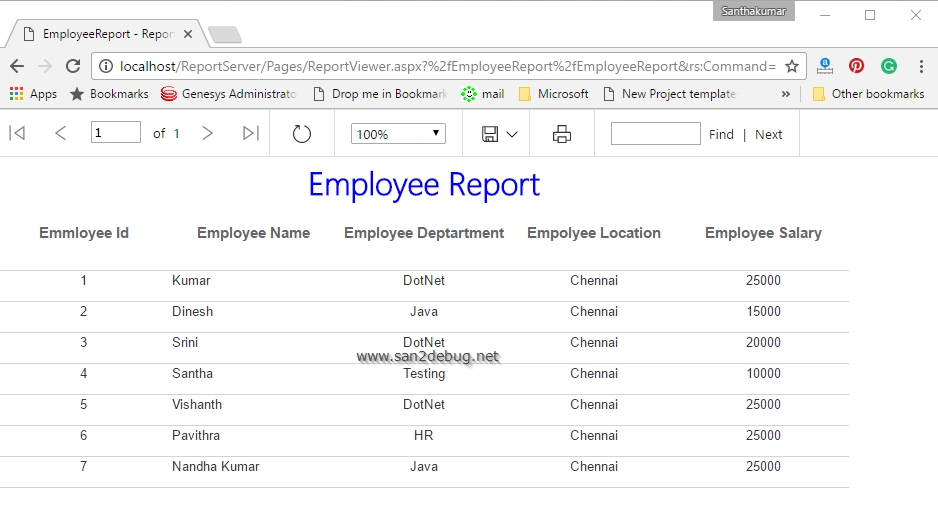
First, you have to copy the default Report Server URL and paste the same URL into your browser for running the report application.
- http://localhost/reportserver
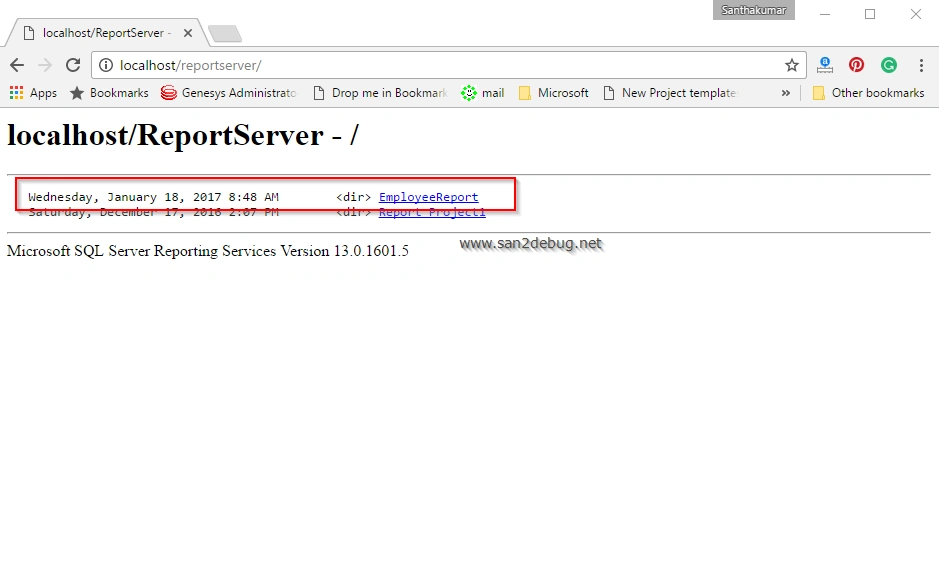
Now, run the report application followed by EmployeeReport project and clicking the EmployeeReport.
You can also read this article on my blog here
Conclusion
I hope, you understood how we can create an SSRS Report without using Report Wizard in SQL Server Reporting Services 2016. If you find anything that I missed in this article, please let me know. Please share your valuable feedback / comments and suggestions to improve my future articles.
Manav PandyaPosted Jan 27, 2017, 9:44 AM
Thanks for sharing this wonderful article sir Santhakumar Munuswamy
Yashwant VishwakarmaPosted Jan 27, 2017, 4:17 AM
Thank You brother for sharing nice article.
Anu VPosted Jan 27, 2017, 1:09 AM
Thanks for sharing .. Nice article...