

Introduction
When trying to clone the repository from the GitHub https://www.github.com getting an error fatal unable to access the repository: SSL certificate problem: self-signed certificate in the certificate chain. Below is the screen capture for reference. This mainly occurs on Enterprise Laptops which are owned by organizations.

In most cases, the simple command bypasses the certificate check by running the below command.
git config --global http.sslverify "false"
this basically sets sslverify to false, which is not a good practice, rather there is a workaround to clone the repository without modifying SSL verification settings. The sslverify property in git by default is true which it should always be. The credit goes to Matt Federer, and the explanation of this issue and fix can be found in the references section. Below are the steps that worked out in my case.
Reason and Next Steps
To fix the issue, it is first required to understand why the self-signed certificate issue is getting. The reason here is when installing Git on your PC, it creates a trusted bundle certificate. You can view the trusted bundle by running the below command.
git config –list –show-origin
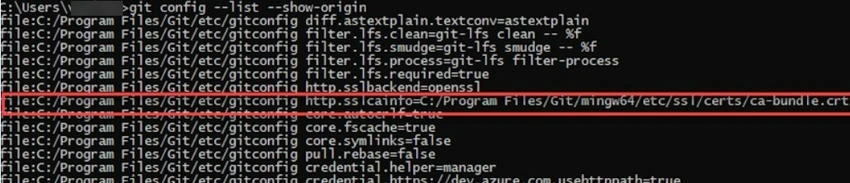
From the screen shot you can see that the ca-bundle is downloaded at C:/Program Files/Git/mingw64/etc/ssl/certs/ca-bundle.crt. This specific ca-bundle is not able to trust the certificates that are installed on your PC and from gateway servers. That is the reason why when trying to run the git clone command the fatal error self-signed certificate in the certificate chain occurs. The other issue could be expired policy / intermediate / root certificates. In this case, work with your enterprise Engineering team to sort the issue. The article focuses on establishing trust between ca-bundle installed by git exe files and certificates that are installed for secure web traffic.
Steps
First, let's try to understand the certificate information that appears when trying to log in to the GitHub portal https://www.github.com. In this case, I am using the latest Chrome browser.
- It first says the connection is secure.

- On clicking on the lock, it says the certificate is valid.

- On clicking on ‘Show certificate’, it gives the certificate details. Click on the ‘Details’ tab.

- Observe the certificate hierarchy,

Usually, it will be in the form Root/Intermediate certificate (in this case ACFSUB)/Gateway Certificate (in this case Company Web Gateway)/Site Certificate (in this case github.com).
- To establish trust between the ca-bundle and GitHub sites, it is required to copy the ca-bundle to a different location. For this, I have created the “Certs’ folder under c:\Users\<UserName>\Certs
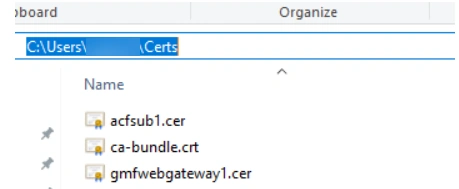
- Exported the Intermediate Certificate(In this example acfsub) and web gateway certificate (in this example company web gateway certificate) to this folder and copied the ca-bundle.crt to this folder.
Exporting the intermediate and immediate certificates
Please follow the instructions to export the certificates. I am doing this only for Intermediate certificates, the same steps are to be followed for other certificates too.
Step 1. To export the certificate, open the ‘Manage Computer Certificate’ option from the control panel.

Step 2. Click on ‘Intermediate Certification Authorities’ and then ‘Certificates’.

Step 3. Click on the desired certificate, and click on the ‘Details’ tab.

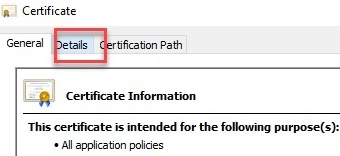
Step 4. Click on ‘Copy to File..’.

Step 5. It opens, certificate export wizard, click on ‘Next’.
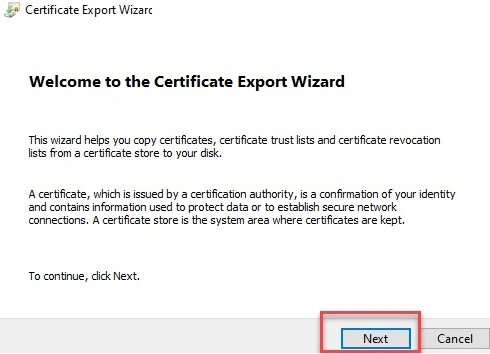
Step 6. Select ‘Base 64 Encoded’.
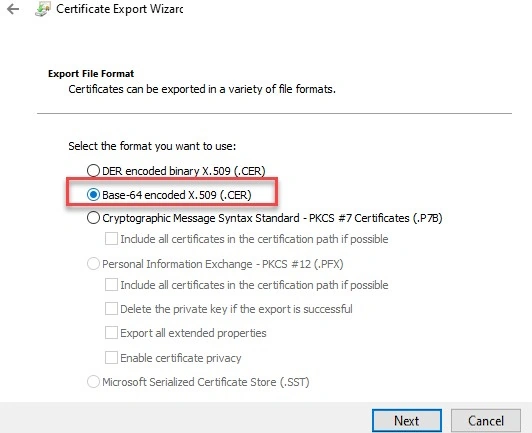
Step 7. Browse the directory where you would like to save. In my case I have used the folder C:\Users\<UserName>\Certs. I have entered the Filename as acfsub1.
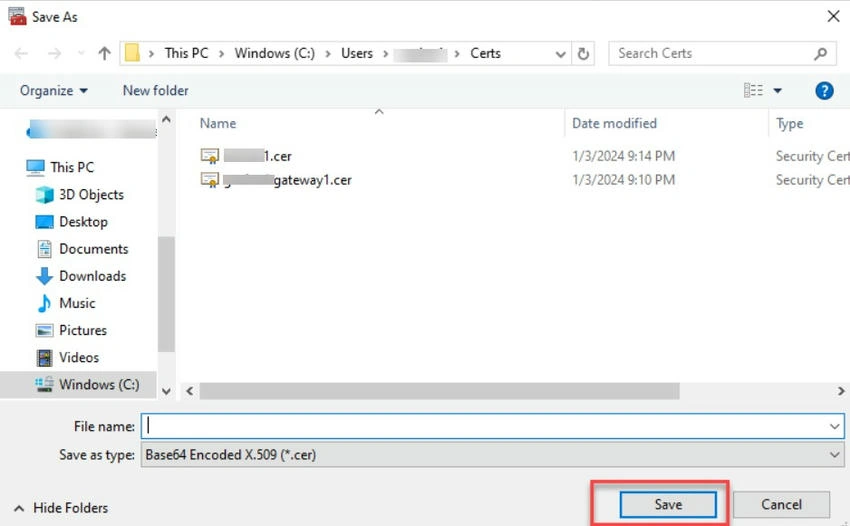
Follow the same steps for other certificates in the path.
Establishing the Trust
To establish the trust, it is required to enter the certificate information in ca-bundle. Follow the below steps.
Step 1. Edit the base 64 cer files using Notepad or Notepad++.

Step 2. Copy the certificate information at the bottom of the ca-bundle .crt file. And then save the file.

Step 3. This is very important step. Set the sslcainfo property to ca-bundle certificate.
Git config –global http.sslCAInfo c:\Users\tuser10\Certs\ca-bundle.crt.

Note. your path could be different based on your computer settings.
Validation
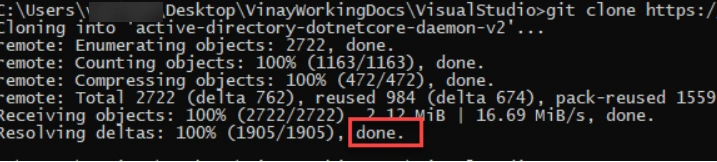
Run the git clone command you should not face any issue.
Conclusion
Thus, in this article, we have seen why we are getting the Self Signed Certificate in the SSL chain the reason for the FATAL error, and the steps to fix using the industry standards.
References
Join the conversation! Your thoughts help the community grow.