

Abstract
We are comparing Git functionality in Visual Studio 2022 IDE to other Git Gui clients. Git inside VS2022 has a simplified interface compared to some other Git Gui clients, like MeGit/EGit and SourceTree. That will bring many developers to VS2022/Git platform faster but power users will need other tools too.
1. Introduction
Git is integrated into Visual Studio IDE since version 2019, and with version 2022 it has got more features and is becoming Visual Studio/Microsoft’s favorite version control management tool. We plan to give a basic overview of GUI Git tools in VS2022 in this article.
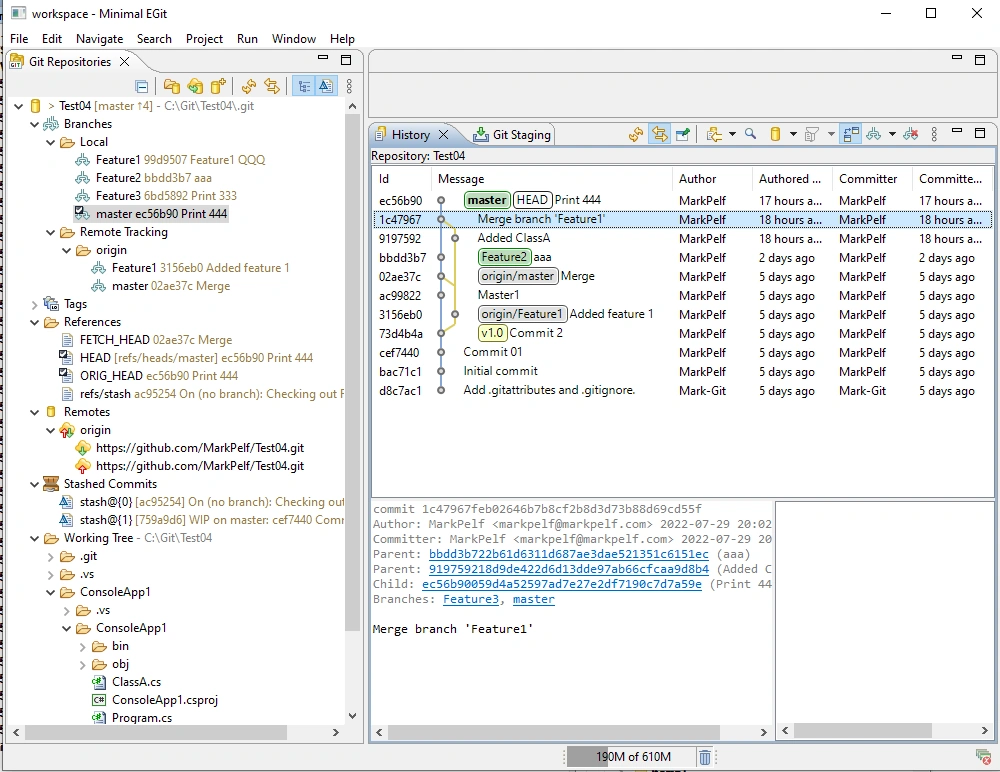
1.1 MeGit/EGit Git Gui client as a reference
I feel and is my strong opinion that standalone Git Gui client MeGit/EGit [1] is “doing Git right”. It is a Git Gui tool, but from all the Git Gui tools I have seen, this one is closest to “Git philosophy and terminology” and I like how it “looks and feels”. So, I will use it as a reference, and to better present how Gui options could/might look like compared to VS2022 Gui “look and feel”. The real reference should be, of course, Git command line interface, but I find it too hard to read for the purpose of presentation for this article. Truth is that no Git Gui can offer all the options that the command line Git interface offers to the user. But also, the truth is maybe the user does not really need all those options in everyday work. For example, I work with TFS for years and do everything from Gui and never used TFS command line [2].
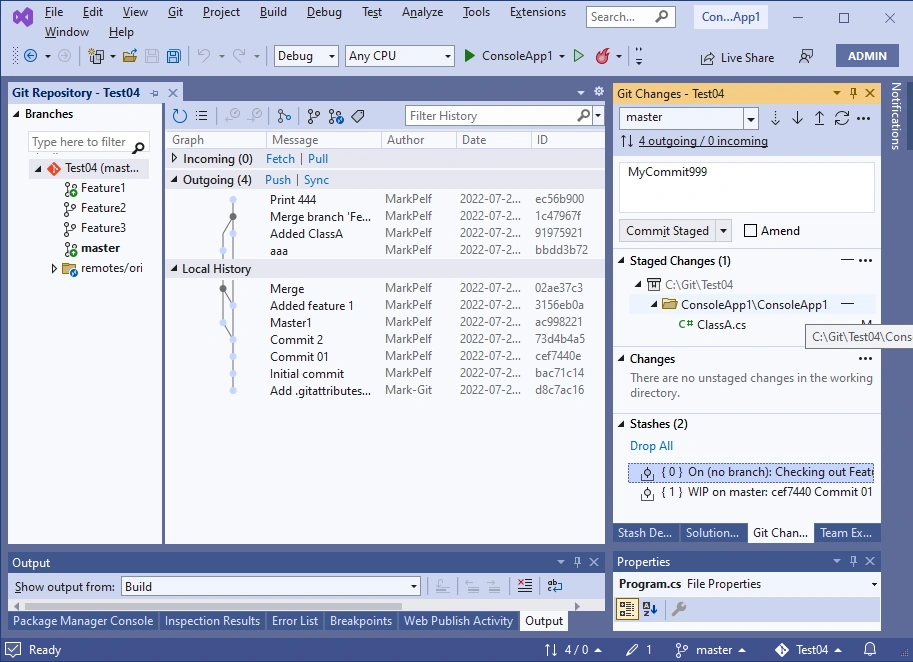
1.2 VS2022 Git philosophy
By looking at VS2022 Git Gui interface, I get the impression that its designers had their own view of how Git should look like. It seems they didn’t want to follow closely Git philosophy in all the details, like for example designers of MeGit/EGit did. It looks like they believed that nasty Git details should be hidden as much as possible from the developers and the user interface simplified so developers with no knowledge of Git, but just basic knowledge of “Version control” concepts can use it and check-in (commit) their work locally and to the version control server. Maybe that was a smart approach that will bring many users/developers fast to the VS2022/Git platform due to the easy learning path. But some power Git users might feel they are missing some tools/options or might feel that Git is not being done/presented in the proper way.
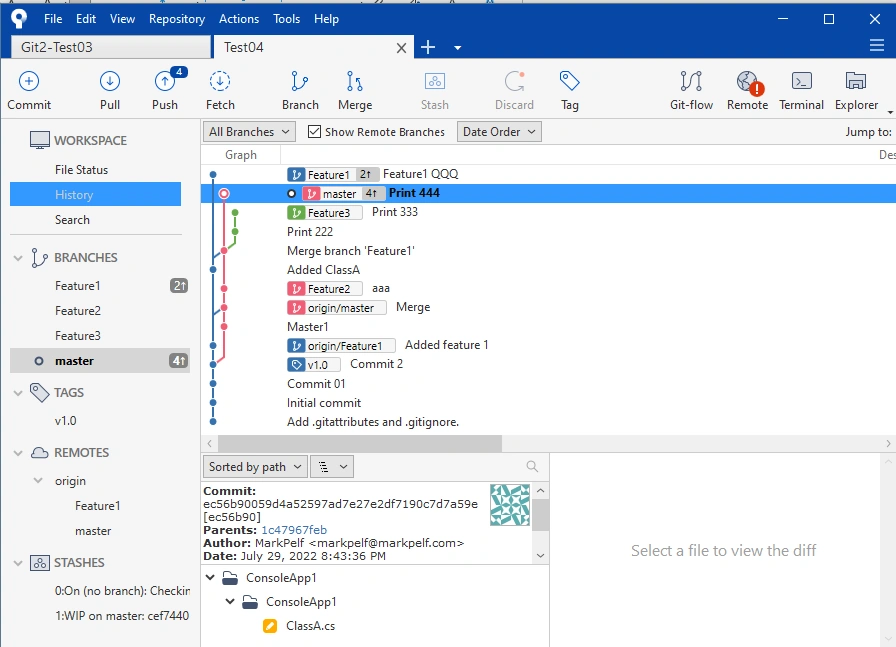
1.3 SourceTree Git Gui client as a reference
Atlassian SourceTree application [3] is another popular Git Gui client. We will show in parallel how its panels look compared with VS2022 for the same operations. We think that MeGit/EGit a bit more powerful and better follows “Git philosophy” of work. SourceTree designers, similar to VS2022 designers have chosen to hide part of “Git internals” like HEAD and Refs information. Though, they are showing more of it than VS2022.
1.4 Git is not intuitive for learning
I am sure that many developers will try to “hack their way into Git” just by playing with Git Gui options of VS2022. And especially those that are coming from other Version control systems, like TFS. And it will work up to a certain level, especially since VS2022 is deliberately hiding some Git concepts, like the staging of files (typical TFS-user question would be what is staging and why do I need it?). But my advice would be, sooner or later, you need to read some Git book since Git has its own terminology and philosophy of work, and if you ever get stuck with a problem with Git, like always, you need to know exactly what you are doing and what is the proper way to resolve the problem. If you like learning by “hacking Gui tools”, my advice for learning Git would be to try playing with MeGit/EGit since that way you will see more details that VS2022 is deliberately hiding.
1.5 This is not a Git tutorial
This is not meant to be a Git tutorial. The intended audience is developers with some knowledge of Git that want to see how Git looks now in VS2002 IDE.
2. VS2002 vs MeGit
2.1 Testing methodology
We will be looking at the same Git repository from 4 tools, VS2022, MeGIt, SourceTree and GitBash.
We created a simple C# application project locally and chose GitHub for the remote repository.
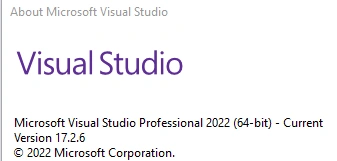
The version of Visual Studio I tested with was:
2.2 Viewing the history of commits to the repository
One very basic and important function is to enable users to see the content of their repository.
2.2.1 History from GitBash
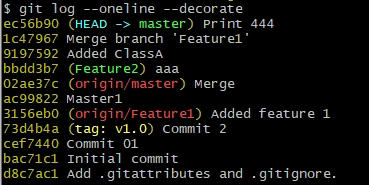
Git command git log will provide log of all commits.
Here are all commits for the current branch “master”
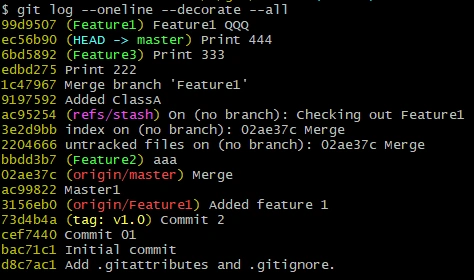
Here are all commits of all branches, with the current branch “master”
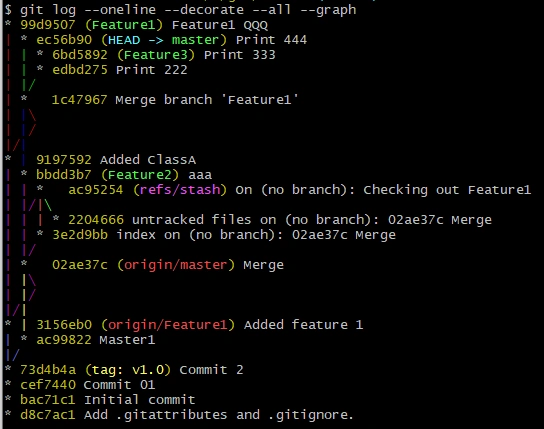
Here is a “graph” that GitBash can produce, all commits of all branches, with the current branch “master”
2.2.2 History from MeGit
Here is the corresponding graph that MeGit produces. It is nice graphical presentation.
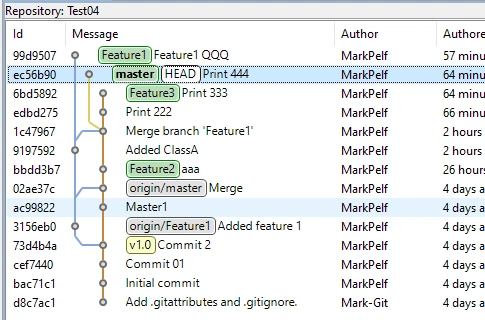
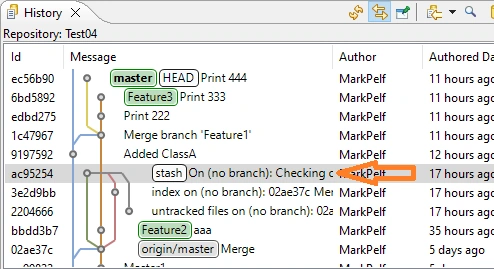
It looks analogous to a “graph” that GitBash produced. Note that GitBash graph contained one more piece of information, that is the location of the place where “stash” was made, commit ac95254. MeGit can show that location, but only on request (when clicking a particular stash).
2.2.3 History from VS2022
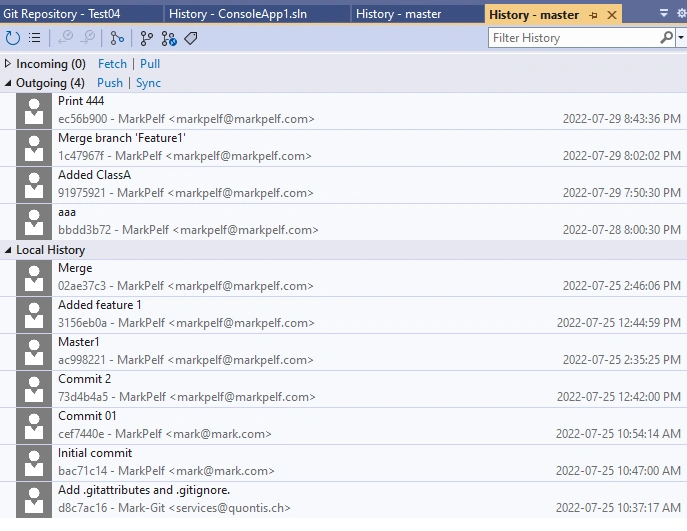
To my best effort, I found 3 history graphs in VS2022, and all are inferior to even a command line Git graph. It seems they didn’t really care to implement it. What is happening here is VS2022 History panel is filtering and showing commits only related to the currently selected branch.
The first one, for the same repository setup, with the current branch “master” is:
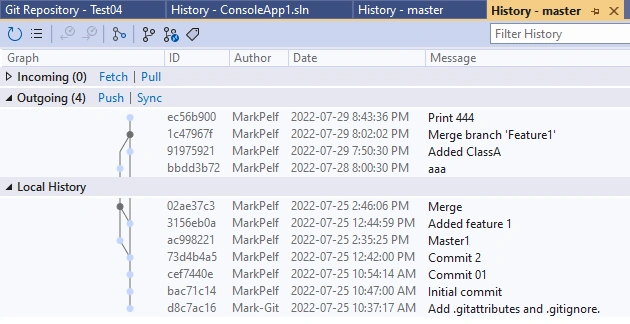
They offer an even simpler version, without other branches
There is one more version, with branches refs shown:
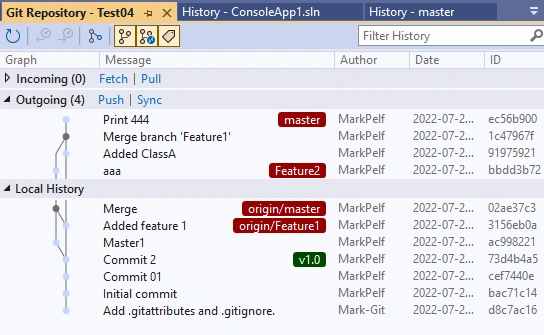
My opinion is that VS2022 history graphs are inferior to MeGit history graph, and the power user can find such graphs useful. They provide a nice overview of changes to the repository.
A have seen people on the internet commenting: why do you need a fancy graph? To me, the answer is simple: it is called a GRAPHICAL user interface, so it would be nice to have a quality graph competitive to for example MeGit history graph.
Sadly, please notice that VS2022 does NOT show in the graph location of HEAD reference, while both GitBash and MeGit clearly show HEAD reference. It seems that VS designers concluded that Git terms like HEAD reference need to be hidden from users. I am not sure that it is really possible to use Git competently over a long period of time without the knowledge of what is HEAD reference.
2.2.2 History from SourceTree
Here is the corresponding graph that SourceTree produces. It is a nice graphical presentation.
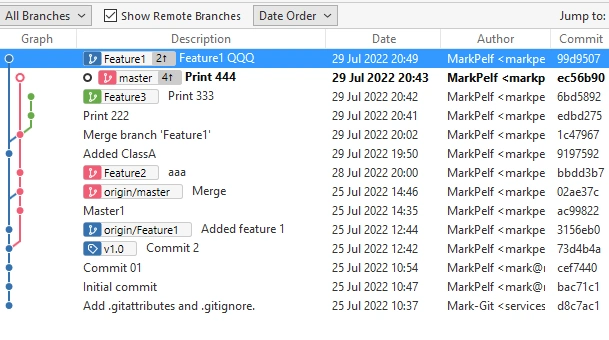
But again, designers of SourceTree decided to hide from the user concepts like HEAD and Refs.
2.3 Viewing the Branches, Tags, Refs
2.3.1 Branches, Tags, Refs in MeGit
Branches, Tags and Refs of the project/repository can easily be seen:
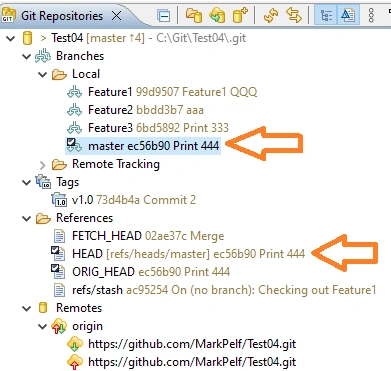
Note how the currently checked-out branch “master” is marked. Also, you can see that HEAD ref is pointing to the local “master” branch tip and commit ec56b90.
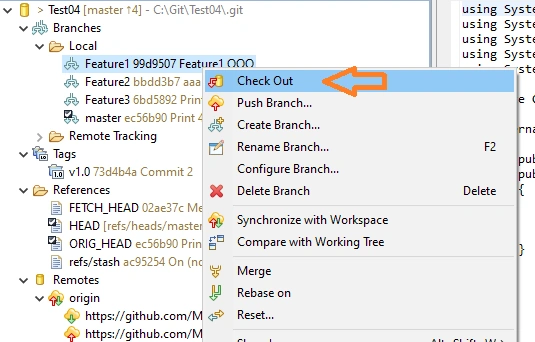
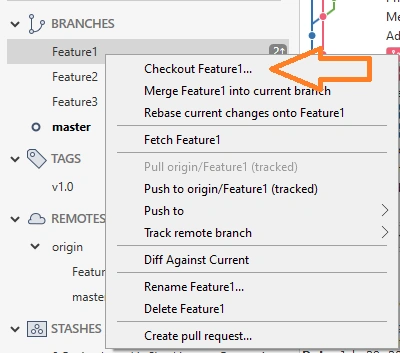
In order to checkout branch “Feature1” you would need to right-click desired branch and select the option from the context menu.
2.3.2 Branches, Tags, Refs in VS2022
In VS2022, displayed info is humbler:
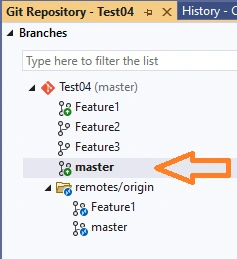
As far as I can see, the list of Tags is not available per se, and applied Tags can only be seen in the history graph. The list of Refs is also not available, obviously, designers thought that is too low level and not needed so they have hidden that info.
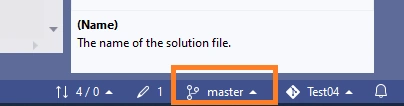
Note how the currently checked-out branch “master” is bolded. Also, the currently checked-out branch can be seen at the right bottom corner.
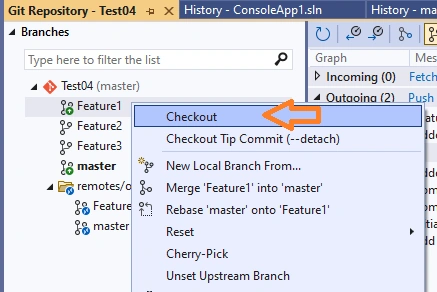
In order to checkout branch “Feature1” you would need to right-click the desired branch and select the option from the context menu.
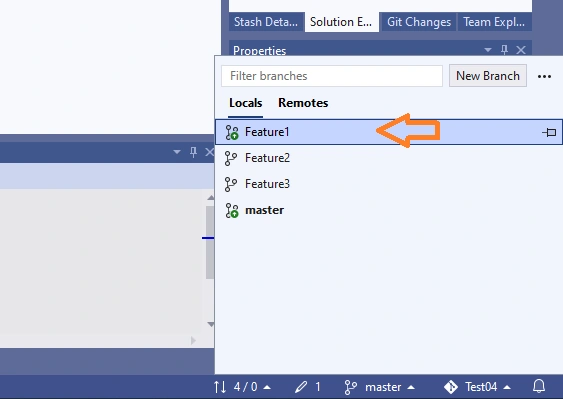
But also, you can perform branch check-out from the pop-up menu in the right bottom corner:
2.3.3 Branches, Tags, Refs in SoureTree
Branches, Tags of the project/repository can easily be seen. But Refs are not shown by the GUI. Again, designer of the tool decided to hide “Git details” from the user
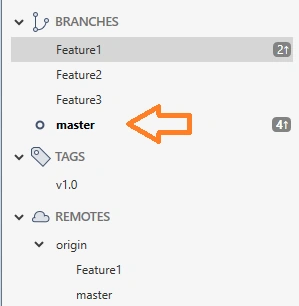
Note how the currently checked-out branch “master” is bolded.
In order to checkout branch “Feature1” you would need to right-click the desired branch and select the option from the context menu.
2.4 Viewing the Detached HEAD state
It is not difficult to get to the “Detached HEAD” state. You just need to check out some commit that is not the tip of the branch and then commit some more changes. Let us see how such a state is presented.
2.4.1 Detached HEAD in MeGit
Here is how the Detached HEAD state looks in the History panel:
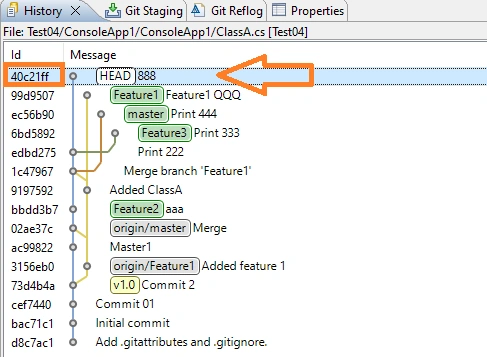
As you can see, HEAD is pointing to the commit 40c21ff and is NOT on any branch tip. In Git terminology, that commit is in Detached HEAD state. In branches overview panel that is presented like this:
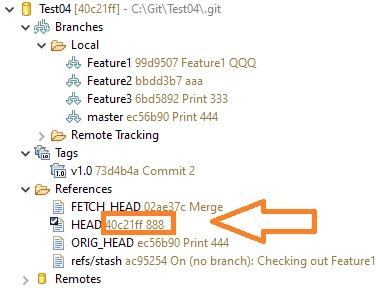
Note that NO branch is marked as selected and the HEAD ref contains id value of that commit 40c21ff.
2.4.2 Detached HEAD in VS2022
We will have a look at the same repository situation from VS2022. Here is how it looks in the Branches panel:
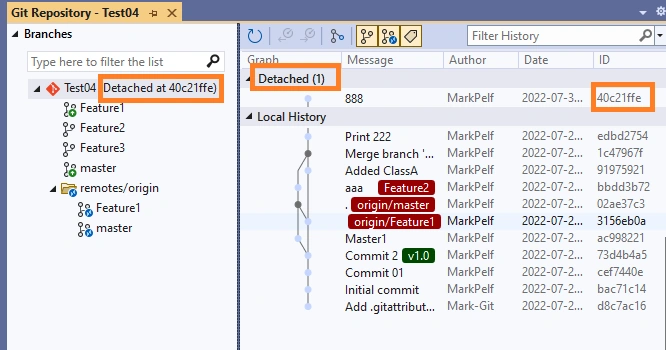
Note that no branch is bolded, meaning no branch is checked out.
Also, the Detached HEAD state is marked in the right bottom corner:
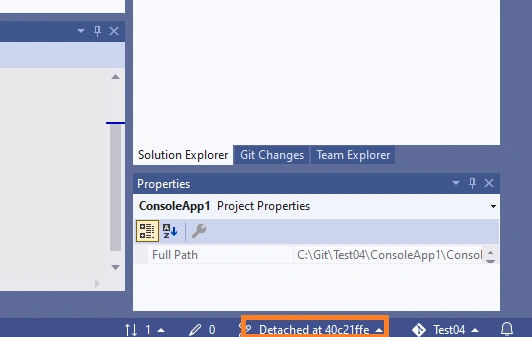
As it can be seen, any mentioning of the HEAD ref in the VS2022 is avoided, though it is definitively not “intuitively self-explanatory” what is happening with the repository and how to resolve the “Detached HEAD” state. That is the reason I believe one needs to have real knowledge of Git and tools do not help by hiding Git concepts.
2.4.3 Detached HEAD in SourceTree
Here is how the Detached HEAD state looks in the History panel:
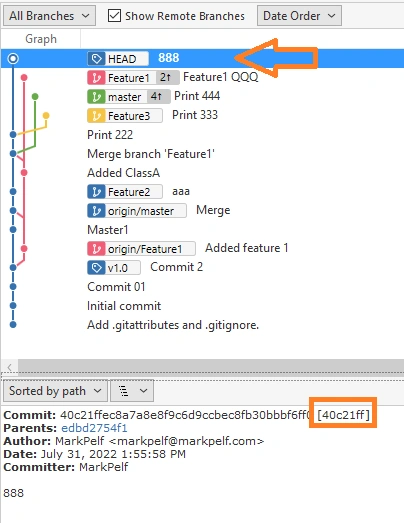
As you can see, HEAD is pointing to the last commit and is NOT on any branch tip. You can see the commit hash in the below panel, it is 40c21ff. In Git terminology, that commit is in the Detached HEAD state. Funny thing, they suddenly show something called “HEAD”, and before they were hiding such concept in the application.
In the branches overview panel that is presented like this.
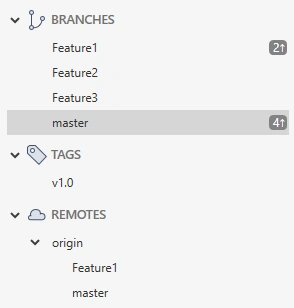
Note that NO branch is marked as selected.
2.4.4 Deliberately creating “Dangling commit”
Let’s say we decided to resolve the “Detached HEAD” state by checking out the “master” branch and leaving our new commit 40c21ff to dangle. Such a commit is not reachable from any Ref and will not show in History anymore.
2.4.5 Recovering Dangling commit/Detached HEAD in MeGit
Now history and branches are showing checked out branch “master” and there is no mention of commit 40c21ff anywhere.
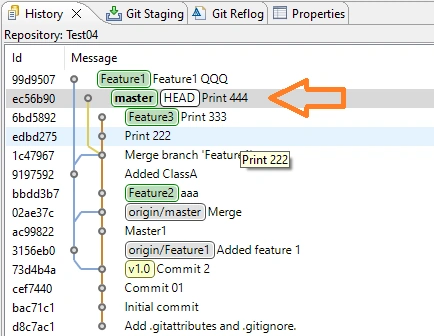
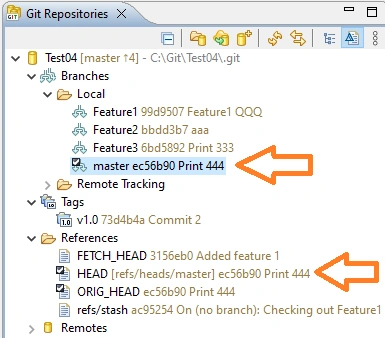
What if we made a mistake and now want to recover that dangling commit 40c21ff ? That is possible, we can find it still in Reflog panel:
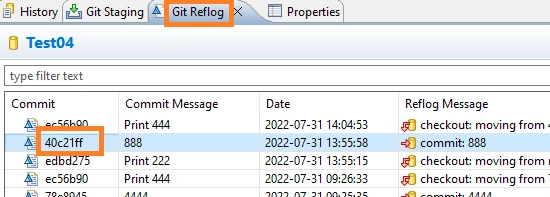
Then we can right-click it and get menu options to recover it:
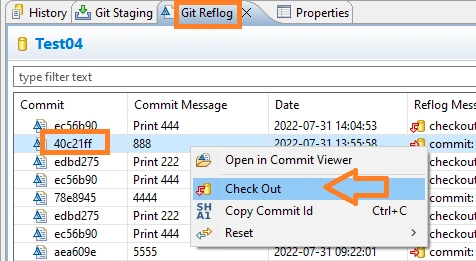
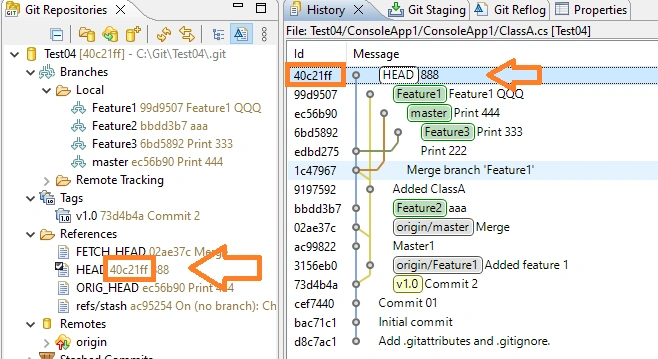
And here we are again in the situation where that commit 40c21ff is checked out and we can do whatever we want now.
2.4.6 Recovering Dangling commit/Detached HEAD in VS2022
Here is how the same situation looks in VS2022:
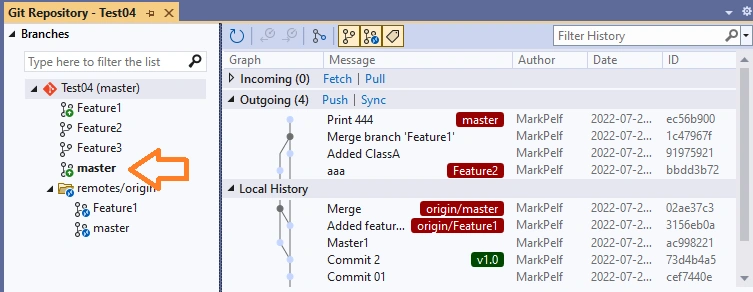
Now history and branches are showing checked out branch “master” and there is no mention of commit 40c21ff anywhere. Can we do recovery of commit 40c21ff? Problem is, VS2022 does not have Reflog panel.
Precisely speaking, that commit 40c21ff is still in the repository, just is not accessible from VS2022 GUI.
For the power user, that could be a problem and he might need to resource to some other tool than VS2022 to perform actions he wants/needs. VS2022 designers believed that such situations are rare enough so an average user will not ever need to deal with such a situation.
2.4.7 Recovering Dangling commit/Detached HEAD in SourceTree
Here is how now situation looks in SourceTree. Now history and branches are showing checked out branch “master” and there is no mention of commit 40c21ff anywhere.
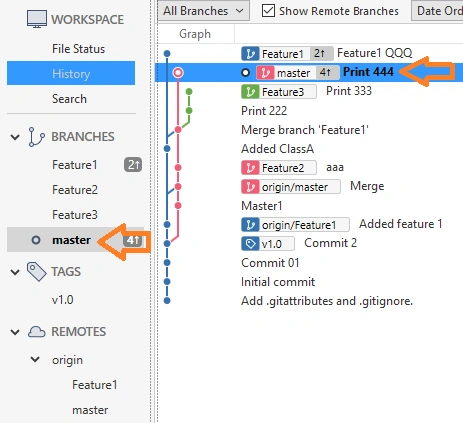
Can we do recovery of commit 40c21ff? Problem is, SourceTree does not have Reflog panel. But, offers a shortcut to GitBash, so from the command line we can get the info we need, that is commit hash:
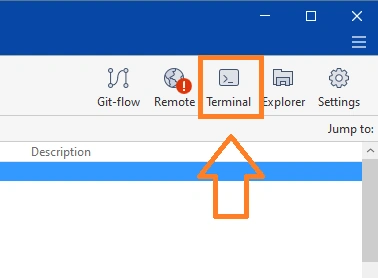
So we can run “git reflog” from command line and get the hash we need:
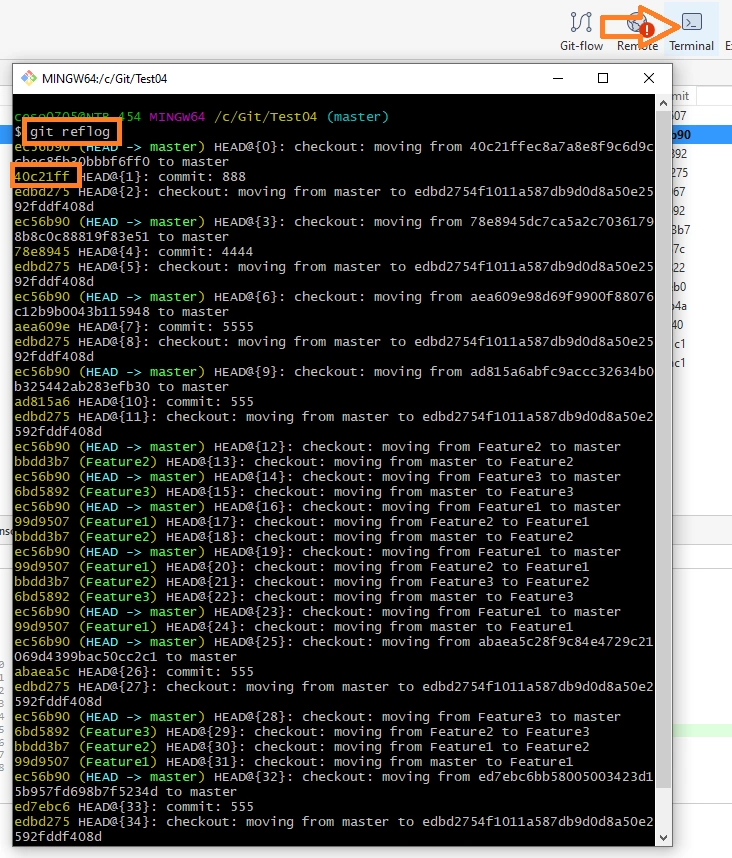
Then, when we have a hash of a dangling commit, with a little workaround, we can recover that commit. We will explicitly create a new branch containing that commit.
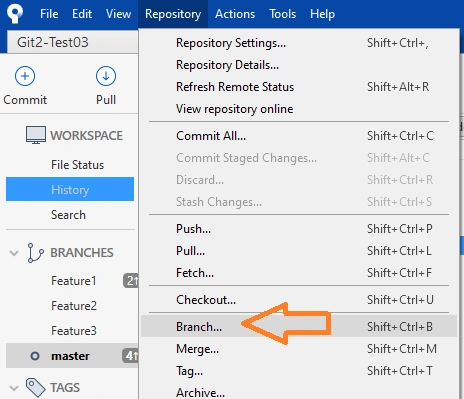
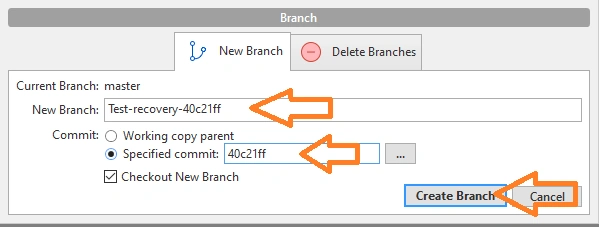
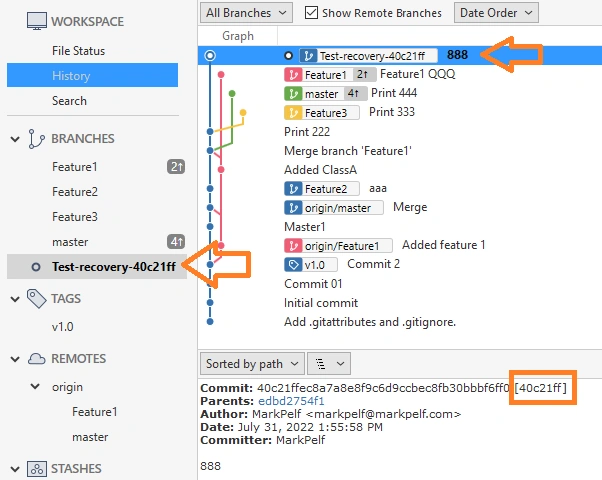
Once we got that commit 40c21ff checked out, this time as a part of a new branch, we can do with it whatever we want.
2.5 Viewing the Unstaged files/Staged files/Commit panel
One of the main functionalities of Git Gui is to commit work into a repository.
2.5.1 Unstaged files/Staged files/Commit panel from MeGit
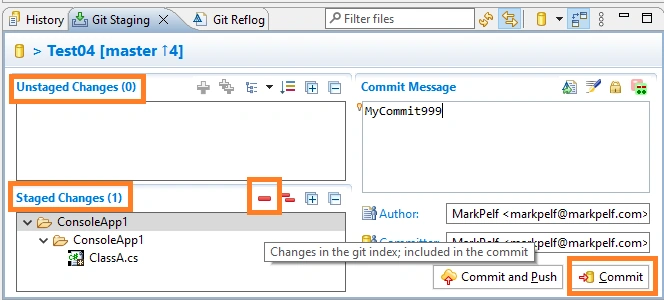
MeGit, following Git philosophy, has separate forms for Unstaged and Staged files.
Here you can see that there have been changes to file ClassA.cs and file Git lists changes in Unstaged files (“Working directory changes”) form:
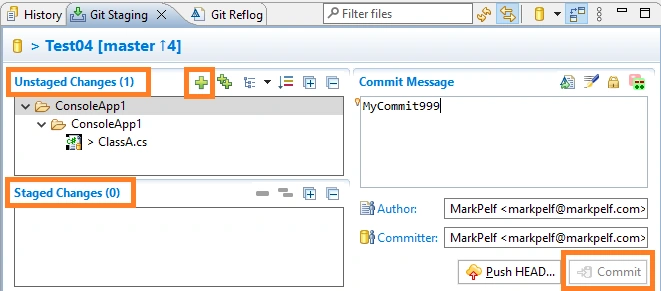
But in order to commit (not that the Commit button is disabled), you need to use that “plus sign” and add changes to the Staged files form and then you can commit the changes to the repository.
2.5.2 Unstaged files/Staged files/Commit panel from VS2022
VS2022 as the default commit dialog shows the option to commit files directly from the “Working directory changes” (Unstaged files):
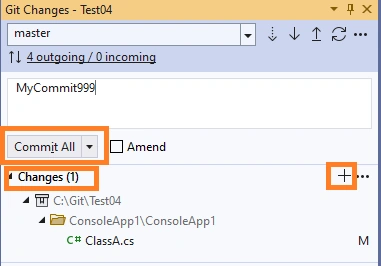
That is actually all fine according to Git rules since there is such a command line Git command. That is similar to running “git commit -am "<commit message>".
If you want to see the “Staged files” form and select which files to stage and commit, you need to use that “plus sign” and add files to Staged that need to be committed:
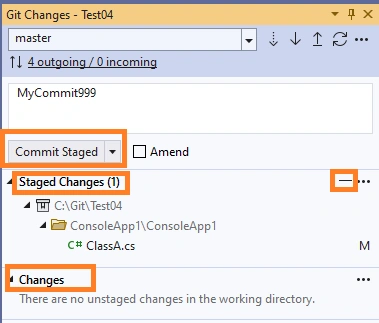
Now that commit dialog looks like the MeGit dialog.
VS2022 designers decided to “cut the corners” by showing direct commit from the “Working directory changes” form.
The usual question is: why would I need to Stage files first? The answer is simple: you do not need to, that is an option for situations like when you changed 5 files and want to commit only 3 of them. You resolve such a situation by Staging those 3 files and committing only staged files.
2.5.3 Unstaged files/Staged files/Commit panel from SourceTree
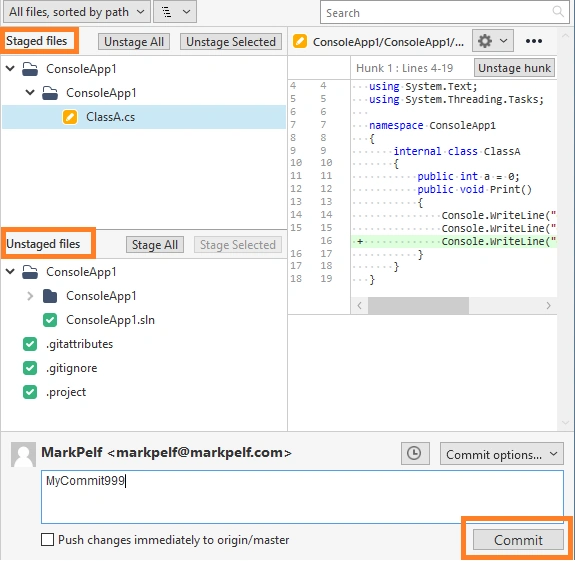
SourceTree, following Git philosophy, has separate forms for Unstaged and Staged files.
Here you can see that there have been changes to file ClassA.cs and file Git lists changes in Unstaged files (“Working directory changes”) form:
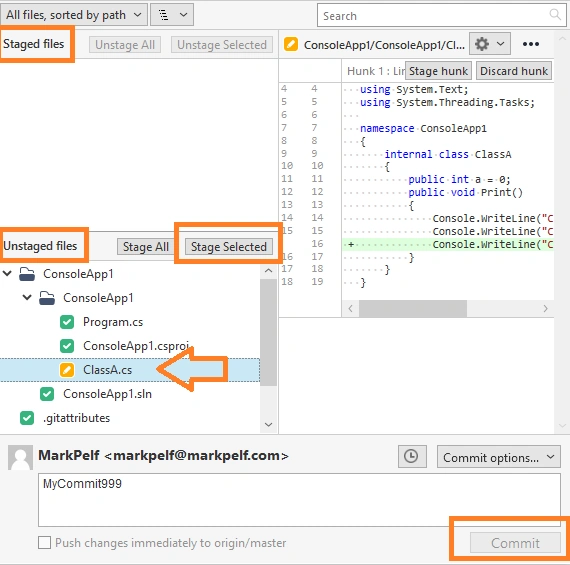
But in order to commit (not that the Commit button is disabled), you need to use that “Stage Selected button” and add changes to the Staged files form and then you can commit the changes to the repository.
2.6 Viewing Stashes
Both tools offer nice panels for viewing stashes.
2.6.1 Stashes in MeGit
List of all the stashes in the repository:
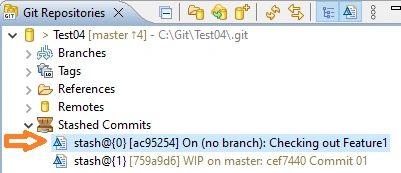
Then we selected one particular stash, Stash with index [0]. Then we can see details about that stash:
Location in history where the stash was taken
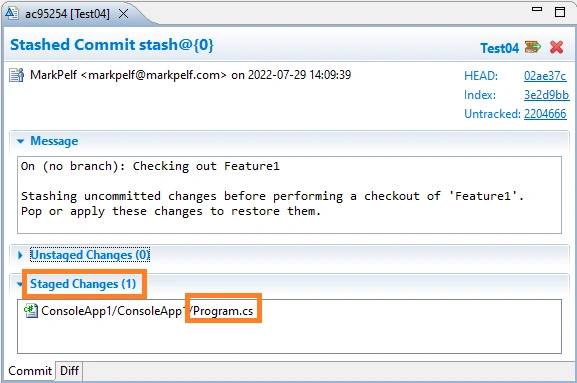
Detailed info on that stash
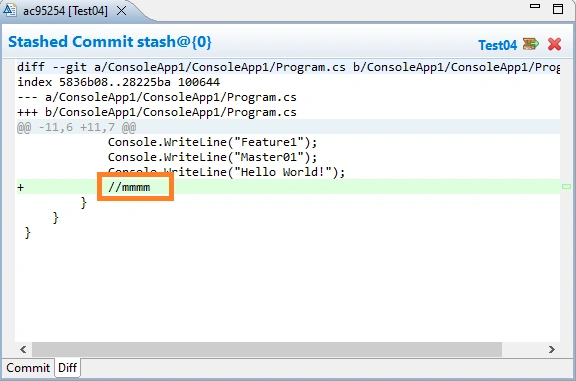
File difference showing changes by the stash:
2.6.2 Stashes in VS2022
List of all the stashes in the repository:
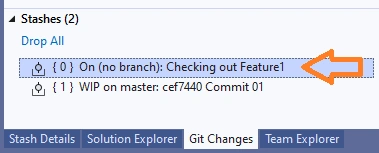
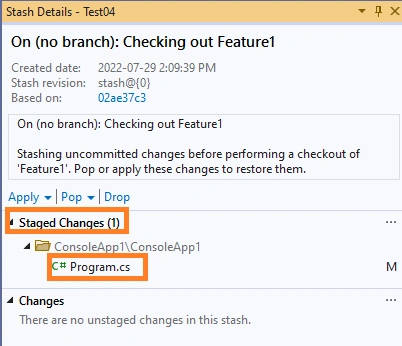
Then we selected one particular stash, Stash with index [0]. Then we can see details about that stash:
Detailed info on that stash
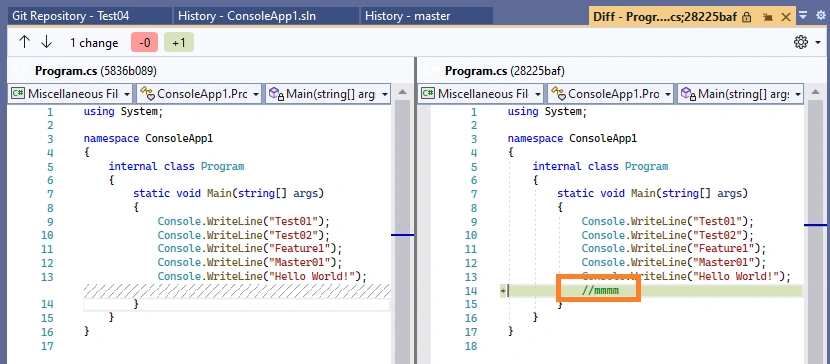
File difference showing changes by the stash:
VS2022 does not include the option to show on the history graph position where the stash was taken. Looks like someone in VS2022 team hates Git history graphs.
Someone might ask: why would you like to see that info on the graph? To me, the answer is simple: it is called a GRAPHICAL user interface, so it would be nice to see that info too on the graph.
2.6.3 Stashes in SourceTree
List of all the stashes in the repository:
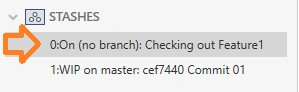
Then we selected one particular stash, Stash with index [0].
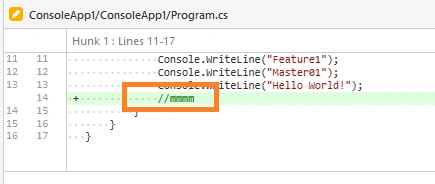
File difference showing changes by the stash:
2.7 Viewing Blame
2.7.1 Blame in MeGit
It is difficult to find a bit Blame functionality, and this time MeGit is not using Git terminology “Blame” but “Revision information” and that is why is difficult to find it. It looks good:
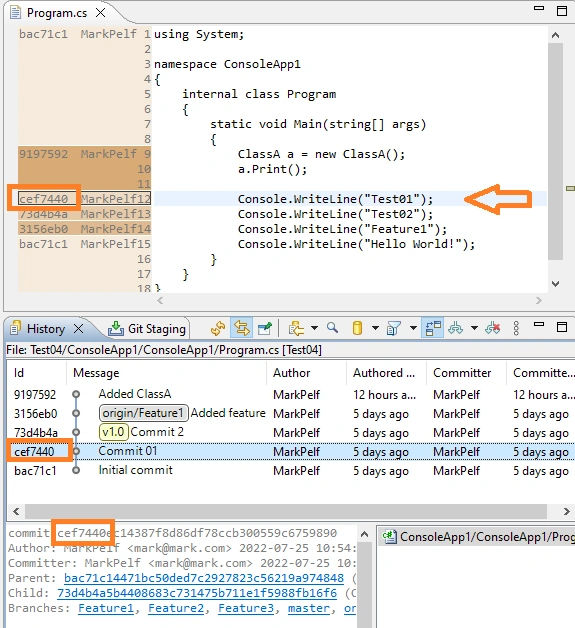
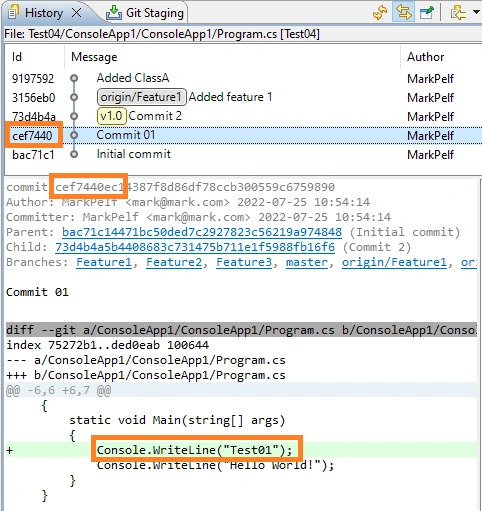
You can see, that we looked at file Program.cs and at line 12. The last time it was touched was by author “MarkPelf” and in commit cef7440 and below you can see advanced info on that commit, including history graph.
Also, you can see the file diff for that commit cef7440
2.7.2 Blame in VS2022
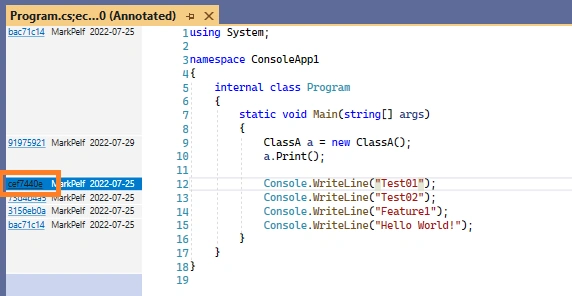
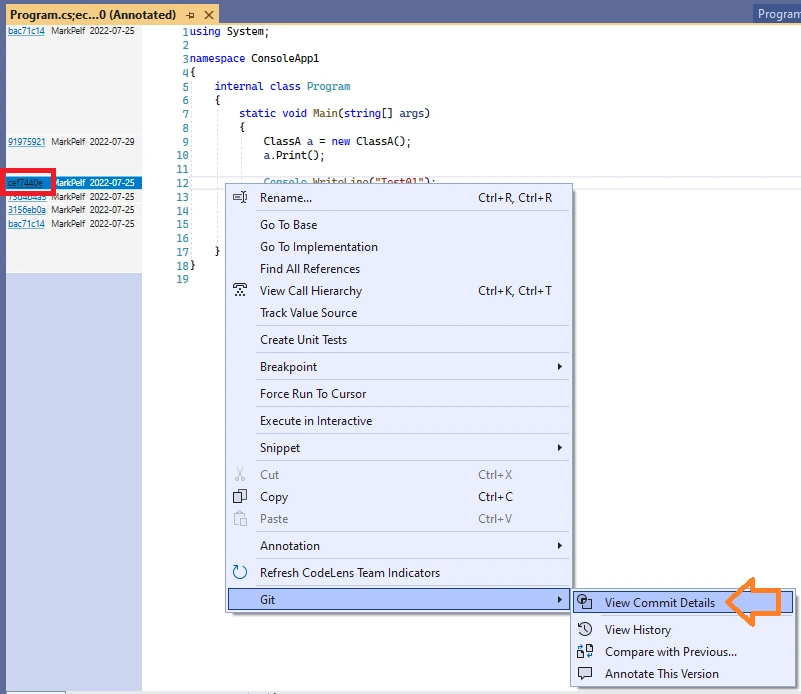
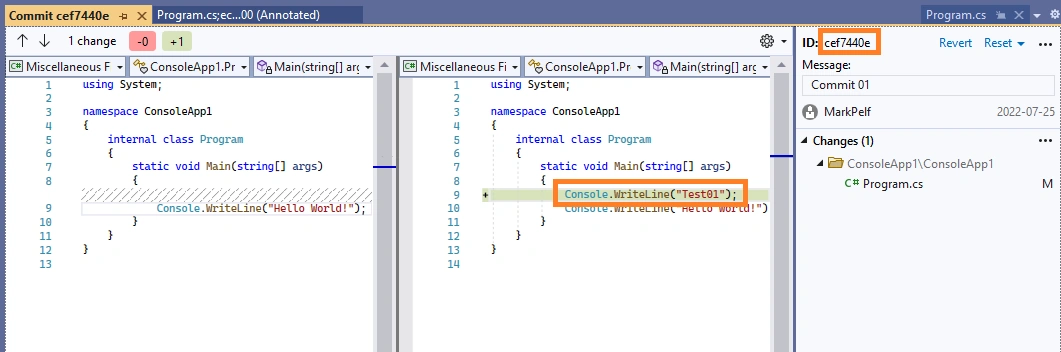
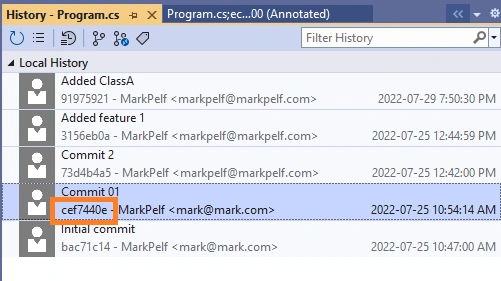
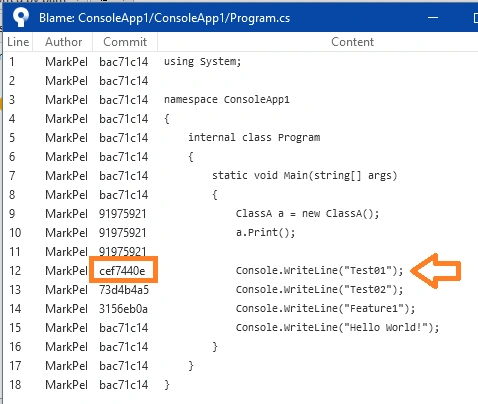
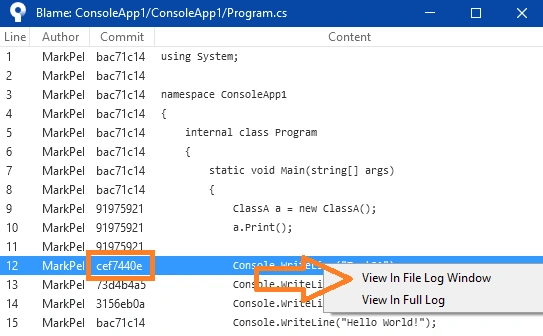
For the same scenario (file Program.cs and line 12), VS2022 shows initially less information but you can right-click to get more info on who and in which commit last changed that line:
Blame screen:
Right-click on the code line of interest:
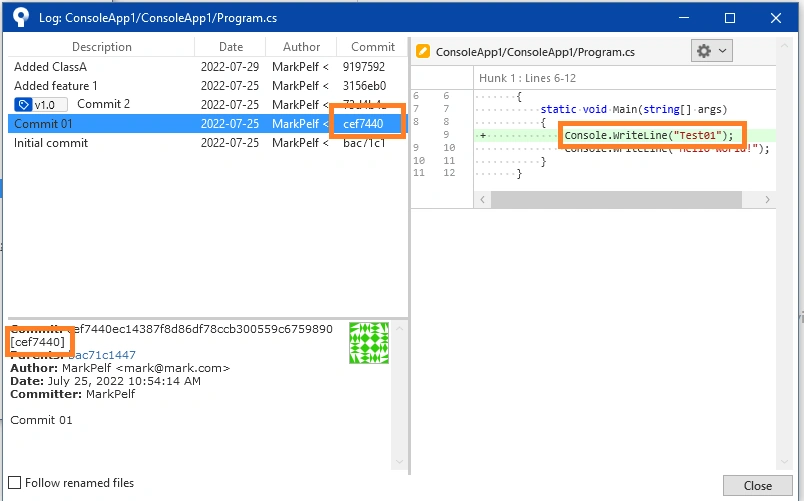
Commit details for commit cef7440:
History graph for commit cef7440
2.7.3 Blame in SourceTree
For the same scenario (file Program.cs and line 12), SourceTree shows initially less information, but you can right-click to get more info
Right-click on the code line of interest:
Commit details for commit cef7440:
3. Conclusion
In this article, we gave a short overview of VS2022 Git Gui IDE integration and compared it with Git Gui clients MeGit/EGit and SourceTree. We showed that MeGit has a richer UI and more closely follows “Git philosophy and terminology”. We showed that VS2022 took an approach of simplifying Git UI to the user and that many of the Git internals are hidden from the user.
The good news is that will bring many developers to Git platform faster and encourage them to transition to Git because of the simplicity of UI and easy learning path. The bad news is that some important Git concepts like Refs HEAD etc. are hidden from the user and some Git options are deliberately limited. The Git power users might need other Git tools, be it GitBash or some other Git Gui client (MeGit/EGit [1] , Sourcetree [3]) to get better insight into their repositories and perform complex operations that are not supported by VS2022 Git Gui.
But definitely, integration of Git into VS2022 IDE will bring more popularity to the Git Version control system.
Join the conversation! Your thoughts help the community grow.