

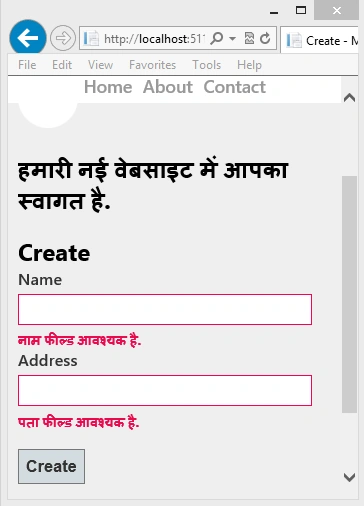
In this quick article, you will learn how to globalize and localize the model validation messages in MVC Applications. At the end of this article, you will also learn how to display the localized message (greeting) on the page.
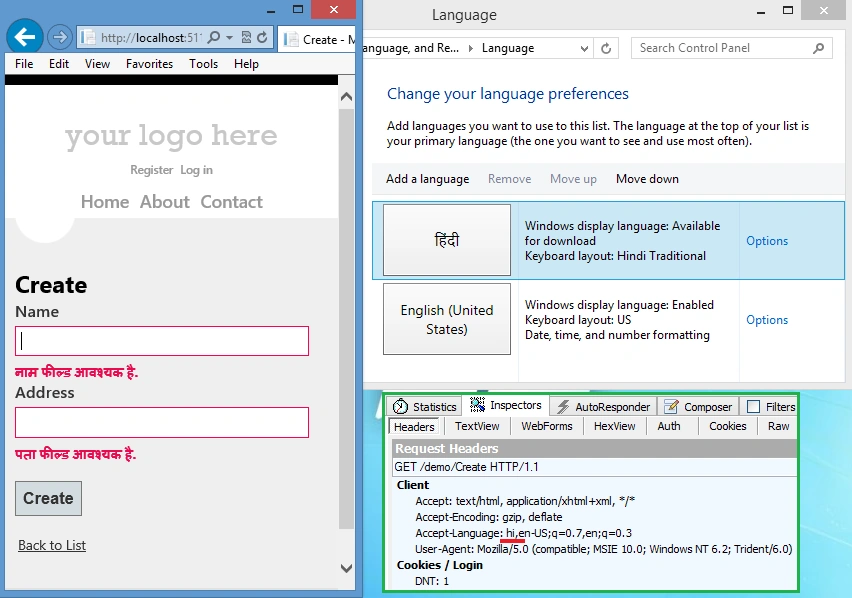
Here is what we will build.
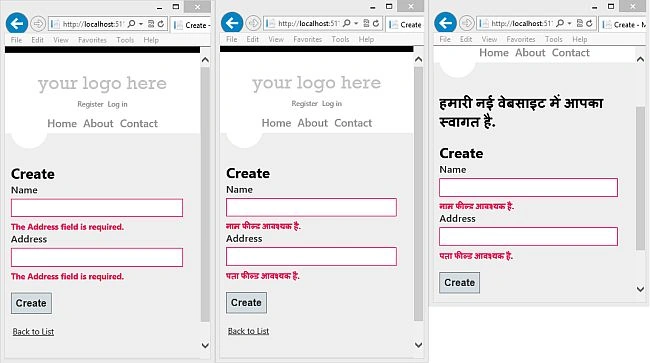
(Click here to view bigger image)
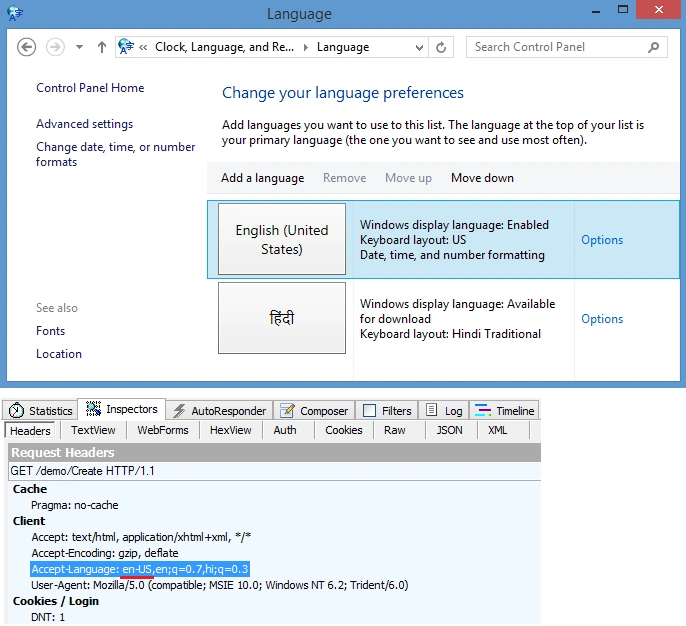
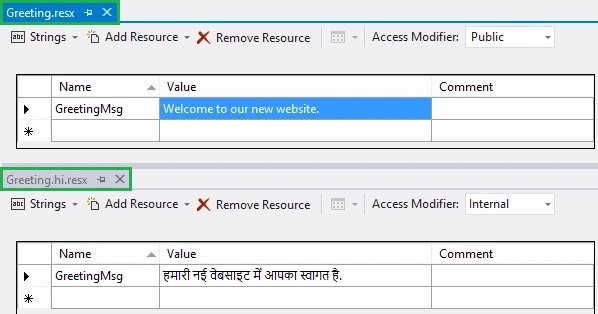
I will use ASP.NET resource files to define the globalized (default) and localized strings and this string message will be displayed to the user based on the request header language that the client browser sends.
Now, follow the steps from here.
Step 1
To do ASP.NET automatically we need to set the globalization settings in web.config, as in the following.
- <system.web>
- ....
- <globalization culture="auto" uiCulture="auto"/>
- ....
- </system.web>
Step 2
To localize the text we need to rely on the resource files that are nothing but a XML file with .resx extension that contains globalized and localized string messages, name and its value pair.
These resource files can be added anywhere in the application but I will prefer to add it with views.
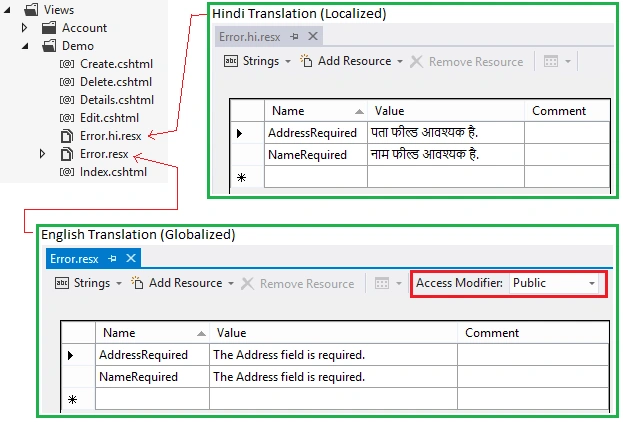
Error.resx File
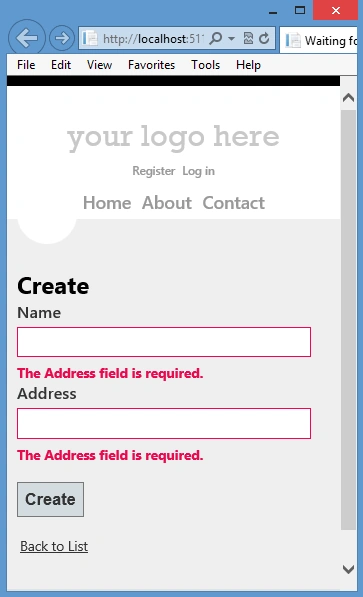
In this file I have defined two string names AddressRequired and NameRequired. This file can be called a default/base resource and will be displayed every time the browser requests a language that we don't support. Remember to change the access modifier to Public, because this file turns into an assembly that requires public access.
Error.hi.resx File
This file will have the localized name and value pair, which is Hindi here. This string message will be displayed to the user based on the request header language that the client browser sends.
Step 3
To display these localized validation messages, we need to make a quick change in the model validation attribute, here we go.

Kundan GuptaPosted Aug 10, 2018, 11:00 PM
Hello sir, I want to apply more DataAnnotation([Required, [StringLength]) in same Field then how I apply globalization.
Saineshwar BageriPosted Feb 13, 2015, 7:52 AM
but sir i want to do on button click then how to set it
Maurilio FilhoPosted Oct 30, 2014, 9:00 AM
This is amazing, good job.