

Introduction
In this article, you will learn about the Google Geocoding API. Geocoding is the process of converting addresses into geographical coordinates (latitude and longitude). Reverse Geocoding is the process of converting geographic coordinates into a human-readable address. The Google Geocoding API provides a direct way to access these services via an HTTP request.
A Geocoding API request has the following form: http://maps.googleapis.com/maps/api/geocode/output?parameters. In this article, we will do Geocoding using JSON output.
The Geocoding request being used by me is:
Step 1
Go to "Layout" -> "New" -> "Layout resource file". Name this file "search_layout" and add the following code to it:
- <LinearLayout xmlns:android="http://schemas.android.com/apk/res/android"
- android:orientation="vertical"
- android:layout_width="match_parent"
- android:layout_height="match_parent"
- android:background="#ffdbac">
- <EditText
- android:id="@+id/enter"
- android:layout_width="fill_parent"
- android:layout_height="wrap_content"
- android:textSize="20dp"
- android:hint="Enter the required Location...."
- android:layout_marginTop="40dp"
- android:layout_marginLeft="20dp"
- android:layout_marginRight="20dp"/>
- <Button
- android:id="@+id/search"
- android:layout_width="wrap_content"
- android:layout_height="wrap_content"
- android:layout_marginLeft="130dp"
- android:layout_marginTop="40dp"
- android:text="Search"
- android:background="@drawable/button_lay"
- android:paddingRight="10dp"
- android:paddingLeft="10dp"
- />
- </LinearLayout>
The layout looks like:
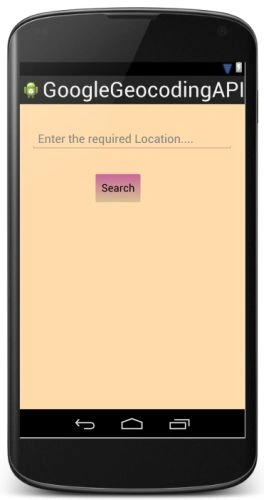
This layout has been designed to allow the user to enter the name of the required location.
Step 2
Open "activity_main" and add the following code to it:
- <ListView
- android:layout_marginTop="60dp"
- android:id="@android:id/list"
- android:layout_width="fill_parent"
- android:layout_height="wrap_content"
- android:scrollbars="vertical"/>
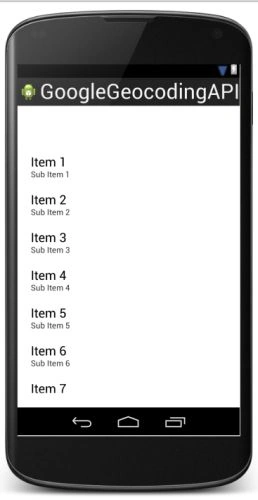
The layout looks like:
Step 3
Create yet another layout file. Name it "list_layout" and add the following code to it:
- <LinearLayout xmlns:android="http://schemas.android.com/apk/res/android"
- android:orientation="vertical"
- android:layout_width="match_parent"
- android:layout_height="match_parent"
- android:background="#e2e3c8">
- <LinearLayout
- xmlns:android="http://schemas.android.com/apk/res/android"
- android:layout_width="fill_parent"
- android:layout_height="wrap_content"
- android:orientation="vertical">
- <TextView
- android:id="@+id/lat"
- android:layout_width="fill_parent"
- android:layout_height="wrap_content"
- android:textColor="#43bd00"
- android:textSize="16sp"
- android:textStyle="bold"
- android:paddingTop="6dip"
- android:paddingBottom="2dip"
- />
- <TextView
- android:id="@+id/lng"
- android:layout_width="fill_parent"
- android:layout_height="wrap_content"
- android:paddingBottom="2dip">
- </TextView>
- </LinearLayout>
- </LinearLayout>
Step 4
Right-click on your package name the select "New" -> "Java class". Name this class "Search" and add the following code to it:
- package com.chhavi.googlegeocodingapi;
- import android.app.Activity;
- import android.content.Context;
- import android.content.Intent;
- import android.os.Bundle;
- import android.view.View;
- import android.widget.Button;
- import android.widget.EditText;
- public class Search extends Activity {
- EditText enter;
- Button b;
- String place;
- final Context context=this;
- @Override
- protected void onCreate(Bundle savedInstanceState) {
- super.onCreate(savedInstanceState);
- setContentView(R.layout.search_layout);
- enter=(EditText)findViewById(R.id.enter);
- b=(Button)findViewById(R.id.search);
- b.setOnClickListener(new View.OnClickListener() {
- @Override
- public void onClick(View v) {
- Intent i=new Intent(context,MainActivity.class);
- place=enter.getText().toString();
- i.putExtra("place",place);
- startActivity(i);
- }
- });
- }
- }
Step 5
Create one more Java class. Name this file "JSONParsering" and add the following code to it:
- package com.chhavi.googlegeocodingapi;
- import android.util.Log;
- import org.apache.http.HttpEntity;
- import org.apache.http.HttpResponse;
- import org.apache.http.StatusLine;
- import org.apache.http.client.ClientProtocolException;
- import org.apache.http.client.HttpClient;
- import org.apache.http.client.methods.HttpGet;
- import org.apache.http.client.methods.HttpPost;
- import org.apache.http.impl.client.DefaultHttpClient;
- import org.json.JSONArray;
- import org.json.JSONException;
- import org.json.JSONObject;
- import java.io.BufferedReader;
- import java.io.IOException;
- import java.io.InputStream;
- import java.io.InputStreamReader;
- import java.io.UnsupportedEncodingException;
- public class JSONParsering {
- static InputStream input = null;
- static JSONObject jobj = null;
- static String json = "";
- public JSONParsering() {
- }
- public JSONObject getJSONFromUrl(String url) {
- try {
- DefaultHttpClient req = new DefaultHttpClient();
- HttpPost httpPost = new HttpPost(url);
- HttpResponse res = req.execute(httpPost);
- HttpEntity entity = res.getEntity();
- input = entity.getContent();
- } catch (UnsupportedEncodingException e) {
- e.printStackTrace();
- } catch (ClientProtocolException e) {
- e.printStackTrace();
- } catch (IOException e) {
- e.printStackTrace();
- }
- try {
- BufferedReader read = new BufferedReader(new InputStreamReader(
- input, "iso-8859-1"), 8);
- StringBuilder builderonj = new StringBuilder();
- String line = null;
- while ((line = read.readLine()) != null) {
- builderonj.append(line + "\n");
- }
- input.close();
- json = builderonj.toString();
- } catch (Exception e) {
- Log.e("Buffer Reader", "Error...... " + e.toString());
- }
- try {
- jobj = new JSONObject(json);
- } catch (JSONException e) {
- Log.e("Parser", "Error while parsing... " + e.toString());
- }
- return jobj;
- }
- }
This class returns the JSON object for the URL passed.
Step 6
Open "MainActivity" and add the following code to it:
- package com.chhavi.googlegeocodingapi;
- import android.app.ListActivity;
- import android.app.ProgressDialog;
- import android.content.Context;
- import android.content.Intent;
- import android.os.AsyncTask;
- import android.os.Bundle;
- import android.util.Log;
- import android.view.Menu;
- import android.widget.ListAdapter;
- import android.widget.ListView;
- import android.widget.SimpleAdapter;
- import org.json.JSONArray;
- import org.json.JSONException;
- import org.json.JSONObject;
- import java.util.ArrayList;
- import java.util.HashMap;
- public class MainActivity extends ListActivity {
- private Context context;
- private static String url="http://maps.googleapis.com/maps/api/geocode/json?address=";
- private static final String TAG_RESULTS="results";
- private static final String TAG_ADDRESS_COMPONENTS="address_components";
- private static final String TAG_LONG_NAME="long_name";
- private static final String TAG_SHORT_NAME="short_name";
- private static final String TAG_TYPES="types";
- private static final String TAG_FRORMATTED_ADDRESS="formatted_address";
- private static final String TAG_GEOMETRY="geometry";
- private static final String TAG_LOCATION="location";
- private static final String TAG_LAT="lat";
- private static final String TAG_LNG="lng";
- private static final String TAG_LOCATION_TYPE="location_type";
- private static final String TAG_VIEW_PORT="view_port";
- private static final String TAG_NORTHEAST="north_east";
- private static final String TAG_SOUTHWEST="south_west";
- private static final String TAG_STREET_ADDRESS="street_address";
- private static final String TAG_STATUS="status";
- ArrayList<HashMap<String, String>> jlist = new ArrayList<HashMap<String, String>>();
- ListView listv ;
- JSONArray results;
- @Override
- protected void onCreate(Bundle savedInstanceState) {
- super.onCreate(savedInstanceState);
- setContentView(R.layout.activity_main);
- Intent intent = getIntent();
- String enter= intent.getStringExtra("place");
- Log.i("place..",enter+"");
- url=url+enter+"&sensor=false";
- new Progress(MainActivity.this).execute();
- }
- private class Progress extends AsyncTask<String, Void, Boolean> {
- private ProgressDialog dialog;
- public Progress(ListActivity activity) {
- Log.i("class progress", "constructor");
- context = activity;
- dialog = new ProgressDialog(context);
- }
- private Context context;
- protected void onPreExecute() {
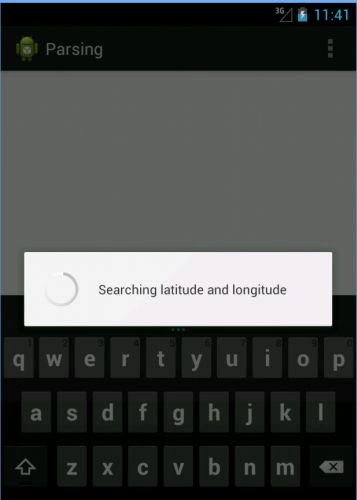
- this.dialog.setMessage("Searching latitude and longitude");
- this.dialog.show();
- }
- @Override
- protected void onPostExecute(final Boolean success) {
- if (dialog.isShowing()) {
- dialog.dismiss();
- }
- Log.i("jasonlist",jlist.size()+"");
- ListAdapter ad = new SimpleAdapter(context, jlist,R.layout.list_layout, new String[] { TAG_LAT, TAG_LNG }, new int[] { R.id.lat, R.id.lng });
- setListAdapter(ad);
- listv = getListView();
- }
- protected Boolean doInBackground(final String... args) {
- JSONParsering jParser = new JSONParsering();
- JSONObject jsonobj = jParser.getJSONFromUrl(url);
- try {
- results = jsonobj.getJSONArray(TAG_RESULTS);
- if(results==null)
- {
- HashMap<String, String> hmap = new HashMap<String, String>();
- hmap.put("TAG_LAT","Null");
- hmap.put("TAG_LNG","Null");
- }
- else
- {
- for(int i = 0; i < results.length(); i++)
- {
- JSONObject c = results.getJSONObject(i);
- JSONObject geometry = c.getJSONObject(TAG_GEOMETRY);
- JSONObject location = geometry.getJSONObject(TAG_LOCATION);
- Log.i("check",location.toString());
- double lat=location.getDouble(TAG_LAT);
- double lng=location.getDouble(TAG_LNG);
- String latS=Double.toString(lat);
- String lngS=Double.toString(lng);
- HashMap<String, String> hmap = new HashMap<String, String>();
- Log.i("check",latS+"");
- hmap.put(TAG_LAT, "LATITUDE: "+latS + "");
- hmap.put(TAG_LNG,"LONGITUDE: "+lngS+"");
- jlist.add(hmap);
- }
- }
- }
- catch(JSONException e)
- {
- e.printStackTrace();
- }
- return null;
- }
- }
- @Override
- public boolean onCreateOptionsMenu(Menu menu) {
- // Inflate the menu; this adds items to the action bar if it is present.
- getMenuInflater().inflate(R.menu.main, menu);
- return true;
- }
- }
The strings declared at the beginning of this class are some of the elements of the JSON document. I wanted to access the "lat" and "lng" elements in the location object. For reaching "lat" and "lng", the following parsing is required: JSON obj-> results (JSON array)-> JSON obj->geometry (JSON obj)-> location (JSON obj)-> lat and lng element.
Step 7
Finally, make the following changes in "AndroidManifest.xml":
- <manifest xmlns:android="http://schemas.android.com/apk/res/android"
- package="com.chhavi.googlegeocodingapi"
- android:versionCode="1"
- android:versionName="1.0" >
- <uses-permission android:name="android.permission.INTERNET"/>
- <uses-sdk
- android:minSdkVersion="7"
- android:targetSdkVersion="16" />
- <application
- android:allowBackup="true"
- android:icon="@drawable/ic_launcher"
- android:label="@string/app_name"
- android:theme="@style/AppTheme" >
- <activity
- android:name=".Search"
- android:label="@string/app_name" >
- <intent-filter>
- <action android:name="android.intent.action.MAIN" />
- <category android:name="android.intent.category.LAUNCHER" />
- </intent-filter>
- </activity>
- <activity
- android:name=".MainActivity"
- android:label="Parsing" />
- </application>
- </manifest>
Output snapshots:
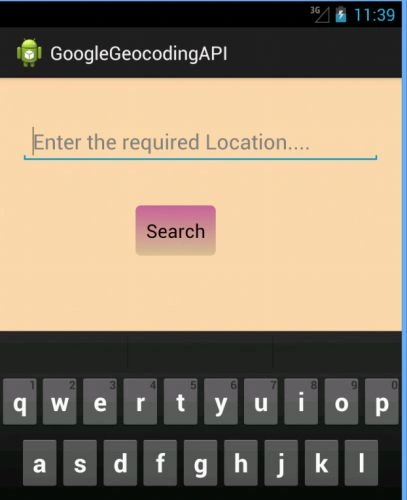
On entering a location name:
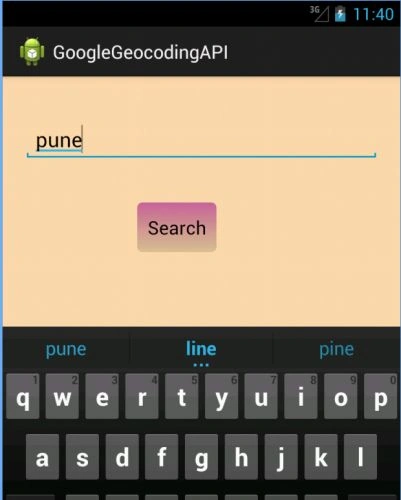
On clicking the search button:
Final output:
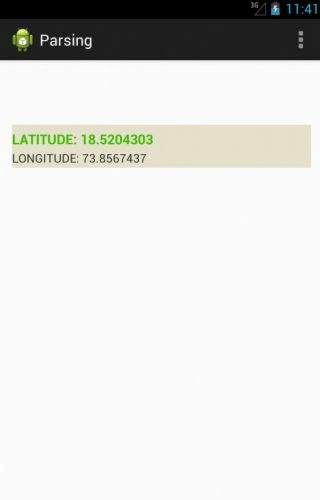
You can check if the displayed latitude and longitude values are correct or not from http://maps.googleapis.com/maps/api/geocode/json?address=PUNE&sensor=false
Thank you... Enjoy coding :)
Join the conversation! Your thoughts help the community grow.