

Introduction
Grid Panel is the most complicated but versatile panel among all panels in WPF. A Grid panel can be used to design complicated user interfaces where we need to place multiple elements in a tabular form of rows and columns layout.

The Grid element in XAML represents a Grid panel. The following code snippet creates a Grid element and sets its background, width, height, vertical and horizontal alignment properties.
- <Grid Name="GridPanel" Background="Blue" Width="280" Height="220"
- VerticalAlignment="Top" HorizontalAlignment="Center" >
- </Grid>

Figure 1
Grid Properties
Grid has three major properties - RowDefinitions, ColumnDefinitions, and ShowGridLines. The RowDefinitions property is a collection of RowDefintion. The ColumnDefinitions property represents a collection of ColumnDefinition. The ShowGridLines property represents if grid lines of a Grid panel are visible or not.
Create Grid
The Grid element in XAML represents a WPF Grid control. The following code snippet creates a Grid control, sets it width and foreground color and make sure grid lines are visible.
- <Grid Name="MCGrid" Width="400" Background="LightSteelBlue" ShowGridLines="True" \>
- <Grid.ColumnDefinitions>
- <ColumnDefinition/>
- <ColumnDefinition/>
- <ColumnDefinition/>
- </Grid.ColumnDefinitions>
- <Grid.RowDefinitions>
- <RowDefinition Height="45"/>
- <RowDefinition Height="45"/>
- <RowDefinition Height="45"/>
- </Grid.RowDefinitions>
- <TextBlock Grid.Row="1" Grid.Column="2" Foreground="Green"
- Text="Age" Height="20" VerticalAlignment="Top" />
- <Window x:Class="GridSample.Window1"
- xmlns="http://schemas.microsoft.com/winfx/2006/xaml/presentation"
- xmlns:x="http://schemas.microsoft.com/winfx/2006/xaml"
- Title="Window1" Height="300" Width="450" WindowStyle="ThreeDBorderWindow">
- <Grid Name="MCGrid" Width="400" Background="LightSteelBlue" ShowGridLines="True">
- <Grid.ColumnDefinitions>
- <ColumnDefinition />
- <ColumnDefinition />
- <ColumnDefinition />
- </Grid.ColumnDefinitions>
- <Grid.RowDefinitions>
- <RowDefinition Height="45" />
- <RowDefinition Height="45" />
- <RowDefinition Height="45" />
- </Grid.RowDefinitions>
- <TextBlock FontSize="14" FontWeight="Bold" Grid.Row="0" Grid.Column="0" Foreground="Green"
- Text="Author Name" Height="20" VerticalAlignment="Top" />
- <TextBlock FontSize="14" FontWeight="Bold" Grid.Row="0" Grid.Column="1" Foreground="Green"
- Text="Age" Height="20" VerticalAlignment="Top" />
- <TextBlock FontSize="14" FontWeight="Bold" Grid.Row="0" Grid.Column="2" Foreground="Green"
- Text="Book" Height="20" VerticalAlignment="Top"/>
- <TextBlock FontSize="12" Grid.Row="1" Grid.Column="0">Mahesh Chand</TextBlock>
- <TextBlock FontSize="12" Grid.Row="1" Grid.Column="1">33</TextBlock>
- <TextBlock FontSize="12" Grid.Row="1" Grid.Column="2">GDI+ Programming</TextBlock>
- <TextBlock FontSize="12" Grid.Row="2" Grid.Column="0">Mike Gold</TextBlock>
- <TextBlock FontSize="12" Grid.Row="2" Grid.Column="1">35</TextBlock>
- <TextBlock FontSize="12" Grid.Row="2" Grid.Column="2">Programming C#</TextBlock>
- </Grid>
- </Window>
The output looks like Figure 2.

Figure 2
Create a Grid Dynamically
The Grid class in WPF represents a Grid control. The following code snippet creates a Grid control, sets its width, horizontal alignment, vertical alignment, shows grid lines, and background color.
- Grid DynamicGrid = new Grid();
- DynamicGrid.Width = 400;
- DynamicGrid.HorizontalAlignment = HorizontalAlignment.Left;
- DynamicGrid.VerticalAlignment = VerticalAlignment.Top;
- DynamicGrid.ShowGridLines = true;
- DynamicGrid.Background = new SolidColorBrush(Colors.LightSteelBlue);
- // Create Columns
- ColumnDefinition gridCol1 = new ColumnDefinition();
- ColumnDefinition gridCol2 = new ColumnDefinition();
- ColumnDefinition gridCol3 = new ColumnDefinition();
- DynamicGrid.ColumnDefinitions.Add(gridCol1);
- DynamicGrid.ColumnDefinitions.Add(gridCol2);
- DynamicGrid.ColumnDefinitions.Add(gridCol3);
- // Create Rows
- RowDefinition gridRow1 = new RowDefinition();
- gridRow1.Height = new GridLength(45);
- RowDefinition gridRow2 = new RowDefinition();
- gridRow2.Height = new GridLength(45);
- RowDefinition gridRow3 = new RowDefinition();
- gridRow3.Height = new GridLength(45);
- DynamicGrid.RowDefinitions.Add(gridRow1);
- DynamicGrid.RowDefinitions.Add(gridRow2);
- DynamicGrid.RowDefinitions.Add(gridRow3);
- // Add first column header
- TextBlock txtBlock1 = new TextBlock();
- txtBlock1.Text = "Author Name";
- txtBlock1.FontSize = 14;
- txtBlock1.FontWeight = FontWeights.Bold;
- txtBlock1.Foreground = new SolidColorBrush(Colors.Green);
- txtBlock1.VerticalAlignment = VerticalAlignment.Top;
- Grid.SetRow(txtBlock1, 0);
- Grid.SetColumn(txtBlock1, 0);
- DynamicGrid.Children.Add(txtBlock1);
The complete code is listed in Listing 2.
- private void CreateDynamicWPFGrid()
- {
- // Create the Grid
- Grid DynamicGrid = new Grid();
- DynamicGrid.Width = 400;
- DynamicGrid.HorizontalAlignment = HorizontalAlignment.Left;
- DynamicGrid.VerticalAlignment = VerticalAlignment.Top;
- DynamicGrid.ShowGridLines = true;
- DynamicGrid.Background = new SolidColorBrush(Colors.LightSteelBlue);
- // Create Columns
- ColumnDefinition gridCol1 = new ColumnDefinition();
- ColumnDefinition gridCol2 = new ColumnDefinition();
- ColumnDefinition gridCol3 = new ColumnDefinition();
- DynamicGrid.ColumnDefinitions.Add(gridCol1);
- DynamicGrid.ColumnDefinitions.Add(gridCol2);
- DynamicGrid.ColumnDefinitions.Add(gridCol3);
- // Create Rows
- RowDefinition gridRow1 = new RowDefinition();
- gridRow1.Height = new GridLength(45);
- RowDefinition gridRow2 = new RowDefinition();
- gridRow2.Height = new GridLength(45);
- RowDefinition gridRow3 = new RowDefinition();
- gridRow3.Height = new GridLength(45);
- DynamicGrid.RowDefinitions.Add(gridRow1);
- DynamicGrid.RowDefinitions.Add(gridRow2);
- DynamicGrid.RowDefinitions.Add(gridRow3);
- // Add first column header
- TextBlock txtBlock1 = new TextBlock();
- txtBlock1.Text = "Author Name";
- txtBlock1.FontSize = 14;
- txtBlock1.FontWeight = FontWeights.Bold;
- txtBlock1.Foreground = new SolidColorBrush(Colors.Green);
- txtBlock1.VerticalAlignment = VerticalAlignment.Top;
- Grid.SetRow(txtBlock1, 0);
- Grid.SetColumn(txtBlock1, 0);
- // Add second column header
- TextBlock txtBlock2 = new TextBlock();
- txtBlock2.Text = "Age";
- txtBlock2.FontSize = 14;
- txtBlock2.FontWeight = FontWeights.Bold;
- txtBlock2.Foreground = new SolidColorBrush(Colors.Green);
- txtBlock2.VerticalAlignment = VerticalAlignment.Top;
- Grid.SetRow(txtBlock2, 0);
- Grid.SetColumn(txtBlock2, 1);
- // Add third column header
- TextBlock txtBlock3 = new TextBlock();
- txtBlock3.Text = "Book";
- txtBlock3.FontSize = 14;
- txtBlock3.FontWeight = FontWeights.Bold;
- txtBlock3.Foreground = new SolidColorBrush(Colors.Green);
- txtBlock3.VerticalAlignment = VerticalAlignment.Top;
- Grid.SetRow(txtBlock3, 0);
- Grid.SetColumn(txtBlock3, 2);
- //// Add column headers to the Grid
- DynamicGrid.Children.Add(txtBlock1);
- DynamicGrid.Children.Add(txtBlock2);
- DynamicGrid.Children.Add(txtBlock3);
- // Create first Row
- TextBlock authorText = new TextBlock();
- authorText.Text = "Mahesh Chand";
- authorText.FontSize = 12;
- authorText.FontWeight = FontWeights.Bold;
- Grid.SetRow(authorText, 1);
- Grid.SetColumn(authorText, 0);
- TextBlock ageText = new TextBlock();
- ageText.Text = "33";
- ageText.FontSize = 12;
- ageText.FontWeight = FontWeights.Bold;
- Grid.SetRow(ageText, 1);
- Grid.SetColumn(ageText, 1);
- TextBlock bookText = new TextBlock();
- bookText.Text = "GDI+ Programming";
- bookText.FontSize = 12;
- bookText.FontWeight = FontWeights.Bold;
- Grid.SetRow(bookText, 1);
- Grid.SetColumn(bookText, 2);
- // Add first row to Grid
- DynamicGrid.Children.Add(authorText);
- DynamicGrid.Children.Add(ageText);
- DynamicGrid.Children.Add(bookText);
- // Create second row
- authorText = new TextBlock();
- authorText.Text = "Mike Gold";
- authorText.FontSize = 12;
- authorText.FontWeight = FontWeights.Bold;
- Grid.SetRow(authorText, 2);
- Grid.SetColumn(authorText, 0);
- ageText = new TextBlock();
- ageText.Text = "35";
- ageText.FontSize = 12;
- ageText.FontWeight = FontWeights.Bold;
- Grid.SetRow(ageText, 2);
- Grid.SetColumn(ageText, 1);
- bookText = new TextBlock();
- bookText.Text = "Programming C#";
- bookText.FontSize = 12;
- bookText.FontWeight = FontWeights.Bold;
- Grid.SetRow(bookText, 2);
- Grid.SetColumn(bookText, 2);
- // Add second row to Grid
- DynamicGrid.Children.Add(authorText);
- DynamicGrid.Children.Add(ageText);
- DynamicGrid.Children.Add(bookText);
- // Display grid into a Window
- RootWindow.Content = DynamicGrid;
- }
Managing Column Width and Row Height
The ColumnDefinition has three properties that are used to manage the width of a column in a Grid. These properties are Width, MaxWidth, and MinWidth. The Width property represents the width of a column. The MaxWidth and MinWidth are used to set maximum and minimum width of a column.
The RowDefinition has three properties that are used to manage the height of a row in a Grid. These properties are Height, MaxHeight, and MinHeight. The Height property represents the height of a row. The MaxHeight and MinHeight are used to set maximum and minimum height of a row.
The code listed in Listing 3 sets the width of columns and height of rows in a Grid panel at design-time using XAML.
- <Grid Name="MCGrid" VerticalAlignment="Top"
- HorizontalAlignment="Left" Background="LightSteelBlue" ShowGridLines="False">
- <Grid.ColumnDefinitions>
- <ColumnDefinition Width="120"/>
- <ColumnDefinition Width="50" />
- <ColumnDefinition Width="250"/>
- </Grid.ColumnDefinitions>
- <Grid.RowDefinitions>
- <RowDefinition Height="25" />
- <RowDefinition Height="22" />
- <RowDefinition Height="22" />
- <RowDefinition Height="22" />
- <RowDefinition Height="22" />
- <RowDefinition Height="22" />
- </Grid.RowDefinitions>
- <TextBlock FontSize="14" FontWeight="Bold" Grid.Row="0" Grid.Column="0"
- Text=" Author Name" Height="25"
- VerticalAlignment="Top"
- Background="DarkBlue" Foreground="WhiteSmoke" />
- <TextBlock FontSize="14" FontWeight="Bold" Grid.Row="0" Grid.Column="1"
- Text=" Age" Height="25" VerticalAlignment="Top"
- Background="DarkBlue" Foreground="WhiteSmoke" />
- <TextBlock FontSize="14" FontWeight="Bold" Grid.Row="0" Grid.Column="2"
- Text=" Book" Height="25" VerticalAlignment="Top"
- Background="DarkBlue" Foreground="WhiteSmoke" />
- <TextBlock Grid.Row="1" Grid.Column="0">Mahesh Chand</TextBlock>
- <TextBlock Grid.Row="1" Grid.Column="1">33</TextBlock>
- <TextBlock Grid.Row="1" Grid.Column="2">GDI+ Programming</TextBlock>
- <TextBlock Grid.Row="2" Grid.Column="0">John Trotter</TextBlock>
- <TextBlock Grid.Row="2" Grid.Column="1">42</TextBlock>
- <TextBlock Grid.Row="2" Grid.Column="2">ADO.NET Programming Cookbook</TextBlock>
- <TextBlock Grid.Row="3" Grid.Column="0">Mike Gold</TextBlock>
- <TextBlock Grid.Row="3" Grid.Column="1">35</TextBlock>
- <TextBlock Grid.Row="3" Grid.Column="2">Programming C#</TextBlock>
- <TextBlock Grid.Row="4" Grid.Column="0">Raj Kumar</TextBlock>
- <TextBlock Grid.Row="4" Grid.Column="1">22</TextBlock>
- <TextBlock Grid.Row="4" Grid.Column="2">XAML Development with C#</TextBlock>
- <TextBlock Grid.Row="5" Grid.Column="0">Praveen Kumar</TextBlock>
- <TextBlock Grid.Row="5" Grid.Column="1">28</TextBlock>
- <TextBlock Grid.Row="5" Grid.Column="2">WPF and Visual Studio 2010</TextBlock>
- </Grid>
The output of Listing looks like Figure 3.
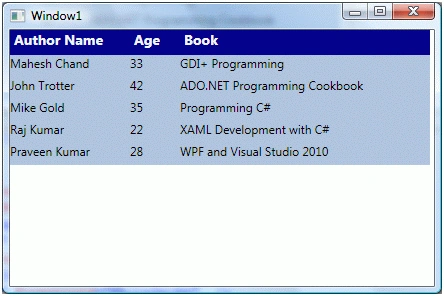
Figure 3
Add and Remove Columns
The Add method of Grid.ColumnDefinitions adds a new column to Grid.
- DynamicGrid.ColumnDefinitions.Add(new ColumnDefinition());
- DynamicGrid.ColumnDefinitions.Insert(3, new ColumnDefinition());
- DynamicGrid.ColumnDefinitions.RemoveAt(3);
- DynamicGrid.ColumnDefinitions.Clear();
The Add method of Grid.RowDefinitions adds a new row to a Grid.
- DynamicGrid.RowDefinitions.Add(new RowDefinition());
The Grid.RowDefinitions.Insert method adds a row at a given position.
- DynamicGrid.RowDefinitions.Insert(3, new RowDefinition ());
- DynamicGrid.RowDefinitions.RemoveAt(3);
- DynamicGrid.RowDefinitions.Clear();
The following code snippet adds a Grid splitter to a Grid that you can use to resize a Grid row.
- <Grid Name="DynamicGrid" Width="466" Background="LightSteelBlue" ShowGridLines="True"
- Canvas.Top="119" Canvas.Left="8" Height="200">
- <Grid.ColumnDefinitions>
- <ColumnDefinition />
- <ColumnDefinition />
- <ColumnDefinition />
- </Grid.ColumnDefinitions>
- <Grid.RowDefinitions>
- <RowDefinition Height="50*" />
- <RowDefinition Height="Auto" />
- <RowDefinition Height="50*" />
- </Grid.RowDefinitions>
- <GridSplitter
- ResizeDirection="Rows"
- Grid.Column="0"
- Grid.ColumnSpan="10"
- Grid.Row="1"
- Width="Auto"
- Height="3"
- HorizontalAlignment="Stretch"
- VerticalAlignment="Stretch"
- Margin="0"
- Background="Green"/>
- </Grid>
The Background property of Grid sets the background colors of a Grid. The following code snippet uses linear gradient brushes to draw the background of a Grid.
- <Grid.Background>
- <LinearGradientBrush StartPoint="0,0" EndPoint="1,1" >
- <GradientStop Color="Blue" Offset="0.1" />
- <GradientStop Color="Orange" Offset="0.25" />
- <GradientStop Color="Green" Offset="0.75" />
- <GradientStop Color="Red" Offset="1.0" />
- </LinearGradientBrush>
- </Grid.Background>

Figure 4
Setting Image as Background of a Grid
To set an image as background of a Grid, we can set an image as the Background of the Grid. The following code snippet sets the background of a Grid to an image. The code also sets the opacity of the image.
- <Grid.Background>
- <ImageBrush ImageSource="Flower.jpg" Opacity="0.3"/>
- </Grid.Background>
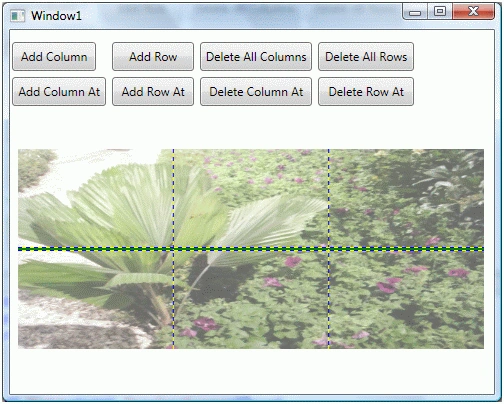
Figure 5
Summary
In this article, we learned how to use a Grid panel in WPF at design-time in XAML and code-behind in C#. We also saw how set various properties of a Grid Panel. After that we learned how to work with rows and columns of a Grid panel. In the end of this article, we saw how to format a Grid panel.
Sampat PatilPosted Mar 19, 2015, 8:30 AM
how can we enable scroll bar for abve code... pls rely
Gurunatha DogiPosted Jul 31, 2014, 4:26 AM
Nice article in simple words step by step...Thank you @Mahesh Sir
shivank thakurPosted Oct 19, 2012, 6:18 AM
Can we apply paging on Grid?
Mudassar DarPosted Nov 2, 2010, 3:39 PM
Hello: last part of artical showes how to attach am background image to grid. I have a similar code to attach an image to a grid which is attached to TabControl window. The is bigger than tabcontrol there it shrinks and get skewed to fit into TabControl. Is there a way to TabControl to show scrollbar and scroll the image up/down and left/Right thanks [email protected]
Rajendra TripathyPosted Sep 29, 2010, 7:58 AM
Hi. Your article is helpful, but I need Cell Merging In WPF DataGrid (Windows Application C#). Will you Guide me in this? for more detail u can see- http://img709.imageshack.us/img709/6213/cellmerged.jpg