

Introduction
This article describes how to apply an animation to a GridView in ASP.Net using jQuery UI.
Description
To create this application you need the jQuery files listed below.
- jquery-1.9.1.js
- jquery-ui.js
- jquery-ui.css
You can download them from the source code attached in this page.
Here I create three pages for checking various animations on GridView.
- Dragable GridView
- Zoom able GridView
- Animated Effect to GridView
Dragable GridView
In this example I will show how to drag a GridView to any position in a browser's screen.
Design
Add a GridView to a page and apply any design.
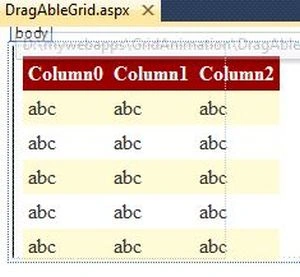
Now design your screen like the following screen:
<body>
<form id="form1" runat="server">
<div id="draggable">
<asp:GridView ID="gvDetails" runat="server" CellPadding="4" ForeColor="#333333" GridLines="None">
<AlternatingRowStyle BackColor="White" />
<FooterStyle BackColor="#990000" Font-Bold="True" ForeColor="White" />
<HeaderStyle BackColor="#990000" Font-Bold="True" ForeColor="White" />
<PagerStyle BackColor="#FFCC66" ForeColor="#333333" HorizontalAlign="Center" />
<RowStyle BackColor="#FFFBD6" ForeColor="#333333" />
<SelectedRowStyle BackColor="#FFCC66" Font-Bold="True" ForeColor="Navy" />
<SortedAscendingCellStyle BackColor="#FDF5AC" />
<SortedAscendingHeaderStyle BackColor="#4D0000" />
<SortedDescendingCellStyle BackColor="#FCF6C0" />
<SortedDescendingHeaderStyle BackColor="#820000" />
</asp:GridView>
</div>
</form>
In the code above just check this div:
<div id="draggable">
</div>
Within this div what element you put the dragable feature applied on that.
Next add the following JavaScript and CSS style code in the head tag of an aspx file (this is used to apply the drag feature to the div in which the grid is present).
<head runat="server">
<title></title>
<script src="Scripts/jquery-1.9.1.js" type="text/javascript"></script>
<script src="Scripts/jquery-ui.js" type="text/javascript"></script>
<style>
#draggable
{
width: 150px;
height: 150px;
padding: 0.5em;
}
</style>
<script>
$(function () {
$("#draggable").draggable();
});
</script>
</head>
Now go to the code view.
And write the following code in the .cs file for binding data to the grid:
using System;
using System.Collections.Generic;
using System.Linq;
using System.Web;
using System.Web.UI;
using System.Web.UI.WebControls;
using System.Data;
public partial class DragAbleGrid : System.Web.UI.Page
{
protected void Page_Load(object sender, EventArgs e)
{
BindGridDetails();
}
protected void BindGridDetails()
{
DataTable dt = new DataTable();
dt.Columns.Add("EmpId", typeof(Int32));
dt.Columns.Add("EmpName", typeof(string));
dt.Columns.Add("Education", typeof(string));
dt.Columns.Add("Place", typeof(string));
DataRow dtrow = dt.NewRow();
dtrow["EmpId"] = 1;
dtrow["EmpName"] = "Sanjeeb";
dtrow["Education"] = "MCA";
dtrow["Place"] = "Hyderabad";
dt.Rows.Add(dtrow);
dtrow = dt.NewRow();
dtrow["EmpId"] = 2;
dtrow["EmpName"] = "Laku";
dtrow["Education"] = "MBA";
dtrow["Place"] = "Hyderabad";
dt.Rows.Add(dtrow);
dtrow = dt.NewRow();
dtrow["EmpId"] = 3;
dtrow["EmpName"] = "Pankaj";
dtrow["Education"] = "B.Tech";
dtrow["Place"] = "Bihar";
dt.Rows.Add(dtrow);
dtrow = dt.NewRow();
dtrow["EmpId"] = 4;
dtrow["EmpName"] = "Srikanth";
dtrow["Education"] = "B.Tech";
dtrow["Place"] = "Hyderabad";
dt.Rows.Add(dtrow);
gvDetails.DataSource = dt;
gvDetails.DataBind();
}
}
Now build your application and check.
Default view in browser:

After dragging it in the browser:

Zoomable GridView
In this example I will show how to Zoom a GridView on button click.
Design
Add a GridView to a page and apply any design and one hyperlink.
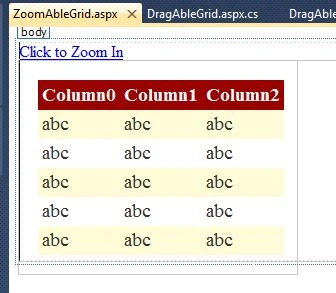
Now design your screen like the following screen:
<body>
<form id="form1" runat="server">
<div>
<a href="#" id="button">Click to Zoom In</a>
</div>
<div class="toggler">
<div id="effect" class="newClass ui-corner-all">
<asp:GridView ID="gvDetails" runat="server" CellPadding="4" ForeColor="#333333" GridLines="None">
<AlternatingRowStyle BackColor="White" />
<FooterStyle BackColor="#990000" Font-Bold="True" ForeColor="White" />
<HeaderStyle BackColor="#990000" Font-Bold="True" ForeColor="White" />
<PagerStyle BackColor="#FFCC66" ForeColor="#333333" HorizontalAlign="Center" />
<RowStyle BackColor="#FFFBD6" ForeColor="#333333" />
<SelectedRowStyle BackColor="#FFCC66" Font-Bold="True" ForeColor="Navy" />
<SortedAscendingCellStyle BackColor="#FDF5AC" />
<SortedAscendingHeaderStyle BackColor="#4D0000" />
<SortedDescendingCellStyle BackColor="#FCF6C0" />
<SortedDescendingHeaderStyle BackColor="#820000" />
</asp:GridView>
</div>
</div>
</form>
In the code above just check this div:
<div class="toggler">
<div id="effect" class="newClass ui-corner-all">
</div>
</div>
Within this div what element you put the Zoom feature applied on that.
Next add the following JavaScript and CSS style code in the head tag of an aspx file (this is used to apply the Zoom feature to the div in which the grid is present).
<head runat="server">
<title></title>
<script src="Scripts/jquery-1.9.1.js" type="text/javascript"></script>
<script src="Scripts/jquery-ui.js" type="text/javascript"></script>
<style type="text/css">
.toggler
{
width: 500px;
height: 200px;
position: relative;
}
#effect
{
position: relative;
}
.newClass
{
width: 240px;
padding: 1em;
letter-spacing: 0;
font-size: 1.2em;
margin: 0;
}
.anotherNewClass
{
text-indent: 40px;
letter-spacing: .4em;
width: 410px;
height: 100px;
padding: 30px;
margin: 10px;
font-size: 1.6em;
}
</style>
<script type="text/javascript">
$(function () {
$("#button").click(function () {
$(".newClass").switchClass("newClass", "anotherNewClass", 1000);
$(".anotherNewClass").switchClass("anotherNewClass", "newClass", 1000);
return false;
});
});
</script>
</head>
Now go to the code view.
And write the following code in the .cs file for binding data to the grid:
using System;
using System.Collections.Generic;
using System.Linq;
using System.Web;
using System.Web.UI;
using System.Web.UI.WebControls;
using System.Data;
public partial class ZoomAbleGrid : System.Web.UI.Page
{
protected void Page_Load(object sender, EventArgs e)
{
BindGridDetails();
}
protected void BindGridDetails()
{
DataTable dt = new DataTable();
dt.Columns.Add("EmpId", typeof(Int32));
dt.Columns.Add("EmpName", typeof(string));
dt.Columns.Add("Education", typeof(string));
dt.Columns.Add("Place", typeof(string));
DataRow dtrow = dt.NewRow();
dtrow["EmpId"] = 1;
dtrow["EmpName"] = "Sanjeeb";
dtrow["Education"] = "MCA";
dtrow["Place"] = "Hyderabad";
dt.Rows.Add(dtrow);
dtrow = dt.NewRow();
dtrow["EmpId"] = 2;
dtrow["EmpName"] = "Laku";
dtrow["Education"] = "MBA";
dtrow["Place"] = "Hyderabad";
dt.Rows.Add(dtrow);
dtrow = dt.NewRow();
dtrow["EmpId"] = 3;
dtrow["EmpName"] = "Pankaj";
dtrow["Education"] = "B.Tech";
dtrow["Place"] = "Bihar";
dt.Rows.Add(dtrow);
dtrow = dt.NewRow();
dtrow["EmpId"] = 4;
dtrow["EmpName"] = "Srikanth";
dtrow["Education"] = "B.Tech";
dtrow["Place"] = "Hyderabad";
dt.Rows.Add(dtrow);
gvDetails.DataSource = dt;
gvDetails.DataBind();
}
}
Now build your application and check.
Default view in browser:

Now click on "Zoom" in Hyper link.

Animated Effect to GridView
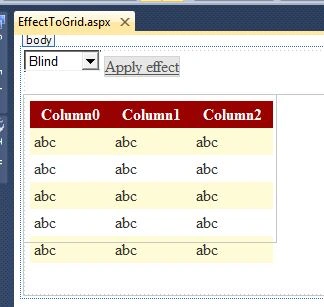
In this example I will show how to apply an animation effect to a GridView on a button click.

Preeti AgrawallaPosted Sep 7, 2013, 7:01 AM
nice one...