

SharePoint groups were designed with the aim to manage SharePoint permissions. In a nutshell, SharePoint group is a collection of the users who share the same permission level. Assigning permission directly to the users is not considered a good practice. The users should be added to a SharePoint group, which in turn should be assigned the permissions in the SharePoint object hierarchy. In addition to it, grouping the users into the groups helps to organize and manage security; which is an important aspect of SharePoint.
SharePoint groups can be created and modified from the site permission page.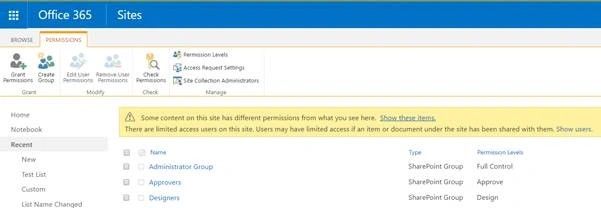
Let’s see how we can create and delete SharePoint groups, using JavaScript object model.
Create Group
- Add reference to jquery file, as shown below:
- <script language="javascript" type="text/javascript" src="//ajax.googleapis.com/ajax/libs/jquery/1.8.1/jquery.min.js">
- </script>
- <script language="javascript" type="text/javascript">
- Within document, call SP.SOD.executeFunc; so as to load the on demand script SP.js . Call the main starting point function say, createGroup.
- SP.SOD.executeFunc('sp.js', 'SP.ClientContext', createGroup);
- Instantiate the client context and get the Web instance. Once the Web object is retrieved, get the group collection object.
- var clientContext = new SP.ClientContext();
- var oWeb = clientContext.get_web();
- //Get group collection
- var groupCollection = oWeb.get_siteGroups();
- Add the new group to the collection, as shown below:
- var newGroup = new SP.GroupCreationInformation();
- newGroup.set_title('Administrator Group');
- newGroup.set_description('This group handles the access to Admin documents');
- oWeb.get_siteGroups().add(newGroup);
- Load the client context and execute the batch which will send the request to the Server and perform the entire JavaScript object model operations as a batch.
- clientContext.load(groupCollection);
- clientContext.executeQueryAsync(QuerySuccess, QueryFailure);
Output
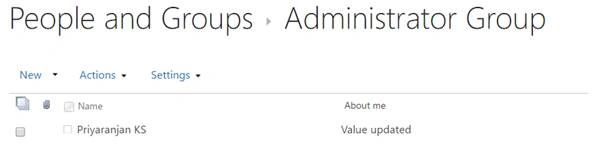
Full Code
- <script language="javascript" type="text/javascript" src="//ajax.googleapis.com/ajax/libs/jquery/1.8.1/jquery.min.js"></script>
- <script language="javascript" type="text/javascript">
- $(document).ready(function()
- {
- SP.SOD.executeFunc('sp.js', 'SP.ClientContext', createGroup);
- });
- function createGroup()
- {
- //Get client context and web
- var clientContext = new SP.ClientContext();
- var oWeb = clientContext.get_web();
- //Get group collection
- var groupCollection = oWeb.get_siteGroups();
- //Add new group
- var newnewGroup = new SP.GroupCreationInformation();
- newGroup.set_title(‘Administrator Group ');
- newGroup.set_description('This group handles the access to Admin documents'); oWeb.get_siteGroups().add(newGroup);
- //Load client context and exeecute the batch
- clientContext.load(groupCollection); clientContext.executeQueryAsync(QuerySuccess, QueryFailure);
- }
- function QuerySuccess()
- {
- console.log("New group has been created.");
- }
- function QueryFailure(sender, args)
- {
- console.log('Request failed - ' + args.get_message());
- }
- </script>
- Follow the syntax of the full code given above, get the group collection and from that use getByName method to select the group to delete.
- oGroupCollection = oWeb.get_siteGroups();
- oGroup = oGroupCollection.getByName("Administrator Group");
- Load the client context and execute the batch.
- clientContext.load(oGroupCollection);
- clientContext.load(oGroup);
- clientContext.executeQueryAsync(QuerySuccess, QueryFailure);
- In the success-call back method delete the group from the group collection.
- oGroupCollection.removeByLoginName(oGroup.get_loginName());
Output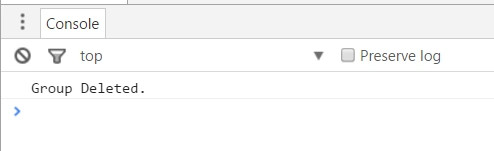
Full Code
- <script language="javascript" type="text/javascript" src="//ajax.googleapis.com/ajax/libs/jquery/1.8.1/jquery.min.js"></script>
- <script language="javascript" type="text/javascript">
- $(document).ready(function() {
- SP.SOD.executeFunc('sp.js', 'SP.ClientContext', deleteGroup);
- });
- var clientContext, oGroupCollection, oGroup;
- function deleteGroup()
- {
- //Get client context and web
- clientContext = new SP.ClientContext();
- var oWeb = clientContext.get_web();
- //Get group collection and specific group
- oGroupCollection = oWeb.get_siteGroups();
- oGroup = oGroupCollection.getByName("Administrator Group");
- //Load the Client Context and execute the batch
- clientContext.load(oGroupCollection);
- clientContext.load(oGroup);
- clientContext.executeQueryAsync(QuerySuccess, QueryFailure);
- }
- function QuerySuccess()
- {
- //Remove the group from the collection
- oGroupCollection.removeByLoginName(oGroup.get_loginName());
- clientContext.executeQueryAsync(OnQuerySuccess, OnQueryFailure);
- }
- function QueryFailure(sender, args)
- {
- console.log('Request failed' + args.get_message());
- }
- function OnQuerySuccess()
- {
- console.log("Group Deleted.");
- }
- function OnQueryFailure(sender, args)
- {
- console.log('Request failed - ' + args.get_message());
- }
- </script>
We have discussed creation and deletion of the groups. Now, let’s see how we can retrieve all the site groups. Once the group collection is retrieved in the success- call back function we will loop through the enumerator collection to print the group names. We can test this in SharePoint by adding it to the Content Editor Web part, as shown below:
- Save the code given below to a text file and save it into one of the SharePoint Libraries say, Site Assets.
- <script language="javascript" type="text/javascript" src="//ajax.googleapis.com/ajax/libs/jquery/1.8.1/jquery.min.js"></script>
- <script language="javascript" type="text/javascript">
- $(document).ready(function() {
- SP.SOD.executeFunc('sp.js', 'SP.ClientContext', getSiteGroups);
- });
- var groupCollection;
- function getSiteGroups()
- {
- //Get client context , web and group collection
- var clientContext = new SP.ClientContext();
- var oWeb = clientContext.get_web();
- groupCollection = oWeb.get_siteGroups();
- //Get client context and execute the batch
- clientContext.load(groupCollection);
- clientContext.executeQueryAsync(QuerySuccess, QueryFailure);
- }
- function QuerySuccess()
- {
- //Get group collection and iterate through it
- var groupEnumerator = groupCollection.getEnumerator();
- console.log("The site groups available are : \n");
- while (groupEnumerator.moveNext())
- {
- var group = groupEnumerator.get_current();
- console.log(group.get_title() + "\n");
- }
- }
- function QueryFailure(sender, args)
- {
- console.log('Request failed' + args.get_message());
- }
- </script>
- Go to the edit settings of the SharePoint page and click Web part from the Insert tab.
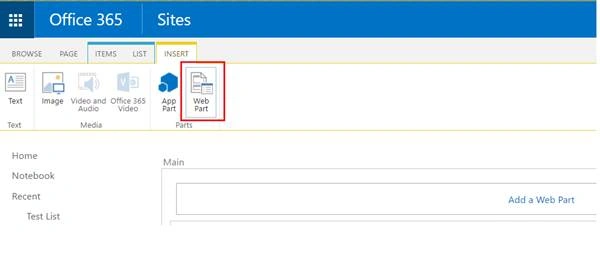
- Add Content Editor Web part.
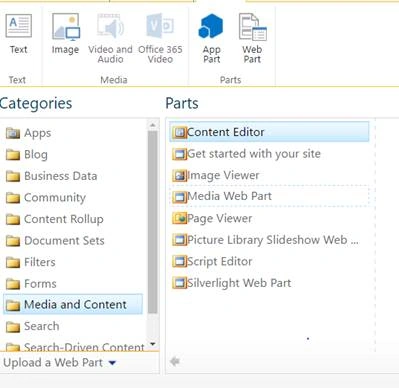
- Click Edit Web Part from Content Edit Web part. Assign the URL of the script text file and click Apply.
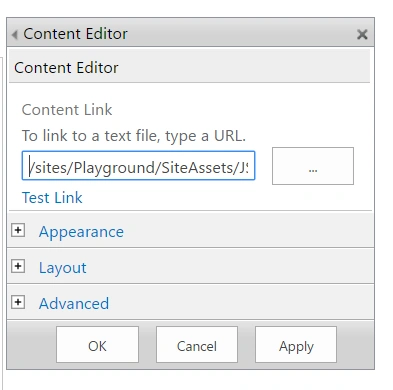
Click Apply and go to the console to see the output.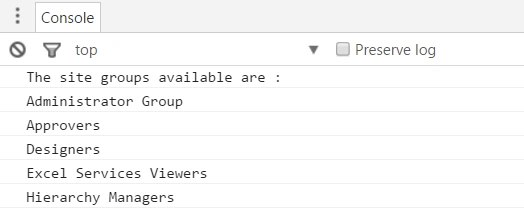
It has printed all the site groups. Thus, we have seen how to create, retrieve and delete the site groups in SharePoint, using JavaScript Object model. It has been tested in SharePoint 2016 and SharePoint Online in Office 365.
RajaPosted Jun 10, 2016, 1:16 AM
Nice Share...
Debasis SahaPosted Jun 10, 2016, 12:16 AM
Good one..
Santhakumar MunuswamyPosted Jun 9, 2016, 11:58 PM
Thank you for sharing