

PnP stands for Practices and Patterns, which is a community driven open source project, where Microsoft and community members have created an implementation pattern for Office 365 and SharePoint On-premises. One of the branches of the PnP development is in PnP Core CSOM Library.
PnP Core library provides CSOM extension methods for SharePoint 2016 add-in model development. Official documentation can be accessed from here. PnP Core library increases the productivity of the developers by abstracting the complex operations. In this article, we will see, how to use PnP core library on a remote desktop and work with SharePoint 2016, using a console Application.
In order to work with PnP Core library, we first have to install the NuGet Package Manager, which is explained in this article,
Once the PnP Core Library is added, we can kick of the implementation, using a console Application.
Project structure
Create a console Application and add the references, given below:
- Microsoft.SharePoint.Client;
- OfficeDevPnP.Core;
Scope of the article will be to perform the below group operations, using PnP Core CSOM Library:
- Creation of the group.
- Check if the group exists.
- Delete the group.
The code blocks for each operation will be given in the sub heading ‘Full Code’. It can be interchangeably placed within the Main function to test the working.
- using System;
- using System.Collections.Generic;
- using System.Linq;
- using System.Text;
- using System.Threading.Tasks;
- using Microsoft.SharePoint.Client;
- using OfficeDevPnP.Core;
- namespace OfficeDevPnP
- {
- class SP2016
- {
- static void Main(string[] args) {
- //Place Internal Implementation code here
- }
- }
- }
Let’s see how to work with PnP Core CSOM Library to perform the group operations in SharePoint 2016.
Create Group
Group creation can be implemented, using the PnP Core Extension method, as described below:
- Create an instance of the authentication manager, which will be used to create the client context.
- //Get instance of Authentication Manager
- OfficeDevPnP.Core.AuthenticationManager authenticationManager = new OfficeDevPnP.Core.AuthenticationManager();
- //Create authentication array for site url,User Name,Password and Domain
- string[] authArray =
- {
- "http://sharepoint2016/sites/HOL",
- "Priyaranjan",
- "password-1",
- "SharePointHOL"
- };
- Create Client Context by passing the authentication details to the authentication manager object.
- var clientContext = authenticationManager.GetNetworkCredentialAuthenticatedContext(authArray[0], authArray[1],authArray[2], authArray[3])
- Create the list, using the PnP extension method ‘AddGroup’.The parameters for the method are:
- Group Name.
- Group Description.
- Group Is Owner (bool): Sets the created group as the owner of the security group.
- Output: After running the PnP CSOM script we get the success message in the console.
- var groupDescription = "This group handles Blue Yonder Airlines payroll list permissions";
- clientContext.Site.RootWeb.AddGroup("Payroll", groupDescription,true);

We can check out the group in the People and Groups page.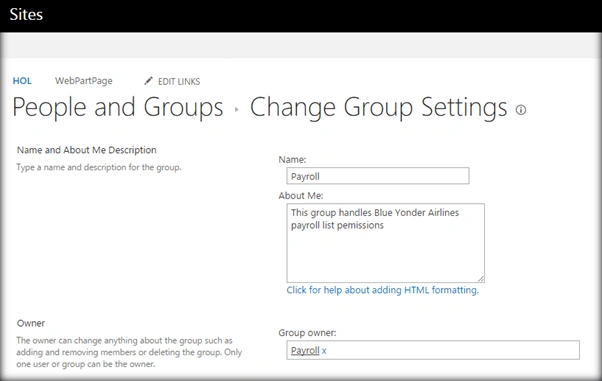
Full Code: The full code for creating the group, using PnP extension method is as follows:- //Get instance of Authentication Manager
- OfficeDevPnP.Core.AuthenticationManager authenticationManager = new OfficeDevPnP.Core.AuthenticationManager();
- //Create authentication array for site url,User Name,Password and Domain
- string[] authArray = {
- "http://sharepoint2016/sites/HOL",
- "Priyaranjan",
- "password-1",
- "SharePointHOL"
- };
- try {
- //Create the client context
- using(var clientContext = authenticationManager.GetNetworkCredentialAuthenticatedContext(authArray[0], authArray[1], authArray[2], authArray[3])) {
- //create the new group using group creation information
- var groupDescription = "This group handles Blue Yonder Airlines payroll list permissions";
- clientContext.Site.RootWeb.AddGroup("Payroll", groupDescription, true);
- Console.WriteLine("Payroll Group has been created successfully");
- Console.ReadLine();
- }
- } catch (Exception ex) {
- Console.WriteLine("Exception : " + ex.Message);
- }
Check if Group Exists
We can check if the group exists in the site, using PnP extension method ‘Group Exists’. The extension method accepts the group name as the parameter,
- var groupExists = clientContext.Site.RootWeb.GroupExists("Payroll") ;

Full Code: The full code for checking the existence of a group is shown below:
- //Get instance of Authentication Manager
- OfficeDevPnP.Core.AuthenticationManager authenticationManager = new OfficeDevPnP.Core.AuthenticationManager();
- //Create authentication array for site url,User Name,Password and Domain
- string[] authArray = {
- "http://sharepoint2016/sites/HOL",
- "Priyaranjan",
- "password-1",
- "SharePointHOL"
- };
- try {
- //Create the client context
- using(var clientContext = authenticationManager.GetNetworkCredentialAuthenticatedContext(authArray[0], authArray[1], authArray[2], authArray[3])) {
- //create the new group using group creation information
- var groupExists = clientContext.Site.RootWeb.GroupExists("Payroll");
- Console.WriteLine("Payroll Group Exists ? : " + groupExists);
- Console.ReadLine();
- }
- } catch (Exception ex) {
- Console.WriteLine("Exception : " + ex.Message);
- }
PnP Core Component provides the extension method to delete the group, which can be invoked by calling the method ‘RemoveGroup’. It accepts the group name as the parameter.
- clientContext.Site.RootWeb.RemoveGroup("Payroll") ;

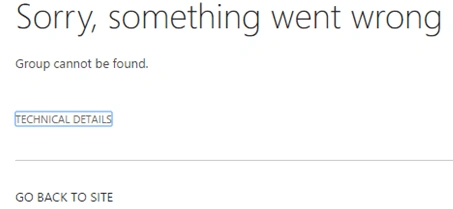
I had the group page opened in the Browser, prior to running the script. Upon refreshing the page post running the script, it throws ‘Group cannot be found’ error. This ensures the group has been deleted from the site groups.
- //Get instance of Authentication Manager
- OfficeDevPnP.Core.AuthenticationManager authenticationManager = new OfficeDevPnP.Core.AuthenticationManager();
- //Create authentication array for site url,User Name,Password and Domain
- string[] authArray = {
- "http://sharepoint2016/sites/HOL",
- "Priyaranjan",
- "password-1",
- "SharePointHOL"
- };
- try {
- //Create the client context
- using(var clientContext = authenticationManager.GetNetworkCredentialAuthenticatedContext(authArray[0], authArray[1], authArray[2], authArray[3])) {
- //delete the new group
- clientContext.Site.RootWeb.RemoveGroup("Payroll");
- Console.WriteLine("New group has been Deleted.");
- Console.ReadLine();
- }
- } catch (Exception ex) {
- Console.WriteLine("Exception : " + ex.Message);
- }
You can copy and paste the ‘Full Code’ fragment into the Main() of the console Application of the project structure, given at the starting of the article to test it at your end. Thus, we have seen, how to perform the SharePoint group operations on a remote desktop, using PnP Core library. In this method, you don’t have to get into the Server where SharePoint 2016 is installed and it enables us to work on a remote desktop, using the efficient and lightweight PnP Core Component Library.
Venkata Ratnam VemulaPosted Dec 27, 2016, 3:30 AM
Is there a way to rename existing groups?
Vignesh ManiPosted Aug 5, 2016, 6:53 AM
Nice
Tarun DPosted Aug 4, 2016, 7:27 AM
Nice article. Thanks for sharing..
Tarun DPosted Aug 4, 2016, 7:26 AM
Thanks for sharing..