

📅 Introduction
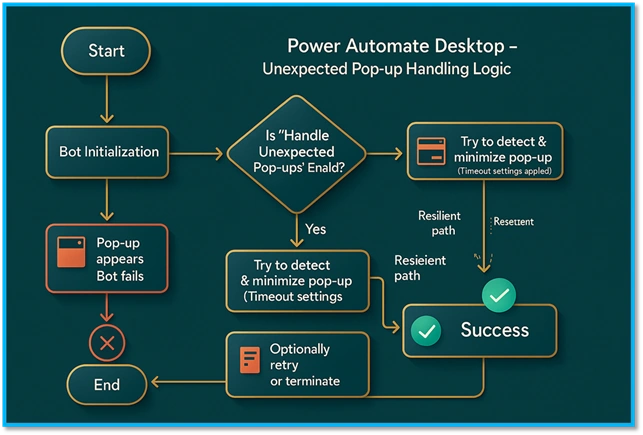
If you're working with Power Automate Desktop and scheduling your flows to run .exe files daily, you may have noticed something odd – sometimes, the automation just gets stuck. Why? A random software update pop-up or some annoying system dialog box hijacks the screen!
In this article, I'll show you how to detect and handle such unexpected pop-ups smartly, so that your automation doesn’t fail just because someone decided to update their software.
🎯 Real-World Use Case
Let’s say you're running a legacy desktop app daily using Power Automate Desktop. Most days, it works fine. But occasionally, Windows throws a popup like:
- “A new version is available…”
- “Install this update now or later…”
- “Some error occurred. Click OK to continue.”
Now, if the flow doesn’t respond, it halts. Not ideal, right? We’ll fix that today.
🧰 Tools Needed
- Power Automate Desktop (PAD)
- Access to the machine where the pop-up is expected
- Basic understanding of UI automation in PAD
⚙️ Step-by-Step Guide
🧱 Step 1. Launch the EXE
Use the “Run application” action to launch your .exe file.
Action: Run the application
Path: "C:\Program Files (x86)\Calculator\calculator.exe"
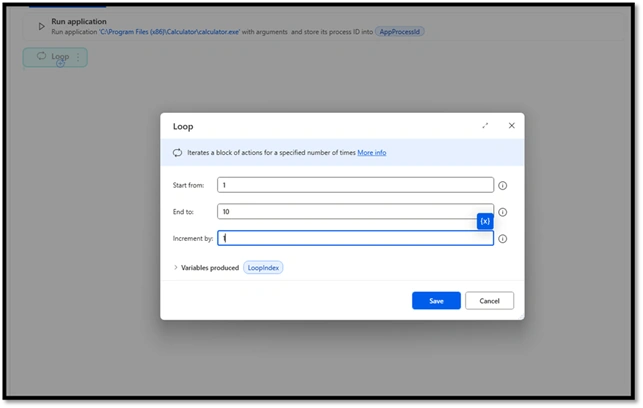
🔄 Step 2. Add a Monitoring Loop
Add a loop to continuously check for popups during execution.
Repeat 10 times
- Drag and drop the “Loop” action.
- Select: LoopIndex from 1 to 10
- Increment: 1
This means it will run 10 times.
🔍 Step 3. Detect a Popup Window
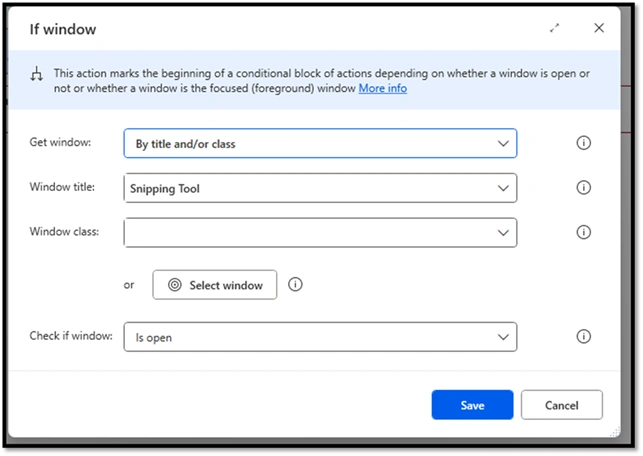
Inside the loop, use the “If window” action to detect any unexpected window.
- Condition: If the window title contains “Update” or “Error” or “Install”
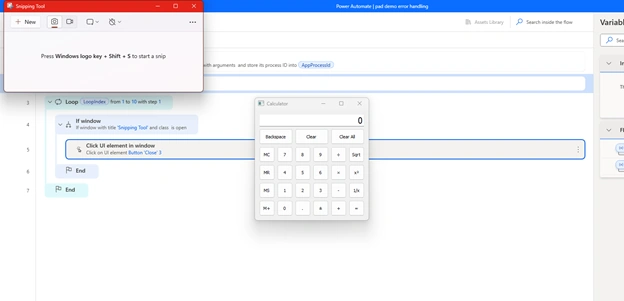
- Example: here we used the snipping tool is open,
🧹 Step 4. Close the Popup
If such a window appears, use Send Keys or Click UI Element to close it.
- Action: Click the UI element in the window
- Target: Close or Cancel button
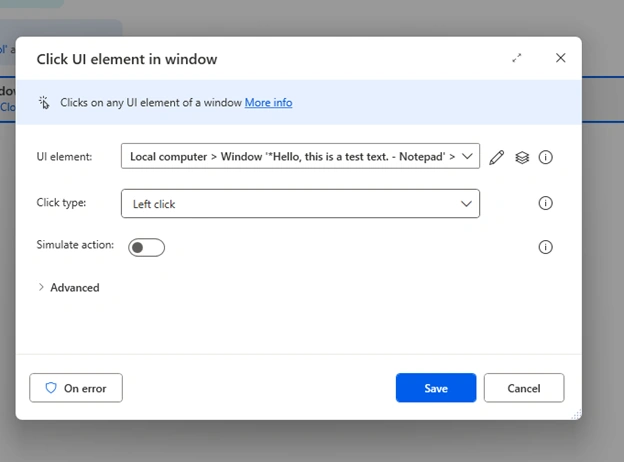
Close the snipping tool with the selection of the UI element.
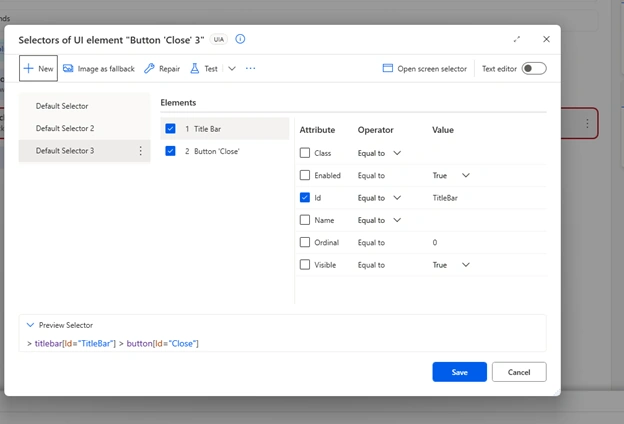
Preview Selector,
> titlebar[Id="TitleBar"] > button[Id="Close"]
The flow will terminate the process if anything unexpected popup opens like this.
📌 Pro Tips
- Use wildcards in window titles for better detection.
- Some popups can only be closed using Alt + F4 or Ctrl + W.
- If you know the pop-up process (e.g., Updater.exe), use the “Terminate Process” action directly.
- Use error handling in every flow, especially when scheduling unattended runs.
🙋 Conclusion
Random popups can ruin well-planned automation. But with the right detection and handling techniques in Power Automate Desktop, you can keep your flows running smoothly, no matter what pops up!
If this article helped you, don’t forget to share it or drop a comment. ✌️
Join the conversation! Your thoughts help the community grow.