Introduction
Managing large lists in Microsoft SharePoint can become challenging when the number of items exceeds the 5000-item threshold limit. Without proper configuration, users may experience slow performance, query failures, and list view errors.
This article explains how to efficiently handle large lists using indexing, filtering, and best practices.
What is the List View Threshold?
The List View Threshold is a limit set by SharePoint (default: 5000 items) to maintain system performance and prevent heavy database queries.
Key Points:
It limits how many items can be retrieved in a single query
It does not limit the total size of the list
If a query scans more than 5000 items, SharePoint blocks it
Common Issues with Large Lists
When the threshold is exceeded, users may face:
"The attempted operation is prohibited…" error
Slow loading of list views
Filters not working properly
Lookup and calculated column delays
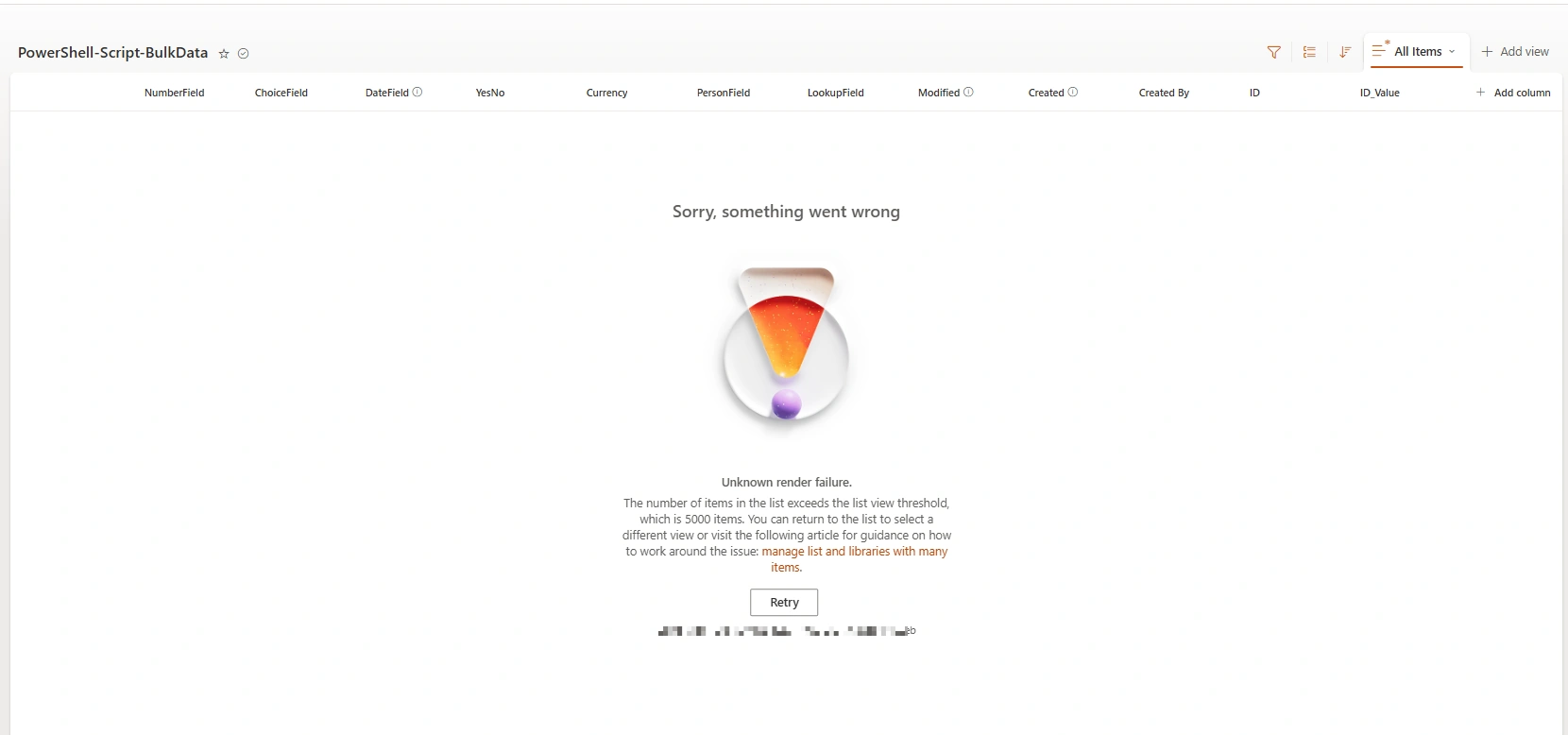
Solution 1: Create Indexed Columns
Indexed columns help SharePoint quickly filter and retrieve data without scanning the entire list.
Steps to Create an Indexed Column
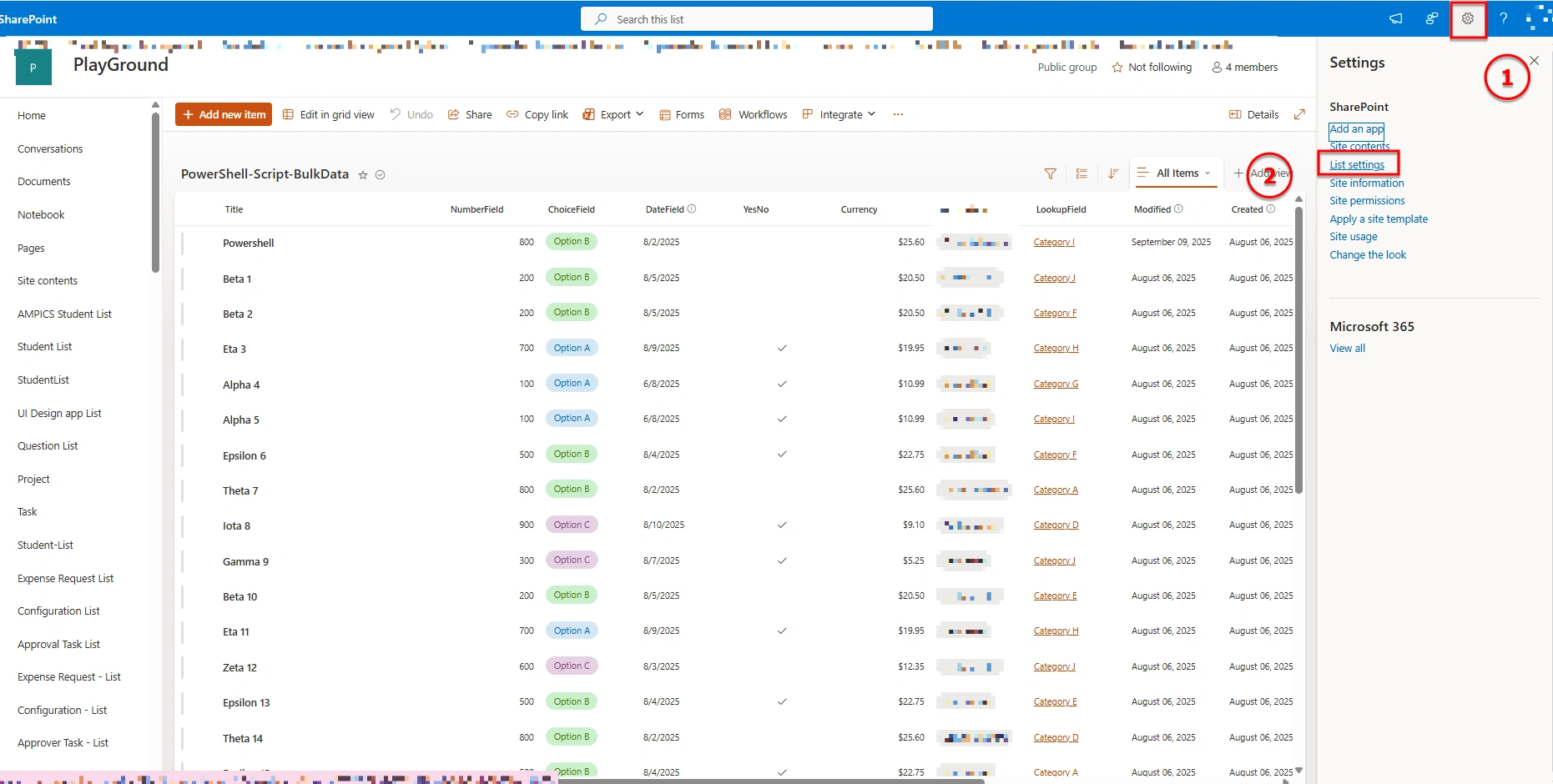
Open your SharePoint list
Click on Settings (⚙️)
Select List Settings
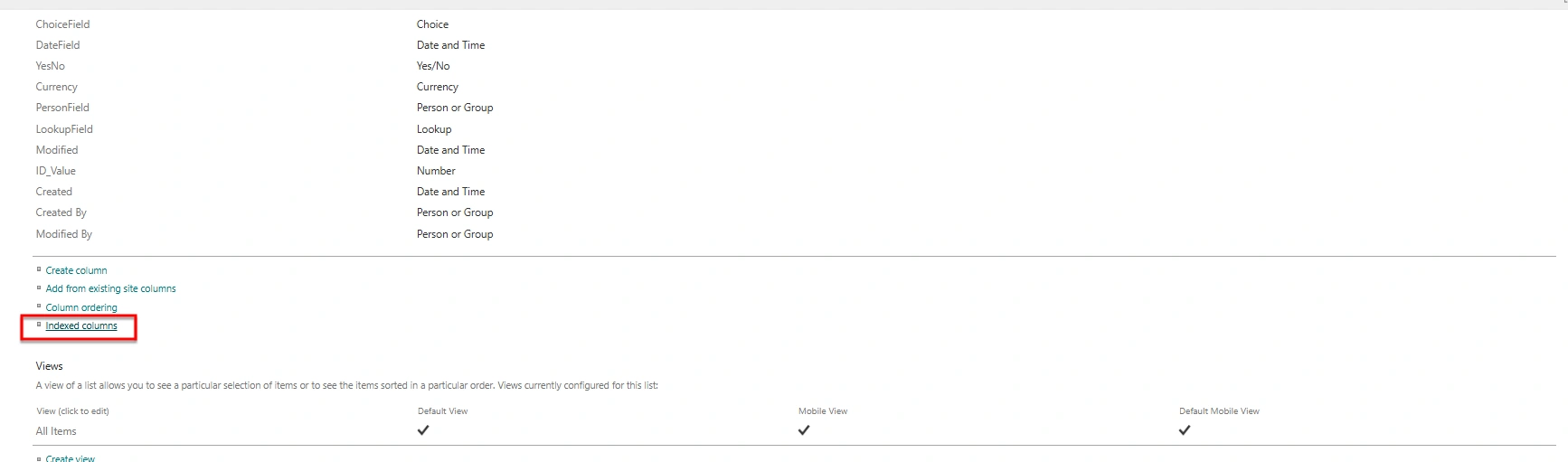
Under Columns, click Indexed Columns
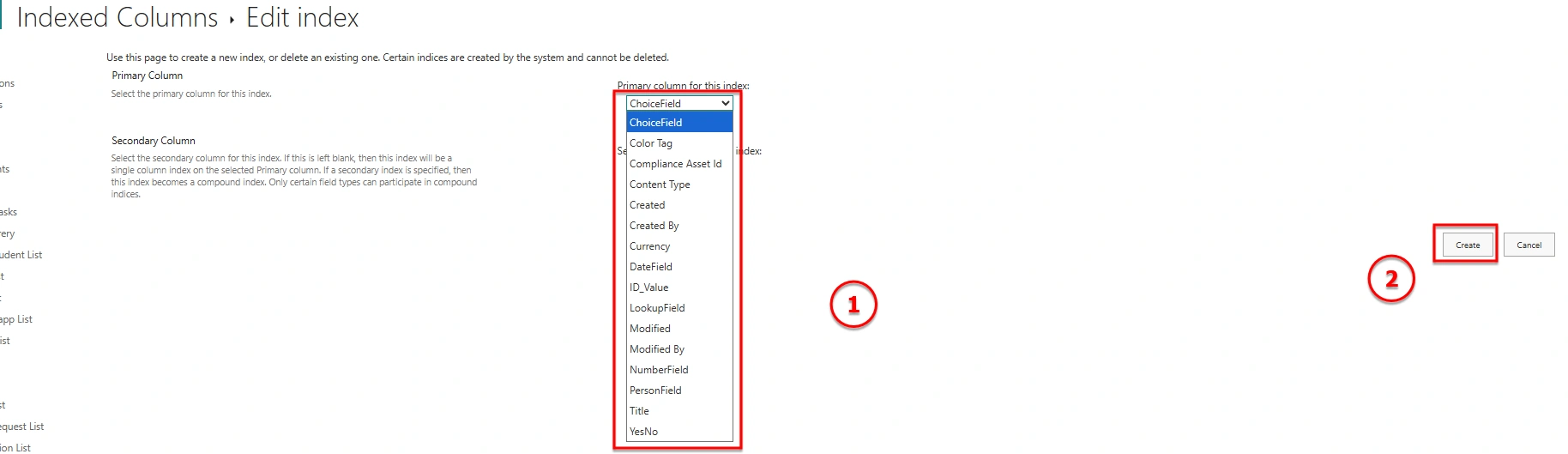
Click Create a new index
Choose a column (e.g., Status, Created Date)
Click Create

Best Columns to Index
Status
Created / Modified Date
Assigned To
Department / Category
👉 Why it works: Indexing acts like a database shortcut, allowing SharePoint to directly fetch filtered data instead of scanning all items.
Solution 2: Use Filtered Views
Filtered views reduce the number of items retrieved in a query.
Steps:
Go to your SharePoint list
Click All Items → Create new view
Select Standard View
Add filters such as:
Status = Active Created >= 1/1/2025 Save the view

Important Note
Always apply filters on indexed columns. Otherwise, SharePoint will still scan the entire list and throw a threshold error.
Solution 3: Limit Columns in Views
Displaying too many columns can slow down performance.
Best Practices
Show only required columns
Avoid excessive lookup columns
Minimize calculated fields
Advanced Best Practices
Create indexes before reaching 5000 items
Use multiple filtered views instead of one large view
Archive old records regularly
Example Scenario
❌ Incorrect Approach: Loading all records (10,000+ items)
✅ Correct Approach: Filter records using indexed column:
Filter(List Name, Status = "Active")
Conclusion
Handling large lists in SharePoint is not about increasing the limit, but about optimizing how data is retrieved and displayed. By using indexed columns, filtered views, and proper list design, you can efficiently manage lists with more than 5000 items without performance issues.
Join the conversation! Your thoughts help the community grow.