

Introduction
When working with SharePoint lists containing thousands of records, Power Automate can sometimes process only a limited number of items due to default thresholds. By default, the "Get items" action retrieves only 100 records, and even with pagination enabled, the maximum limit per call is 5000 items.
For large datasets—such as updating 3500+ records or converting field types (Text → Currency)—you need a structured method that ensures all items are processed reliably.
This article explains two approaches to handle such cases:
Pagination (simple and quick)
Batching with "Do Until" loop (for lists exceeding 5000 items)
Understanding SharePoint List and Flow Limitations
| Limitation | Description |
|---|---|
| Default item limit | "Get items" retrieves only 100 items per call. |
| Pagination limit | Can be increased up to 5000 per call using pagination. |
| View threshold | SharePoint enforces a 5000-item limit per query for performance. |
Hence, you need Pagination for up to 5000 items, and Batching for more than 5000.
Option 1: Using Pagination (for ≤ 5000 items)
Steps
Add a Get items action in your flow.
Click on the ellipsis (⋯) → Settings.
Enable Pagination.
Set Threshold =
5000.
| Setting | Value |
|---|---|
| Pagination | ON |
| Threshold | 5000 |
Example
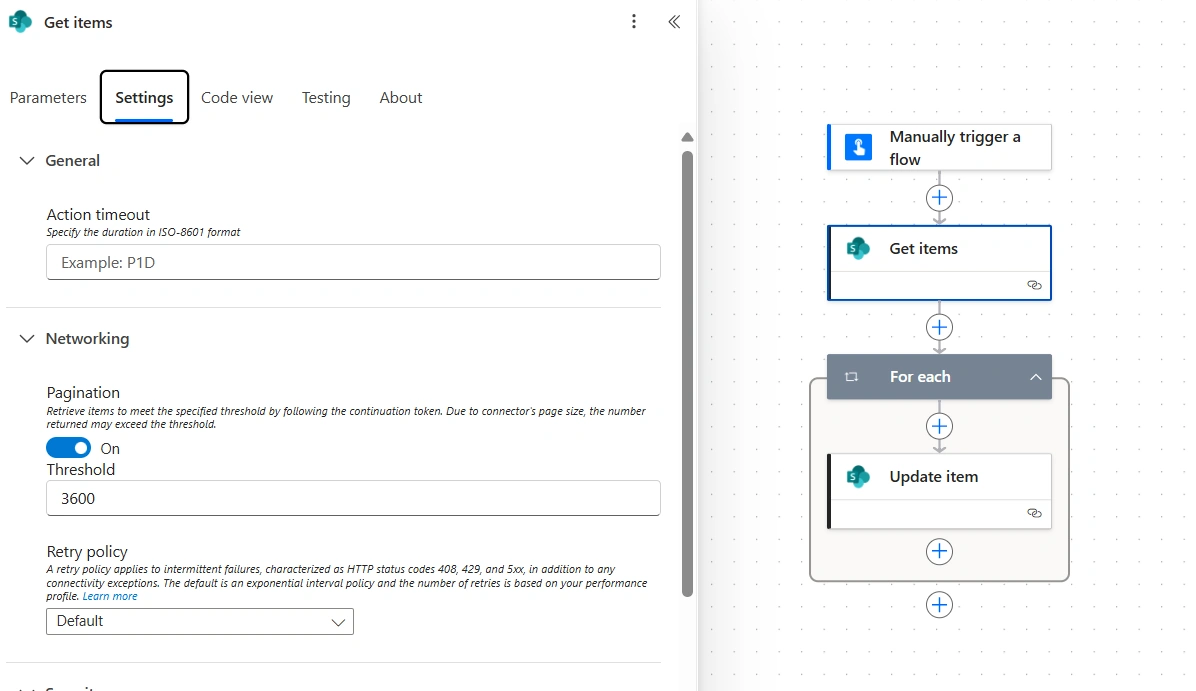
If you have 3500 records in your SharePoint list, enabling pagination will automatically retrieve all of them in one go—no additional looping required.
You can then add an "Apply to each" action to perform operations such as:
Update item → CurrencyField = float(replace(items('Apply_to_each')?['TextField'], ',', ''))Advantages
Easiest setup (no variables or loops).
Works well for up to 5000 items.
Excellent for medium-sized data operations.
Limitations
Cannot process more than 5000 records.
Large datasets may cause timeouts in longer flows.
Option 2: Using Batching (for > 5000 items)
When your list exceeds 5000 items or when you need to ensure controlled, stable execution, batching is the best approach.
Batching Concept
Batching divides large datasets into smaller groups (e.g., 500 records per batch). After each batch completes, the flow fetches the next set automatically until all records are processed.
Step-by-Step Implementation
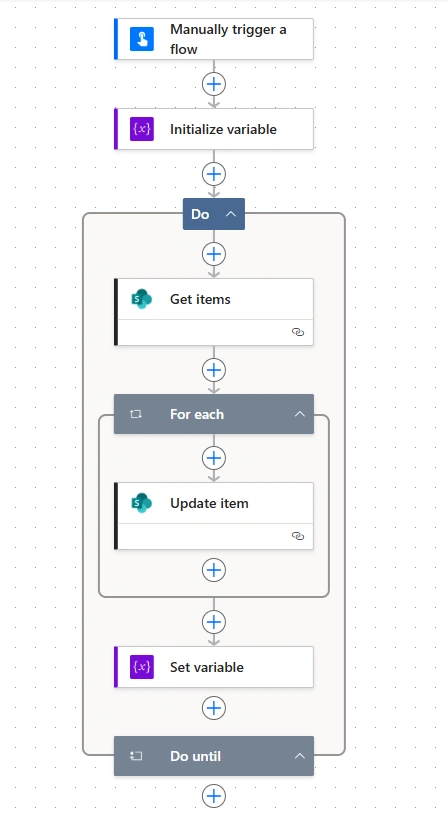
1. Initialize Variables
Create two variables at the beginning:
| Variable | Type | Purpose |
|---|---|---|
varLastID | Integer | Stores the ID of the last processed record. |
varHasMore | Boolean | Indicates if more records exist. |
Initialize as:
varLastID = 0
varHasMore = true
2. Create a "Do Until" Loop
Add a Do Until control with the condition:
varHasMore is equal to falseThis loop runs until all items are processed.
3. Inside the Loop: Get Items
Add a Get items action with:
| Property | Value |
|---|---|
| Site Address | Your SharePoint site |
| List Name | Your list name |
| Top Count | 500 |
| Filter Query | ID gt @{variables('varLastID')} |
Then open Settings → Pagination → ON, and set Threshold = 500.
This ensures only 500 items are retrieved per batch.
4. Process Each Item
Add an Apply to each loop for the output of "Get items."
For example, to copy a text field into a currency field:
Update item:
CurrencyField = float(replace(items('Apply_to_each')?['TextField'], ',', ''))
5. Update Batch Control Variables
After processing the batch:
Set the last processed ID:
Set variable → varLastID = last(body('Get_items')?['value'])?['ID']End the loop if no more records exist:
Condition: length(body('Get_items')?['value']) < 500
Then → Set varHasMore = false
6. (Optional) Add Delay Between Batches
To prevent throttling, insert:
Delay → 10 secondsThis pauses briefly before fetching the next batch.
Real Example: Converting Text Field to Currency
Scenario
A SharePoint list with 3500+ records has a "Text" field named Amount. You've created a new "Currency" field named AmountConverted, and you want to copy values.
Flow Actions
Use Get items (batched).
Inside Apply to each, use:
float(replace(items('Apply_to_each')?['Amount'], ',', ''))Update the list item.
Loop until all items are processed.
Works automatically for all items
No manual Excel or PowerShell scripts needed
Scalable up to tens of thousands of records
Best Practices
Enable Pagination: Always enable it for "Get items," even in batching.
Batch Size: 100–500 items per batch is optimal for performance.
Add Delays: Use small delays between batches for large lists.
Log Progress: Use a "Compose" or "Append to string" action to track progress.
Avoid Infinite Loops: Always include a "length check" to stop the loop when finished.
Use Filter Queries: To minimize load on SharePoint (e.g.,
Status eq 'Pending').
Conclusion
Both Pagination and Batching are essential techniques for handling large SharePoint lists efficiently in Power Automate.
| Method | Use When | Pros | Cons |
|---|---|---|---|
| Pagination | ≤ 5000 items | Simple setup, one call | Limited to 5000 |
| Batching | > 5000 items | Handles any size, safe | More complex setup |
For long-term, enterprise-grade workflows, batching with controlled looping is the most reliable solution.
It ensures complete data processing, avoids throttling, and maintains SharePoint's performance integrity — making your flows scalable, stable, and production-ready.
Join the conversation! Your thoughts help the community grow.