

If you’ve worked with Power Apps and Power Automate, you might have faced this situation:
“Can I send multiple responses back to Power Apps from a single flow to show progress?”
It sounds logical—especially when your process has multiple steps like:
Uploading
Processing
Validating
Completing
You may expect to update the app at each stage.
Why This Approach Fails
In Power Automate, the “Respond to Power Apps” action can only be used once per flow execution.
This means:
You cannot send intermediate updates
You cannot push multiple responses back to the app
Only the final output is returned
So, if you try to design a flow that responds multiple times, it simply won’t work as expected.
A Better Approach: Show Progress Without Multiple Responses
Instead of trying to respond multiple times, you can design a smarter solution using:
Key Requirements:
A data source (SharePoint / Dataverse)
A Timer control in Power Apps
A flow that executes your process.
Simple Scenario: File Processing Tracker
Imagine a user uploads a file from Power Apps.
The backend flow performs:
Uploading
Processing
Validation
Completion
Now, instead of sending responses at each step, the flow updates a status field in a data source.
How It Works
Step 1: Built a Flow that Updates Status in SharePoint
At each stage, update the same record by using the GUID passed from Power Apps during the flow execution. This GUID acts as a unique Process ID, allowing the flow to identify and update the correct record in SharePoint at every step.
For example, as the process progresses, update the Status field like:
Status = “Uploading” or “20% Completed” (initial stage)
Status = “Processing” or “45% Completed”
Status = “Validating” or “80% Completed”
Status = “Completed” or “100% Completed” (final stage)
This approach allows the SharePoint list to act as a progress tracker, storing real-time updates that can be fetched and displayed in Power Apps.
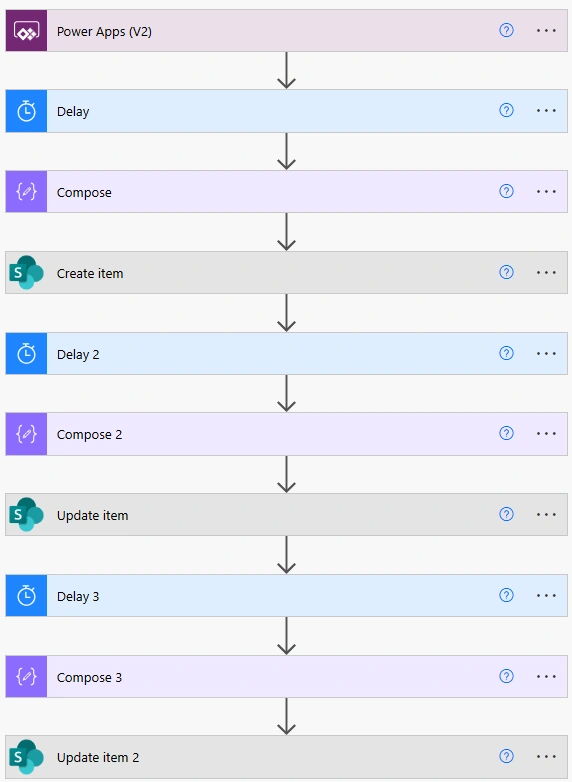
The Create Item action is used to create a new record in SharePoint and store the Process ID (GUID).
The Update Item action is then used at each stage of the flow to update the progress value in the same record.

Instead of using a delay, the flow can perform actual processing steps such as uploading, processing, or validating data, with the status being updated at each stage.
Step 2: Add following in your power apps
Step 1: Trigger Flow from Power Apps
On button OnSelect, initialize variables and call the flow:
Set(varStartTimer, true);
Set(varGUID, GUID());
TestPOC_MultipleRespondToPowerApps.Run(varGUID);
This:
Starts the timer
Generates a unique Process ID (GUID)
Passes it to the flow to track progress
Step 2: Configure Timer Control
Duration: 2000–3000 ms
Start:
varStartTimerRepeat:
true
Timer will keep running and checking progress at intervals.
Step 3: Fetch Progress on Timer Start
Add this logic in OnTimerStart:
Refresh(POC_MultipleTimePowerAutomateResponse);

Set(
    varRecord,
    LookUp(
        POC_MultipleTimePowerAutomateResponse,
        ProcessID = Text(varGUID)
    )
);

Set(
    varProgress,
    varRecord.Progress
);
This:
Refreshes data from SharePoint
Finds the record using GUID
Stores the latest progress value
Step 4: Stop Timer When Process Completes
Add this logic in OnTimerEnd:
If(
    varProgress = "100% complete",
    Set(varStartTimer, false);
    Set(varProgress, Blank())
)
This:
Stops the timer when process is complete
Clears progress variable
Step 5: Display Progress to User
Bind a Label Text property to:
varProgressThis will show live updates like:
20% complete
45% complete
80% complete
100% complete
Result
Even though the flow responds only once:
Users see live progress updates
The app feels interactive and real-time
No limitation is exposed to the user
Key Takeaway
You cannot respond to Power Apps multiple times within a single flow—but you can simulate real-time updates by using a data source and polling it from Power Apps.
Conclusion
Next timewhenever you think:
“I need multiple responses from my flow…”
Pause and rethink.
Instead, let your data source act as the communication bridge, and use Power Apps logic to bring that data to life.
Join the conversation! Your thoughts help the community grow.