

But before that we should know what the Android is?
Android is a software stack for mobile devices that includes an operating system, middleware and key applications. More details are at:
http://developer.android.com/guide/basics/what-is-android.html
Now what is required to download for Android programming.
First of all we need to download the Android SDK. You can download it from:
http://developer.android.com/sdk/index.html
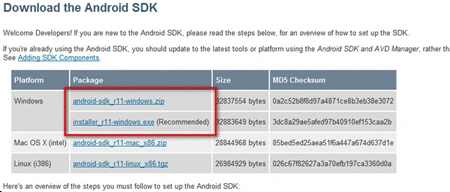
But before that visit the page of System Requirements here:
http://developer.android.com/sdk/requirements.html
After downloading the SDK, extract the android-sdk-windows and from that run the file.
SDK Manager.EXE
It will take a little time to refresh the resource, and load the windows which will show you "Package available to install".
Just click on "Cancel" from that:
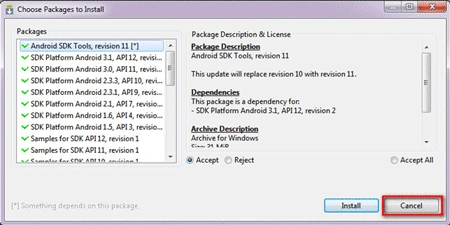
Now when you click on Cancel you will get another window which will show you:
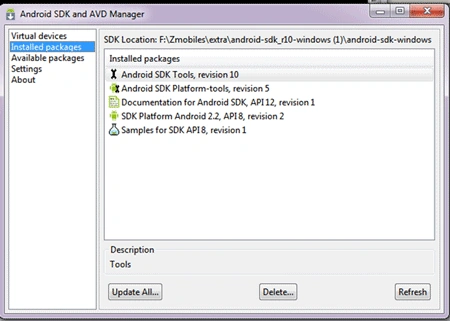
This will show you the installed packages in you Android SDK. Currently I have installed the Android platform 2.2 in my Android SDK.
You can Update or delete the these packages at any time.
When you click on available packages it will show you the packages available to download. We have to install just two packages for now:
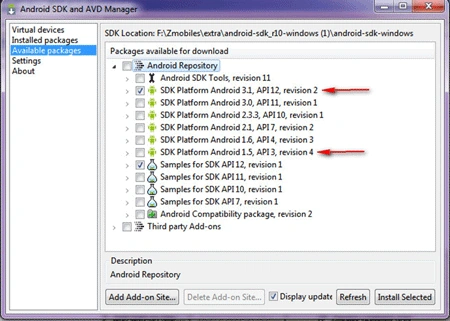
That's it; now click on "Install Selected". Now it will download these packages from the internet and will install them on our Android SDK.
The work for the SDK is done!
Now it's time to install the development tool; that is, Eclipse.
First of all install the Eclipse from here or if you already have it then update it if needed.
If you need to install or update Eclipse, you can download it from http://www.eclipse.org/downloads/.
After the installation of Eclipse we need to install the ADT plug.
Android Development Tools (ADT) is a plug in for the Eclipse IDE that is designed to give you a powerful, integrated environment in which to build Android applications. Follow these steps to install ADT in Eclipse:
Start Eclipse - >Help -> Install new Software
It will give you the window:
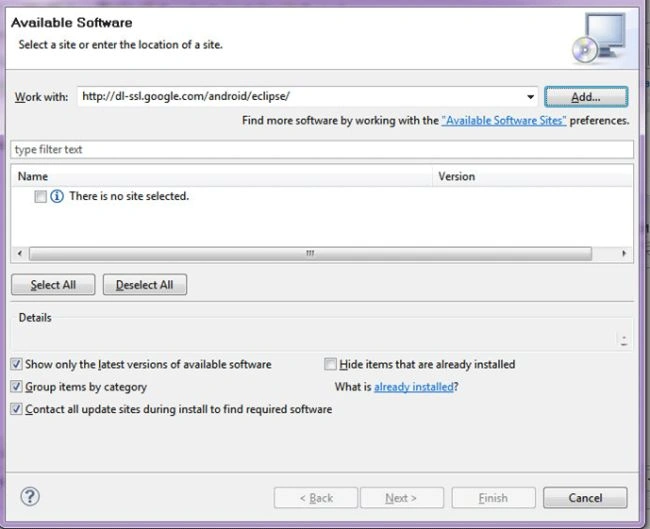
Now write the url : http://dl-ssl.google.com/android/eclipse/ in work with and click on Add.
When you click on Add, another window will appear with the title "Add Repository" add the same url in both textboxes and click ok.
It will download the required files..
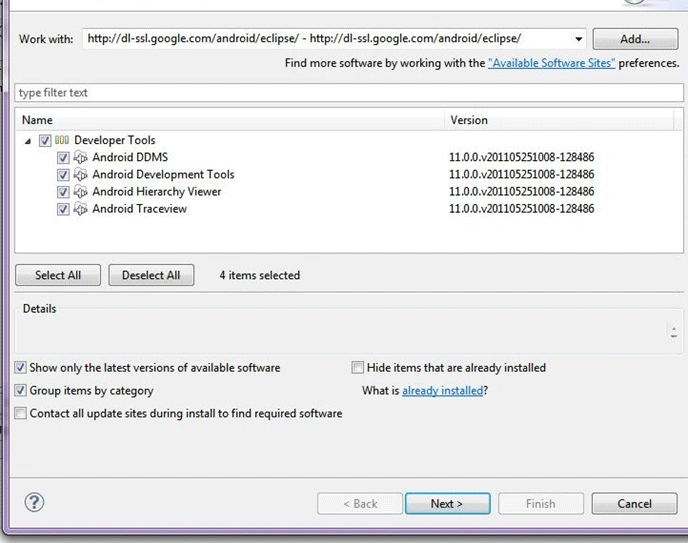
Click next and follow the steps by pressing next and at last click Finish. It will prompt you to restart the computer, click Restart Now.
After Windows restarts, we need to inform Eclipse of the location of the Android SDK in our computer. So for that start Eclipse and go to Windows - > Preferences.
Click on the Android tab. From the Right pane click on the browse button to locate the Android SDK Location.
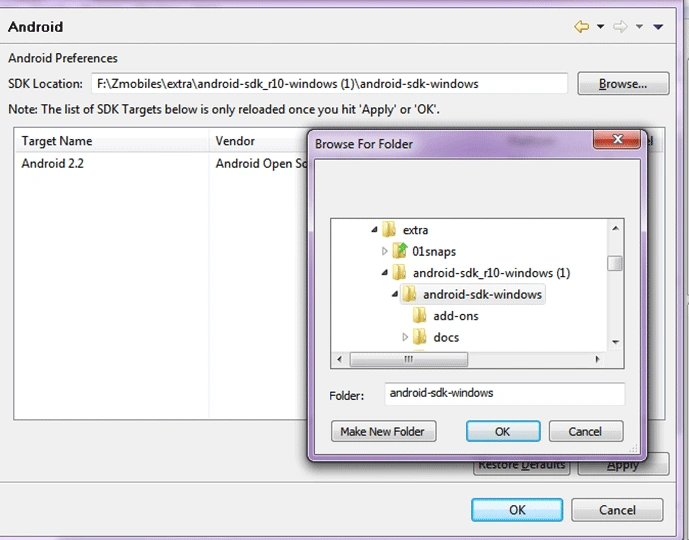
After selecting click OK.
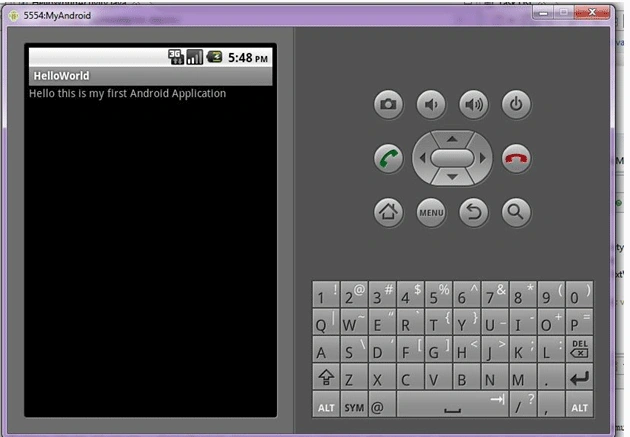
Now installation of all required softwares is done. So it's time to create a "Hello World Android project".
So let's start.
Start Eclipse. From File - > New -> Project a wizard will appear as below:
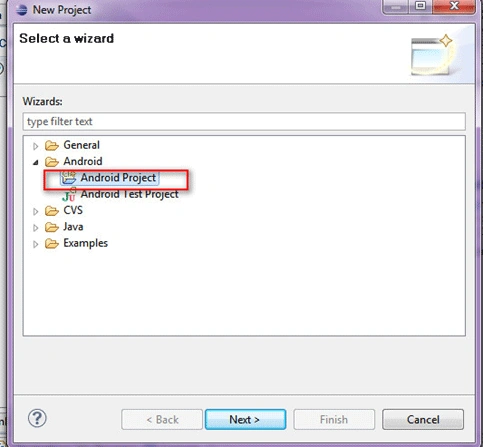
Click Next
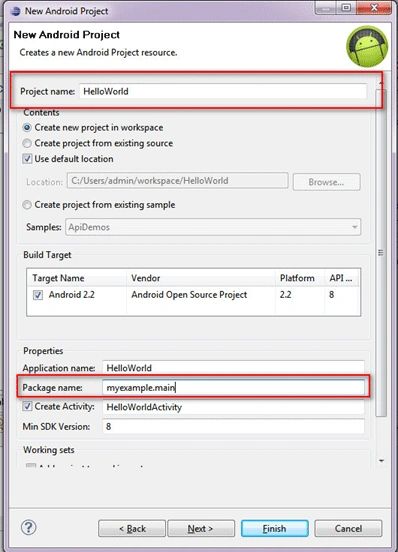
This window ask for the Project Name. Give the appropriate project name.
Next you have to give the package name; a package name is required and that must be contain two identifiers, otherwise it will give you an error.
Now click on Finish.
Your Android project is now ready. It should be visible in the Package Explorer on the left.
Now you Expand your project - > SRC -> yourpackageName - > projectNameActivity.Java
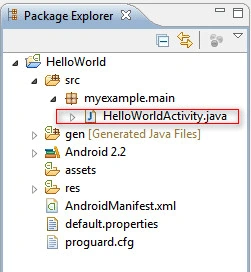
This contains the data:
package myexample.main;
import android.app.Activity;
import android.os.Bundle;

sachin karandePosted Jul 30, 2011, 3:10 AM
best article and good explanation. i expect more article about android programming from you Thanks Dipa
rakesh patilPosted Jul 12, 2011, 5:33 AM
Nice article Dipa, its good for new developer can you give me some code which explain in deep android application.
Madhav JoshiPosted Jul 7, 2011, 7:54 AM
Thanks for sharing this basic steps of android helpful for starters just as me :)
Prasad NanawarePosted Jul 6, 2011, 8:26 AM
Nice Article!!!!!!!!!!!!!
John SmithPosted Jul 5, 2011, 2:07 PM
very good article...looking more from u
Thomas MapotherPosted Jul 5, 2011, 1:15 AM
Nice article dipa.. I expected some more good example from you but using mono-droid, C#.....
Dea SaddlerPosted Jul 5, 2011, 1:12 AM
Good content for learning android
Pradip PandeyPosted Jul 4, 2011, 9:02 AM
Very useful information on Android programming.
Karthikeyan AnbarasanPosted Jul 4, 2011, 6:09 AM
Nice article and well explained... I have a question here, why we need to install only the 2 SDK versions you highlighted? What about the remaining SDk's? Is the latest SDK(2.2) has the consolidated features then why we need to select 1.5 as well? Had bit confused on this part alone...
shiv guptaPosted Jul 4, 2011, 12:31 AM
good article for beginners
Dipa AhujaPosted Jul 3, 2011, 3:44 AM
Thank you all..
Vilas GitePosted Jul 3, 2011, 1:19 AM
Hi Deepa Nice Article. I am going to start Android from today...:) Thanks for sharing
Mahesh ChandPosted Jul 2, 2011, 12:35 PM
Good work Dipa. Welcome back!
Sandeep ShekhawatPosted Jul 2, 2011, 11:20 AM
Thank You for Sharing it is so helpful and informative.
Kirtan PatelPosted Jul 2, 2011, 10:58 AM
Nice Article ! I will start from your article ..
Dinesh BeniwalPosted Jul 2, 2011, 10:46 AM
Good start on Android Dipa, Thanks for sharing...