

Introduction
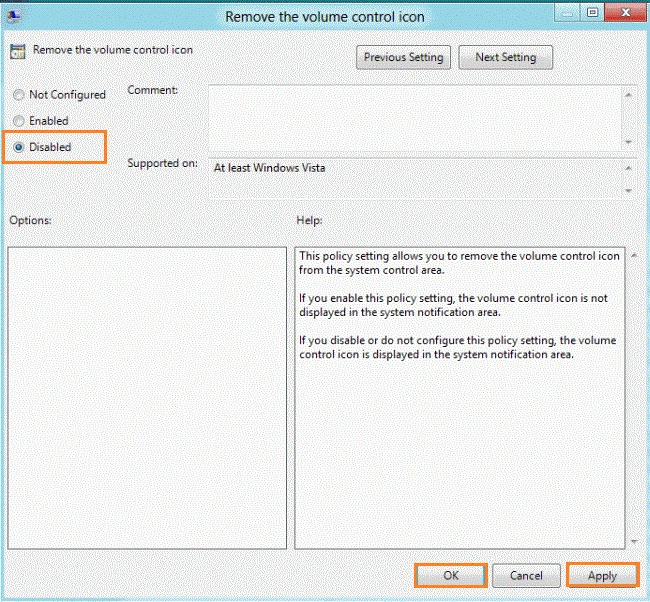
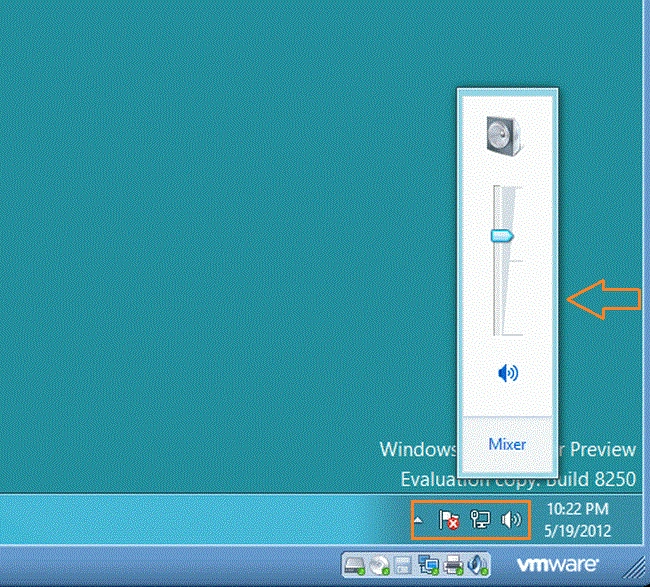
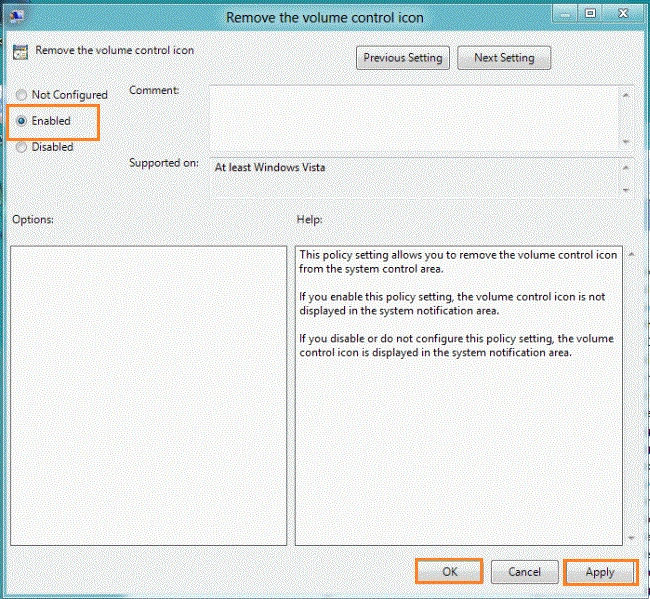
This article explains how to hide the Volume Control icon in the Taskbar in Windows 8. This policy setting allows you to remove the Volume Control icon from the system control area. If you enable this policy setting, the Volume Control icon is not displayed in the system notification area. If you disable or do not configure this policy setting, the Volume Control icon is displayed in the system notification area.
If you want to show the Volume Control icons then follow these settings and if you do not want to show the Volume Control icons then also follow these settings. You enable or disable it by gpedit.msc and the following steps. You can type it into the search box of the Metro UI. You type the gpedit.msc command in the search box and click on the window that appears.
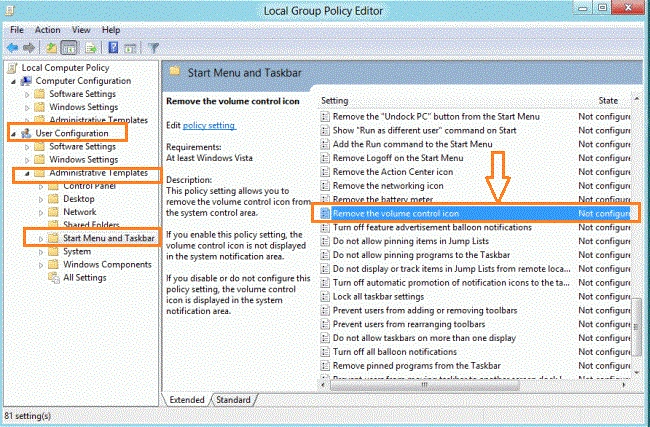
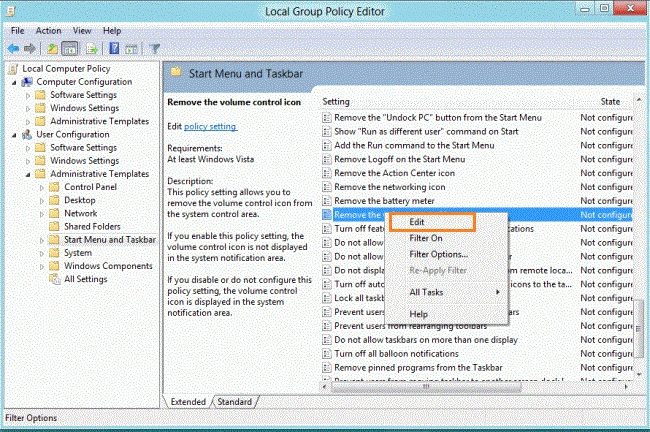
You click on the User Configuration, sub-category Administrative Template sub-category "Start Menu and Taskbar" and right-click on the "Remove the Volume Control Icon" and select the edit tab. The "Remove the Volume Control Icon " window will be opened and you can click on the Enable or Disable Button, whatever you want, and then click the Apply or Ok button. If you want to secure your Volume Control settings then follow these steps.
Steps to Remove the Volume Control Icon on the Taskbar
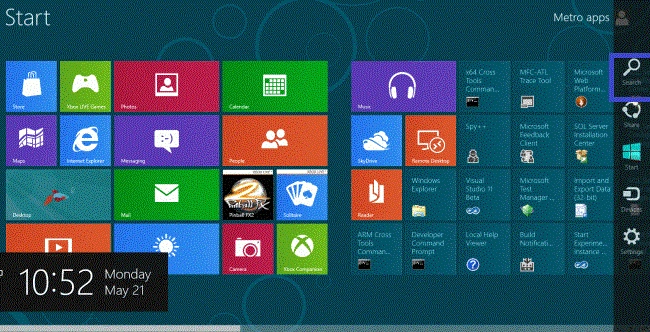
Step 1
Move the cursor on the right-bottom and select the search box and enter into the search box what you want.
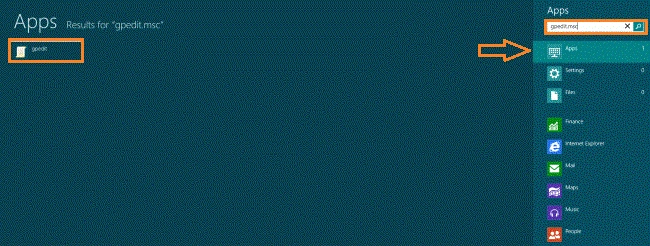
Step 2
In the search box, you enter gpedit.msc under the application tab and click on the window that appears.
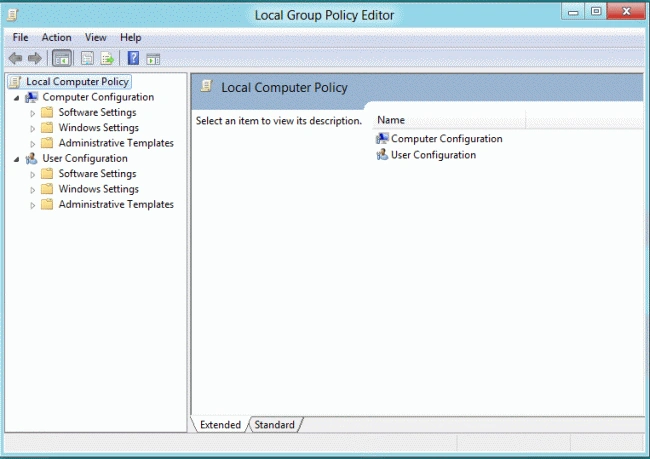
Step 3
In the window that is shown, you will see the "Local Group Policy Editor" window.
Join the conversation! Your thoughts help the community grow.