

Introduction
This article explains how to hide the default Title column in new and edit form in SharePoint 2013.
Hiding Title field
Create list with few columns.
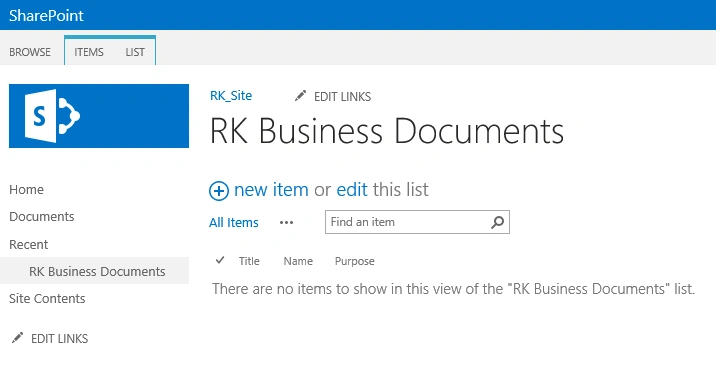
When you are trying to create new item you can see the Title field along with your custom fields.
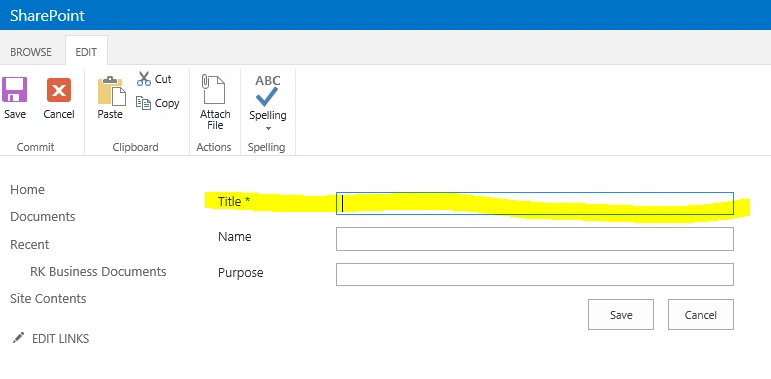
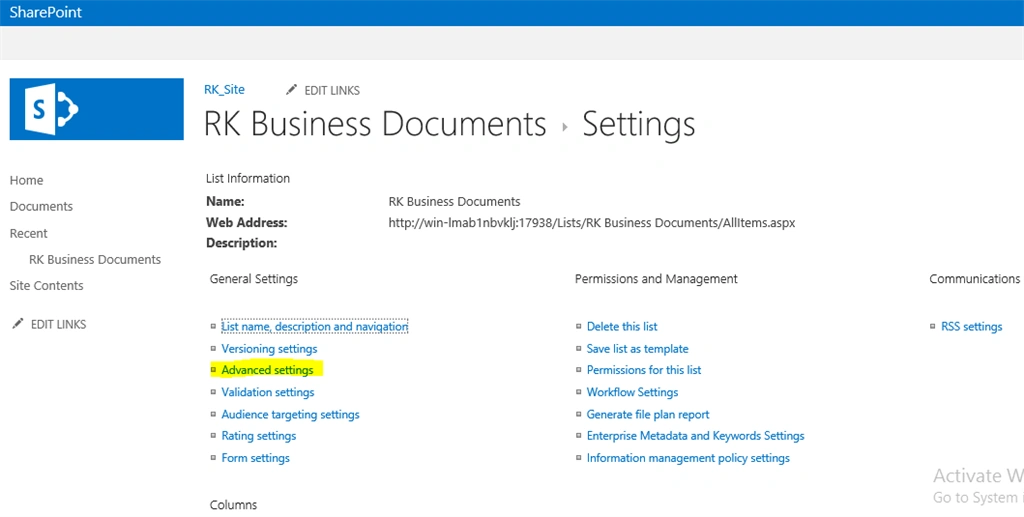
Setting for changing to hide the default Title filed.
Step 1: Go to list settings and click Advanced settings.
Step 2: Enable allow management of content types.
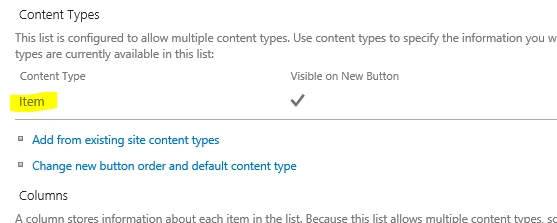
Step 3: Click the default item content type.
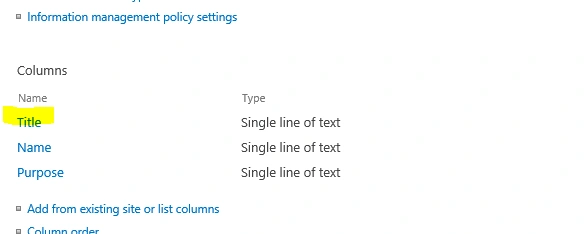
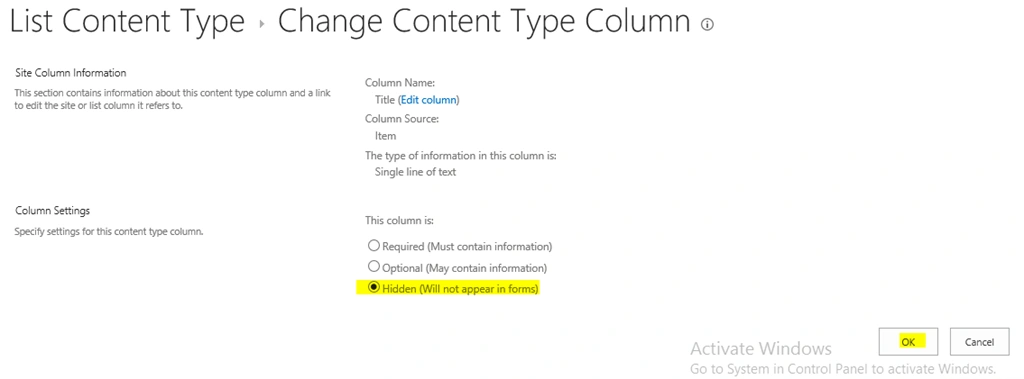
Step 4: Click the Title field and select Hidden.
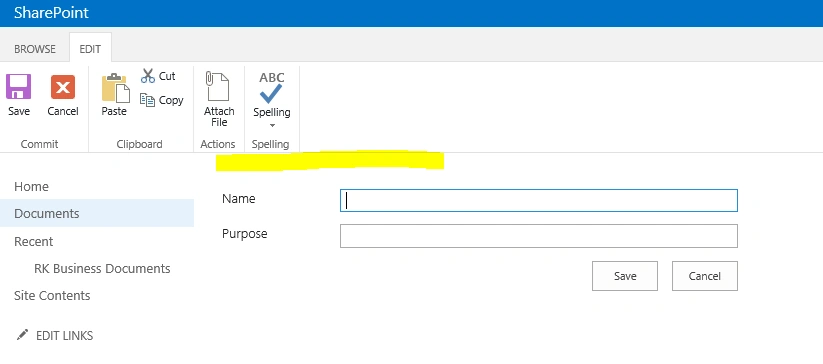
Step 5: The final form will not show the Title form.
Ramakrishna BasagallaPosted Oct 12, 2015, 1:10 PM
Thank you very much for your feedback :-)
RakeshPosted Sep 12, 2015, 7:59 AM
Good one sir
Karthikeyan KPosted Sep 12, 2015, 6:27 AM
Good one sir...Thanks for sharing
Harshad PansuriyaPosted Sep 12, 2015, 3:48 AM
Nice One
Santhakumar MunuswamyPosted Sep 12, 2015, 3:03 AM
Thanks for nice article:)
Mohammed IbrahimPosted Sep 12, 2015, 1:52 AM
nice information
Shubham KumarPosted Sep 12, 2015, 1:40 AM
Nice one
Harshad PansuriyaPosted Sep 12, 2015, 1:25 AM
Nice One
Vinodh NarayananPosted Sep 12, 2015, 12:34 AM
nice one
Nilesh JadavPosted Sep 12, 2015, 12:10 AM
Good one sir !!
Rajeesh MenothPosted Sep 11, 2015, 2:51 PM
Nice Share..