

Introduction
In this article we can explore the Hierarchical Tasks and Task Pane in SharePoint 2013.
Hierarchical Tasks
In SharePoint 2013 we can create a Task and then Sub Tasks underneath it.
- Task 1
- Task 2
- Task 3
Create a new Tasks list for trying it yourself. Create a new Task as in the following.

Now choose the ellipsis and you will get the following menu items.
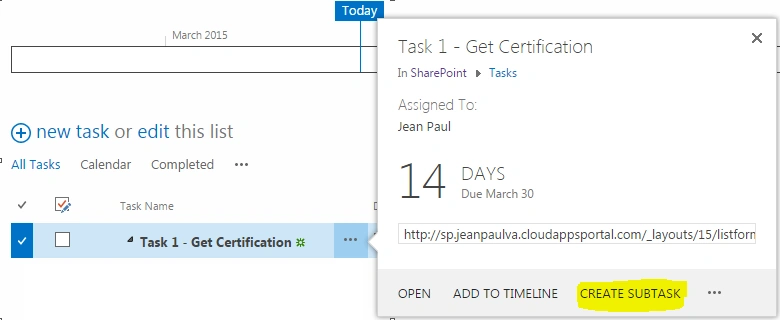
Click on the CREATE SUBTASK menu item. Here you can enter multiple sub tasks as shown below. 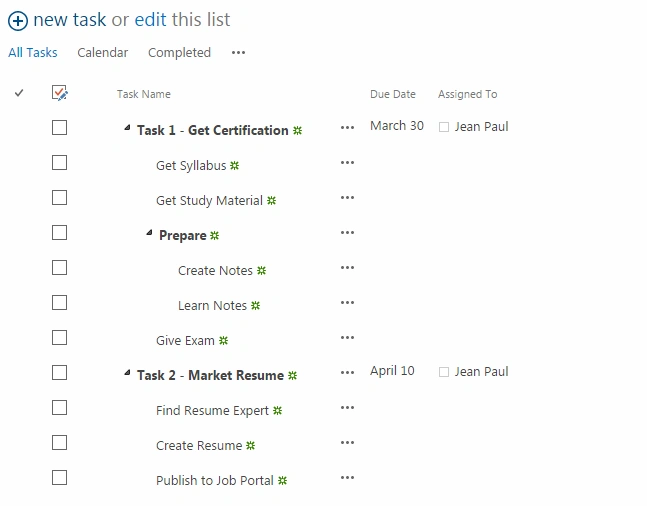
Please note that the list went to the Data Sheet view. You need to click the Stop link to go back to the list view.
Tasks Pane
The Tasks Pane provides further control with the following custom action ribbon buttons:
- Insert
- Outdent / Indent
- Move Up / Move Down
- Outline – Show / Hide Subtasks

You can play with them to see the functionality.
Summary
In this article we explored the Hierarchical Tasks and Task Pane in SharePoint 2013.
Jean PaulPosted Aug 19, 2015, 2:00 PM
Thanks Litan for the good words. I believe we can use this JavaScript for doing the collapsing. https://social.technet.microsoft.com/Forums/sharepoint/en-US/51a1ada6-d514-4727-b9a5-6a689b70067e/tasks-with-subtasks-collapse-by-default-sharepoint-2013?forum=sharepointgeneral
Litan NathPosted Aug 19, 2015, 12:43 PM
Hello Jean, Great work. Could you please make a artical to hide subtask automatically. I need to display only parrent task in a new page so that company higher level employee can see only short information about the task. Thank you very much in advanced.
Karthik Muthu KaruppanPosted Mar 19, 2015, 4:36 PM
useful
Rahul Kumar SaxenaPosted Mar 18, 2015, 1:49 AM
good Work