

When building a Power Pages website, you may need to store values like admin email addresses, API URLs, or feature flags. Many developers hardcode these values in JavaScript or Liquid, but this makes the application harder to maintain.
A better approach is to use Environment Variables and expose them through Site Settings. This lets you change configuration values without updating your code.
In this article, you'll learn how to access Environment Variables in Power Pages using Site Settings.
Why Use Environment Variables?
Environment Variables help you store configuration values outside your code.
Some common examples are:
Admin email addresses
API URLs
Feature flags
Azure Function URLs
Other application settings
The biggest advantage is that you can change these values without editing or redeploying your website.
Why use Site Settings?
Power Pages cannot read Environment Variables directly in Liquid or JavaScript.
To use these values in your website, you can expose them through Site Settings. then, you can read the Site Setting using the built-in settings object.
This keeps your code clean and makes your application easier to maintain.
Stepwise Implementation
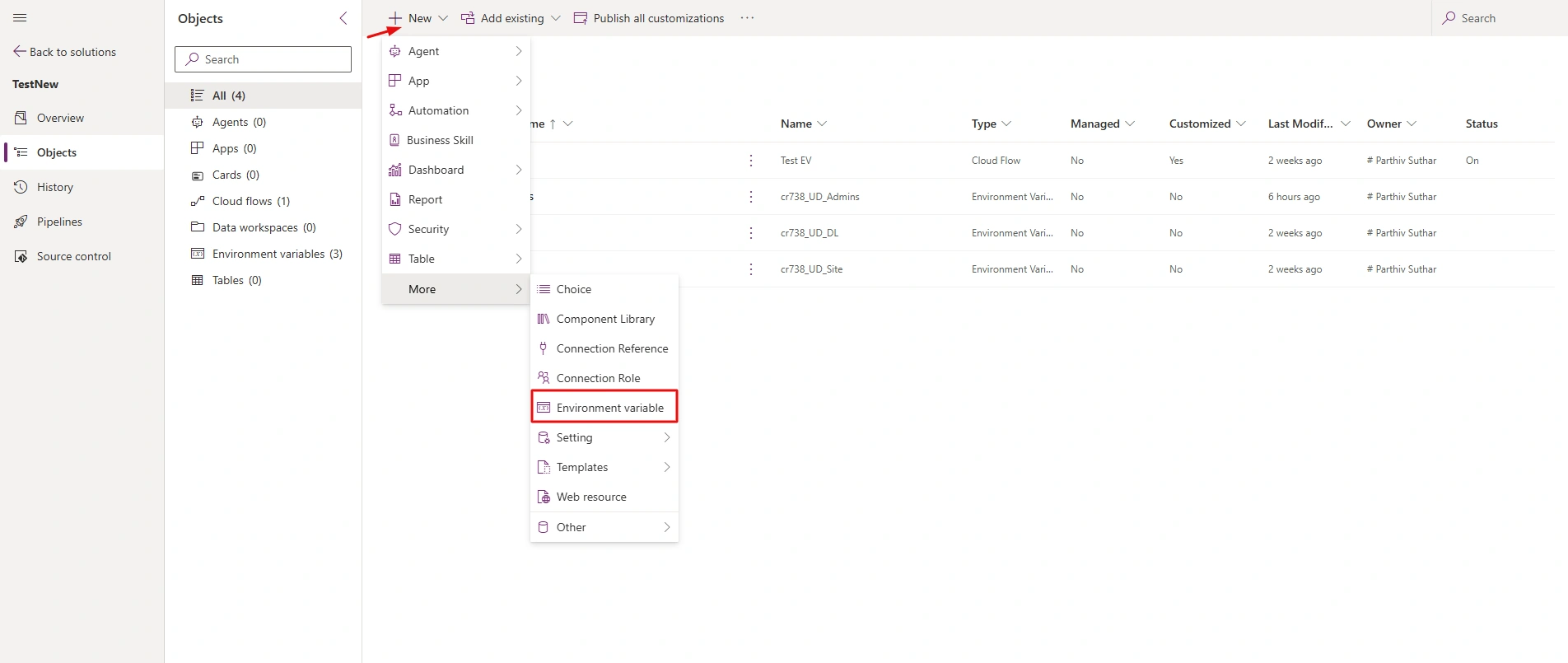
Step 1: Create environment variable in solution
Open solution, create env var by following below steps
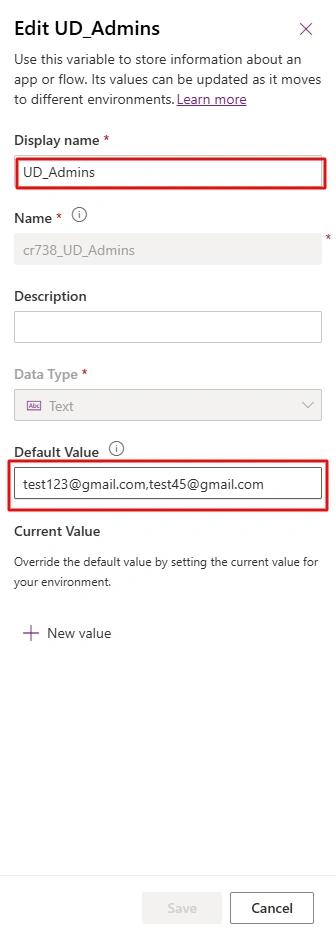
Enter display name and enter admin email in Default value.
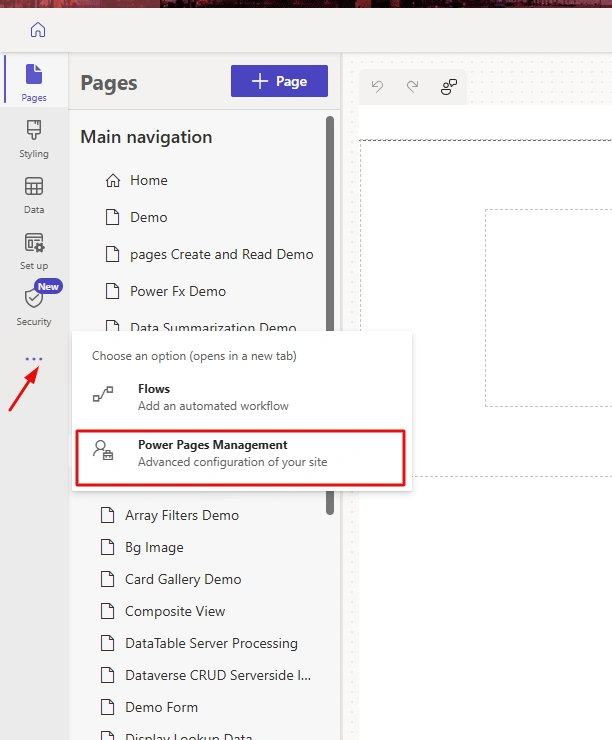
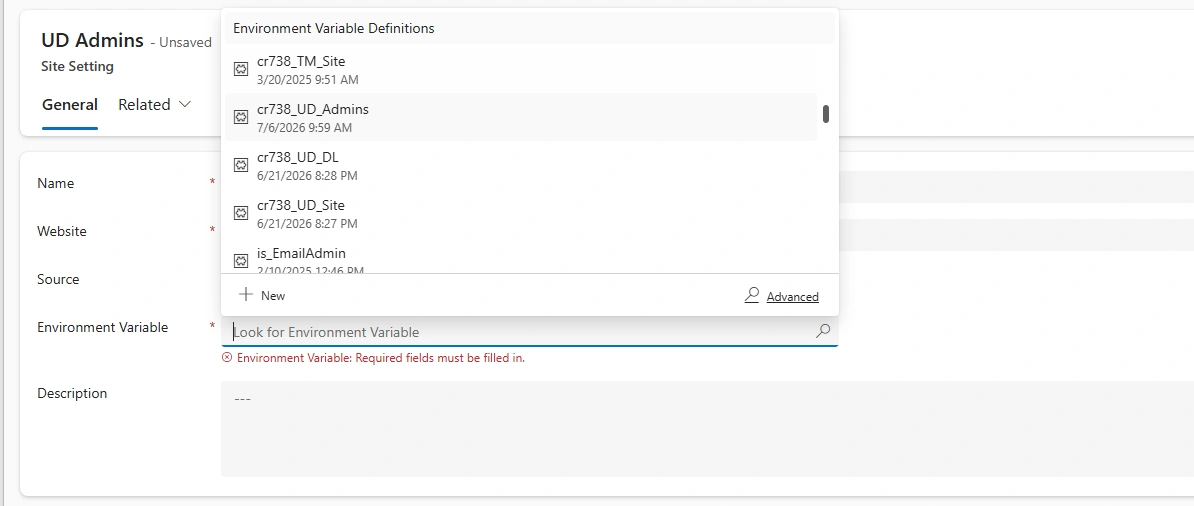
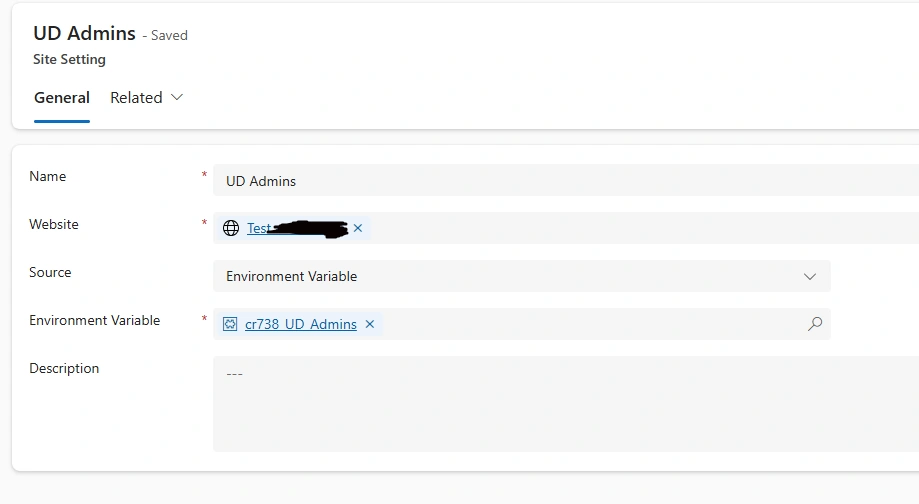
Step 2: Create Environment variable in site settings (Power Pages Configuration)
Open Power Pages Management for advanced configuration
Open Site Settings under Website section
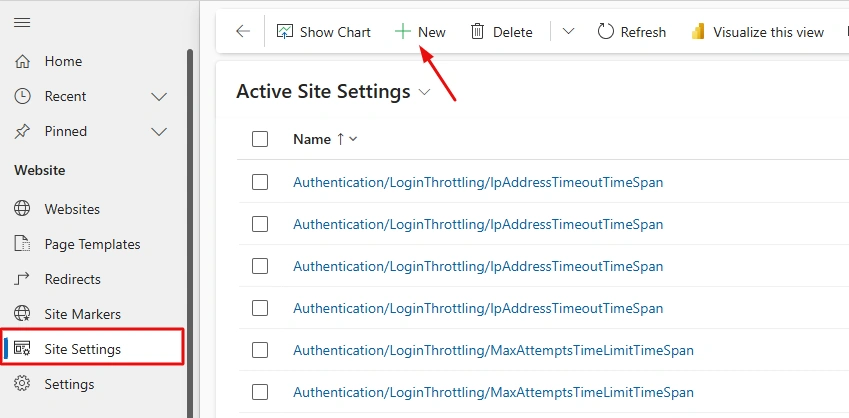
Enter Name in meaningful which will be used in code implementation
Refer solution's env var here by search it on Environment Variable column.
Step 3: Access Env var in Power Pages site
After creating environment variable in site settings, sync configuration.
Create new page and on Js file, write this code.
const envValue = "{{ settings['UD Admins'] }}"Where UD Admins is Name of environment variable that you have given in Site Settings.
How it Works
The process is simple:
Environment Variable -> Power Pages Site Setting -> Liquid (settings object) -> JavaScriptPower Pages reads the Site Setting, which is linked to the Environment Variable, and inserts the value into your page during rendering.
Conclusion
In this article, we learned how to use Environment Variables in Power Pages through Site Settings instead of hardcoding values in our code.
Join the conversation! Your thoughts help the community grow.