

Introduction
In this article, we are going to explain how to activate Windows 8 GodMode. The process is similar to the process for Windows 7 but Windows 8 provides some shortcuts that make it easier and more efficient and one of those is GodMode. GodMode controls our PC and all Windows 8 control options, actions and features in one place and users began to name the shell folder "God Mode". In this tutorial, you will learn how to activate it.
How to create GodMode?
Step 1
First, we open Windows 8.
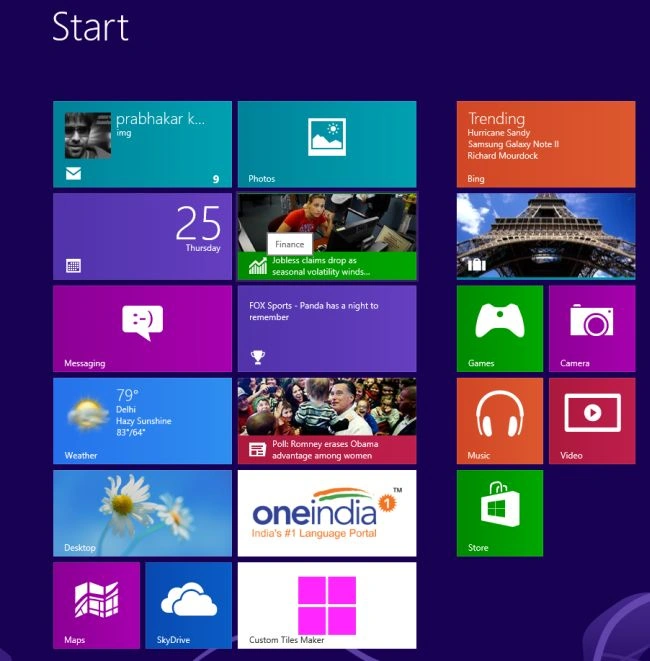
Step 2
Then we start the Windows 8 Desktop.
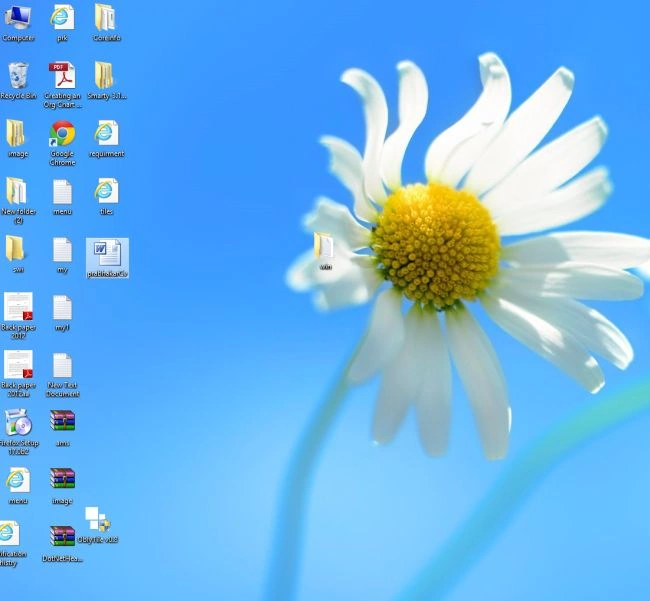
Step 3
Right-click on our desktop and select New Folder.
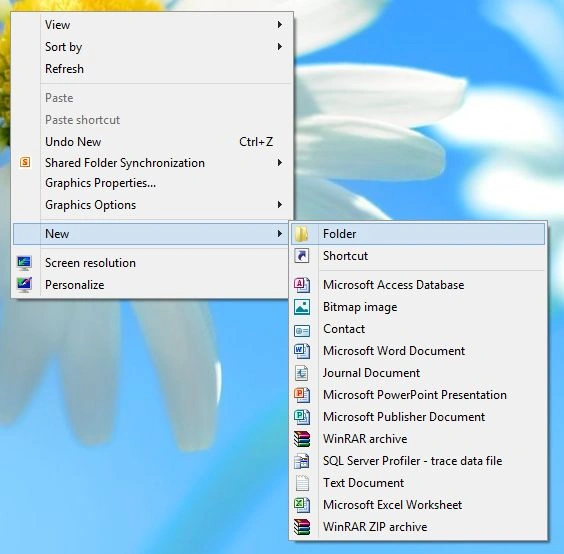
Step 4
New Folder in Windows 8 Desktop.
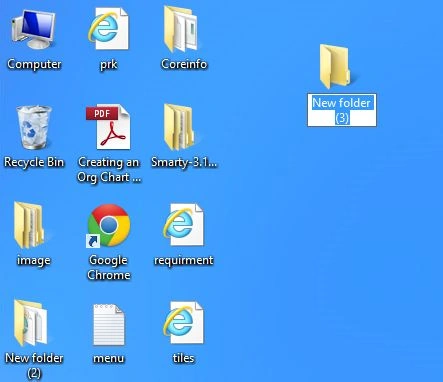
Step 5
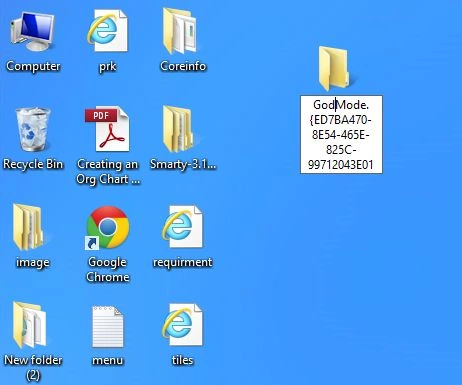
Type in or copy and paste the following as the name.
GodMode.{ED7BA470-8E54-465E-825C-99712043E01C}
Step 6
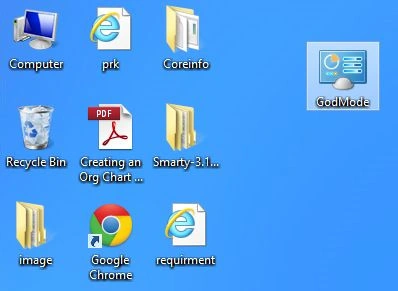
Then just hit Enter and the folder icon will change.
Step 7
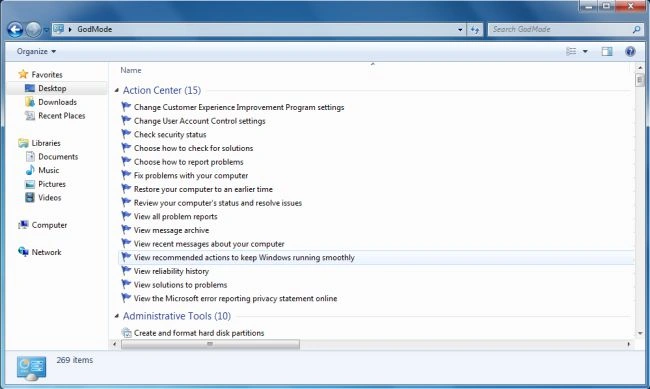
Open the GodMode window.
Summary
In this article, we learned about How To Activate Windows 8 GodMode.
Join the conversation! Your thoughts help the community grow.