

This article describes how to add an image to a runtime generated PDF file. For generating the PDF file, you need to use a PDF generator library.
Note: I will use the "iTextSharp.dll" as a PDF generator library. You can download it from the following
- Links
http://sourceforge.net/projects/itextsharp
https://www.nuget.org/packages/iTextSharp/
Or
- You can download the attached file of this article.
To explain this article, I will use the following procedure:
- Add a reference of the downloaded "iTextSharp.dll" to the project/website.
- Write some code in the ".cs" file to generate the PDF file with some text for the "button click" event.
The following are the details of the preceding procedure.
Step 1
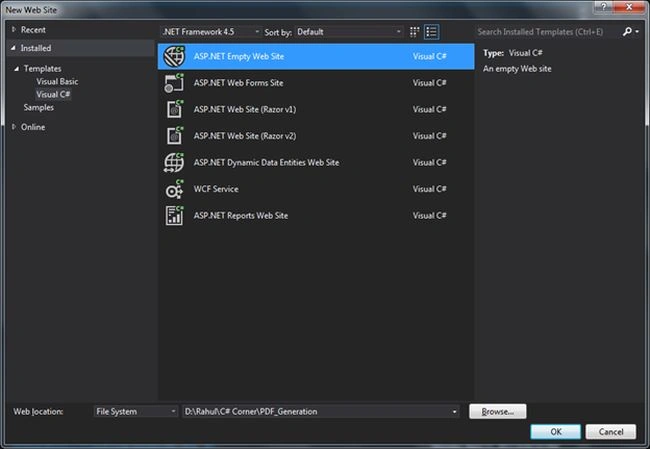
- Create a new empty website named "PDF_Generation".
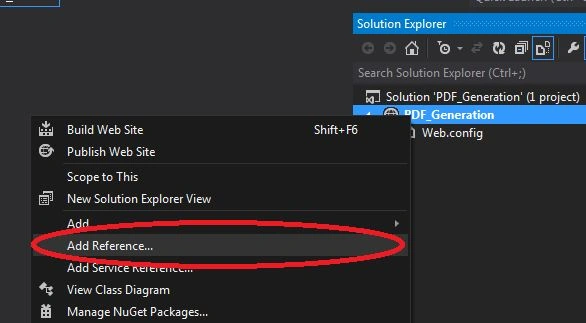
- Right-click on the website and click on "Add Reference…".
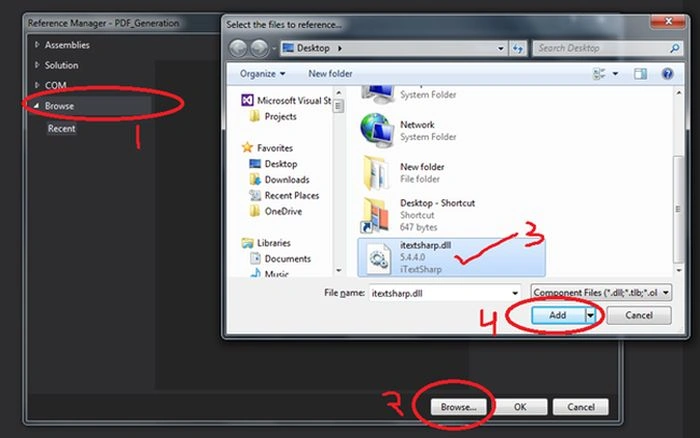
- Use the following sub steps in the "Reference Manager".
- Click on the Browse tab on the left side
- Click on the Browse button at the bottom
- Select the "iTextSharp.dll" from the system
- Click on the Add button
Finally, it will look like:
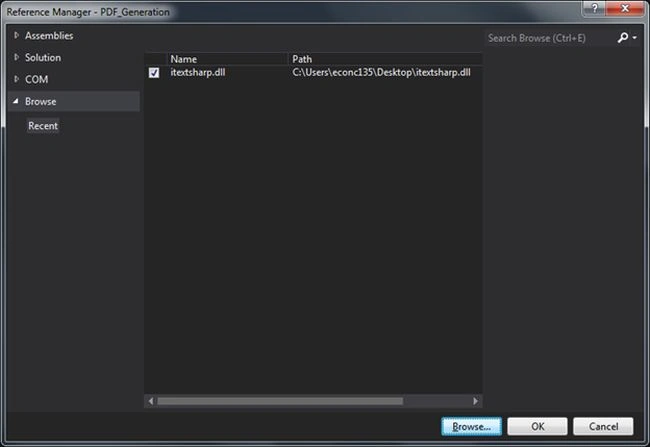
Now click on the "OK" button and see the "Solution Explorer" where the "iTextSharp.dll" reference has been added to the "Bin" folder.

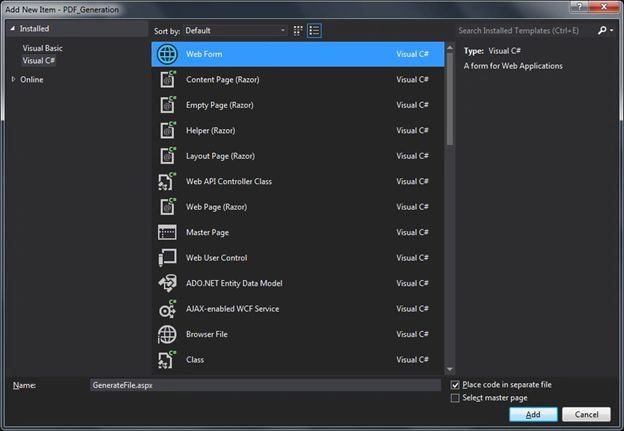
- Add a new Page named "GenerateFile.aspx".
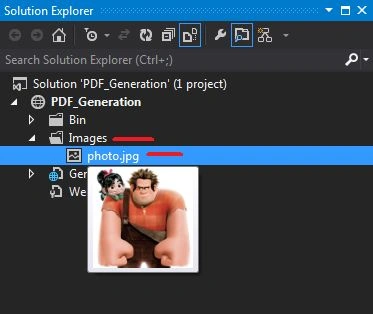
- Add a folder named "Images" and add an Image named "photo.jpg" into it.
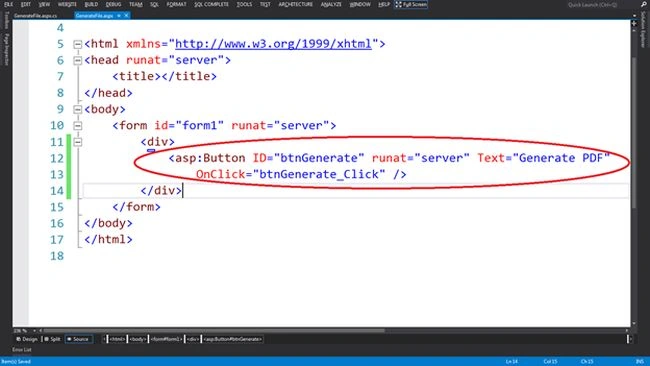
- Add a Button with the following Onclick event (to generate the PDF) on the page.
- <asp:Button ID="btnGenerate" runat="server" Text="Generate PDF"
- OnClick="btnGenerate_Click" />
- Add the 2 namespaces on top of the ".cs" file.
- using iTextSharp.text;
- using iTextSharp.text.pdf;
- Write the code to generate the PDF file on the click event of the button.
- protected void btnGenerate_Click(object sender, EventArgs e)
- {
- Document pdfDoc = new Document(PageSize.A4, 25, 10, 25, 10);
- PdfWriter pdfWriter = PdfWriter.GetInstance(pdfDoc, Response.OutputStream);
- pdfDoc.Open();
- byte[] file;
- file = System.IO.File.ReadAllBytes(Server.MapPath("~/Images/photo.jpg"));//ImagePath
- iTextSharp.text.Image jpg = iTextSharp.text.Image.GetInstance(file);
- jpg.ScaleToFit(550F, 200F);//Set width and height in float
- pdfDoc.Add(jpg);
- pdfWriter.CloseStream = false;
- pdfDoc.Close();
- Response.Buffer = true;
- Response.ContentType = "application/pdf";
- Response.AddHeader("content-disposition", "attachment;filename=Image.pdf");
- Response.Cache.SetCacheability(HttpCacheability.NoCache);
- Response.Write(pdfDoc);
- Response.End();
- }
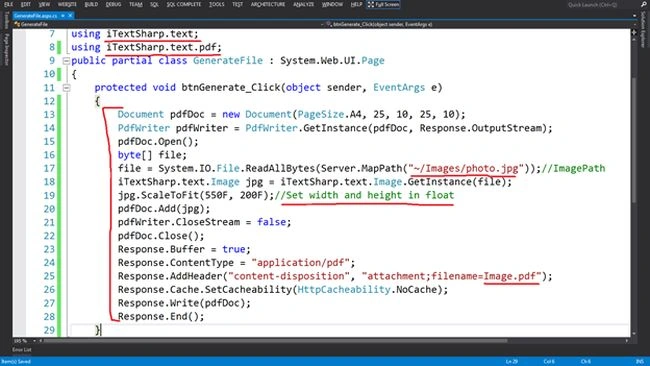
Note: You can provide any name of the generated file like here I have used "filename=Image.pdf".
Step 3
- Run the page that will be like:

- Click on the "Generate PDF" button and save the "Image.pdf" file.
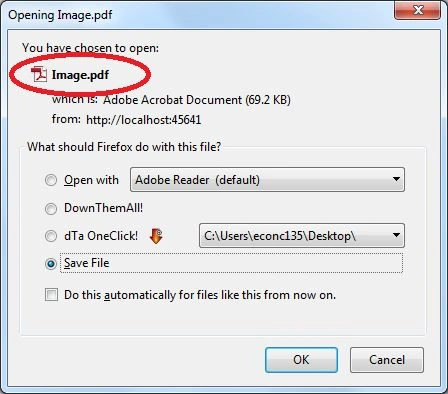
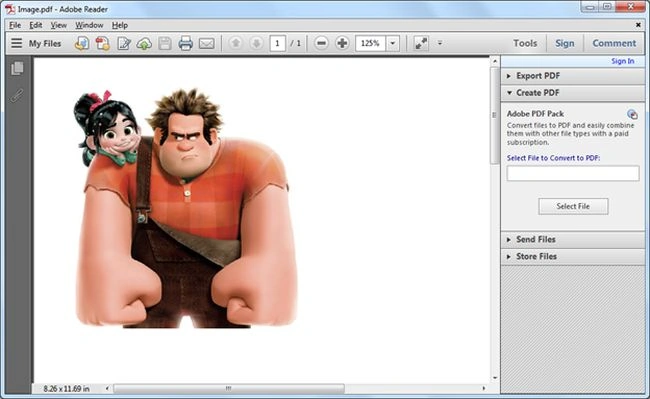
Result: Open the PDF file and see the image in the PDF file.
moheb HossPosted Dec 11, 2023, 9:41 AM
The site at http://localhost:12727/ImageToPdf.aspx has experienced a network protocol violation that cannot be repaired.The page you are trying to view cannot be shown because an error in the data transmission was detected.
Nithish ReddyPosted Nov 13, 2018, 6:31 AM
How to set an background image and re-write some text message on the image ?