

Introduction
This article will show how to add your own sounds for specified tasks that can play when the specified event occurs in your systems such as menu open, alert message or some other task.
Generally, Windows uses various types of sound schemes for various actions in the system. But, we are also able to change the default sound scheme for a particular action in Windows 8.
You just need to follow some steps to change the default sounds in Windows 8
Step 1
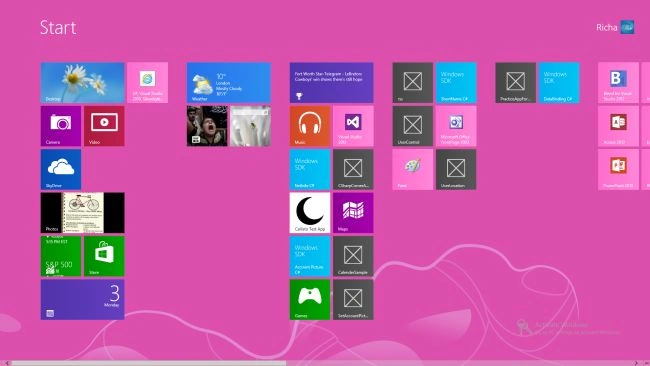
Go to Start Screen in Windows 8.
 Step 2
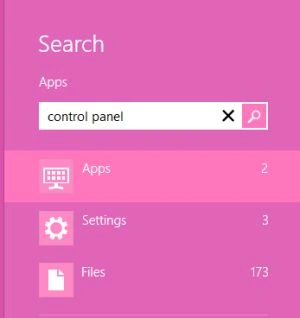
Search for Control Panel using Search option from the Windows 8 Charm.
Step 2
Search for Control Panel using Search option from the Windows 8 Charm.
 Step 3
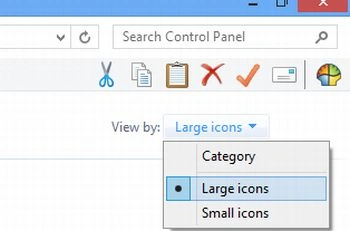
Then, click on Large Icon from the dropdown to access the option easily.
Step 3
Then, click on Large Icon from the dropdown to access the option easily.
 Step 4
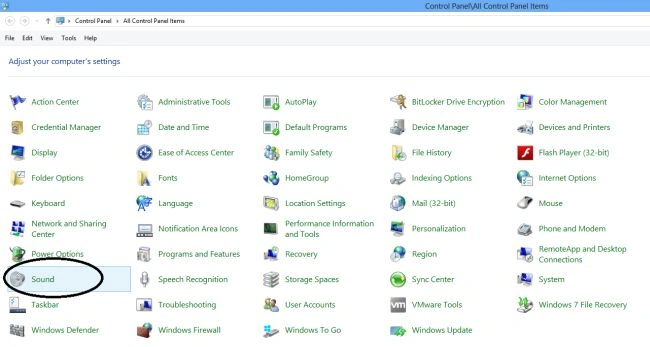
Now, click on the Sound option.
Step 4
Now, click on the Sound option.
 Step 5
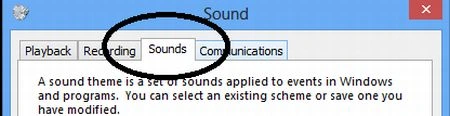
Select the Sounds to tab in the Sound window.
Step 5
Select the Sounds to tab in the Sound window.
 Step 6
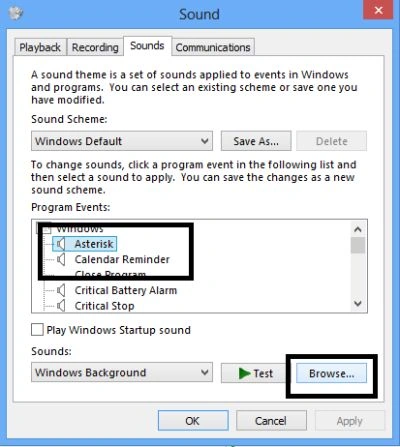
To set the Custom sounds, you have to choose the program event from the list. Then, click on the Browse option to set the custom sounds for the selected event.
Step 6
To set the Custom sounds, you have to choose the program event from the list. Then, click on the Browse option to set the custom sounds for the selected event.
 Step 7
Then click Apply to save the changes to the sound scheme.
Step 7
Then click Apply to save the changes to the sound scheme.
Summary
In this article, we learned about How to Add Custom Sounds in Windows 8.
Join the conversation! Your thoughts help the community grow.