

Introduction
To create the user friendly features and to load the various kinds of apps Windows 8 provides the feature for doing this. SkyDrive is a builtin app which is a cloud file sharing service provided by Microsoft and is included in Windows 8. Using SkyDrive we can share apps, PCs, Devices and files which is a very important task. In this article we will learn how to add files and images to SkyDrive in Windows 8.
Note
To use or access SkyDrive we must have a Windows Live ID account in Windows 8.
How to add files to SkyDrive in Windows 8
Step 1
First of all we have to move the cursor on bottom-right of the window screen and click the Start icon of Windows 8.

Step 2
On performing this action the Windows 8 Metro UI screen will appear.
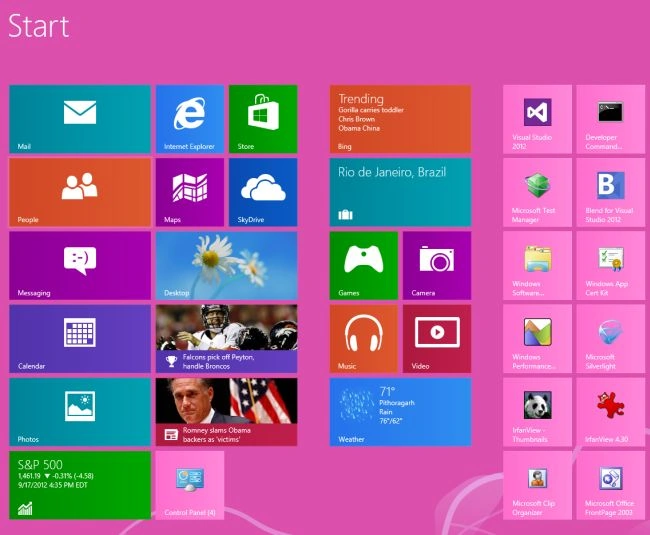
Step 3
Then from this Windows 8 Metro UI screen we have to select the tile with the cloud image, which is the tile to access SkyDrive in Windows 8.
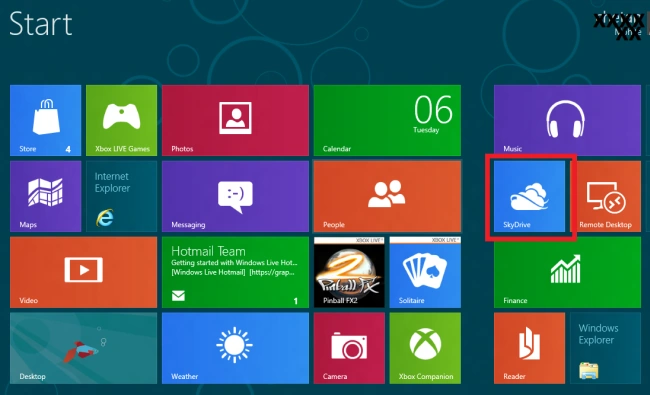
Step 4
When you click on the tile of SkyDrive then the home page of SkyDrive will appear on your screen.
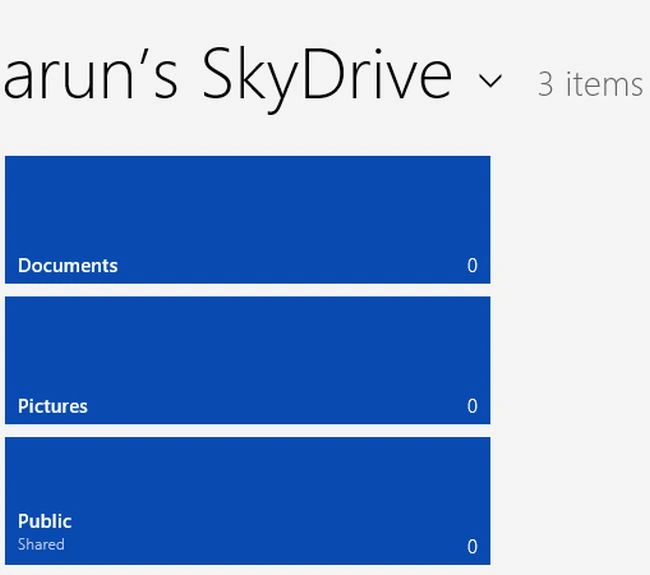
As you can see we have three folders on it hence select any folder from the home page of SkyDrive.
Step 5
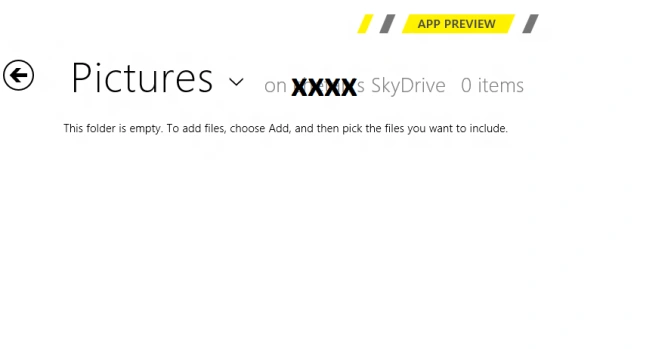
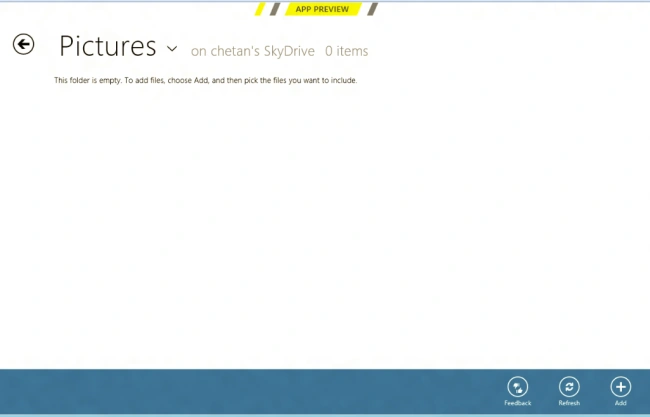
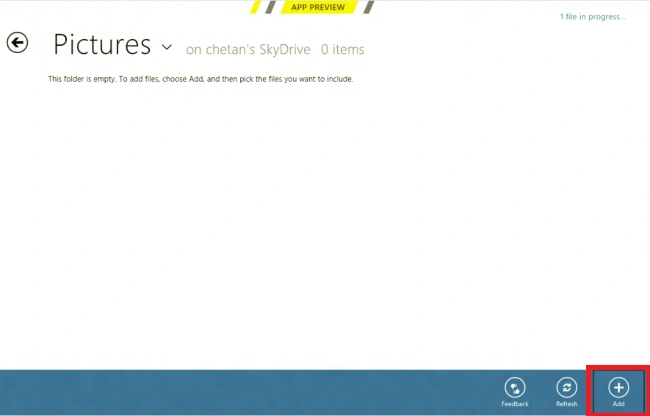
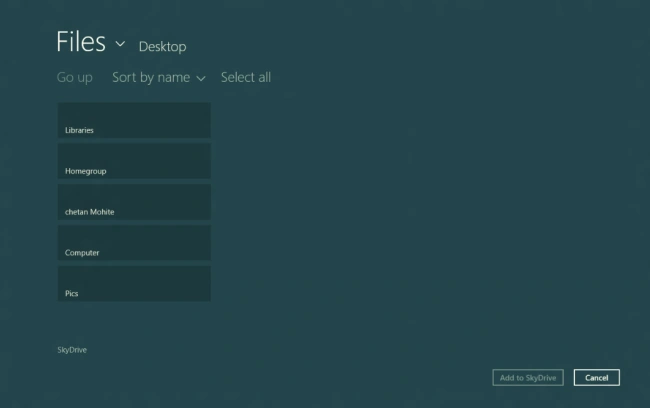
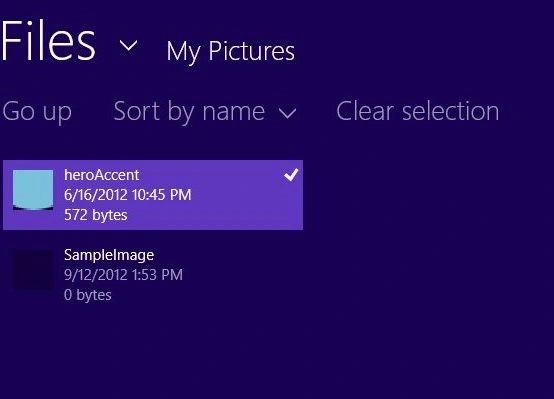
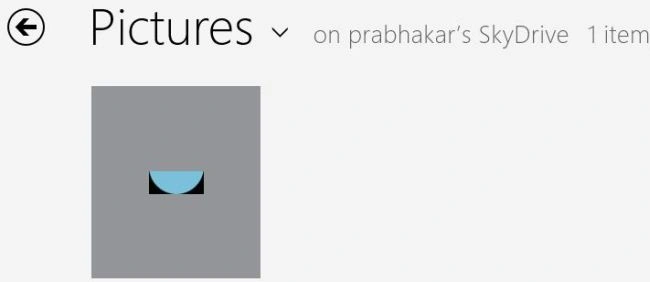
If we want to add an image to the picture folder then we have to click on the Picture folder option from these three options.
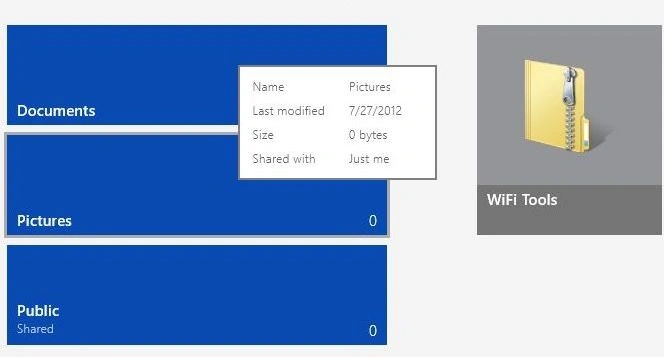

Manish SharmaeditedPosted Oct 9, 2012, 7:01 AMEdited Oct 9, 2012, 7:01 AM
Thanks Nitrix for given the important information....
Manish SharmaPosted Oct 9, 2012, 7:01 AM
Thanks Nitrix for given the important information....
Manish SharmaPosted Oct 9, 2012, 7:01 AM
Thanks Nitrix for given the important information....
NitRiX ReloadedPosted Oct 2, 2012, 8:20 AM
There is another way with out using the METRO app, using SkyDrive application. in "My Documents"\"SkyDrive" folder - copy and paste your file over there. First time it will ask for LIVEID and will start automatically syncing your files from "SkyDrive" folder to the server. This application works similar to dropbox.. In case if you don't have SkyDrive app http://windows.microsoft.com/en-US/skydrive/download-skydrive