

Introduction
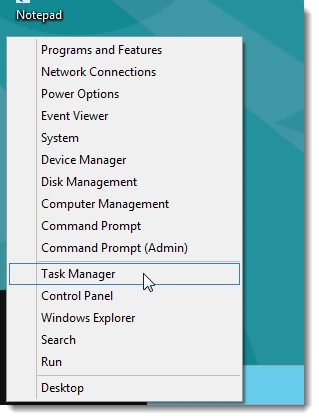
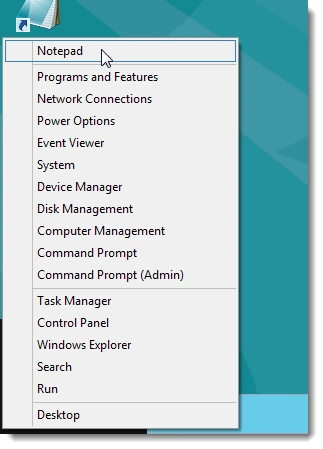
In this article, we are going to explain how to add an item to the new Win+X menu in Windows 8. Many of us are lamenting the removal of the Start button and menu in the Windows 8 Consumer Preview. However, a hidden context menu, or what is known as the Win+X menu, has been added. The Windows 8 menu provides very useful system tools like Task Manager, Search, Control Panel, Programs, and Features, System Settings, Run, Device Manager, among others. We will show you how to use Rafael's hashing tool to create approved shortcuts we can add to the Win+X menu.
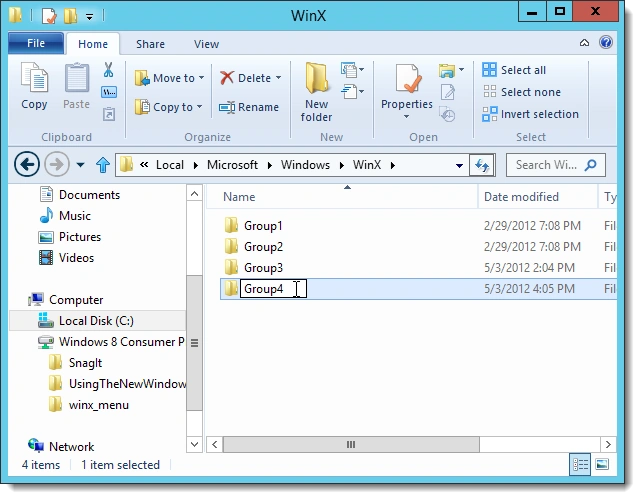
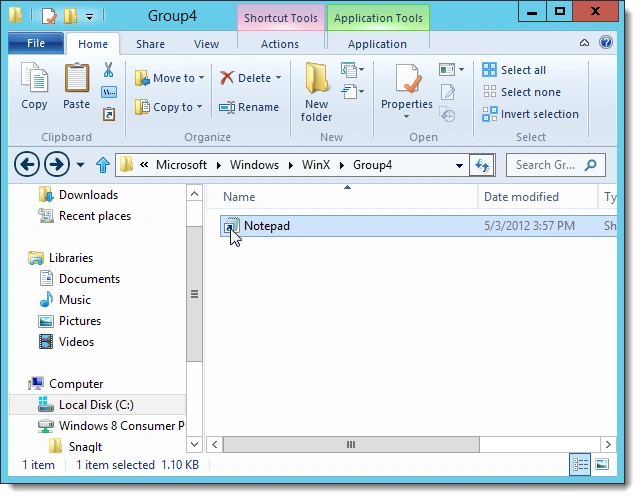
In this article, we are going to add Notepad to the Win+X menu. We can add a shortcut for any program to the menu. To do so, we can either create a shortcut from scratch from the .exe file for the program, or we can copy an existing shortcut from the Desktop. The following describes how to add an item to the new Win+X menu in Windows 8.
Step 1
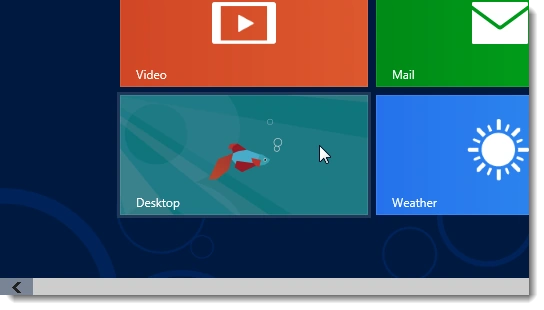
First of all we have to move to the Start screen window of Windows 8 and click the Desktop tile.
Step 2
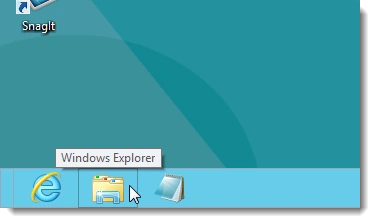
Then we open Windows Explorer from the icon on the Windows 8 Taskbar.
Step 3
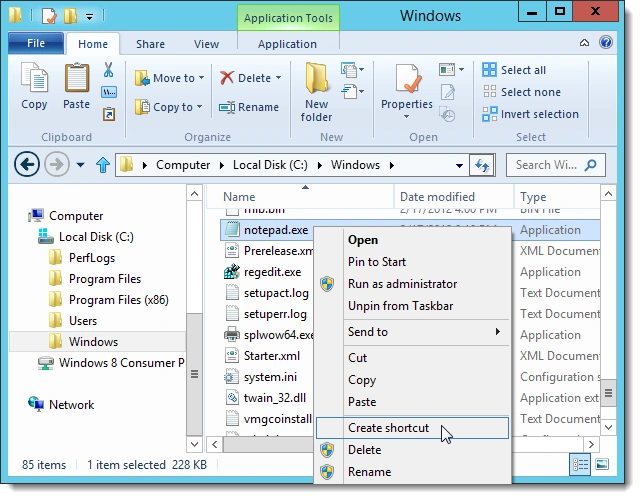
After this process, we can navigate to the Windows folder, and then find the notepad.exe file, and right-click on it and select Create Shortcut from the popup menu.
Step 4
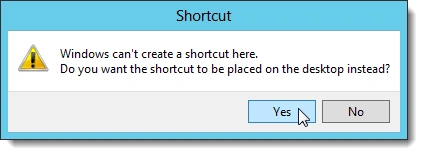
We see a dialog box in Windows 8 and click Yes to place it on the Desktop. Then, to make it easier to use the hashing tool, copy or more the shortcut from the Desktop to the folder containing the hashlnk.exe file.
Step 5
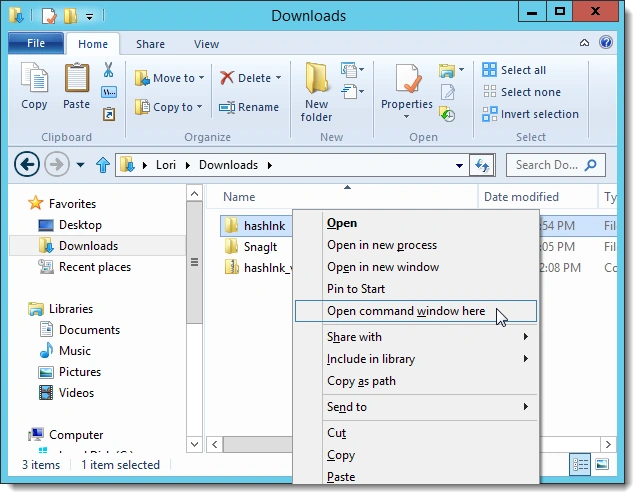
The Command-line will be used to run the hashing tool. In Windows Explorer, press Shift and right-click on the folder containing the hashlnk.exe file. Then we select the "Open command window here".
Step 6
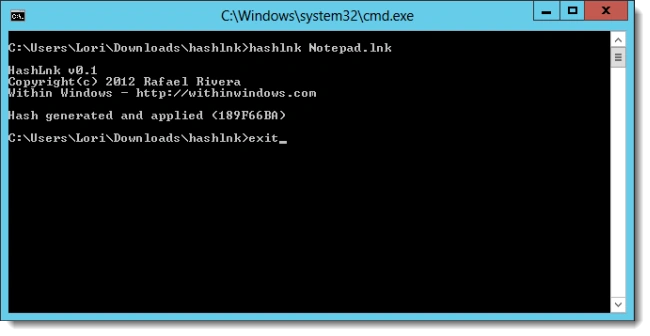
We see a command prompt window, and enter the following command.
hashlnk Notepad.lnk
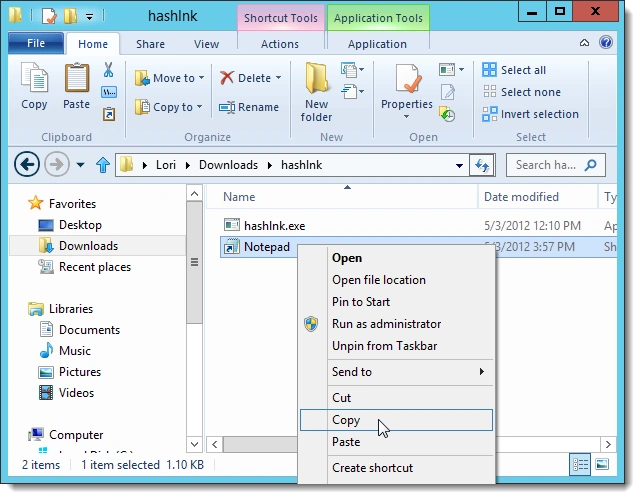
A message then states that the hash has been generated and applied. If we have other shortcuts we want to prepare for the menu, enter the command again with the name of another shortcut file. Type exit and press Enter when we are finished.
Join the conversation! Your thoughts help the community grow.