

Introduction
In this article, I will explain how to add a Labelframe in Tkinter in Python.
Definition
The Labelframe keyword is used to create a simple container widget. Its primary purpose is to act as a container for complex window layouts.
Syntax
- w = Labelframe( a, option)
Parameters
a − This represents the parent window of the computer.
option − The list of most used options for this widget.
Option & Description
-
height - The height is used to change the height on the labelframe in text lines (text buttons) or pixels (images).
-
width - The width is used to change the width of the labelframe. in letters.
-
bd - The Border is used to change the width in pixels. The default pixel value is 2.
-
bg - The background is used to change the Normal background color background.
Program
- from tkinter import *
- a= Tk()
- a.geometry("400x400")
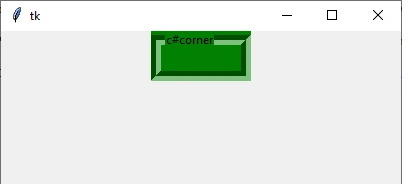
- labelframe=LabelFrame(a,text="c#corner",bg = "green",
- bd=10,width=100,height=50)
- labelframe.pack(side=TOP)
- a.mainloop()
Output
-
Fg - The fg is used to change the normal foreground (text) color.
-
Font - The font is used to change the text font to be used for the labelframe.
-
Cursor - The cursor is used to set this option to a cursor name, the mouse cursor will change to that pattern when it is over the labelframe.
Program
- from tkinter import *
- a= Tk()
- a.geometry("400x400")
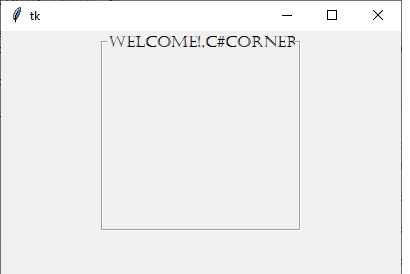
- labelframe=LabelFrame(a,text="welcome!,c#corner",width=200,cursor = "target",
- height=200,fg = "black", font = "Castellar")
- labelframe.pack(side=TOP)
- a.mainloop()
Output
-
HighlightBackground - we used to focus highlight when the frame does not have a focus
-
HighlightColor - we used to show in the focus highlight when the frame has a focus.
-
HighlightThickness - we used the thickness of the focus highlight.
- from tkinter import *
- a= Tk()
- a.geometry("400x400")
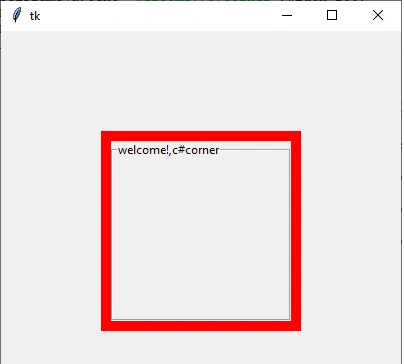
- labelframe=LabelFrame(a,text="welcome!,c#corner",width=200,
- height=200,highlightcolor="yellow",
- highlightbackground="red",highlightthickness=10)
- labelframe.grid(padx = 100, pady = 100)
- a.mainloop()
Output
Conclusion
In this article, we have seen how to add a Labelframe in Tkinter in Python. I hope this article was useful to you. Thanks for reading!
Join the conversation! Your thoughts help the community grow.