

Introduction
In Microsoft Windows 10, the Start Menu has by default three columns -- if you want your fourth column enabled then you can do this easily. The start menu tiles give you quick app access, which means the user can use the app easily and not waste time searching for the app. In the column, the app will be shown on the tiles form. The Start Menu is the automatically disabled fourth column. It gives the quick access tiles in a three column format automatically, as shown in the below figure.
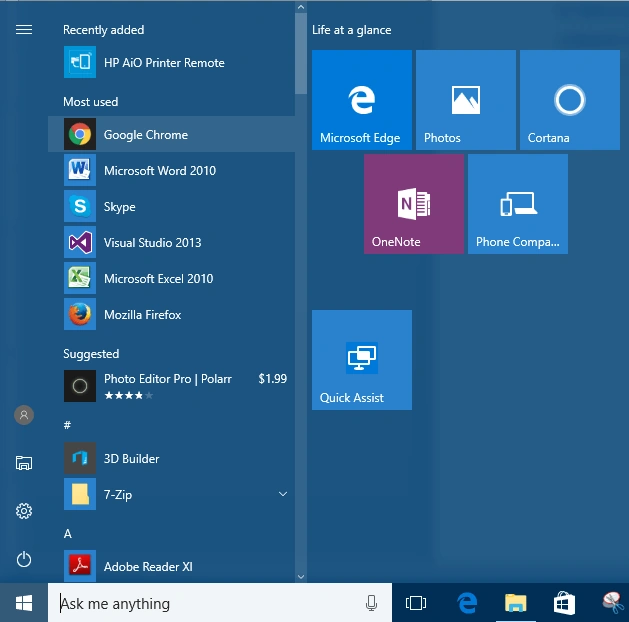
If you want to enable the fourth column then follow these steps.
Firstly you click on the start menu and select the settings as shown in the figure.
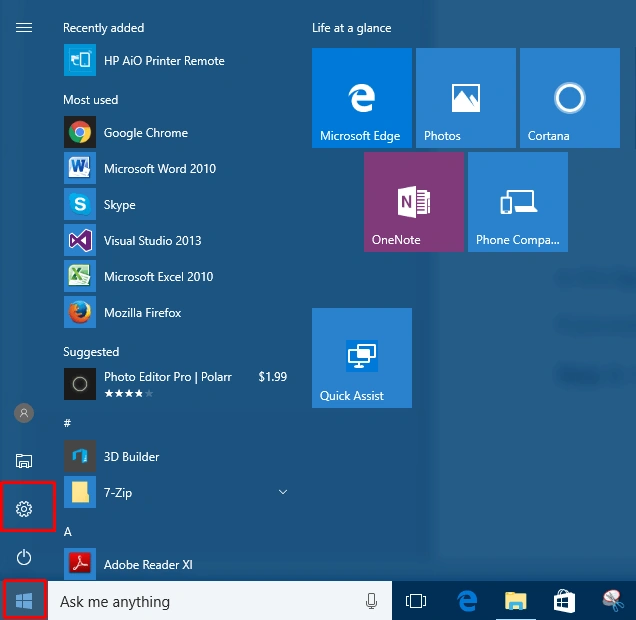
When you select the settings you will get the new dialogue box opens, and you will select the personalization shown in the below figure.
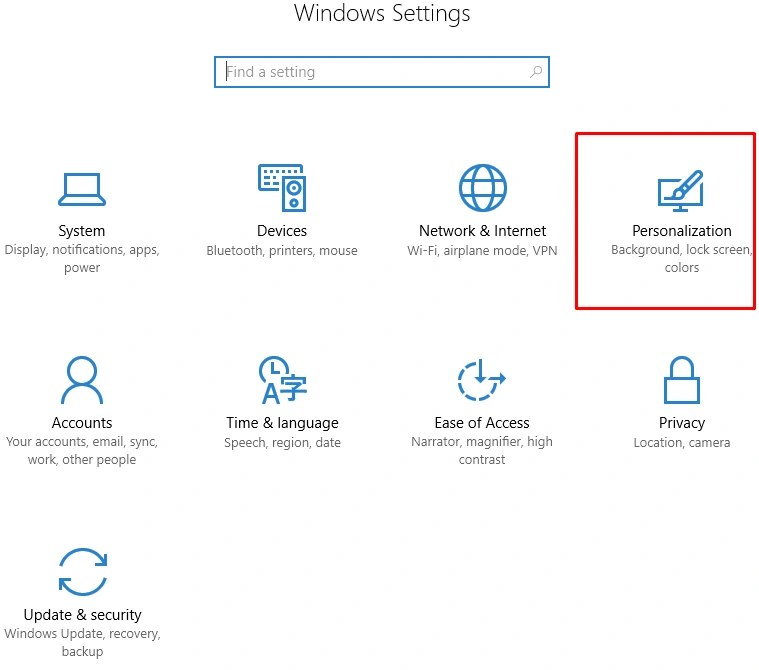
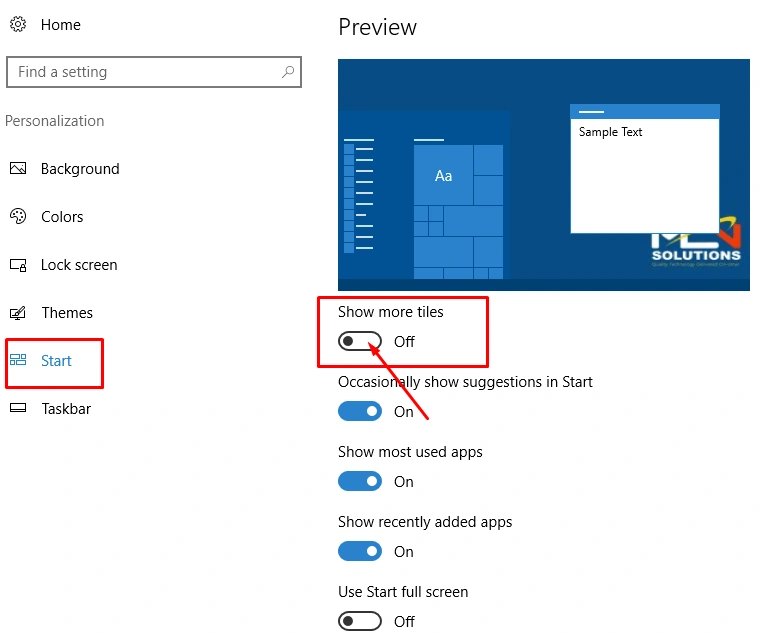
When you select the personalization you will get the new dialogue box with the new settings option and you will select the start option shown as the below figure.
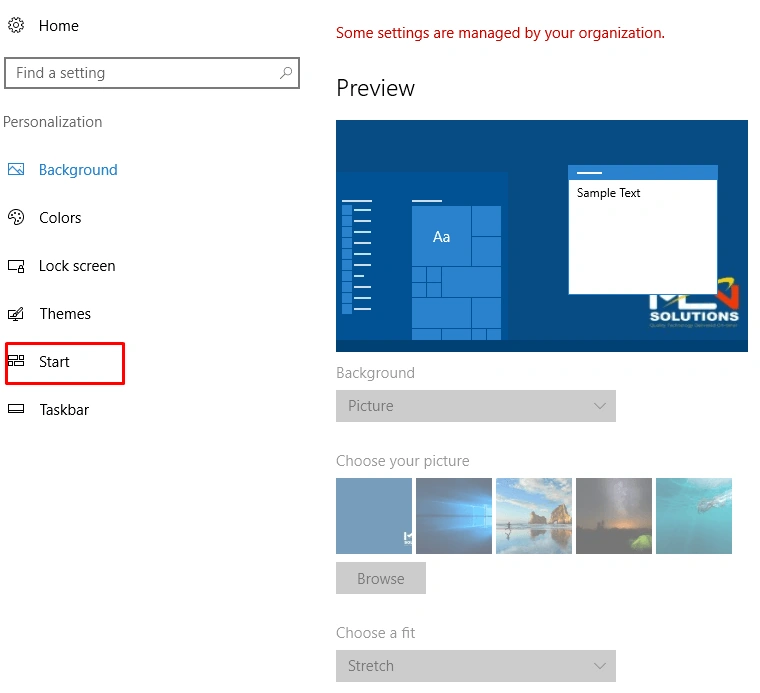
Now you select the start option and you will find the new settings for changing the start menu tiles column, and you will select show more tiles option, as shown in the figure below.
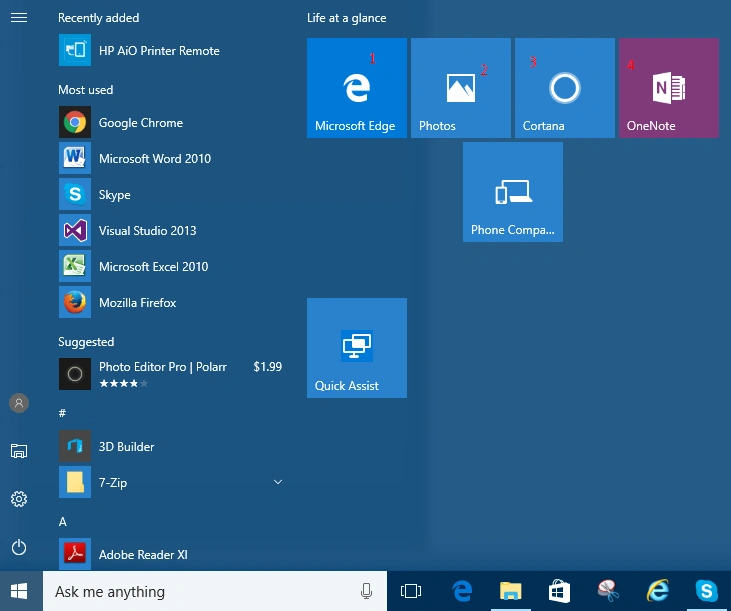
When you select the show more tiles then you will see that the fourth column is enabled.
Prasanna MuraliPosted Sep 20, 2016, 9:33 PM
Nice share
Vignesh ManiPosted Sep 20, 2016, 6:10 PM
Nice