

Introduction
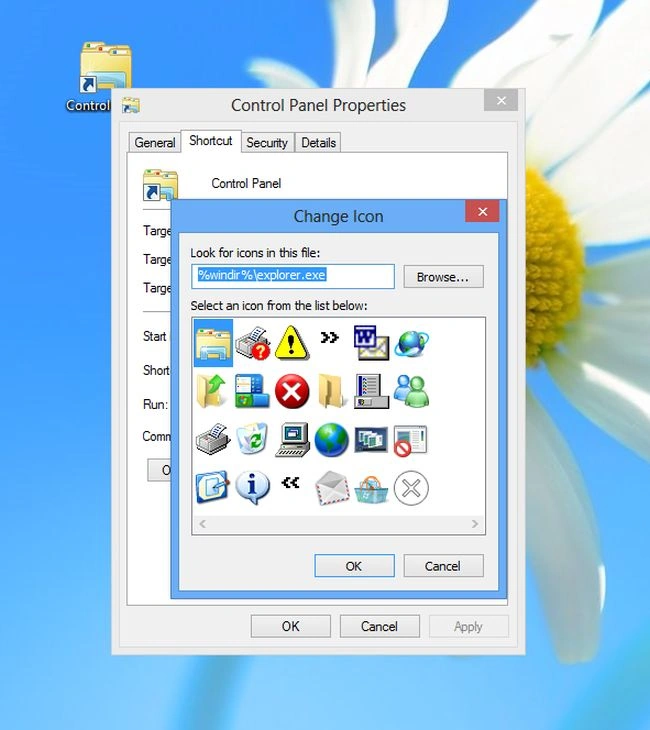
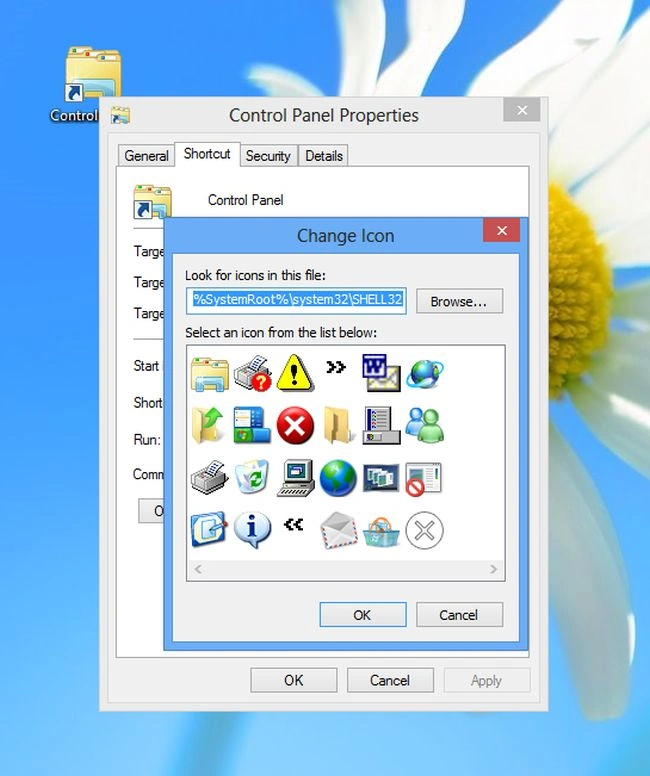
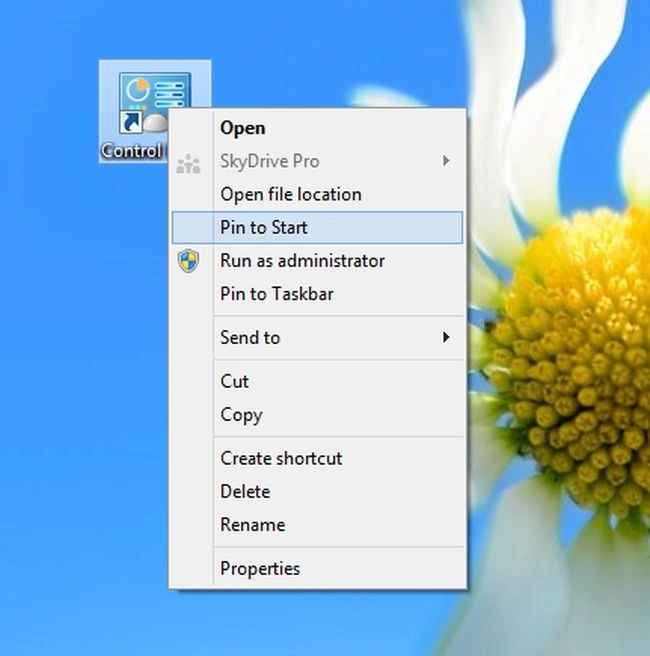
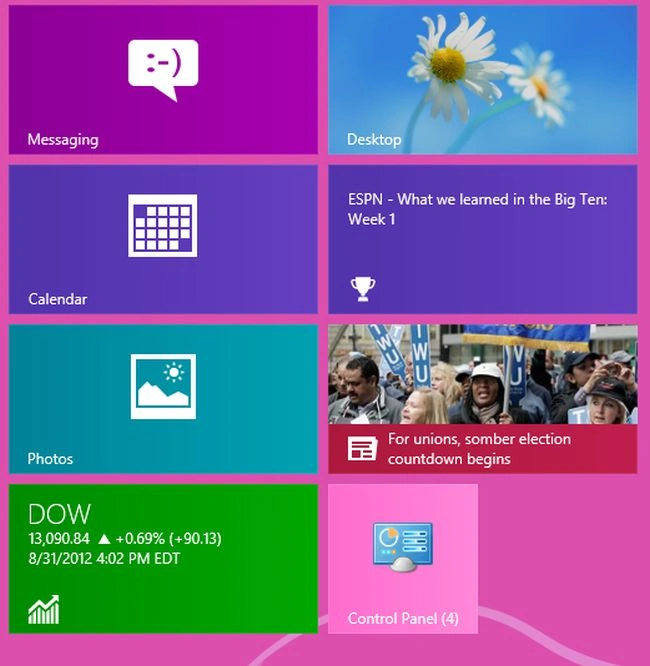
In this article we explain how to add the old Control Panel to the Metro start screen in Windows 8. Windows 8 provides many features but when we need to access the Control Panel in Windows 8, when we have to go through all the new Metro Control Panel, sometimes it is a very difficult process.
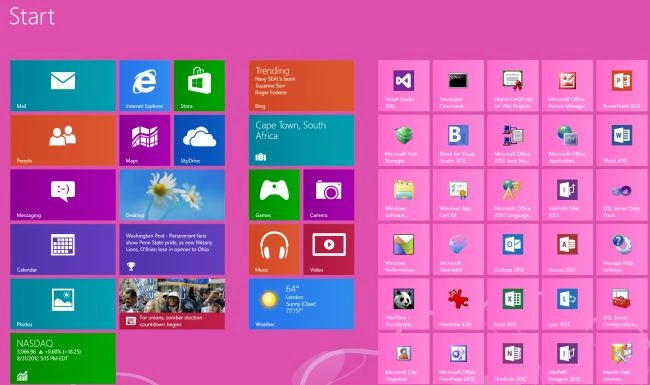
Some steps to add old control panel
Step 1
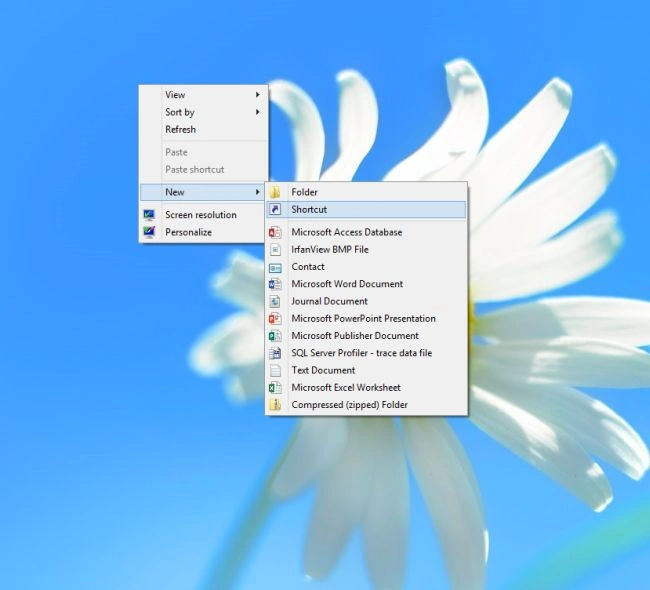
To create a shortcut, first, we right-click on the desktop and go to the new text and then click the shortcut.
Step 2
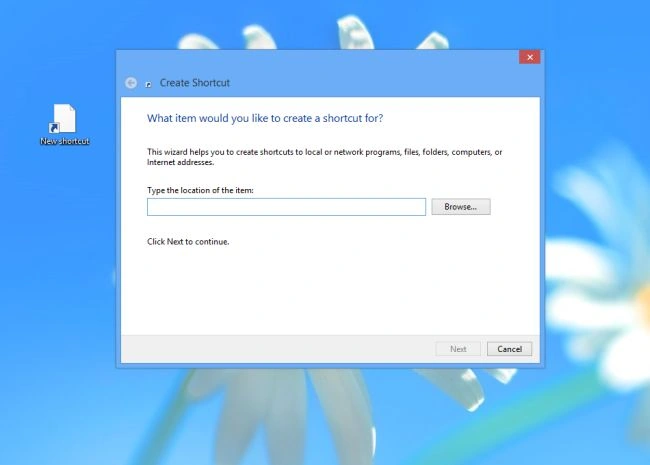
After this process, a shortcut page opens on the desktop.
Step 3
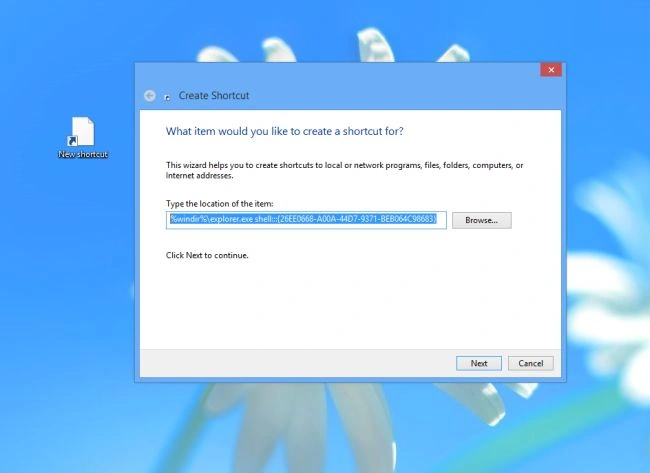
Type the following code in the location of the item:
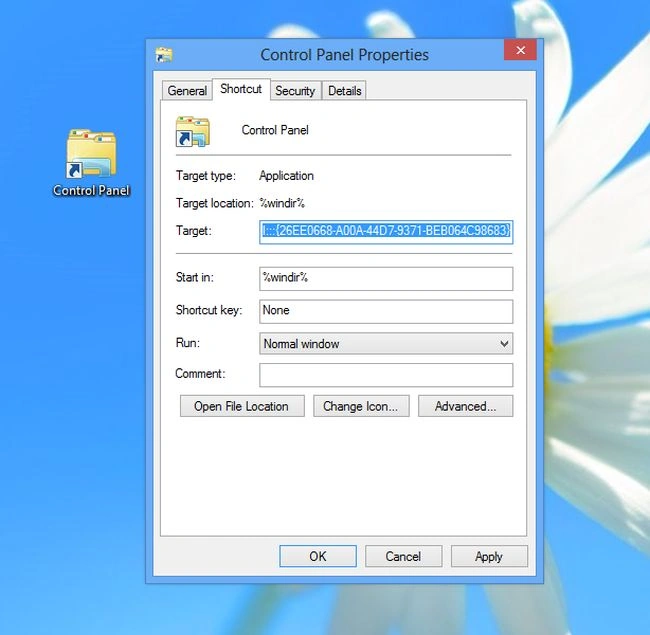
%windir%\explorer.exe shell:::{26EE0668-A00A-44D7-9371-BEB064C98683}
Step 4
We click the next button in the create shortcut page, then open the shortcut name page.
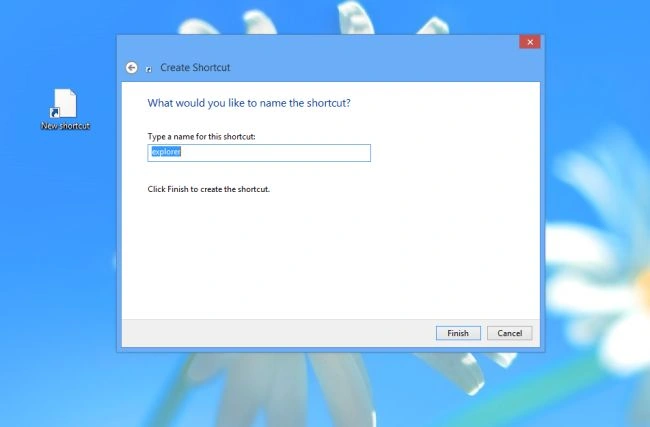
Step 5
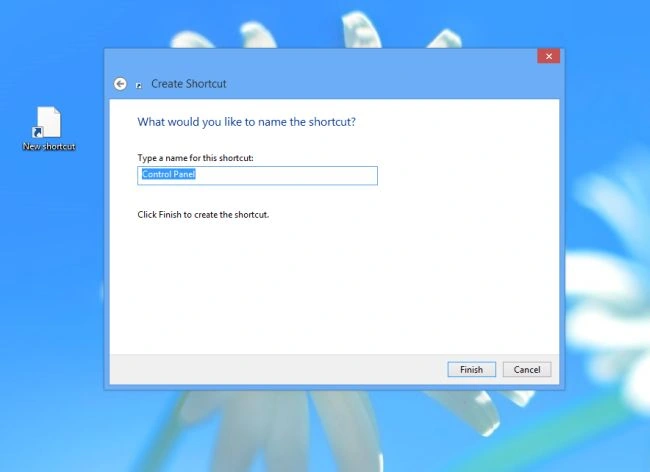
Now we need to give our new shortcut a name, and click Finish.
Aman SinghalPosted Feb 7, 2013, 10:53 AM
Thanx Sharad.
Sharad GuptaeditedPosted Feb 7, 2013, 10:50 AMEdited Feb 7, 2013, 10:50 AM
Nice Article Aman.
Aman SinghalPosted Feb 7, 2013, 6:17 AM
Read this article. http://www.c-sharpcorner.com/UploadFile/83f858/pin-desktop-items-to-the-windows-8-start-screen/
Aman SinghaleditedPosted Feb 7, 2013, 6:15 AMEdited Feb 7, 2013, 6:16 AM
Thanks Rahul.
Rahul SharmaPosted Feb 7, 2013, 6:06 AM
Can we select all item in one time
Rahul SharmaPosted Feb 7, 2013, 6:06 AM
Good for beginners...keep posting