

Introduction
In this article, we will learn how to add TreeView component in React applications. A tree view is used to display a hierarchical list of data. In this demo we use React material UI Treeview component. Material UI is one of the most popular UI frameworks developed by Google. The Material UI library is designed for faster, easier and more developer-friendly user interface development. Now Material-UI is supported by all major browsers and platforms.
You can check my previous article in which we discussed ReactJS and its basic components from the below-mentioned links.
- Add Material UI In React Application
- Add Material-UI Table In ReactJS Application
- How To Create PDF In ReactJS
- Login With Gmail Using ReactJS
- How To Add Tooltip in React Application
- How To Use Owl Carousel In ReactJS
Prerequisites
- Basic Knowledge of React
- Visual Studio Code
- Node and NPM installed
- Material UI Installed
Create ReactJS project
- npx create-react-app platform
Install Material-UI
Now install Material-UI by using the following command.
- npm install @material-ui/core --save
Now, right-click on the "src" folder and add a new component named 'Treeview.js'
First let’s add the following reference in this component.
- import React from 'react';
- import TreeView from '@material-ui/lab/TreeView';
- import ExpandMoreIcon from '@material-ui/icons/ExpandMore';
- import ChevronRightIcon from '@material-ui/icons/ChevronRight';
- import TreeItem from '@material-ui/lab/TreeItem';
- import AppBar from '@material-ui/core/AppBar';
- import Toolbar from '@material-ui/core/Toolbar';
Add the following code in Treeview component.
- import React from 'react';
- import TreeView from '@material-ui/lab/TreeView';
- import ExpandMoreIcon from '@material-ui/icons/ExpandMore';
- import ChevronRightIcon from '@material-ui/icons/ChevronRight';
- import TreeItem from '@material-ui/lab/TreeItem';
- import AppBar from '@material-ui/core/AppBar';
- import Toolbar from '@material-ui/core/Toolbar';
- export default function Treeview() {
- return (
- <>
- <AppBar position="static">
- <Toolbar style={{ 'paddingLeft': "600px" }}>
- Tree View Component in React Application
- </Toolbar>
- </AppBar>
- <TreeView
- defaultCollapseIcon={<ExpandMoreIcon />}
- defaultExpandIcon={<ChevronRightIcon />}
- >
- <TreeItem nodeId="1" label="Music">
- <TreeItem nodeId="2" label="Audio">
- <TreeItem nodeId="3" label="Hindi Music" />
- <TreeItem nodeId="4" label="English Music" />
- </TreeItem>
- <TreeItem nodeId="5" label="Video">
- <TreeItem nodeId="6" label="Hindi Music" />
- <TreeItem nodeId="7" label="English Music" />
- </TreeItem>
- </TreeItem>
- </TreeView>
- </>
- );
- }
- import React from 'react';
- import logo from './logo.svg';
- import './App.css';
- import Treeview from './Treeview'
- function App() {
- return (
- <div className="App">
- <Treeview/>
- </div>
- );
- }
- export default App;
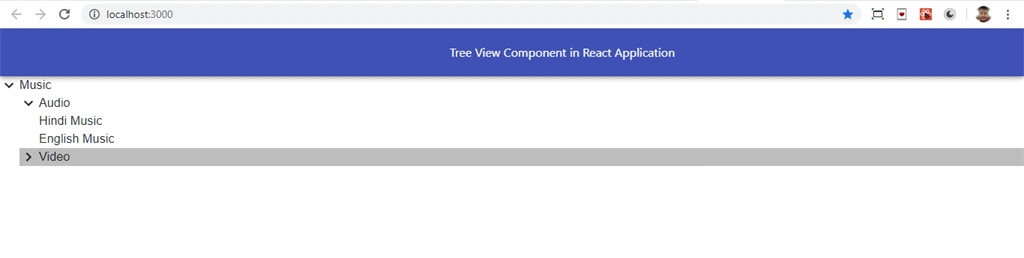
Now let's add another component 'Treeviewdemo.js' file. In this component we add divider in treeview component. Open Treeviewdemo.js and add the following code.
- import React from 'react';
- import { makeStyles } from '@material-ui/core/styles';
- import List from '@material-ui/core/List';
- import ListItem from '@material-ui/core/ListItem';
- import ListItemText from '@material-ui/core/ListItemText';
- import Divider from '@material-ui/core/Divider';
- import TreeView from '@material-ui/lab/TreeView';
- import ExpandMoreIcon from '@material-ui/icons/ExpandMore';
- import ChevronRightIcon from '@material-ui/icons/ChevronRight';
- import TreeItem from '@material-ui/lab/TreeItem';
- import AppBar from '@material-ui/core/AppBar';
- import Toolbar from '@material-ui/core/Toolbar';
- export default function Treeviewdemo() {
- return (
- <>
- <AppBar position="static">
- <Toolbar style={{ 'paddingLeft': "600px" }}>
- Tree View Component in React Application
- </Toolbar>
- </AppBar>
- <List component="nav" aria-label="mailbox folders">
- <ListItem button>
- <TreeView
- defaultCollapseIcon={<ExpandMoreIcon />}
- defaultExpandIcon={<ChevronRightIcon />}
- >
- <TreeItem nodeId="1" label="Music">
- <TreeItem nodeId="2" label="Audio">
- <TreeItem nodeId="3" label="Hindi Music" />
- <TreeItem nodeId="4" label="English Music" />
- </TreeItem>
- <TreeItem nodeId="5" label="Video">
- <TreeItem nodeId="6" label="Hindi Music" />
- <TreeItem nodeId="7" label="English Music" />
- </TreeItem>
- </TreeItem>
- </TreeView>
- </ListItem>
- <Divider />
- <ListItem button divider>
- <TreeView
- defaultCollapseIcon={<ExpandMoreIcon />}
- defaultExpandIcon={<ChevronRightIcon />}
- >
- <TreeItem nodeId="1" label="Demo">
- <TreeItem nodeId="2" label="Audio">
- <TreeItem nodeId="3" label="Hindi Music" />
- <TreeItem nodeId="4" label="English Music" />
- </TreeItem>
- <TreeItem nodeId="5" label="Video">
- <TreeItem nodeId="6" label="Hindi Music" />
- <TreeItem nodeId="7" label="English Music" />
- </TreeItem>
- </TreeItem>
- </TreeView>
- </ListItem>
- <ListItem button>
- <ListItemText primary="Demo" />
- </ListItem>
- <Divider light />
- </List>
- </>
- );
- }
Run the project by using 'npm start' and check the result.
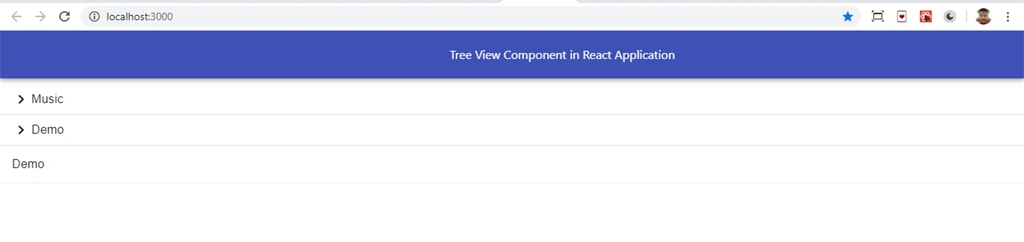
Summary
In this article, we learned how we add create functionality in React applications using React material UI.
Join the conversation! Your thoughts help the community grow.