

Introduction
In this article, you will learn how to archive log files using NLog with ASP.NET Core .
Most of the time, we will store logs in files, and we should archive them so that we can manage them easier. Let's take a look at how to use NLog to archive log files.
Step 1
Create a new ASP.NET Core Web API Application and install NLog.Web.AspNetCore via nuget.
- Install-Package NLog.Web.AspNetCore
Step 2
Create a nlog.config file, and enable copy to bin folder.
We just archive the log files via this configuration file.
Create a nlog.config file, and enable copy to bin folder.
We just archive the log files via this configuration file.
- <?xml version="1.0" encoding="utf-8" ?>
- <nlog xmlns="http://www.nlog-project.org/schemas/NLog.xsd"
- xmlns:xsi="http://www.w3.org/2001/XMLSchema-instance"
- autoReload="true"
- throwConfigExceptions="true">
- <!-- the targets to write to -->
- <targets>
- <target xsi:type="File"
- name="archive"
- archiveEvery="Day"
- archiveFileName = "nlogdemo-{########}.log"
- archiveNumbering = "Date"
- archiveDateFormat = "yyyyMMdd"
- maxArchiveFiles = "4"
- fileName="nlogdemo.log"
- layout="${longdate}|${level:uppercase=true}|${logger}|${message}" />
- </targets>
- <!-- rules to map from logger name to target -->
- <rules>
- <!--All logs, including from Microsoft-->
- <logger name="*" minlevel="Warn" writeTo="archive" />
- </rules>
- </nlog>
Just pay attention to the opions that contains archive.
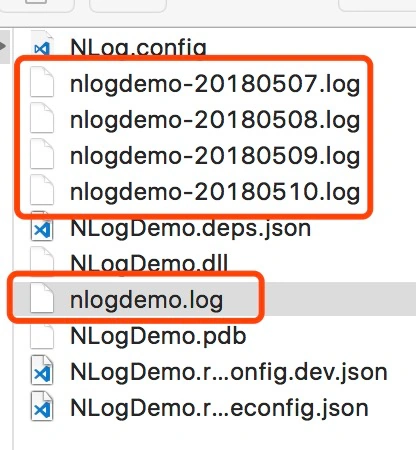
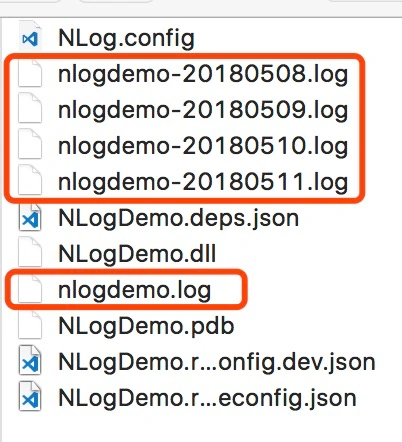
The above configuration means that we hava a main log file named nlogdemo.log which stores today's log.
It will archive logs daily and the file name of the archive log file will be formatted like nlogdemo-20180505.log.
And the max number of archived log files is 4 which means it will keep only the newest 4 files.
Step 3
Update program.cs so that we can enable NLog.
It will archive logs daily and the file name of the archive log file will be formatted like nlogdemo-20180505.log.
And the max number of archived log files is 4 which means it will keep only the newest 4 files.
Step 3
Update program.cs so that we can enable NLog.
- namespace NLogDemo
- {
- using Microsoft.AspNetCore;
- using Microsoft.AspNetCore.Hosting;
- using NLog.Web;
- public class Program
- {
- public static void Main(string[] args)
- {
- BuildWebHost(args).Run();
- }
- public static IWebHost BuildWebHost(string[] args) =>
- WebHost.CreateDefaultBuilder(args)
- .UseStartup<Startup>()
- .UseNLog()
- .Build();
- }
- }
Step 4
Write some logs in controller.
Write some logs in controller.
- private readonly ILogger _logger;
- public ValuesController(ILoggerFactory loggerFactory)
- {
- _logger = loggerFactory.CreateLogger<ValuesController>();
- }
- // GET api/values
- [HttpGet]
- public IEnumerable<string> Get()
- {
- _logger.LogDebug("debug");
- _logger.LogError("error");
- _logger.LogTrace("trace");
- _logger.LogInformation("info");
- _logger.LogWarning("warn");
- _logger.LogCritical("critical");
- return new string[] { "value1", "value2" };
- }
Now, change the date of computer to see the results.
Source Code
Summary
This article introduced the basic configuration to acrchive log files using NLog.
Hope this can help you.
Mhmt BtlPosted May 10, 2018, 10:37 AM
So it doesn't keep more than 4 files for archive files. if it is true why?
Tridip BhattacharjeePosted May 9, 2018, 2:44 AM
What is the meaning of this line layout="${longdate}|${level:uppercase=true}|${logger}|${message}"
Tridip BhattacharjeePosted May 9, 2018, 2:44 AM
Log file name start like nlogdemo-20180505.log. then why we need to mention fileName="nlogdemo.log" ?
Tridip BhattacharjeePosted May 9, 2018, 2:44 AM
In which location we need to create nlog.config file ?
Tridip BhattacharjeePosted May 9, 2018, 2:44 AM
Nice article.....thanks