

Introduction
The purpose of this article is to discuss the construction of a couple of simple custom controls that extend both the Combobox and the Listbox controls to allow them to associate both a text and a value property with each item in the control's list. Both controls will normally allow the developer to assign a value property and a text property to each item in the list but only if the control is bound to a data source. If the control is not bound, the option to immediately assign a value to an item in the list is not available.
If one requires that both text and a value be assigned to each item in the list, it is easy enough define a class containing a text and value property and to then create a collection of objects of that type and then bind that collection to the control. In this approach, the developer may need also to need to write handlers to get the value associated with a selected item, to remove items form the list, and to add items to the list (along with a value). If there are a large number controls, writing these additional functions to handle each specific control can be somewhat tedious.
There are a number of reasons why it could be beneficial to supply both a text and value property to an unbound list based control item. In general, if it is not productive, expedient, or even possible to bind a list based control to a data source and the value property is meaningless to the user but essential to the application, having the means to supply the value property along with the user friendly text can be pretty useful.
This demo includes a project with two extended, list based controls capable of holding both a text and a value property without binding, and it contains a demonstration project in which the two controls are used.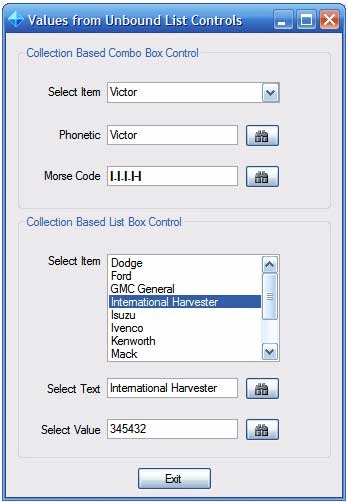
Figure 1: Demo Project with Extended Combobox and Listbox in Use.
The demo application shown if figure 1 uses both the extended Combobox and Listbox controls; the extended Combobox contains the alphabet in phonetic format; the text property contains the phonetic alphabet while the value property contains a not to user friendly pipe delimited string of dots and dashes used to define the Morse code equivalent for the letter. I picked on the Morse code to supply the value because whilst most people would easily recognize that Alpha stands for 'A' and Bravo stands for 'B'; they would not so easily recognize that |...|---|...| means "SOS" or that |...|-.-.|.|-|-| represents "Scott" in Morse code.
Just for fun, when the user selects one of the options from the extended Combobox, the application displays both the phonetic (text) property and Morse code (value) property in the two textboxes below the extended Combobox. Also, when an item is selected, the application will decipher the Morse code (value) and play it aloud so the user can hear the Morse code whilst seeing the phonetic alphabet character and string representation of the Morse code. The two buttons located adjacent to each text box are used to retrieve the value property from the text property or the text property from the value property.
The extended Listbox control is used in a manner similar to the extended Combobox but it does not play any Morse code through the speakers. It displays the names of different truck manufacturers along with an number used to identify that manufacturer. As with the Combobox, the Listbox contains two text boxes beneath it which are used to display the text and value properties for the selected item. It also uses two button controls to either pull up the value from the text or the text from the value.
Getting Started
The solution contains two projects; one is a class library project containing two custom controls and the other is a demonstration Windows application that contains a single form. The two controls contained in the class library project are an extended version of each the Combobox and the Listbox control. The form in the demonstration application contains both types of custom control along with some additional controls used to exercise the custom controls.
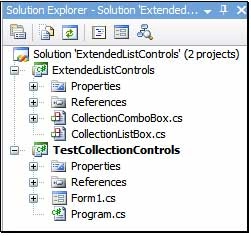
Figure 2: Solution Explorer.
Project: Extended List Controls
The extended list controls project contains two custom controls: CollectionComboBox.cs and CollectionListBox.cs. The controls are extended versions of the standard toolbox controls; the purpose of the extension of each control was to add in a collection (a SortedList) and to provide the additional code necessary to give access to the collection and to display the members of the collections is the control's standard list. Since both controls are essentially the same except for the type of control extended, I will only describe one of the two control's code; the code for the CollectionComboBox.cs control is as follows:
The class contains the following references, namespace and class declaration; note the addition of System.Collections and System.Windows.Forms:
using System;
using System.Collections;
using System.ComponentModel;
using System.Text;
using System.Windows.Forms;
namespace ExtendedListControls
{
/// <summary>
/// The class ties the combobox list to the contents of a
/// sortedlist; the sortedlist is used to maintain a
/// key and value pair for use primarily with unbound
/// versions of the control (where text and value columns
/// from a data source would normally be used to set
/// each list item's text and value property.
/// </summary>
public class CollectionComboBox : ComboBox
{
The class declaration shows that the class is based upon and extends the standard Combobox control. By inheriting the combobox control, we pick up all of the functionality associated with that control. Following the class declaration, and sorted list is declared, and in the constructor, a new instance of the sorted list is created:
/// <summary>
/// Declare a local sortedlist to maintain
/// text and value properties for the unbound
/// combobox
/// </summary>
private SortedList mListCollection;
// constructor
public CollectionComboBox()
{
// create new instance of
// the sortedlist
mListCollection = new SortedList();
}
The sorted list, "mListCollection" will be used to contain the text and value pairs assigned to each item in the control's list.
Following the constructor, the first method is defined:
/// <summary>
/// Add text and value items to the sorted list
/// directly
/// </summary>
/// <param name="sText"></param>
/// <param name="sValue"></param>
public void AddListItem(string sText, string sValue)
{
try
{
mListCollection.Add(sText, sValue);
}
catch { return; }
// reload the control with the current list
this.Items.Clear();
foreach (DictionaryEntry de in mListCollection)
{
this.Items.Add(de.Key.ToString());
}
}
The AddListItem method defined above is used to add key-value pairs to the sorted list. The attempt to add an item is wrapped in a try catch block; this will prevent attempts to load duplicate keys from interfering with the application; if the user does attempt to enter duplicate keys, the attempt will fail the application will return from the method call without changing the sorted list. One could rig this method to return Boolean value indicating the success of the operation. After the item has been added to the sorted list, the combobox is cleared of all items and each item from the newly updated sorted list is then added back into the list.
The next method defined is used to remove an item from the sorted list; this method works very much the same as the code used to add an item:
/// <summary>
/// Remove an item from the control
/// </summary>
/// <param name="sText"></param>
/// <returns></returns>
public void RemoveListItem(string sText)
{
try
{
mListCollection.Remove(sText);
}
catch { return; }
// reload the control with the current list
this.Items.Clear();
foreach (DictionaryEntry de in mListCollection)
{
this.Items.Add(de.Key.ToString());
}
}
The next bit of code in the control is used to get the value associated with an item contained in the list. Selection of the returned item is based upon the current selected index value from the control's standard list:
/// <summary>
/// Return the value of an item from its selected index
/// value
/// </summary>
/// <returns></returns>
public string GetValue()
{
try
{
Return Convert.ToString(mListCollection.GetByIndex(this.SelectedIndex));
}
catch
{
return string.Empty;
}
}
If the item is not found in the list, the method returns an empty string.
The next method in the class is used to return the value associated with a list item's text. The value is obtained by examining the contents of the list until the value text is found and then, per the found text, the value is obtained and returned as a string. If the value is not located, an empty string is returned:
/// <summary>
/// Return the value of an item based upon its text; if the
/// item is not found, return an empty string
/// </summary>
/// <param name="sText"></param>
/// <returns></returns>
public string GetValueByText(string sText)
{
string tmp = string.Empty;
try
{
foreach (DictionaryEntry de in mListCollection)
{
if (de.Key.ToString() == sText)
{
tmp = de.Value.ToString();
}
}
return tmp;
}
catch
{
return tmp;
}
}
The last method in the control's code is used to obtain the text for a list item based upon its key:
/// <summary>
/// Return the text of an item based upon its value; if the
/// items is not found, return an empty string.
/// </summary>
/// <param name="sValue"></param>
/// <returns></returns>
public string GetTextByValue(string sValue)
{
string tmp = string.Empty;
try
{
foreach (DictionaryEntry de in mListCollection)
{
if (de.Value.ToString() == sValue)
{
return de.Key.ToString();
}
}
return tmp;
}
catch
{
return tmp;
}
}
Note that since only the text side is guaranteed to be unique, if the collection contained multiple values of the same content, this method will return the first item found that meets the criteria. The important method is therefore one that retrieves the value associated with the unique key (text) property. The value of this last function will be limited unless the user of the control limits the list to items unque as both text and value.
That wraps up the code in the custom control. As mention previously, the extended ListBox control works in exactly the same manner with the same methods and properties available.
Project: Test Collection Controls (Demonstration Project)
This project contains a single form and one of each of the two custom controls (along with some other controls used in conjunction with those custom controls.
The form contains two group boxes; in the top box is an extended ComboBox control along with two text boxes and two buttons. When a user makes a selection from the extended ComboBox, the event handler for that control will be used to place the related text and value properties into each of the two text boxes. The two buttons are used along with text boxes to pull up the value from the text or the text from the value. In this case, the custom control is populated with all of the letters defined in the phonetic alphabet on the text side and the Morse code representation of the letter in the value side. Morse code values are displayed in the form of a pipe delimited string made up of dots and dashes. Further, when the item is selected, the value is sent to a method that deciphers the Morse code and plays it aloud through the speakers.
The second group box contains an extended ListBox control; this control is populated with a list comprised of the names of truck manufacturers along with an arbitrary six digit identifier. This group box also contains two text boxes and two buttons that are also used to display the value and text properties associated with items contained in the control's sorted list. The buttons here are used to display the value associated with the selected text and the text associated with selected value.
The form class code starts out with the following references, namespace, and class declaration:
using System;
using System.Collections.Generic;
using System.ComponentModel;
using System.Data;
using System.Drawing;
using System.Text;
using System.Windows.Forms;
using System.Runtime.InteropServices;
namespace TestCollectionControls
{
/// <summary>
/// A test application demonstrating the use of the
/// extended combobox and listbox controls
Join the conversation! Your thoughts help the community grow.