

In this article, we will explore how an admin can create new users and send their credentials such as username and password which will enable them to log in to the Power Pages site.
Prerequisites
To see record of newly create user on Power Pages Site:
Configure site settings for WebAPI and table
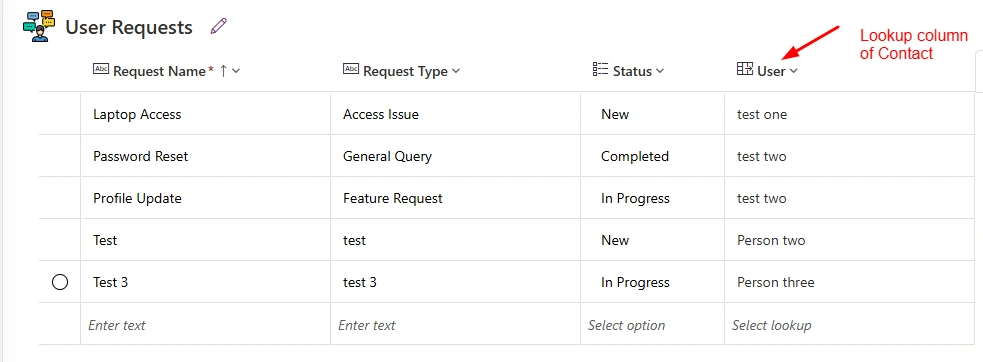
Create relationship with record table and contact table via lookup column
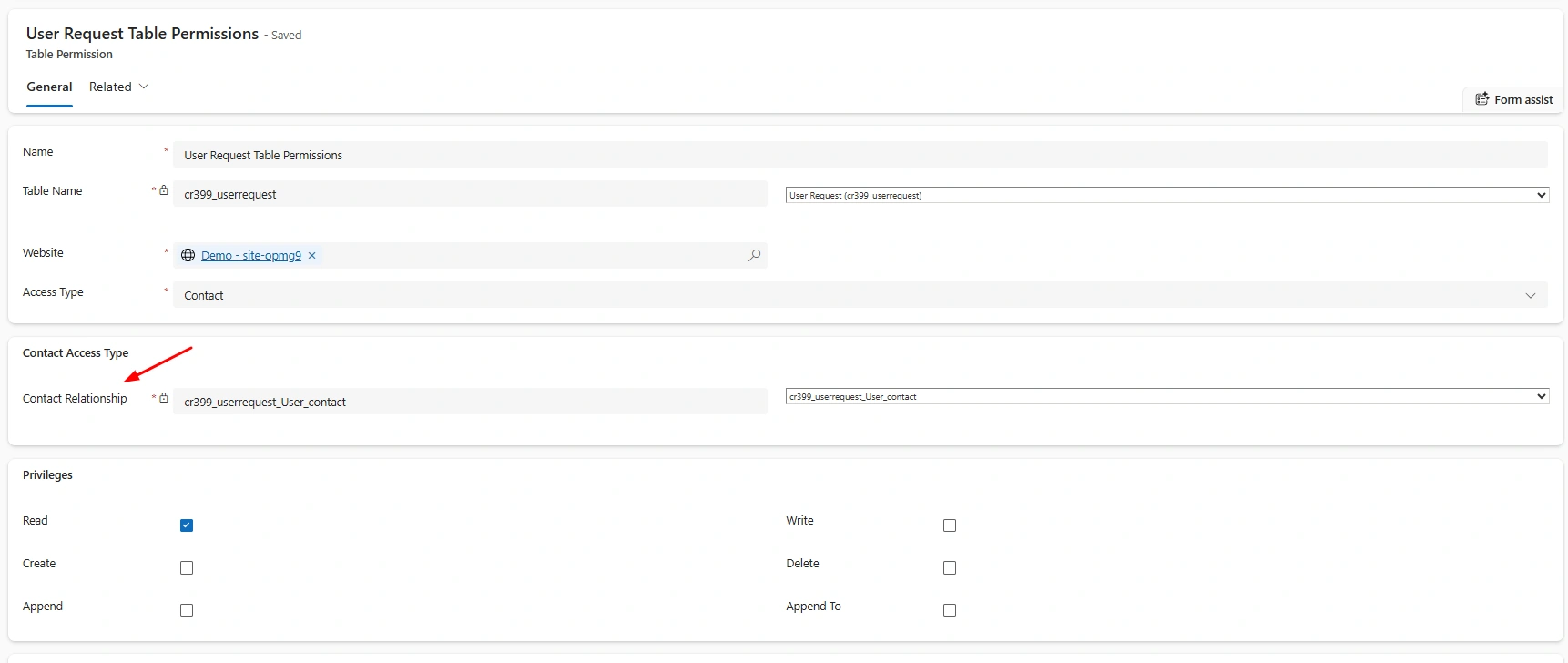
Create contact relationship with Record table from Table Permissions
Steps to create flow that Auto Generate Password and Send User Credentials
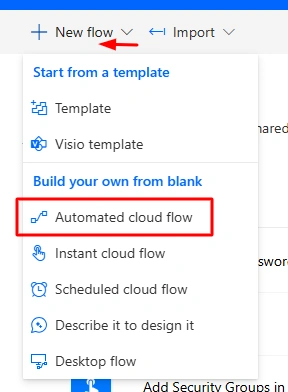
Go to make.powerautomate.com then create new flow and select "Automated cloud flow"
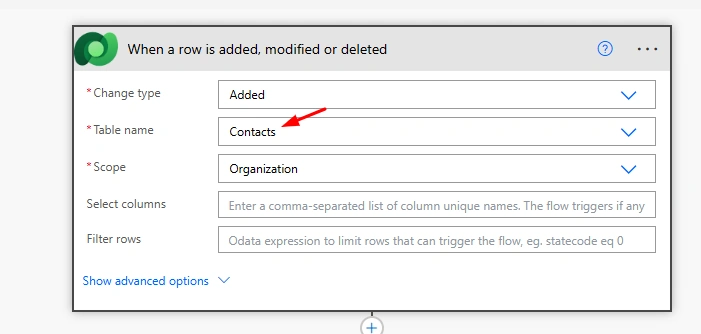
Add this trigger of Dataverse that triggers when record is created in Contacts table
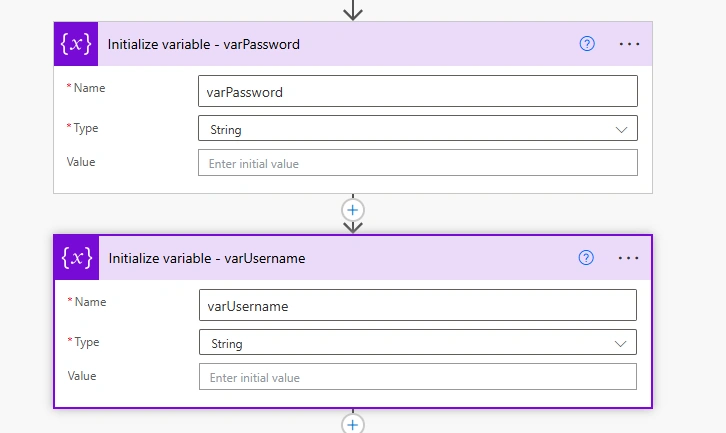
Initialize variables for username and password
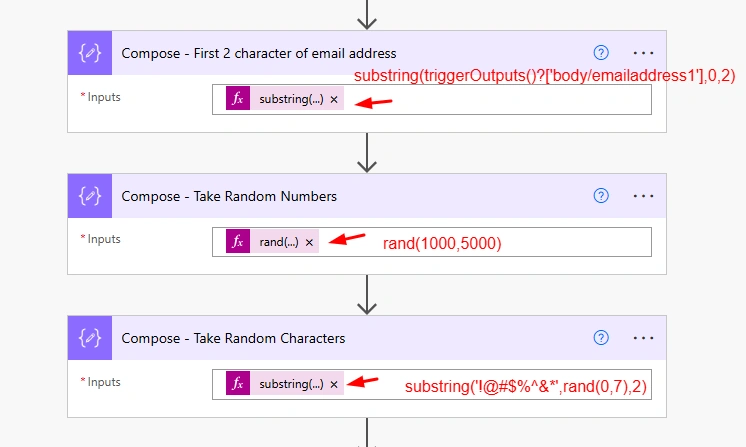
Add these compose for generating characters from email, random numbers & characters
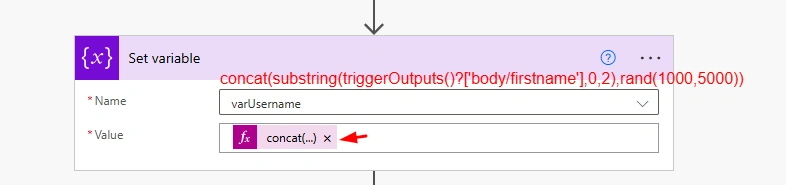
Set username variable to these - take first 2 characters from first name & random numbers
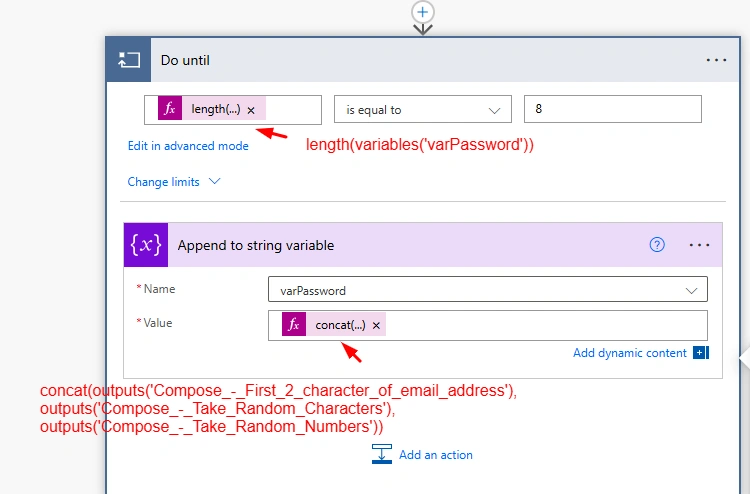
Add do until loop action for generating 8 characters long password
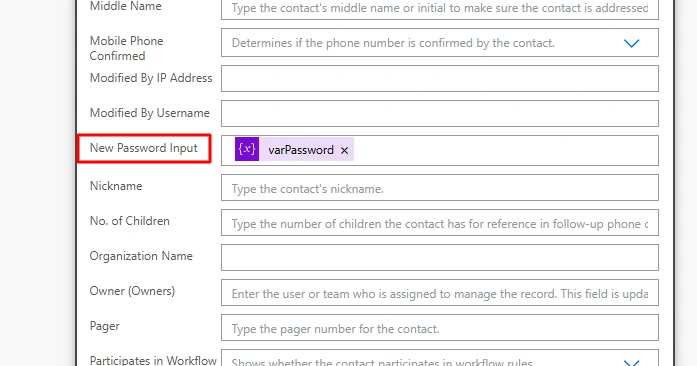
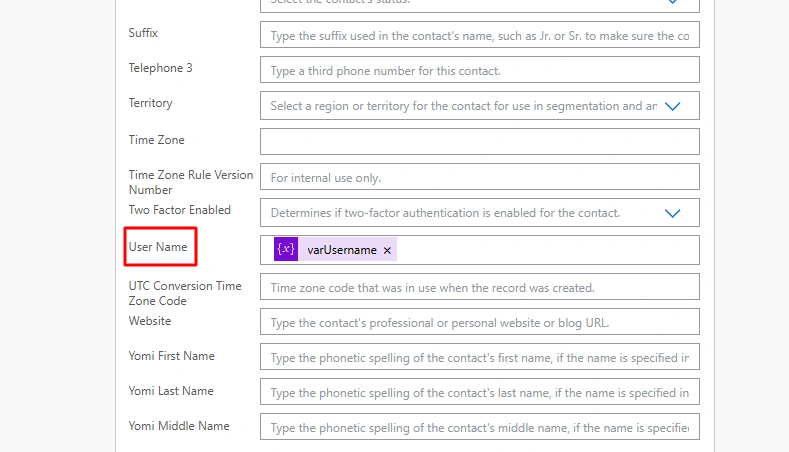
Add Update row action for updating password and user name to New Password Input and User name respectively.
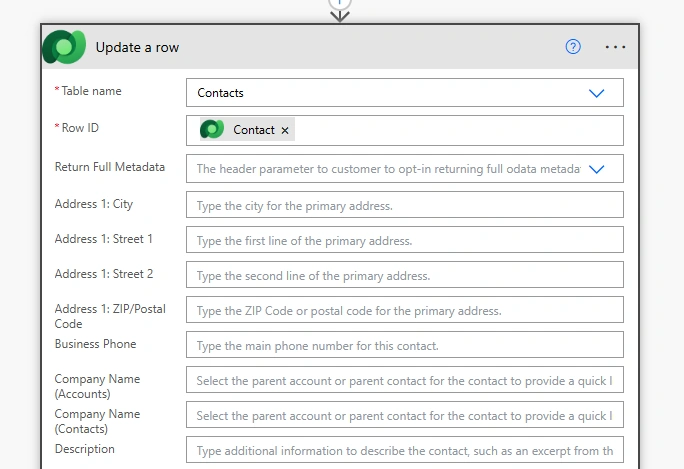
The New Password Input column is where the plain text password generated by Power Automate is temporarily stored. However, this column's value is not visible in the Contact table itself for security reasons. It is designed solely to hold the password before it is hashed and stored in the password hash column.
Update username to User Name column
Add email action for sending email to newly created user.
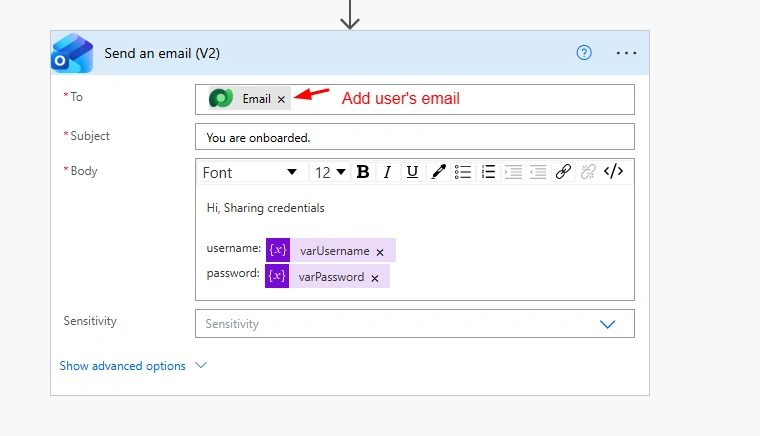
Display their data to newly created user
Create record in Contacts table via Power Pages Management
Go to power pages studio then proceed with these
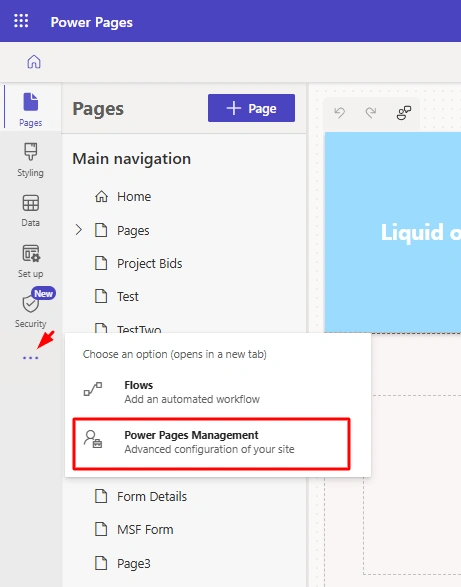
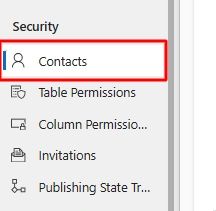
Click on Contacts from Security section.
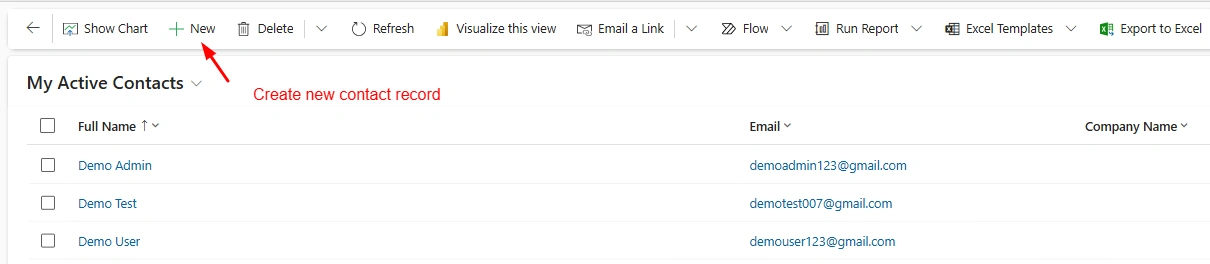
Click on New for creating new contact record.
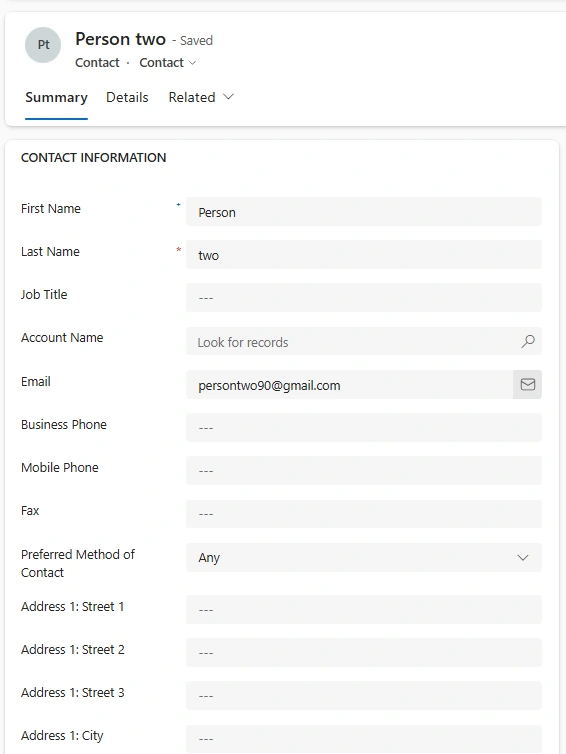
Demo
I have created this contact record
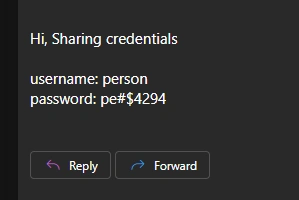
Mail arrives with credentials
New user record stored in Contact table

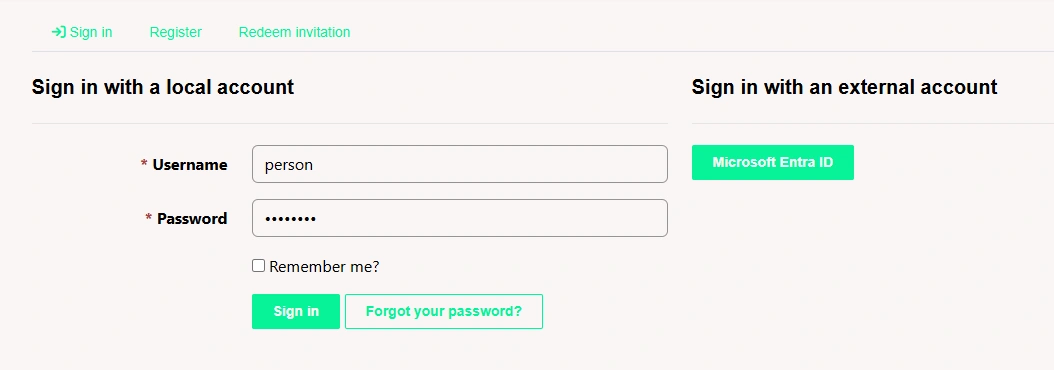
On Power Pages site, click on sign in for log in with credentials that arrived in mail

Enter username & password then click on Sign in button
After logged-in , user will see their record.

Conclusion
In this article, we’ve walked through the process of automatically generating passwords for new users and enabling them to log in to a Power Pages site using Power Automate. By integrating a special column like New Password Input in the Contact table, we can securely store user credentials without exposing sensitive data. Through this process, users receive their credentials via email, and their password is securely hashed and stored in the system.
This approach not only simplifies the user onboarding process but also make sure that passwords are handled securely, providing both convenience and protection for your users.
Join the conversation! Your thoughts help the community grow.